
PART 5
Export to CRM, then check what pushed.
This last part is the VA side of the work. I add the phone status label, push it over to REISift with Export to CRM, then check the label and the note landed. Then I show you how to pull the next batch of mobile numbers out of REISift to text.
Send each conversation with Export to CRM.
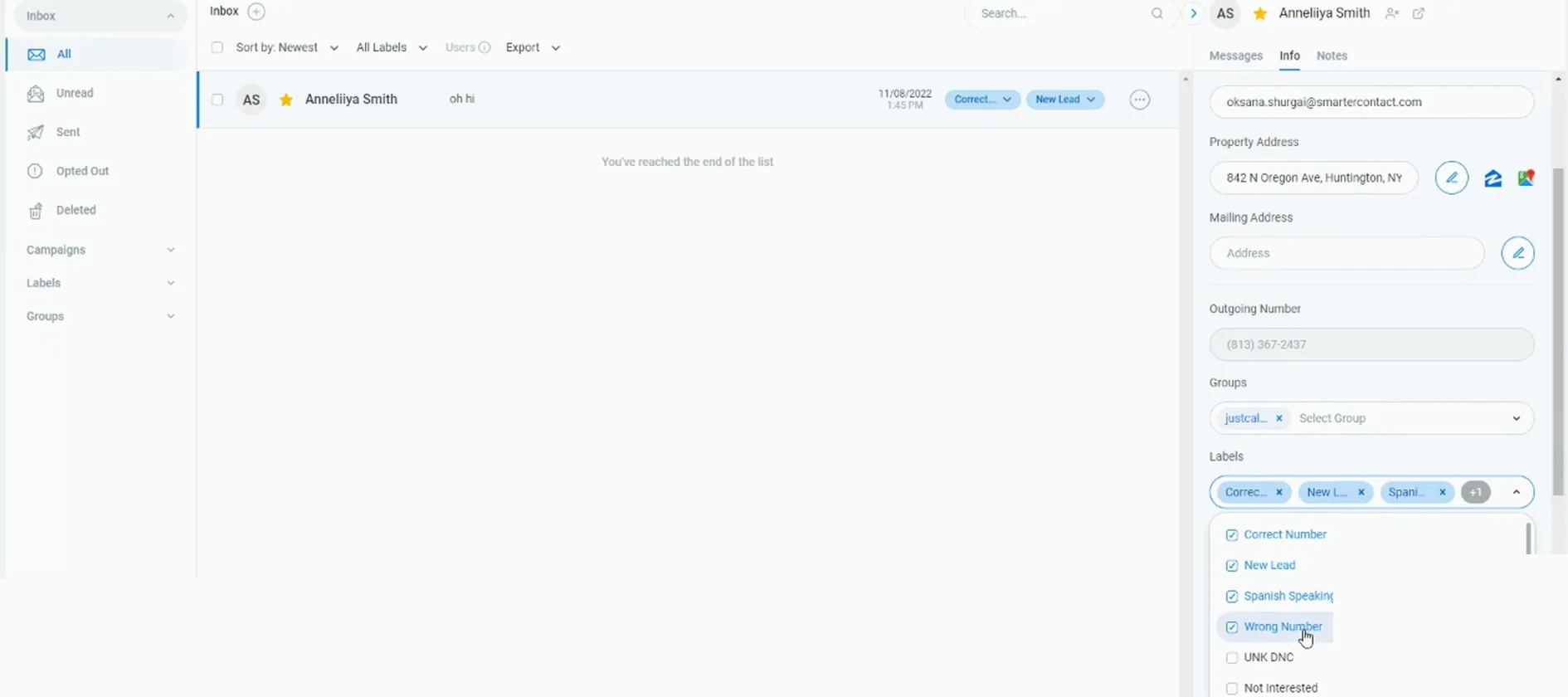
Tick the Wrong Number label in the message info panel.
This is the label the VA picks after they read the message and answer it. That is literally all your VA is going to do. They look at the message, they answer it, and then they move it over.
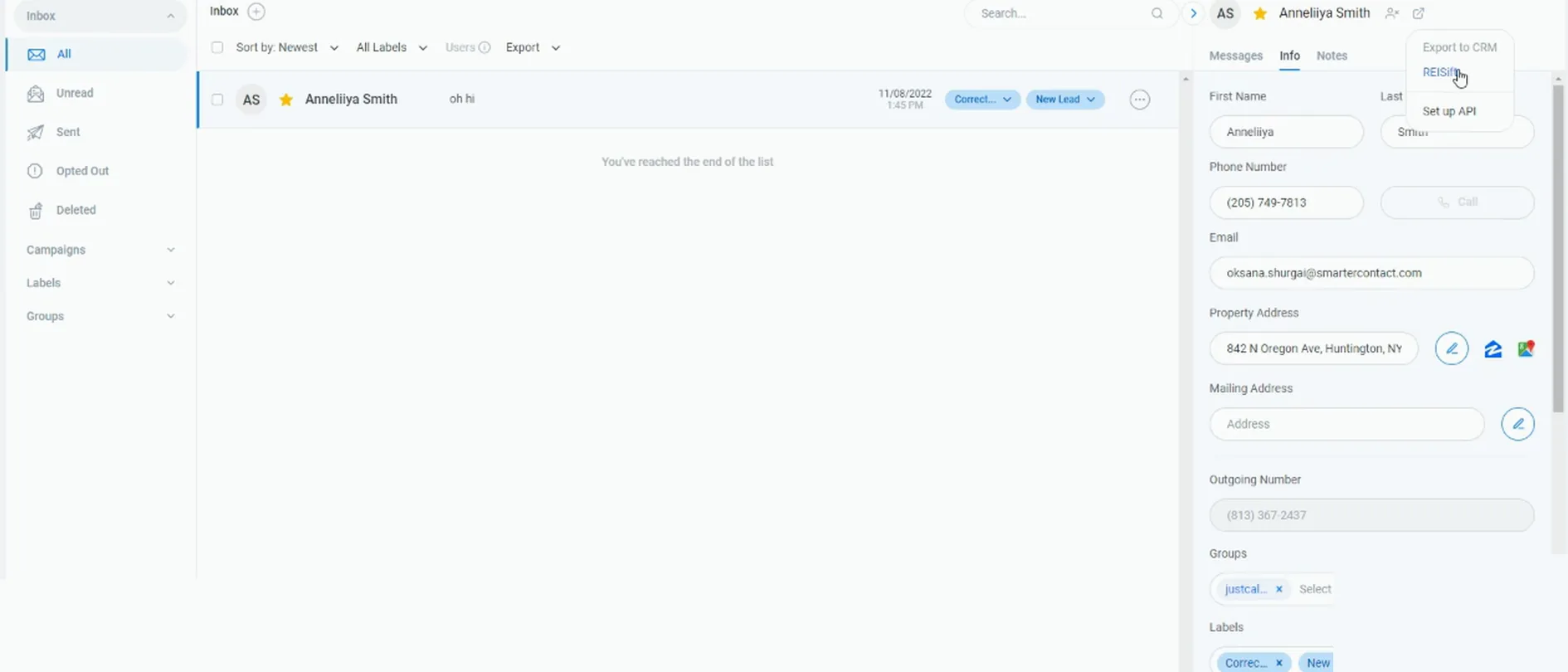
Click Export, then click Export to CRM.
It is not automatic. It is not going to push over on its own. So you do have to click here, and you do have to click on export to CRM. Then move on to your next conversation.
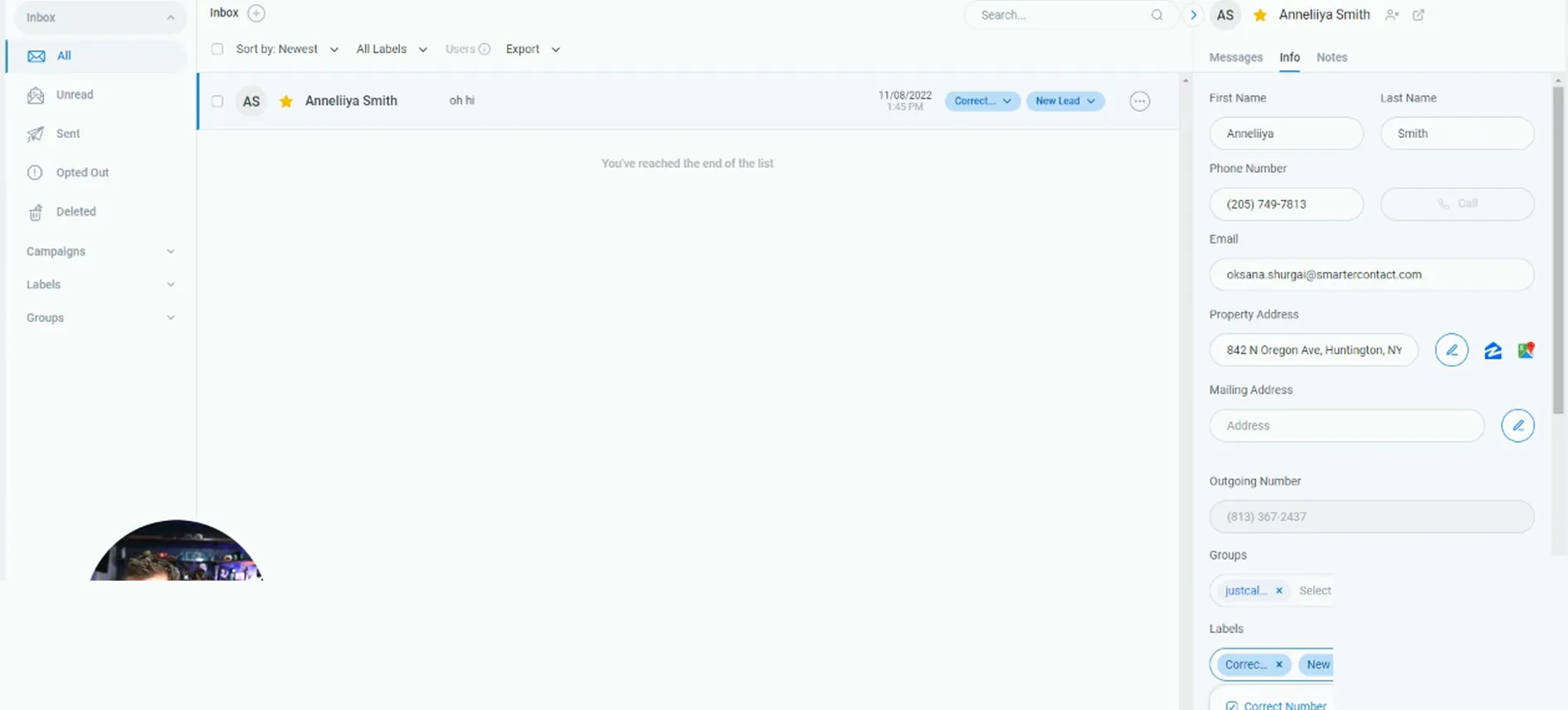
Apply two phone status labels in order, then export and compare.
I was not quite sure what happens if you do two phone status labels, so I checked it. It does whatever one has been added most recently. The earlier label stays on the conversation, but the later one is what gets written back.
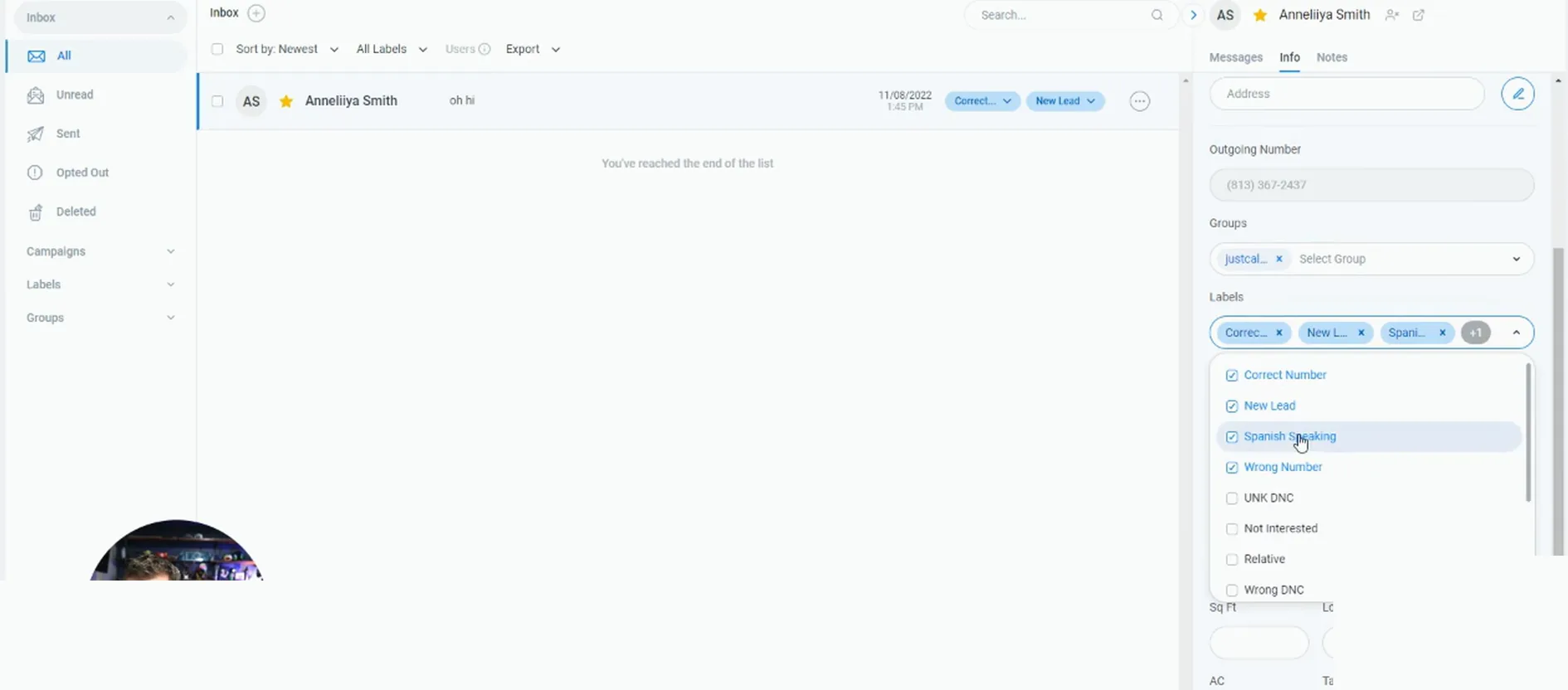
Remove the earlier phone status label so you can track it.
It goes correct number, wrong number. Since wrong number is processed last, it overrides the correct number. So you do not have to remove that previous label, but it would probably be a smart thing to do so you can track it.
And of course all of that gets tracked in the activity log.
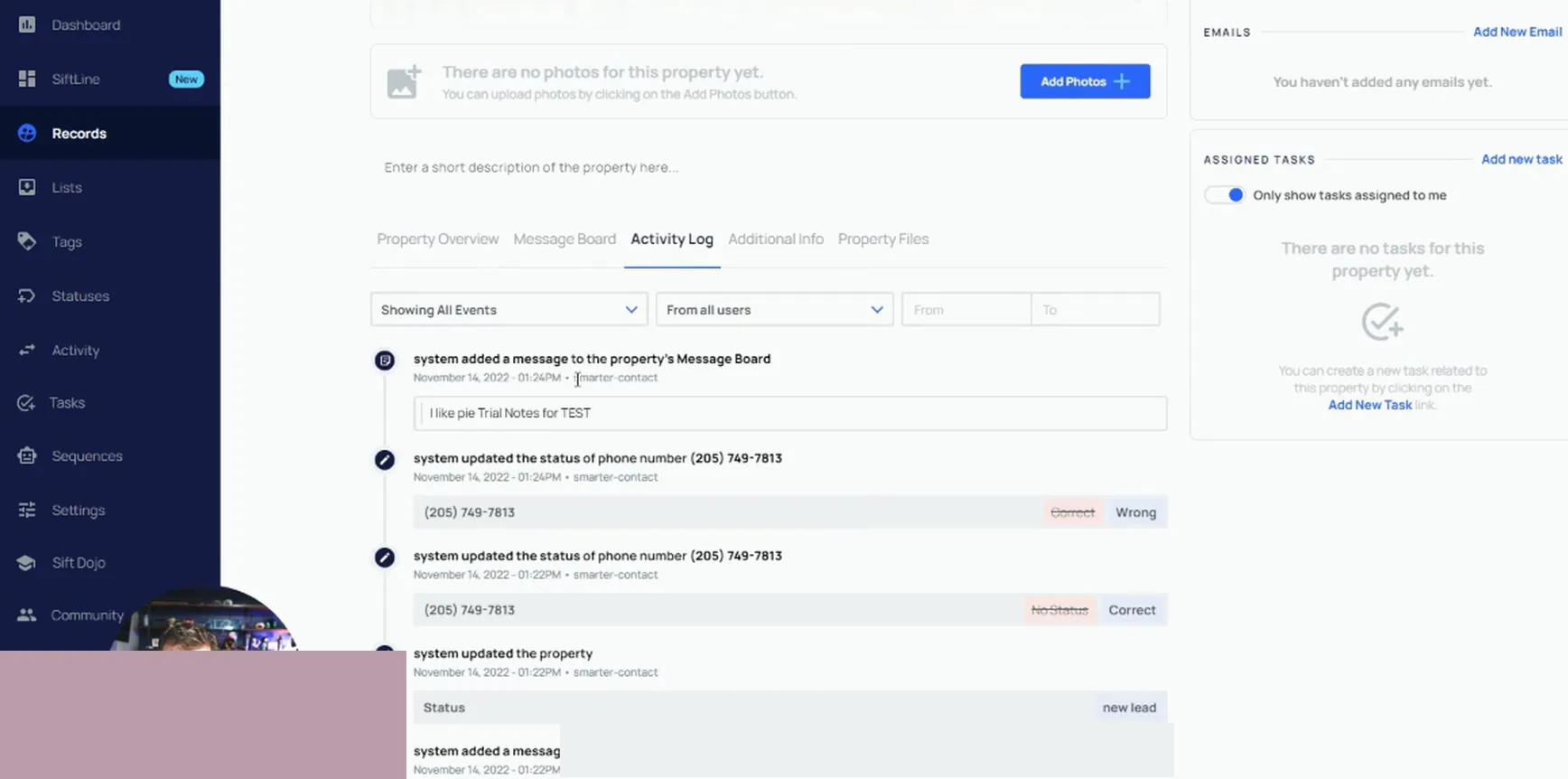
Open the Activity Log tab on the REISift property record.
You can see that this was added in here. You can also see that it pushes the notes as well, not just the label.
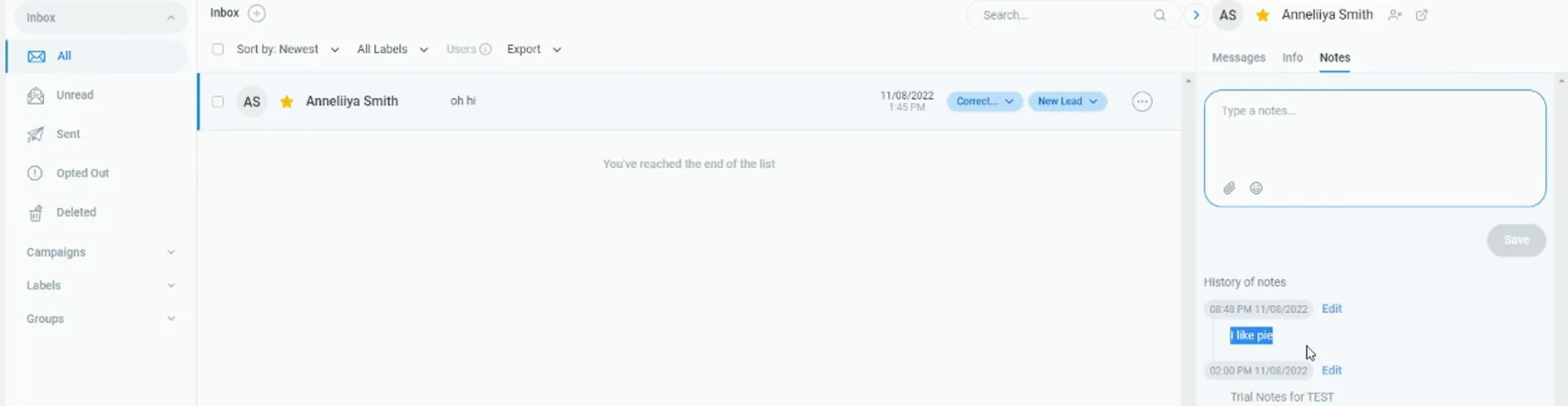
Open the Notes tab and read the note you pushed.
I have I like pie in there, and trial notes for test. If I were to put something different here, it will push that to the message board each time that you push it.
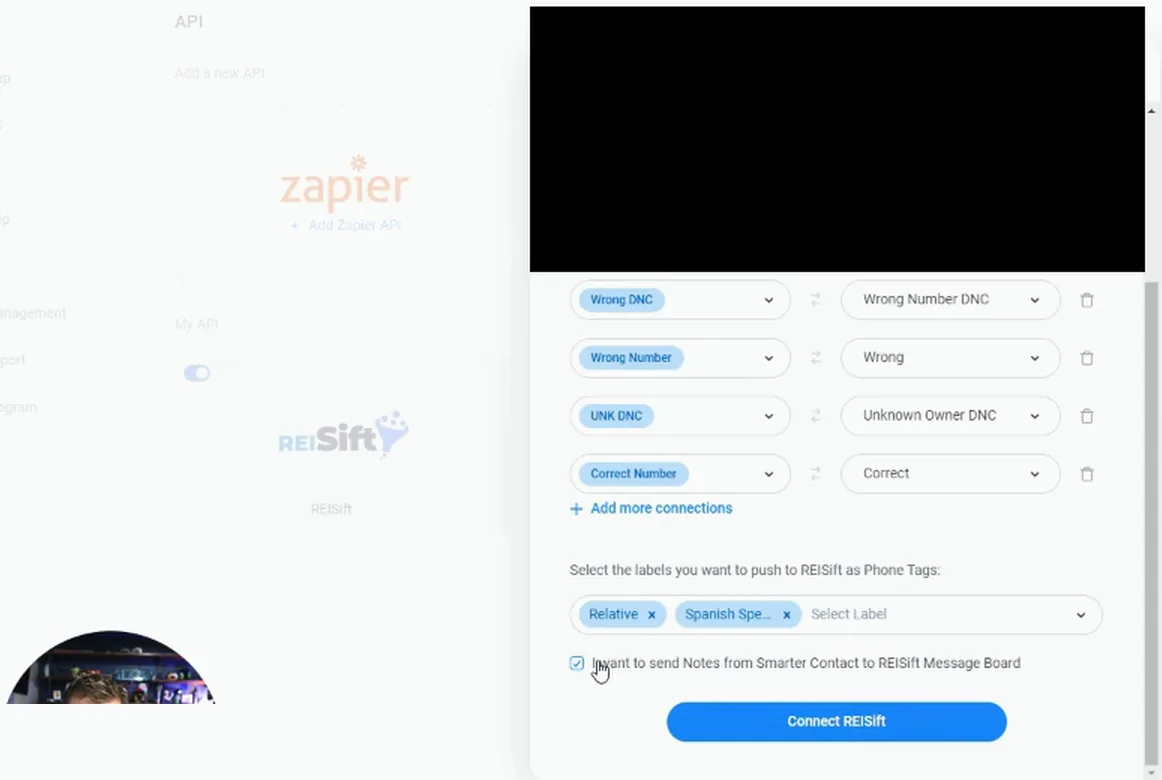
Leave I want to send notes checked in Settings, API.
Uncheck it only if you do not want notes copied to the Message Board. Each manual push sends the current note, so pushing the same conversation more than once can duplicate it.
It does not hurt anything to have that information pushed over even if it ends up being duplicated.
you can remove that by going to your settings API and unchecking the I want to send notes, but I would leave it open.
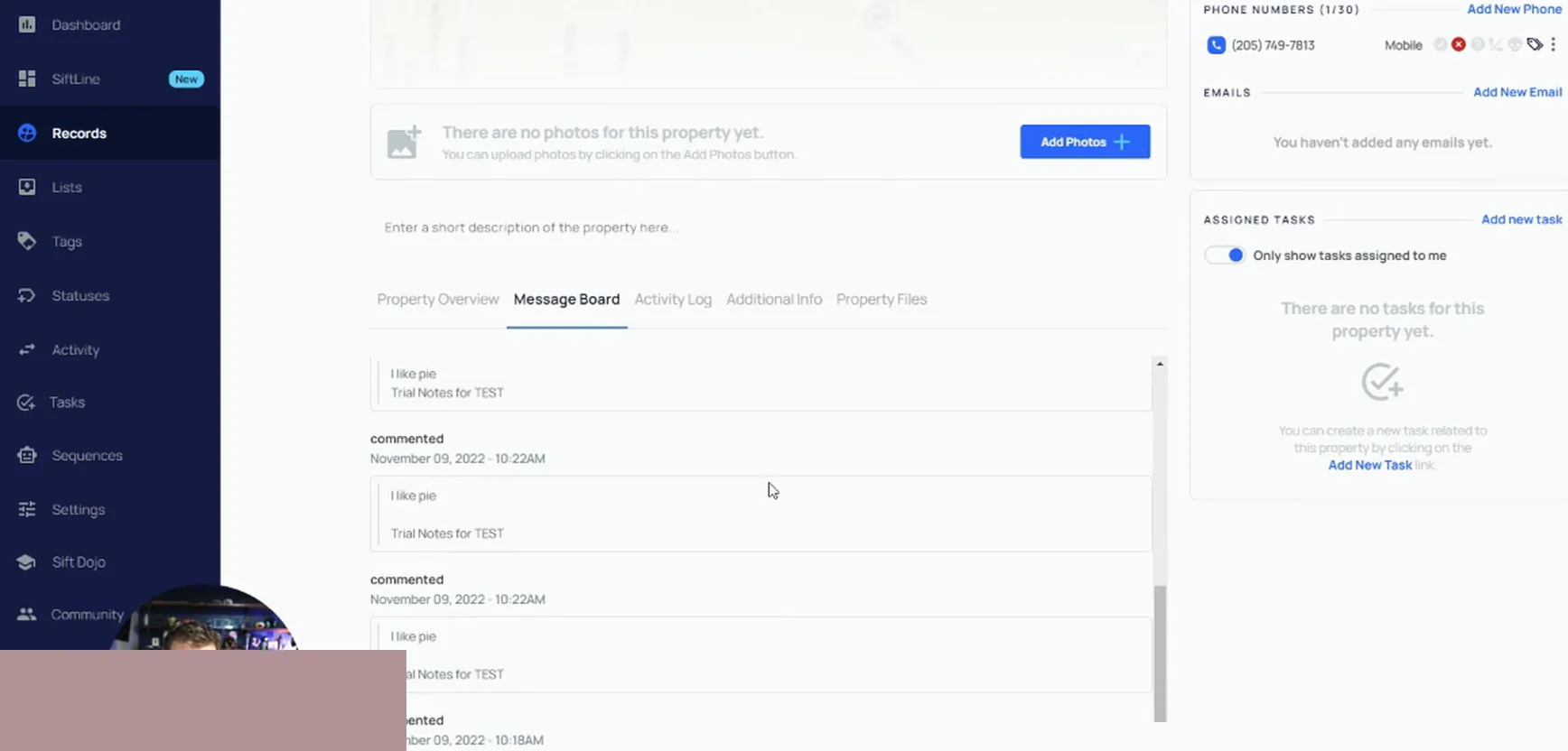
Open the Message Board tab and look for repeated notes.
You can see that it has done this every time that we tested the integration. It actually pushed that information over each time, so be aware of that. There should not realistically be a reason why you sent it over as many times as I have here.
Open the property record and check the phone numbers and notes.
As of right now you cannot send data from REISift into SmarterContact, but it is something SmarterContact is working on. Until then, make sure you check out the help center articles related to exporting data.
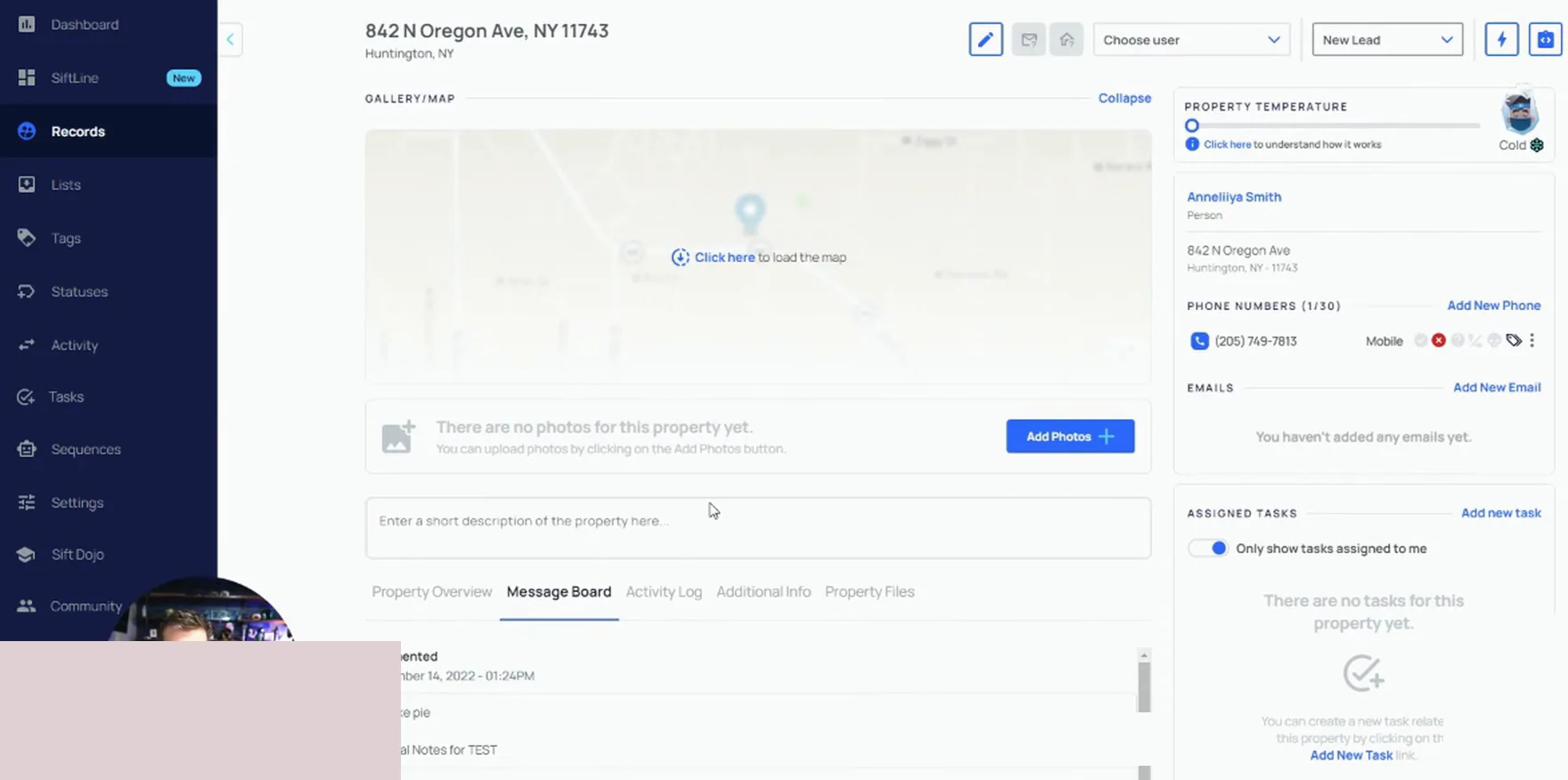
Filter the Records page to the records you want to market to.
The phone number filters in the export only narrow the numbers on the records you already have selected. They do not reach the whole database. So the record filter comes first, then the number filter.
Filter by the records that you wanna market to, and then export only the phone numbers from those records that are mobile with no status.
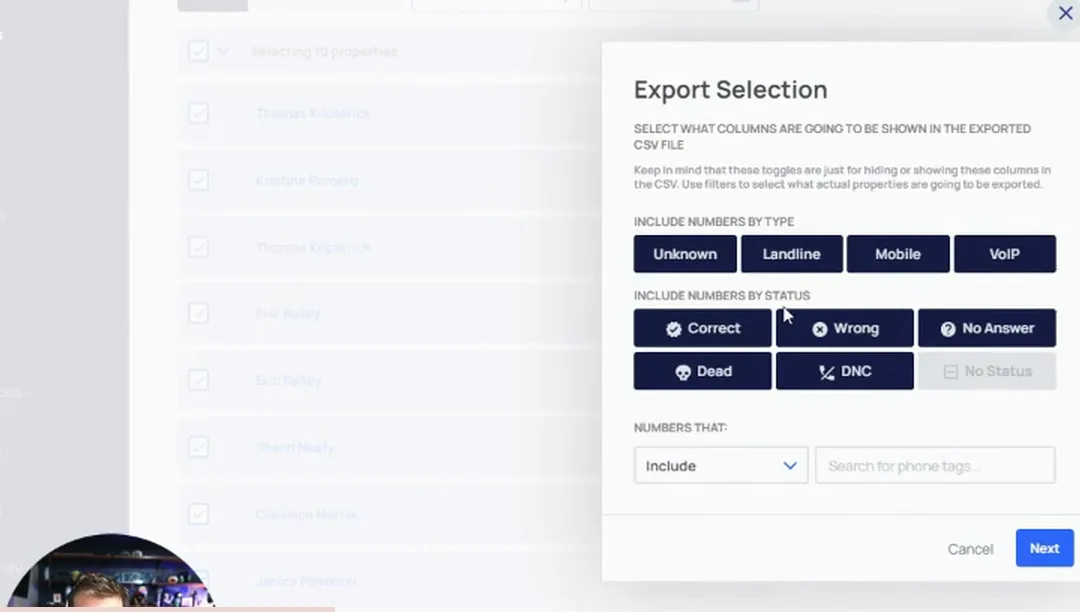
Open Export Selection and choose which number types to include.
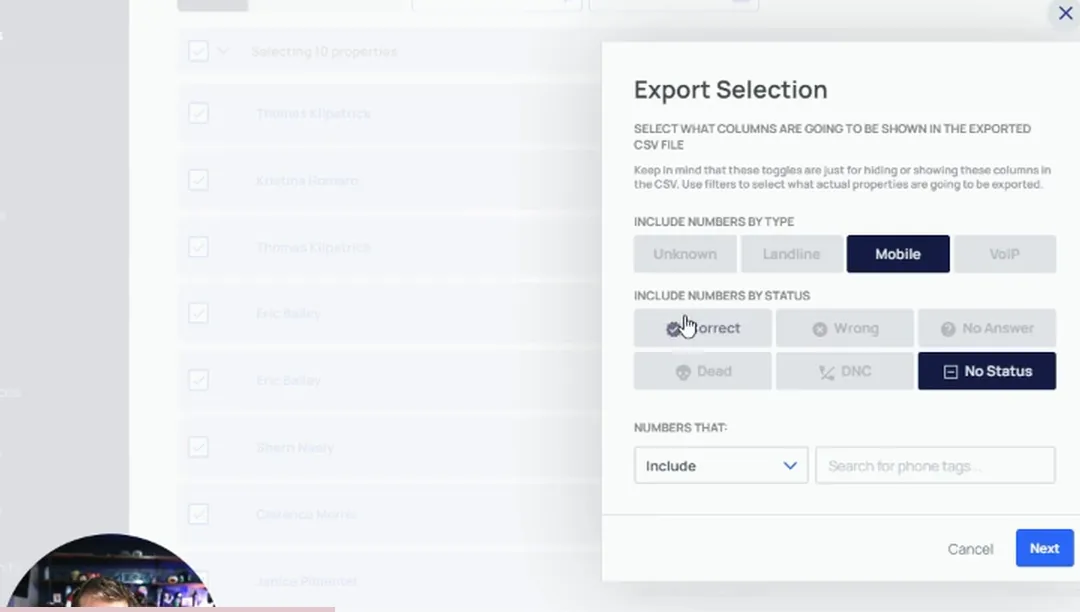
Export only your mobile numbers, because that is all you want to text message. And of course you do not want to export anything that has a phone status already.
Select Mobile for number type and No Status for phone status.
You want to export no statuses. That way you are only texting numbers you have not worked yet. Just a little tip there.
Upload the export to SmarterContact and send out the texts.
That closes the loop. Your VA reads the replies, adds the label, and clicks Export to CRM on each conversation. The statuses and notes update in real time back to REISift. Thank you so much, hopefully it helped out.
BEFORE YOU MOVE ON