
PART 3
Map every label back into DataSift.
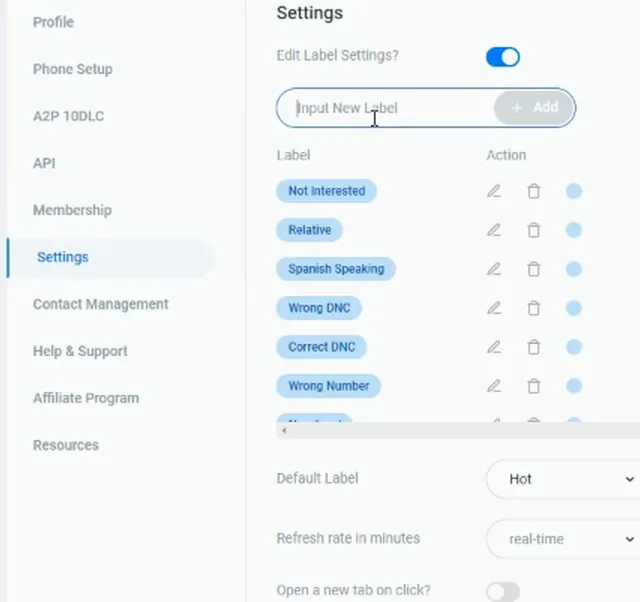
Now I finish the label list in Settings, then go back to the integration and pair each one. Every label you add here has to be told what to write back, a property status or a phone status. I build the list first, then map it, and I add the missing ones as I hit them.
Build the labels, then map them.
Add wrong DNC, Spanish speaking and relative to your labels.
Whatever ones you want to use, always make sure you cover your bases for it being a correct number. The list on this page is what Smarter Contact will hand back to us later. So put the dispositions you actually text with in here.
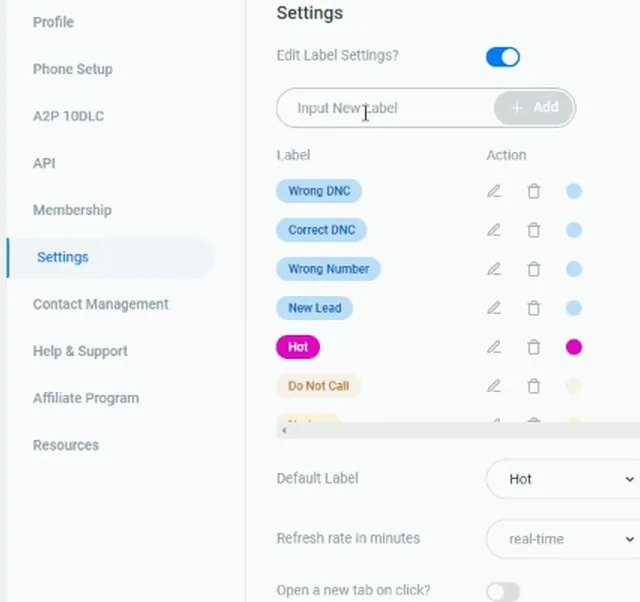
Add another label for not interested.
Cover your bases for it being a new lead too. Maybe you want a follow up status. It really just depends.
Anytime somebody responds, it is either a wrong number, a correct number, or somebody telling you to never text them again. In that last case you want to know if it was the correct or the wrong number. Then you can update that phone as DNC correct number, DNC wrong number, or just DNC because you do not know.
If it is a correct number, you're gonna have another disposition of either not interested or, new leads.
Open the right hand label dropdown for property status.
We have added enough in here to show the point. So I go back to my integration by going to API and then clicking on edit. Where it says select labels you would like to push for property status, I click add new connection and do new leads.
If you select on the right hand side, it does not show new lead as an option.
Type new lead out and click create in the dropdown.
New lead does not appear in the list because it is not one of our default ones. Once you create it, it pairs, and the property status side opens with the options next to it.
The choices sitting there are the statuses DataSift can write, things like Opt Out, Listed, Follow Up, Prospecting and Buyer. Pick the one this label should write back.
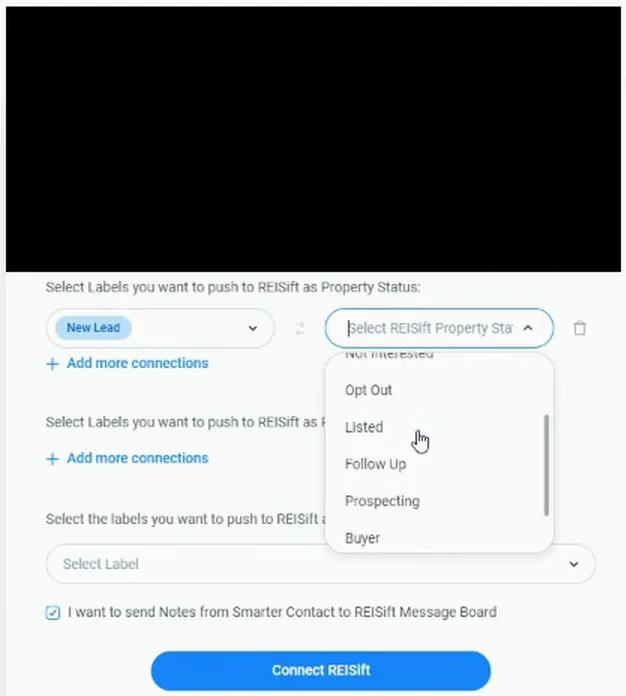
Add another connection and choose not interested.
Not interested is a default one that we have, so it shows up without creating it. New lead and not interested are pretty much the main property status changes that I am going to have.
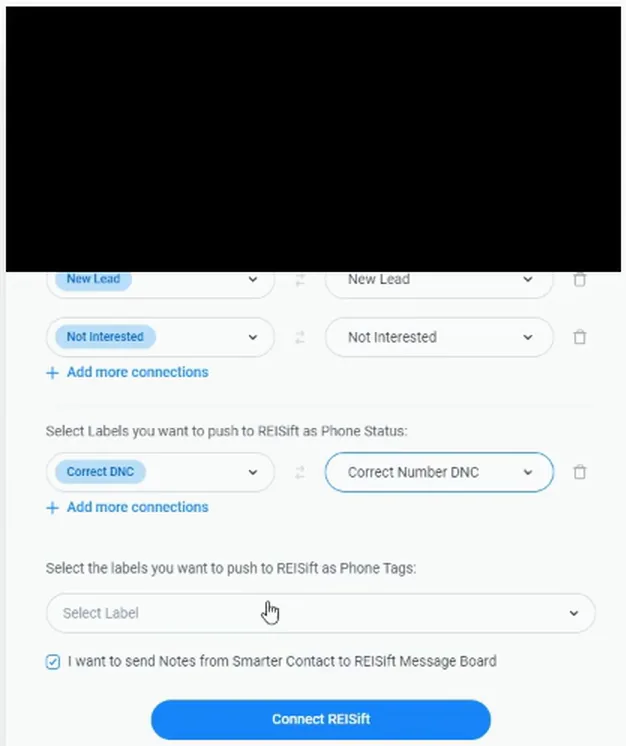
Now we want to select the labels you want to push for our DataSift phone statuses, which is the section underneath.
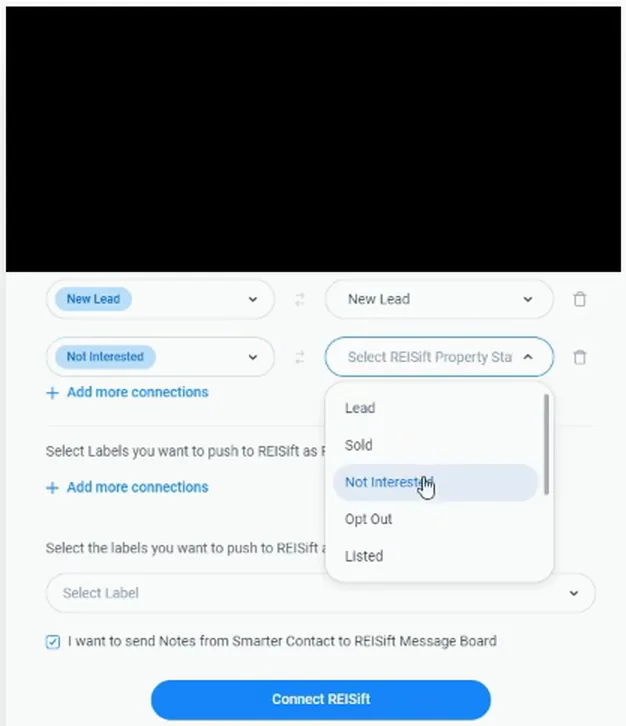
Open the Smarter Contact label dropdown under phone statuses.
This is the same kind of list, but the labels here write to the phone, not the property. In this case I am going to do correct DNC.
The other labels I built sit in the same list, so Relative and Spanish Speaking are right there next to it.
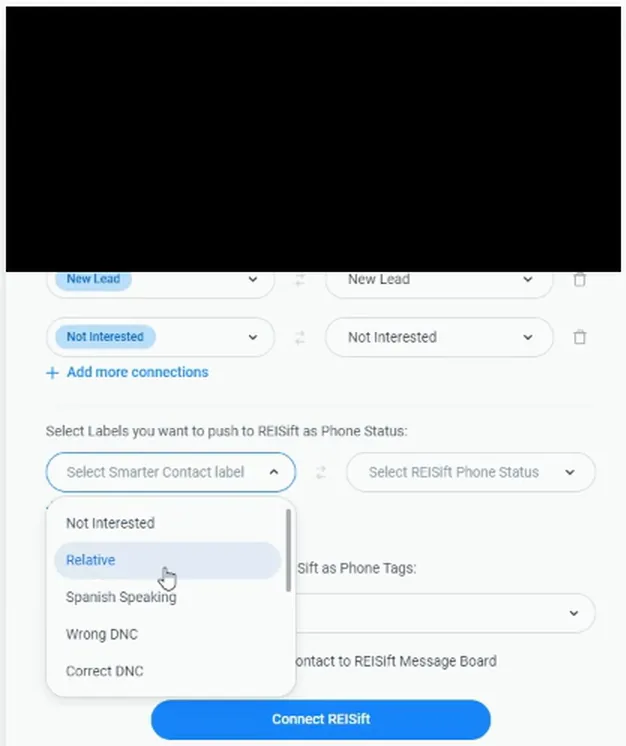
Update correct DNC to correct number DNC.
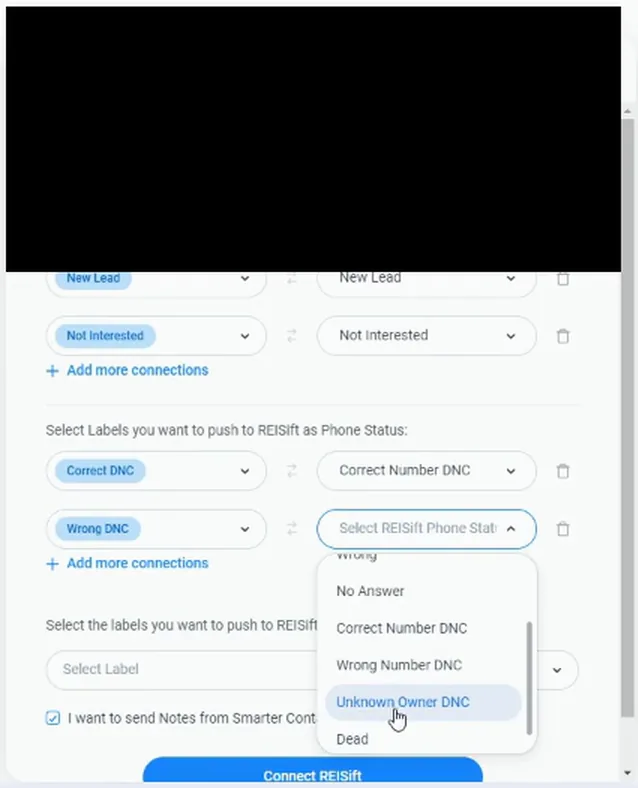
That pairs the label with the phone status it should write. Then I do wrong DNC and update that with wrong number DNC.
Same pattern each time, the Smarter Contact label on the left and the DataSift phone status on the right.
Open the label dropdown for the next phone status connection.
I would also want one for correct number, but I did not create that one, so it is not in this list. That is the gap you find while you are mapping.
Keep going with what you do have and come back for the missing label.
Choose wrong number from the label list.
We will have to create the correct number one, so for now I take wrong number. That one I did build in Settings.
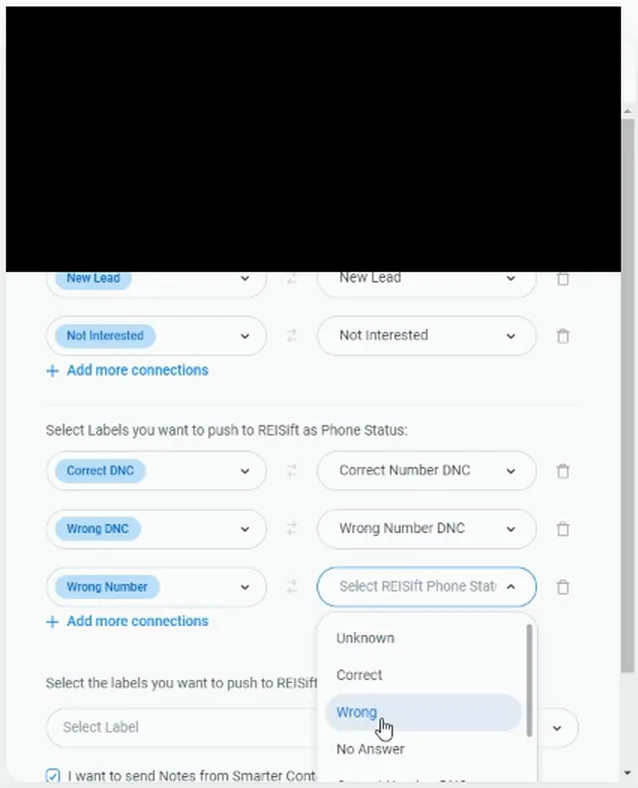
The next thing is to tell it which phone status wrong number should write.
Update the wrong number connection to Wrong.
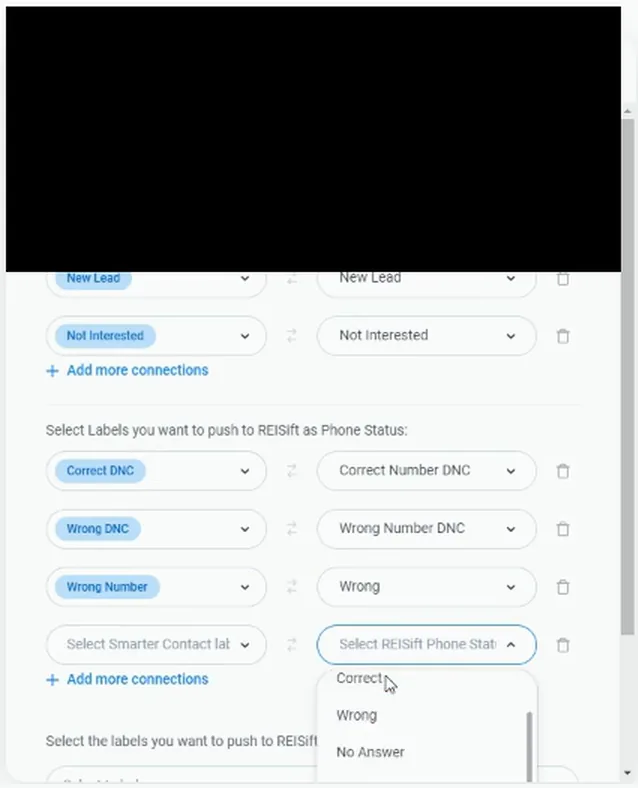
Now wrong number writes the wrong phone status back. Then, of course, I would want one for correct.
Save and connect, then go back to your settings.
I do not have correct in this list because I did not create that one. The phone status side offers Correct, Wrong and No Answer, so the label is the missing piece, not the status.
Saving first means the mapping you already did is kept while you go add the label.
Click the input new label field on the Settings list.
Really simple. The one I am typing in here is correct number.
I already have a correct DNC in the list below, so that one does not need adding again.
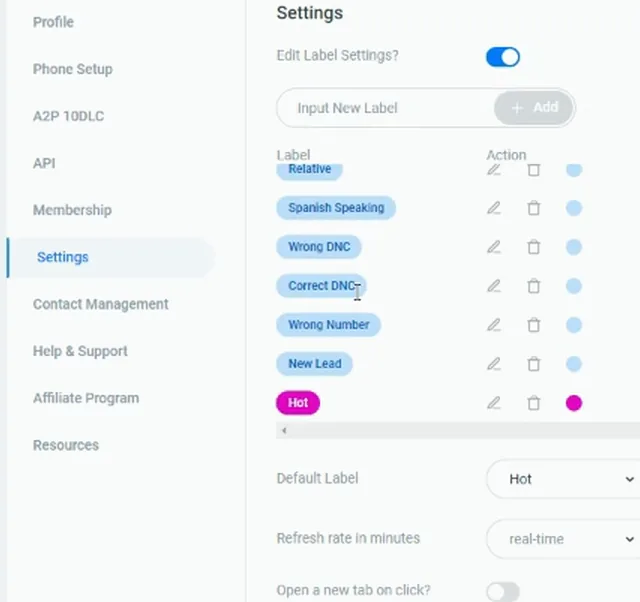
Check the list for wrong DNC, then add unknown DNC.
Wrong DNC is already sitting in the list with Correct DNC, Wrong Number and New Lead, and Hot is the default label. So the one still missing is an unknown DNC.
That is the label for the person who tells you to never text them again when you do not know if the number was right.
BEFORE YOU MOVE ON