
PART 4
Map the phone tags and test one record.
Now I go back into the API mapping and finish the last two phone status pairs. Then I pick the labels I want pushed over as phone tags, connect it, and test the whole thing on one record in my messenger. By the end of this part you will have watched a disposition write back into DataSift.
Map the labels, then test one record.
Open the API edit screen and choose Unknown Owner DNC.
The REISift dropdown on the phone status row is open, and unknown owner DNC is the pick. Let's add a couple more here.
This pair tells the integration what to write on the phone number when that answer comes back.
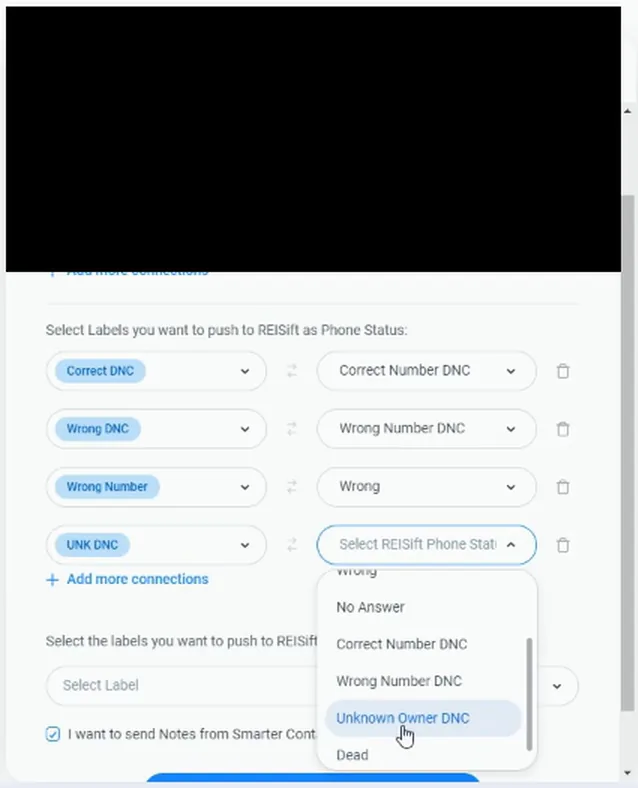
Set Correct Number to Correct in the same list.
Both new pairs now sit in the list, UNK DNC to Unknown Owner DNC and Correct Number to Correct. That is the phone status side done.
Each pair is one answer on the text side matched to one phone status on the DataSift side.
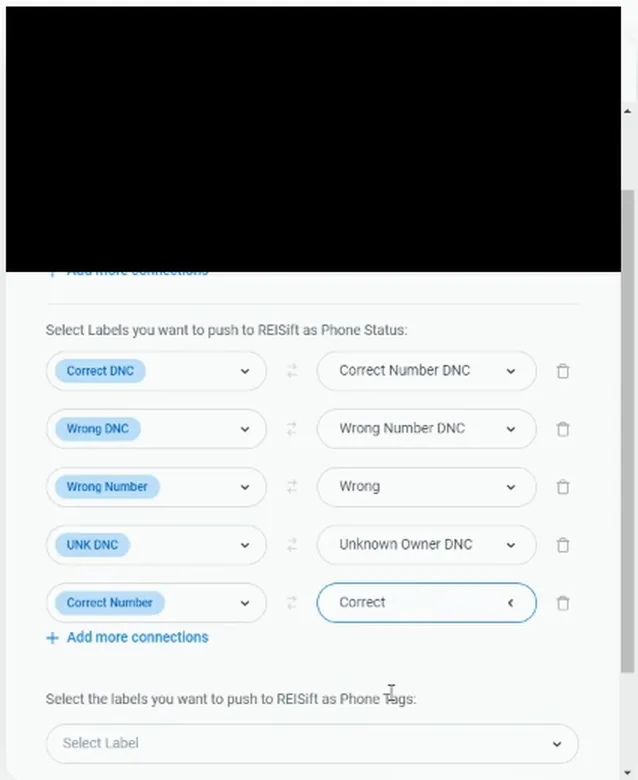
Read the phone status pairs down the mapping list.
Based off the answer that comes back, I'm gonna either update the phone number accordingly. The list on screen is what makes that happen without me touching the record.
If it's a correct number, I'm gonna update the status, and that's just adding these labels, which I'm gonna show you here in just a minute.
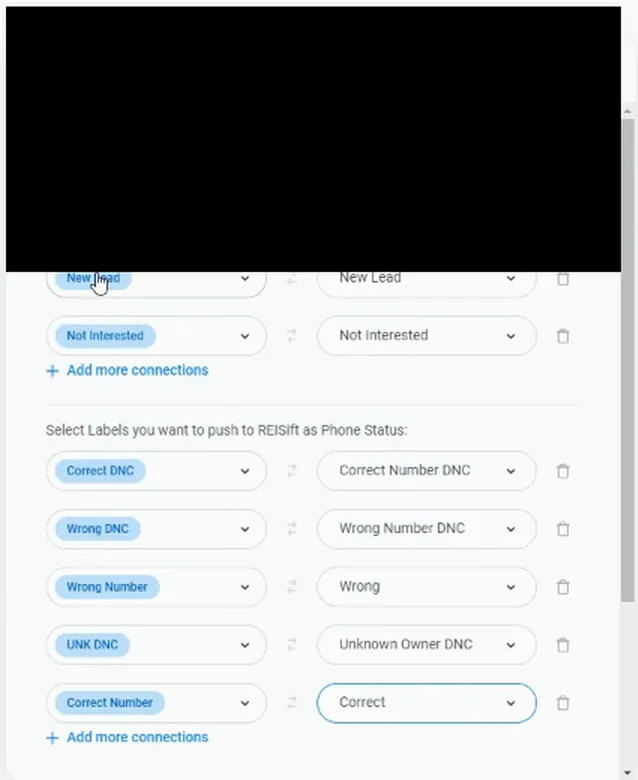
Scroll down to the phone tags label selector.
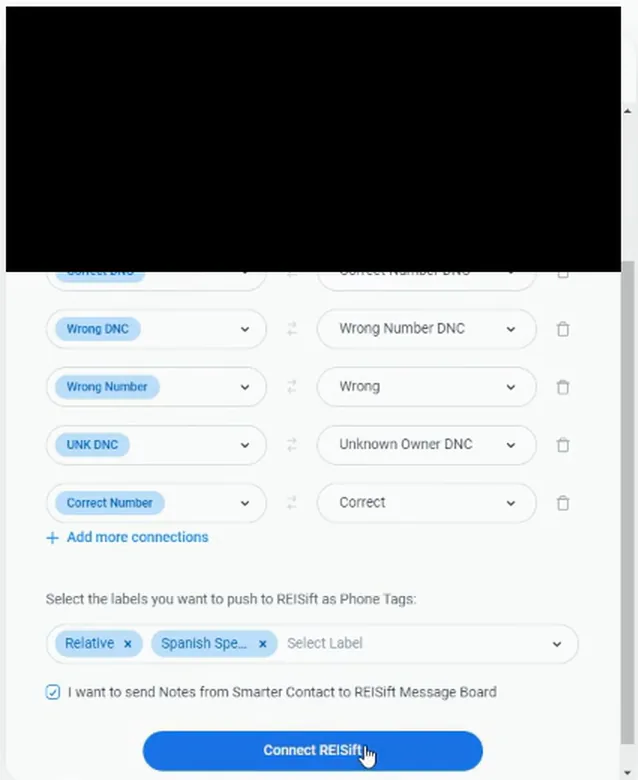
Below the phone status pairs there is a label selector for phone tags, with the Connect REISift button under it. But now I wanna handle phone tags.
Phone tags are separate from phone status, so they get their own picks.
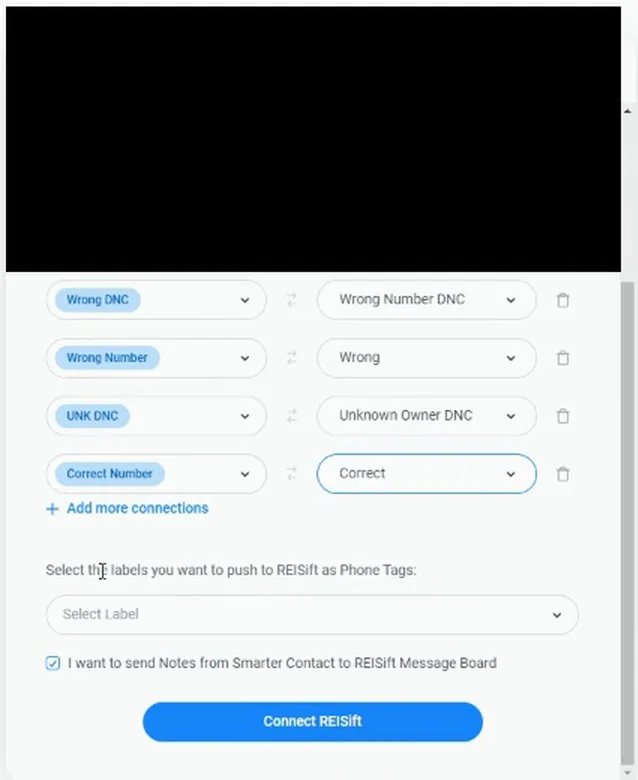
Open the phone tags dropdown and find Relative.
The dropdown is open and nothing is ticked yet. Relative, Spanish Speaking, Correct Number and the rest all sit there as empty checkboxes.
This is the list I pick from. So I'm gonna select some labels that I wanna push over as phone tags.
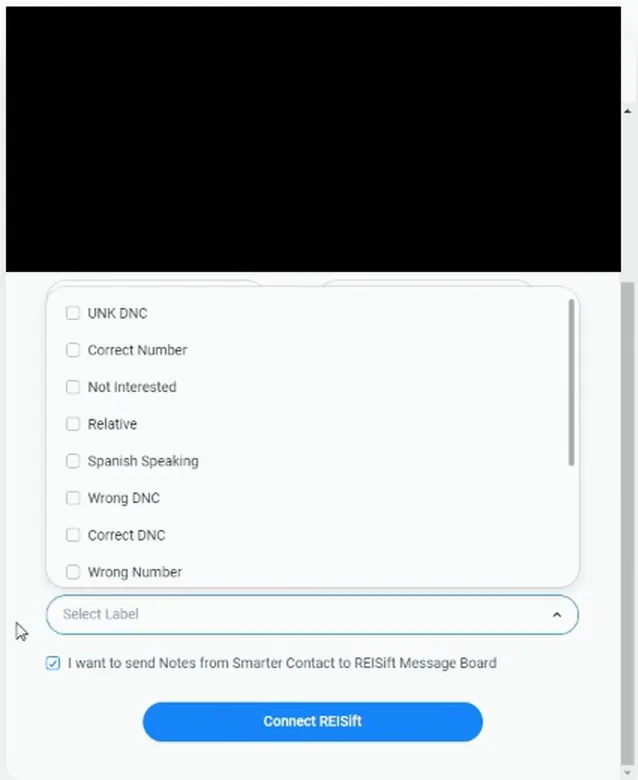
Tick Relative and Spanish Speaking in the dropdown.
Both tags now show as chosen, with the Connect REISift button sitting below the list. If it is a relative, I wanna push that as a phone tag, and same for Spanish speaking.
And any other phone tags you'd like to use, maybe you'd like husband, wife, cousin. Whatever other information you wanna push over and tag that phone number of that record.
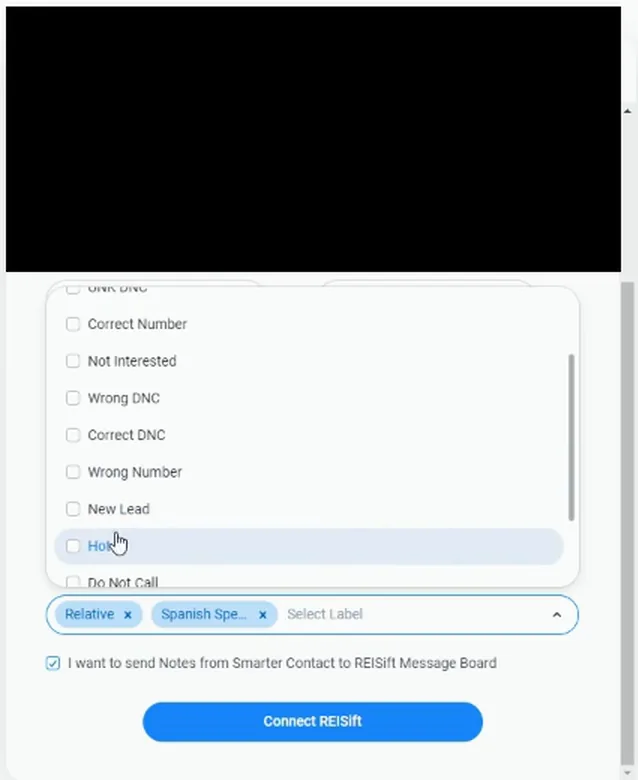
Click Connect REISift at the bottom of the mapping.
So now we have it set up pretty well here. The phone status pairs and the phone tag labels are both saved by that click.
From here the rest of the work happens in the messenger.
I'm gonna click connect to REI We'll go to my messenger here, and this is just a messenger that SmartContact already had in here.
Open the messenger inbox in Smarter Contact.
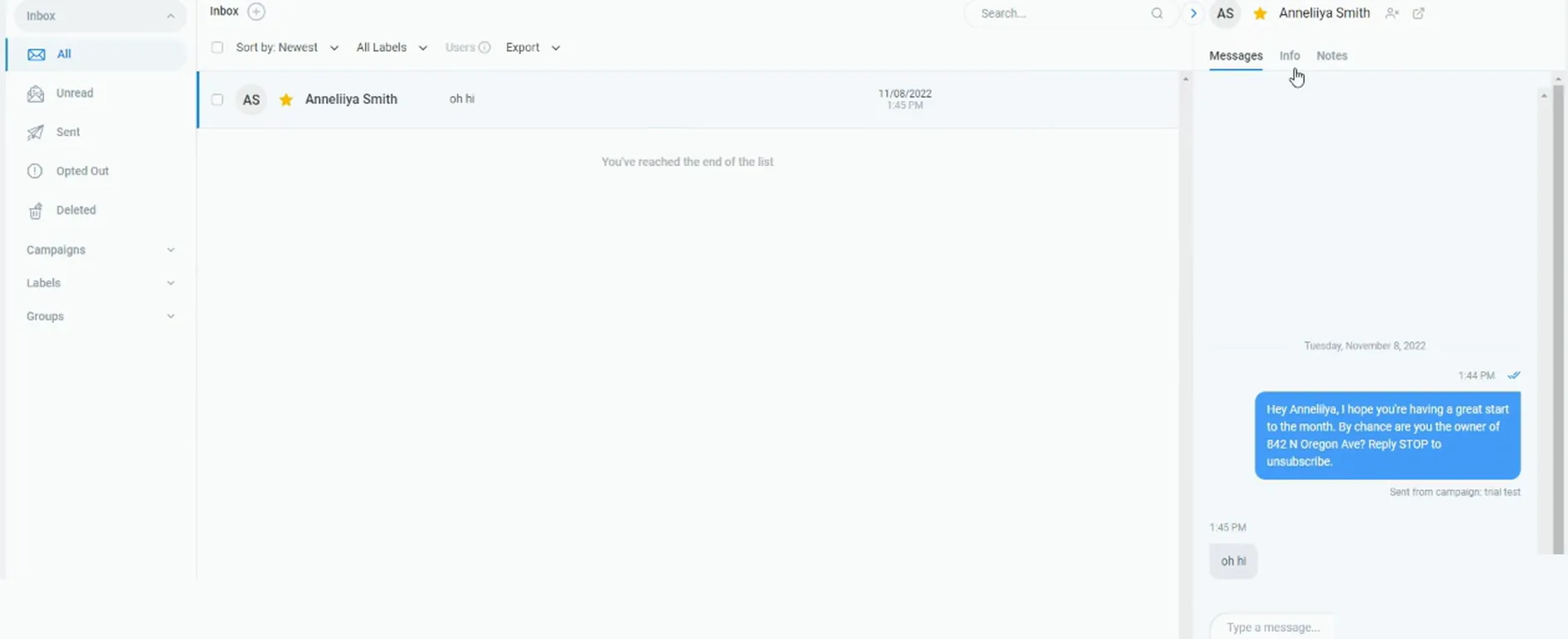
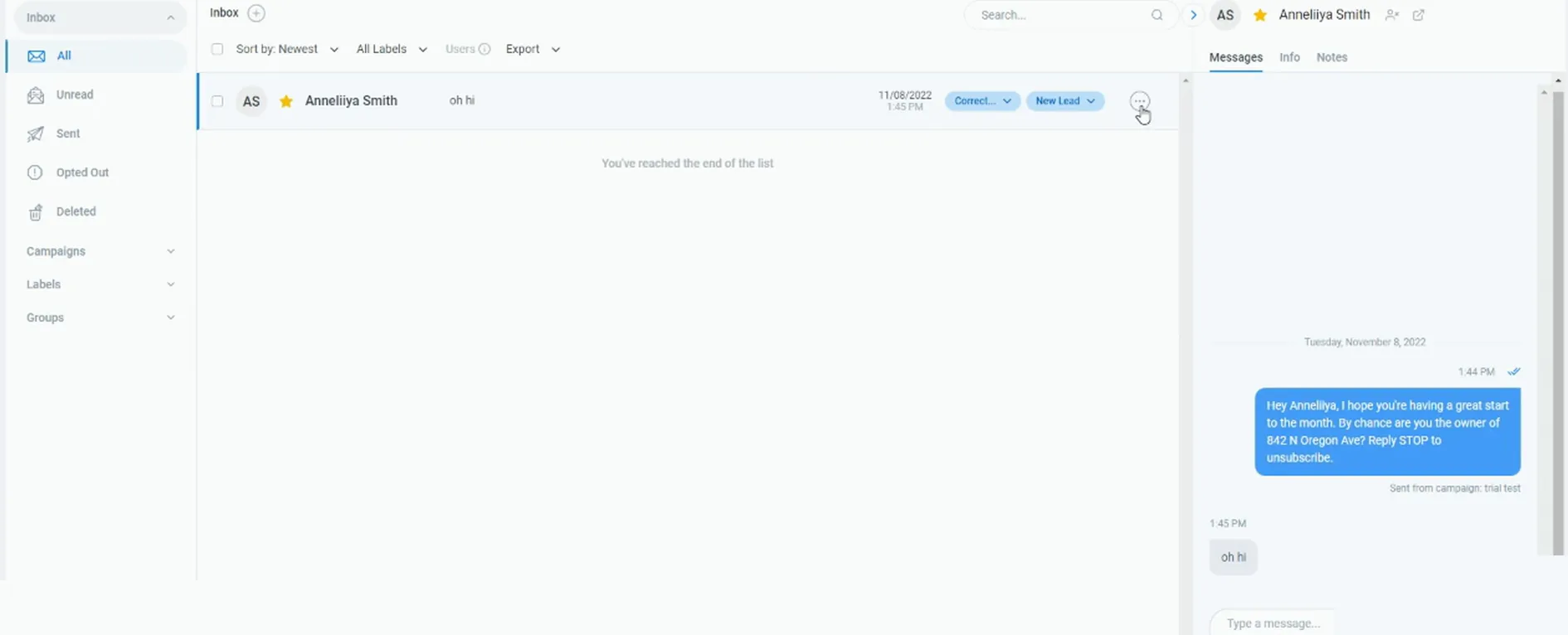
The inbox opens with one thread in it, from Anneliiya Smith, and the export options up top. This is just a messenger that Smarter Contact already had in here.
Nothing new needs building to run the test.
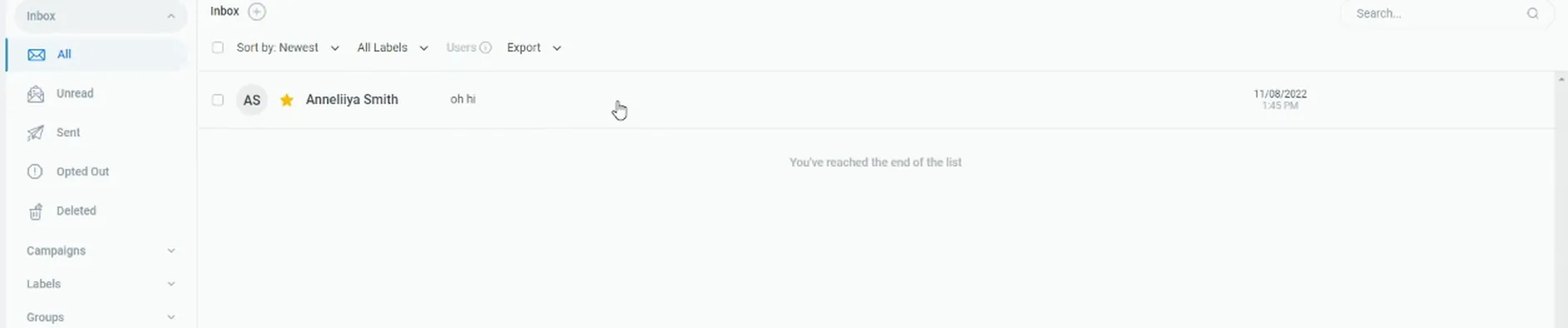
Open the thread from Anneliiya Smith.
The message history for that contact loads in the thread. So we're just gonna use this one.
This is the record I will label and push back.
Filter the inbox by the REI SIP group.
The contact record shows the phone number, the email and the property address fields. The group is already on this record, so the filter brings it straight up.
And all I'm gonna do is I'm gonna make sure that this record for me is I've added in REI SIP, which I already added it.
Search that phone number in the DataSift records list.
So we can see it here. The record comes up in the list, and as of right now this phone number doesn't have any status.
That is the before picture for the test.
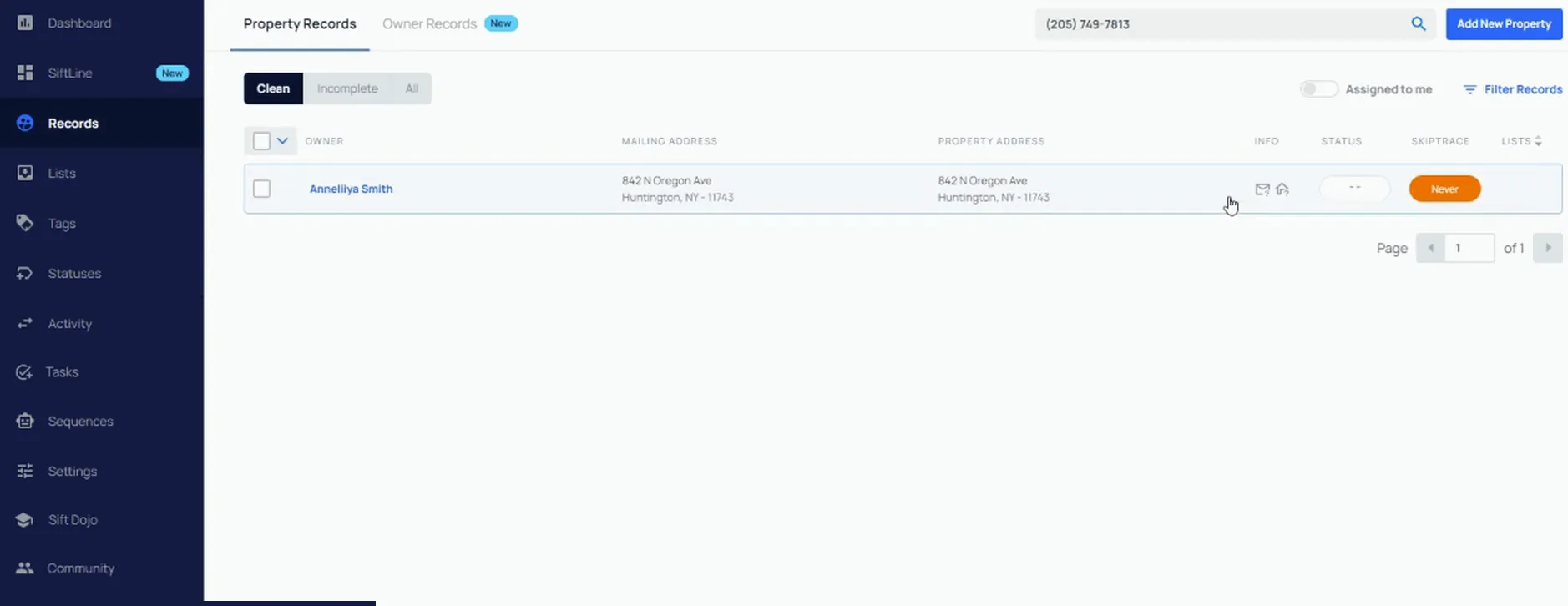
Open the record and check the status and tags.
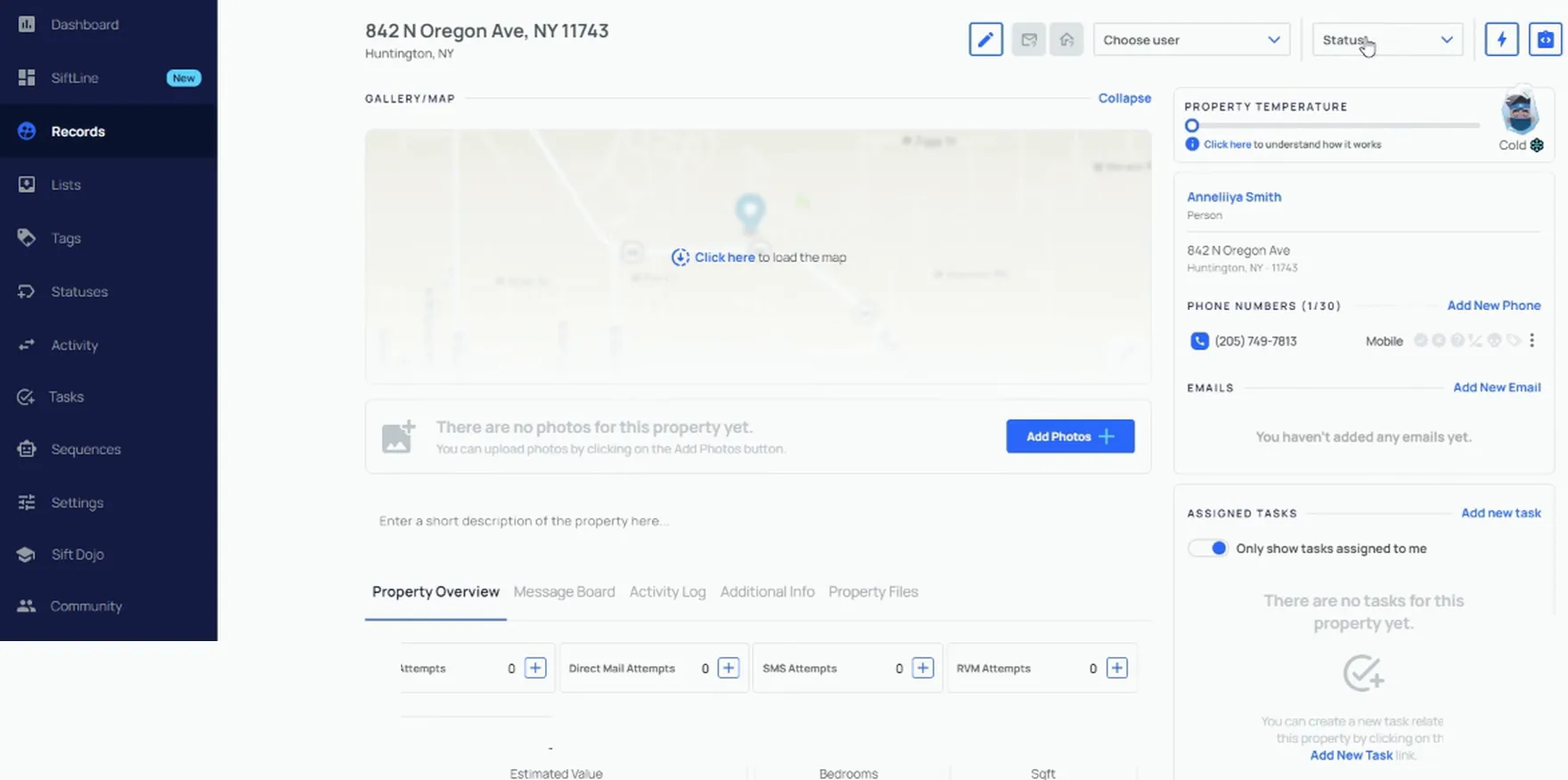
The property doesn't have any status, and there are no tags on the phone number either. The status dropdown and the property temperature are both sitting empty.
So now I go back and act like this person responded back and said they are interested in selling.
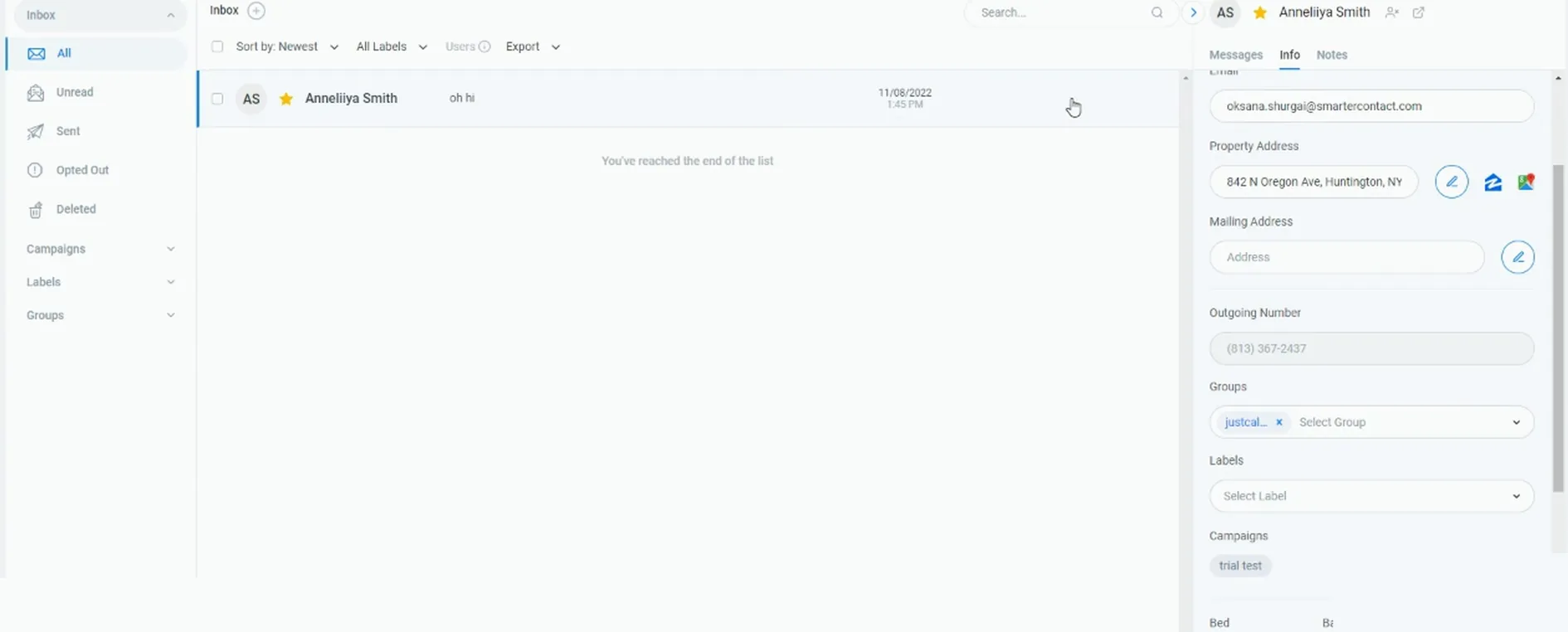
Open the Info panel on the message thread.
The panel shows the property address filled in and Groups with a value on it. Labels is still empty, and Campaigns shows trial test.
Labels is the row I work in next, because that is what pushes back.
Select Correct Number in the Labels dropdown.
The dropdown opens over the info panel with Correct Number highlighted. They said they are interested in selling, so that's a correct number.
That one label carries the phone status back to the record.
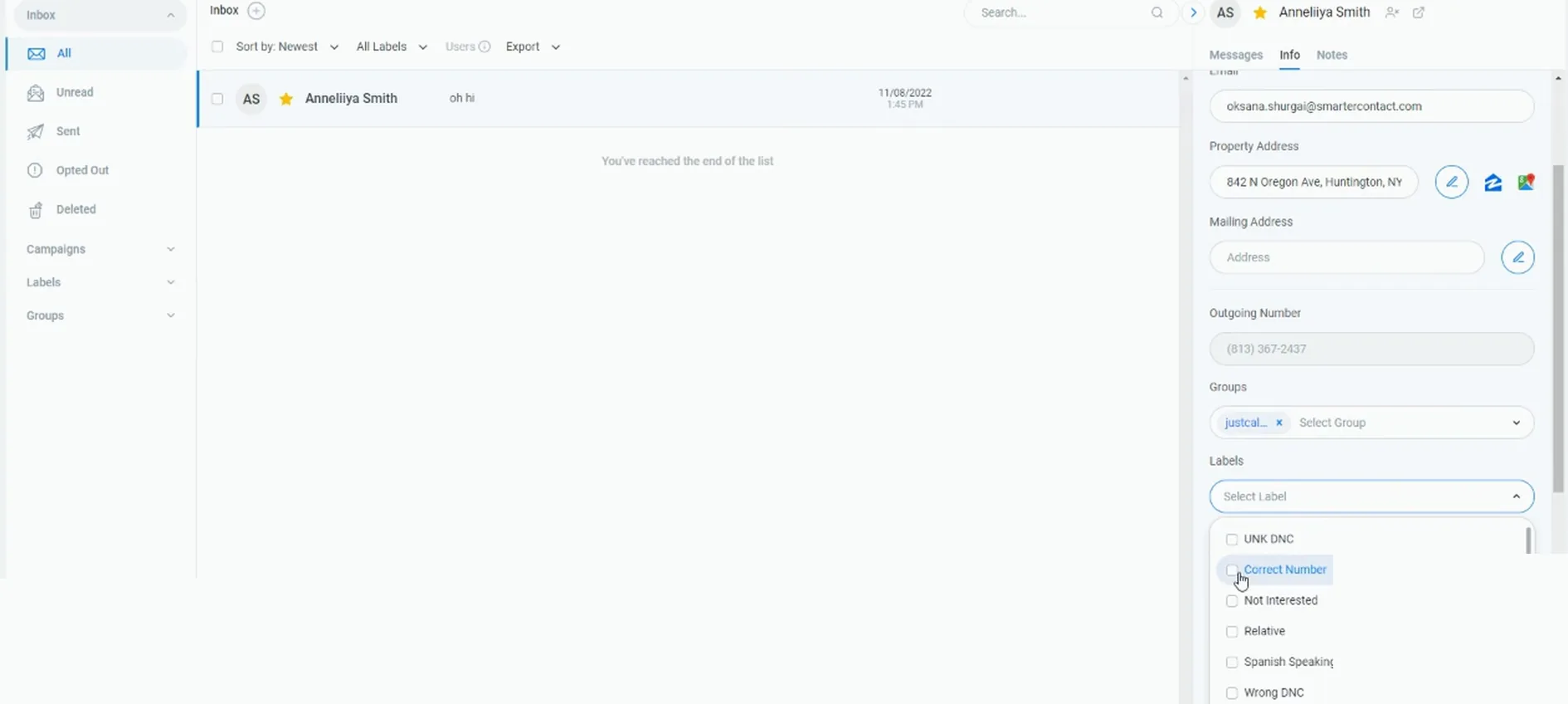
Select New Lead and Spanish Speaking in the dropdown.
The same list shows Relative, Spanish Speaking and New Lead to pick from. It is a new lead, so I'm just gonna add those two tags onto it.
Maybe they are Spanish speaking, so let's add that phone tag as well.
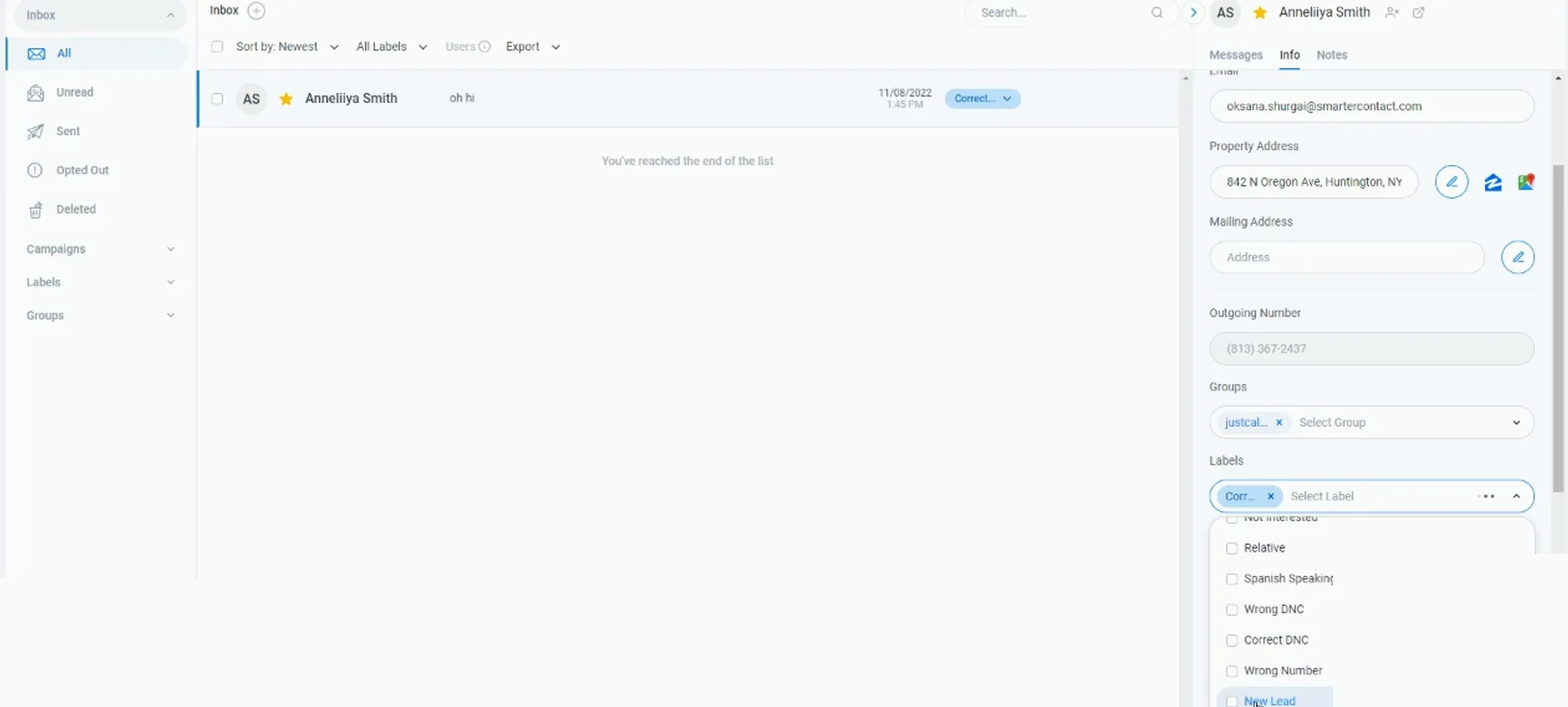
Click the top right corner, then Export to Sift.
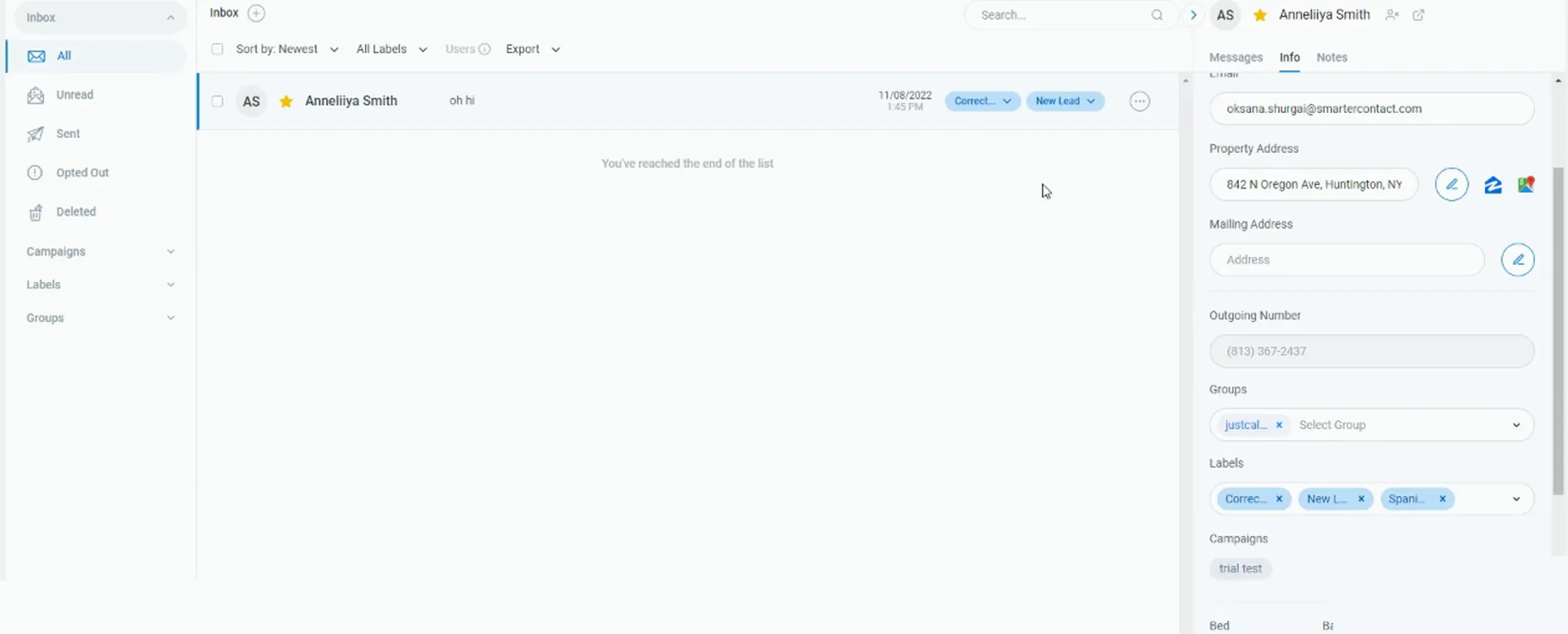
The info panel now carries three labels, Correct, New Lead and Spanish. Because I have these three labels on here, the export has something to push.
A little green message pops up saying it pushed it over to REI Sift, if I did everything properly. You're gonna wanna test this on one of your records. The first one usually takes a little bit longer.
Refresh the DataSift record and read the update.
There it goes. The record comes back updated as new lead, and that phone number is correct number with a Spanish speaking tag on it.
And of course I can have a sequence set up for this. When it switches to new lead, it automatically adds it to a Sift line and creates a new lead task.
Open the next reply in the messenger inbox.
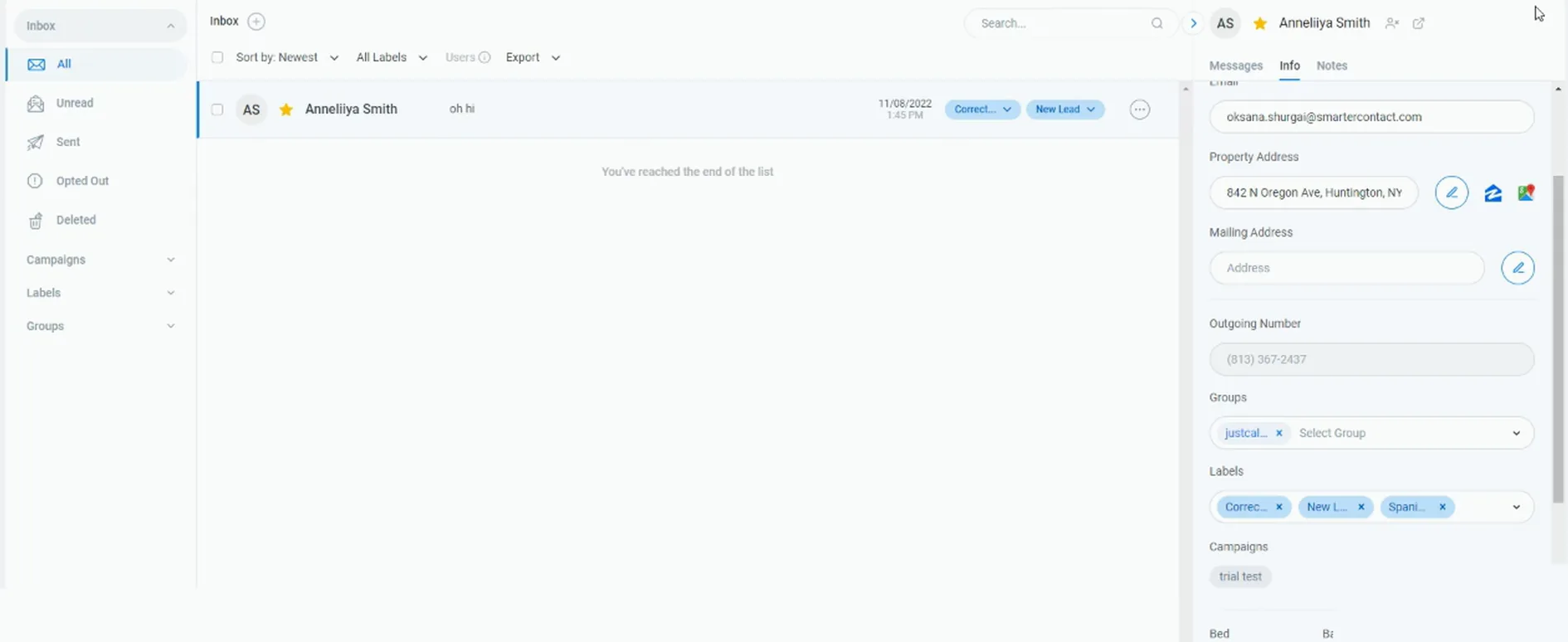
The thread still shows Correct and New Lead on the contact. This is the loop from here on.
As people are responding back to you, you open up the message, and they're like, oh, you have the wrong number. You label it and push it the same way.
BEFORE YOU MOVE ON