
PART 1
The full sequential marketing setup.
This is the full guide on building out the entire sequential marketing structure for the account. It runs long because it breaks down every single thing you could do from a marketing perspective. In this first part I walk the preset list, the record types, and the way I suppress what I do not want.
Start in filter records and load.
Open the Records screen and look at Property Records.
You do not need to replicate everything you are about to see from my account. The reason I show it is so you can see what excellent looks like at the highest possible level. Please do not feel like you have to build all of it today.
From my real accounts, these are the exact structures that we use.
The best way I can think to describe this best way to think about this is this is showing you a menu of every possible option.
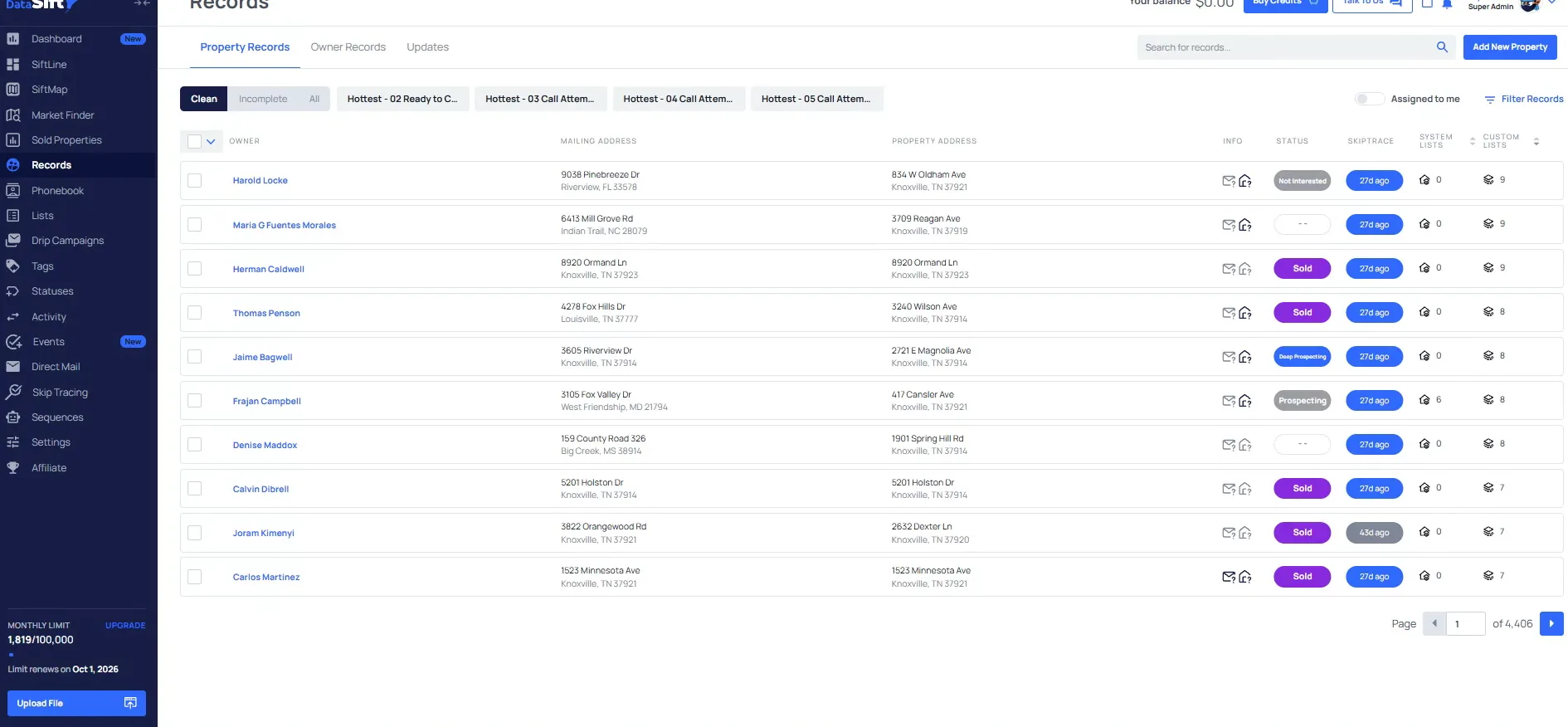
Click View Presets in the build your own filter presets panel.
This panel is where you build your own presets, and the link on it takes you to the ones already saved. Everything in transactions, acquisitions, and lead management, my tasks, these are all things included in every single account. That is the default account setup, so those things universally have to happen.
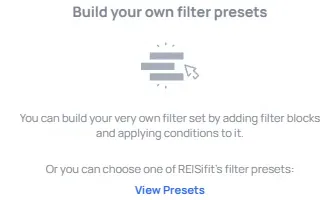
Read the saved preset list in the Filter Records panel.
In the lead manager trainings you will notice this is the account structure we follow from all of our top performing users. The thing that is unique is the marketing tags, because there are a thousand ways to do the marketing side. It was not easy for us to build a default for that, so we leave it to the user.
You can also do fancier things like a hot auction sale for properties going to auction soon. There is a cleanup area too, and I would not pay much attention to that. That one is more for testing.
From each of these as we're going through them, I always like to start as hottest to strong to first to market to bold, deep prospecting, reactivation.
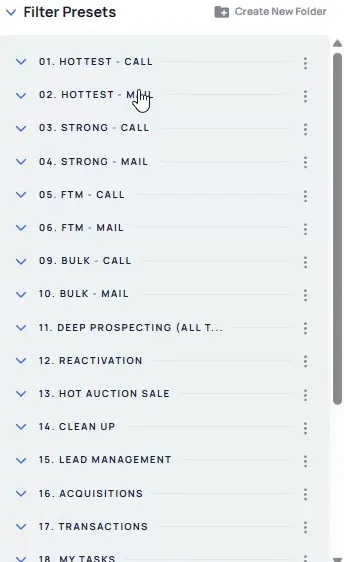
Work from clean property records.
Open the Incomplete tab under Property Records.
Before any of this runs properly you need the module on suppressing sold properties using SiftMap. That sequence removes properties on the sold status, and we always want to be suppressing across all the marketing flows.
In records you get clean, incomplete, and all records. The vast majority of the time, an incomplete record is an entity. You can go through and clean these up, but to be honest with you, I do not spend a lot of time on this.
you can see here out of the, first, 10 that are shown, nine are entities, and one is just a messy actual name there.
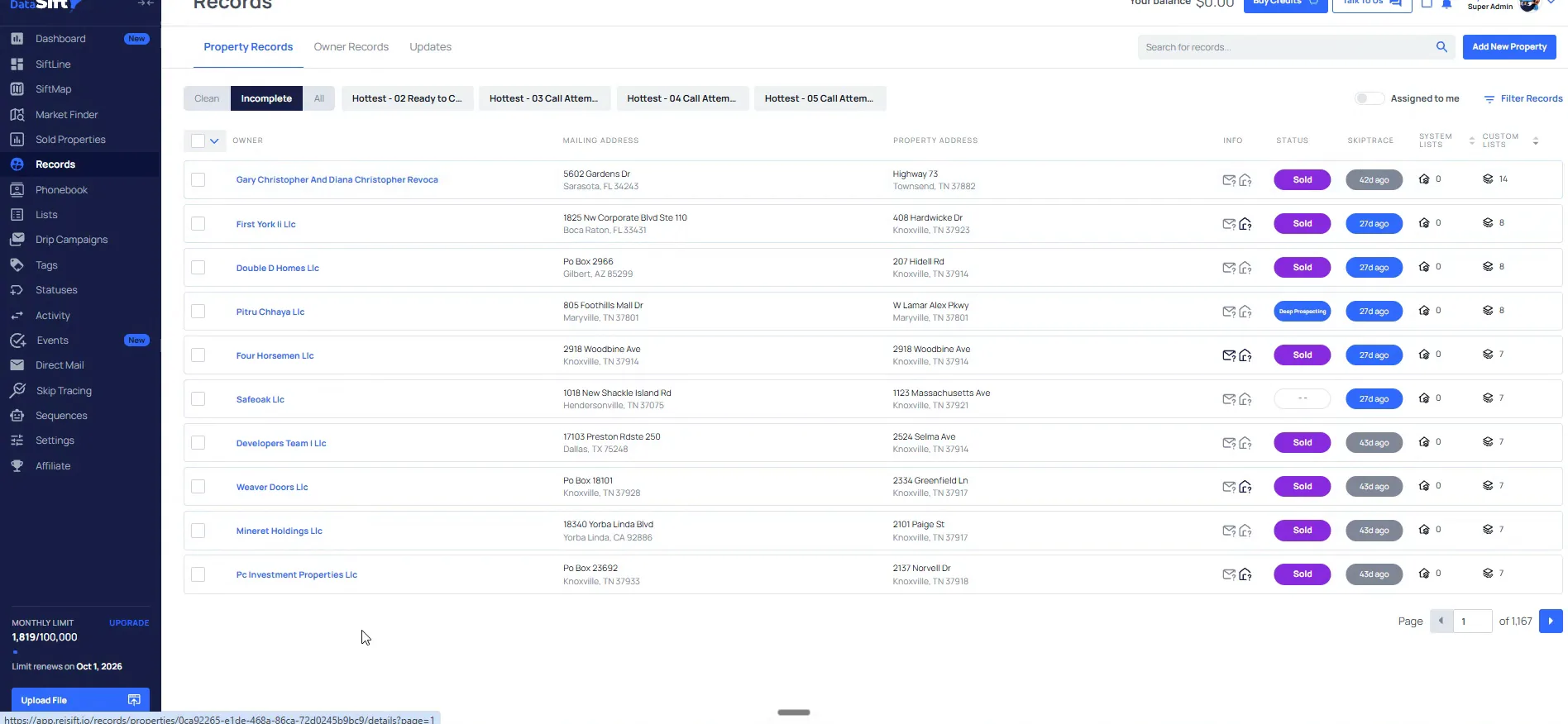
Switch Property Records to All and scan the owner list.
On All, a lot of this stuff is just stacked together, individuals and entities in one list. That is why I focus mainly on the clean side.
If you are doing entity outreach, ask them if they are interested in selling the whole portfolio. For larger or commercial assets you can use the Informium version two business structure in dispo trading to find decision makers. I am not focusing on that here.
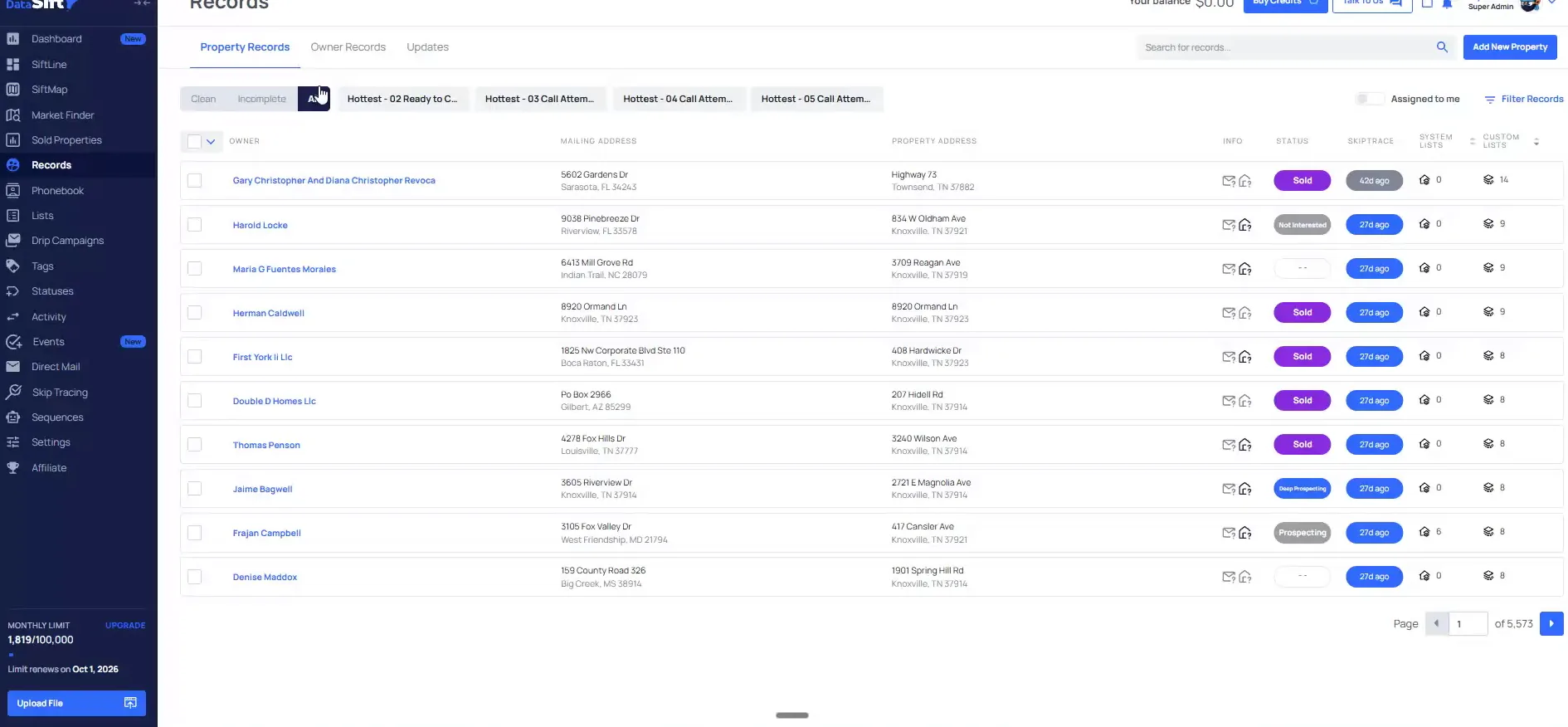
Open the Updates tab.
The middle portion gives you property records, owner records, and then the updates. In this example you will not really have to worry about updates, and the screen says as much.
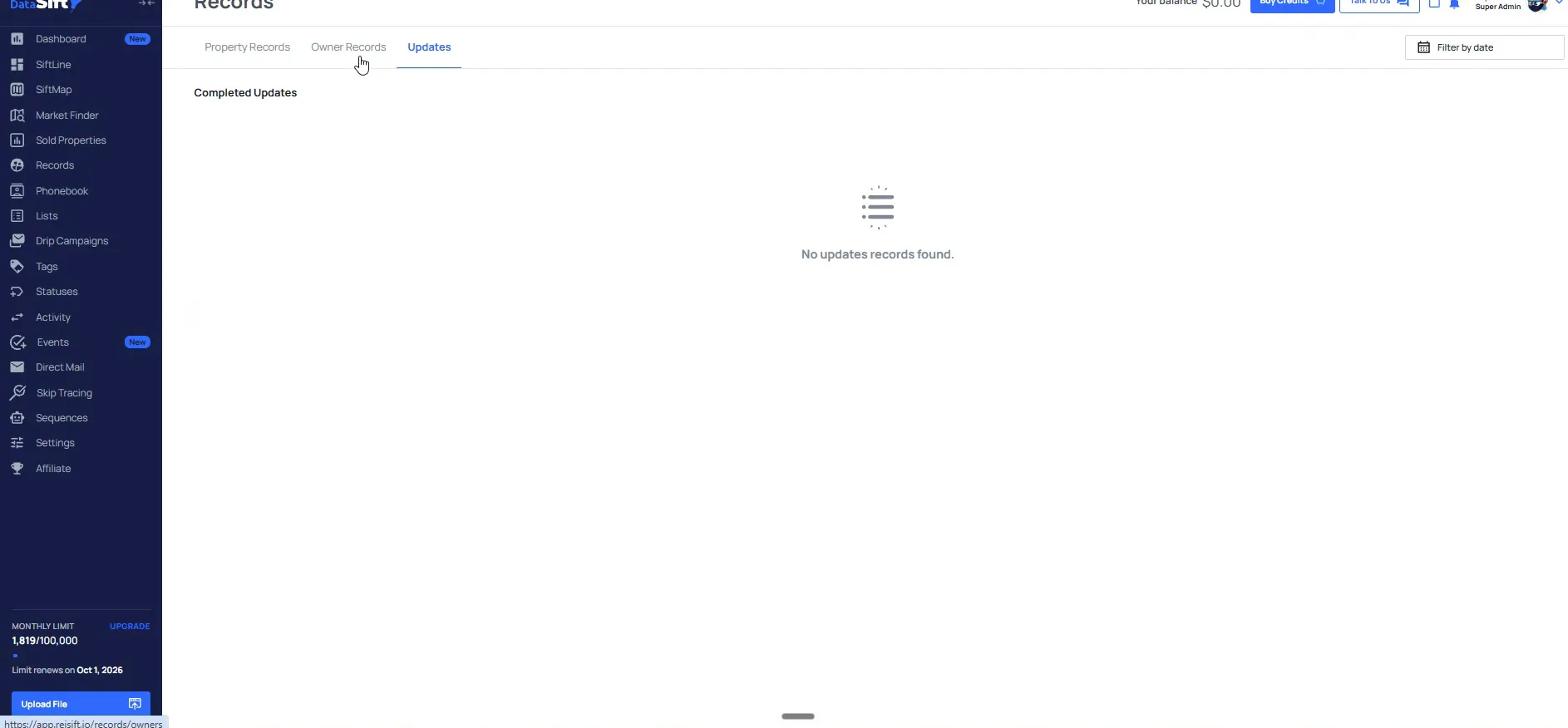
Open Owner Records and read the property counts.
I do not really use this one. It is more for the portfolio element I was talking about, and you can see here this person owns 368 properties. If you are running very targeted campaigns to those individuals, a bulk outreach to them is a much better strategy.
I will be focusing on the property records that are specifically clean, because that is the best starting point I have found. Depending on when you watch this, we have changed some of the custom and system lists. A new view lets you fully customize this, so you can show things like the tax delinquency amount.
So you'll have to watch out for the product updates on that, but imagine you can change this to however you want that fits your business.
Suppress what you do not want.
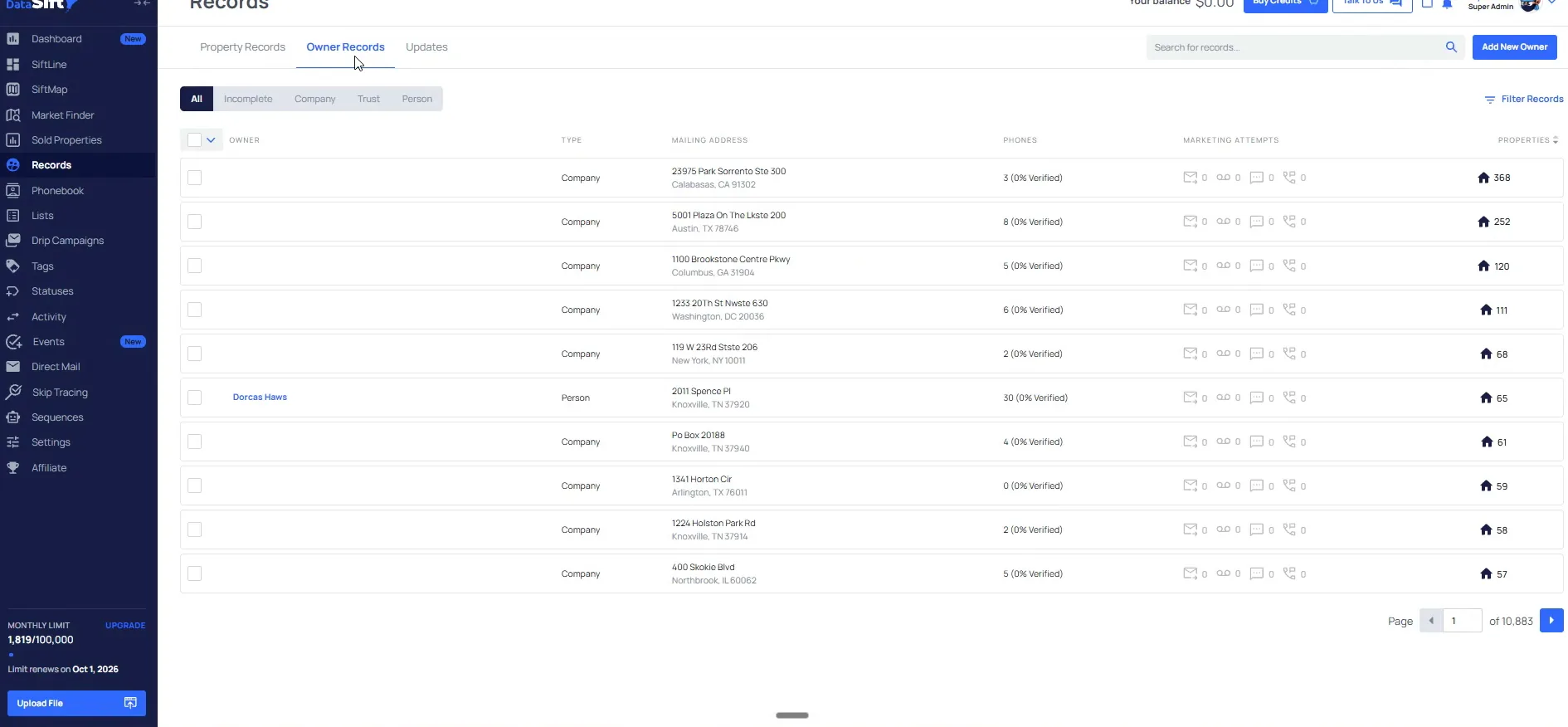
Open the hottest call preset and read the red criteria.
In your case you will probably only have three or four presets, mostly lead management and transactional. I call hottest my priority one records, and I separate everything by marketing channel. That helps my reporting and tracking a little bit.
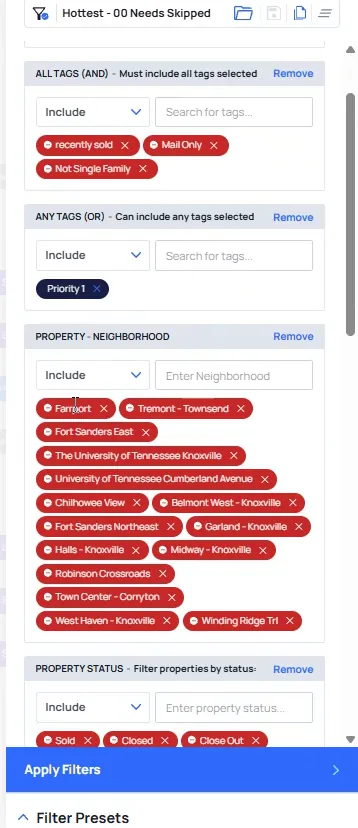
Anytime you see red, it is saying we do not want this. If a property is low equity or negative equity, we are suppressing it. Same for recently sold, mail only, and anything that is not a single family home.
The priority one tag is what separates your SiftMap pulls from first to market courthouse county data. Properties coming in on our senior homeowners, our vacant, and our free and clear get that tag. That tag is what loads them into this marketing preset.
And if I click into this, this is gonna show you all of the criteria that has to be met for this to be true.
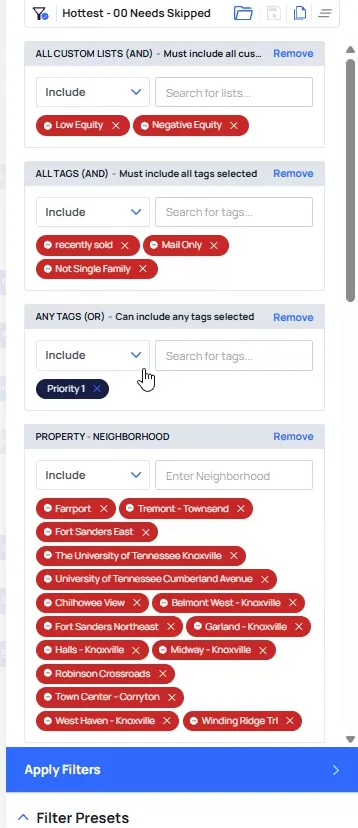
Add the areas you will not market in to the suppression list.
I like to suppress the areas I do not want to market in, because that is easier for my particular market. Los Angeles is the example I always give, since that market has so many neighborhoods. In a larger MSA that gets very, very hard to do.
In that case, pick the handful of areas you are actually trying to focus on instead, then apply the filters.
BEFORE YOU MOVE ON
PART 2
The filter blocks, one at a time.
In this part I keep working down the same filter, block by block. I switch the neighborhood block to include so you can see a shortlist, then set property status, call attempts and the skip trace toggles. At the end I add a brand new filter block and test it on a ZIP.
Shortlist the top neighborhoods.
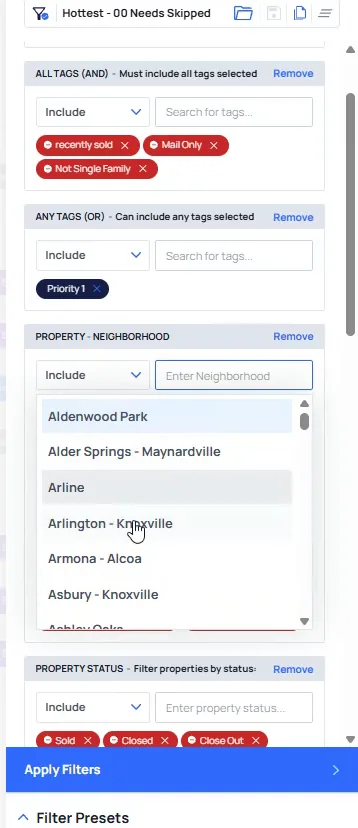
Switch Property neighborhood to Include and pick Arlington, Knoxville.
Instead of having it be excluding these areas, maybe we want to include Arlington, Knoxville, Tennessee. You can see how that one is blue versus the others are red. That is just an example of shortlisting our top 25 versus suppressing them.
I have about 120 neighborhoods inside of Knox County for perspective. The red ones are the ones that I just do not wanna be in. They are either zero stars, have no investor transactions, or are areas that are total anomalies.
The market analysis portion using Claude, or the manual workflows Tyler talked about in the earlier trainings, that is where I am finding this data. You want to make sure you have that market analysis done before you do this. That way you can actually suppress all these different areas.
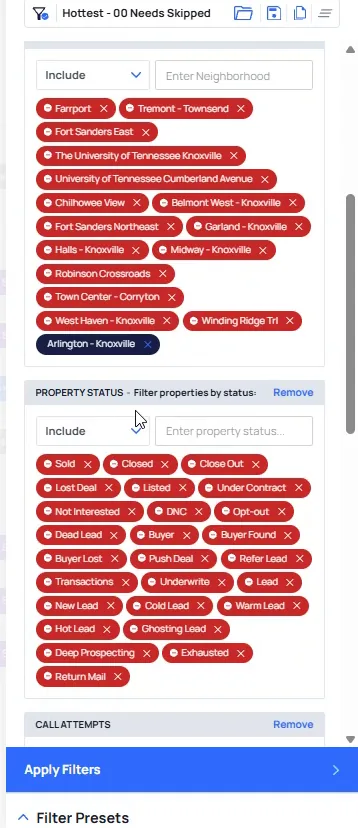
Scroll to Property status, where sold, closed and closed out sit.
Under the neighborhood tags you land on the property status block, with sold, closed and closed out among the tags. Those are the ones that we do not want to be shown up here. Pretty much every status that is not blank or prospecting is one I do not want.
No status and the prospecting status, these are all of the properties we are actively marketing to right now. There is no point in really doing any other statuses, so I just exclude the rest. It is pretty much the way I approach it.
Open the Property status dropdown and read the statuses left.
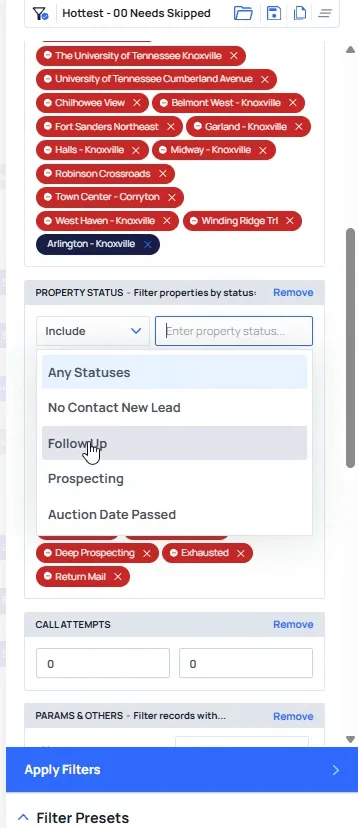
The dropdown shows the ones I keep, follow up and prospecting among them. Those are all of the different statuses that are not excluded here.
So no contact new lead, follow-up, prospecting, and auction day has passed are only statuses that are pretty much left for me to even, look at.
Set Call attempts to zero.
Zero means there are no call attempts on any of these properties. The reason for that is we just pulled this in from SiftMap. Of course there are no call attempts, and we need to actually skip trace it.
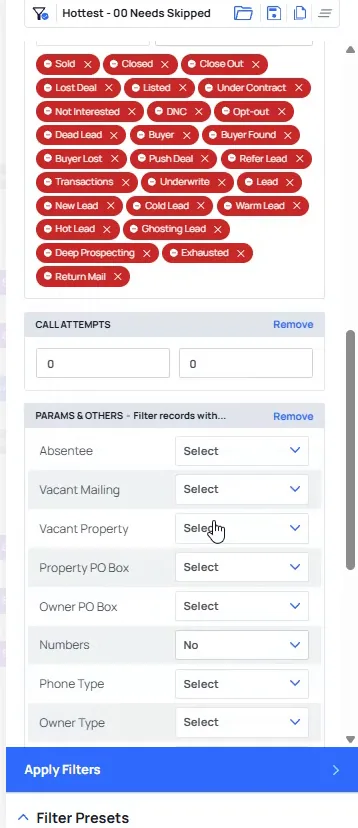
Under Params and others, set Numbers to No.
The panel now shows the other kind of parameters under call attempts. In this case there are no numbers actually on file here. That is the system telling you there are no numbers, so we need to skip trace it to get numbers in.
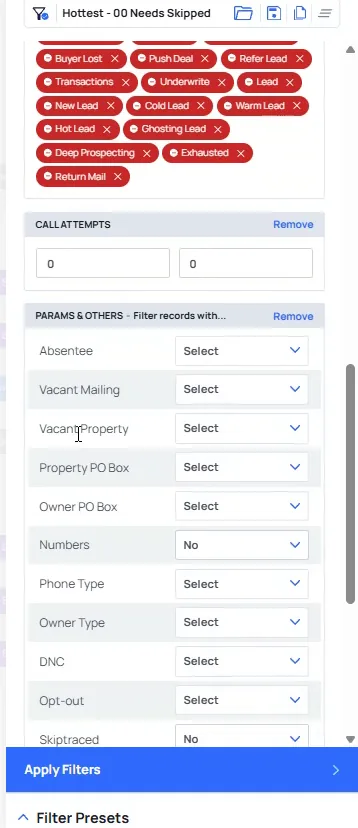
Set Skiptraced to No in the same block.
These are the only two things that are really being toggled on most of these. Together they are saying, hey, we need to skip trace it. Everything else in that block stays alone.
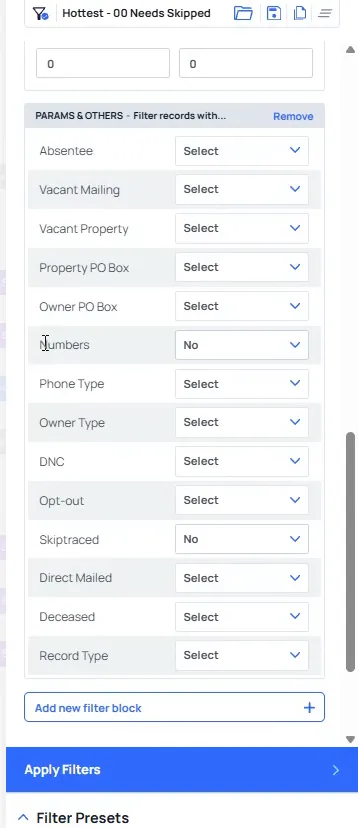
Scroll down to the Add new filter block button.
Whenever you first start this out, there is always going to be an add a new filter block here. That is how you get any of the blocks I just showed you onto a preset.
And all the blocks that I just showed you so if I wanted to type in, instead of property neighborhoods, maybe we wanted to do property ZIP.
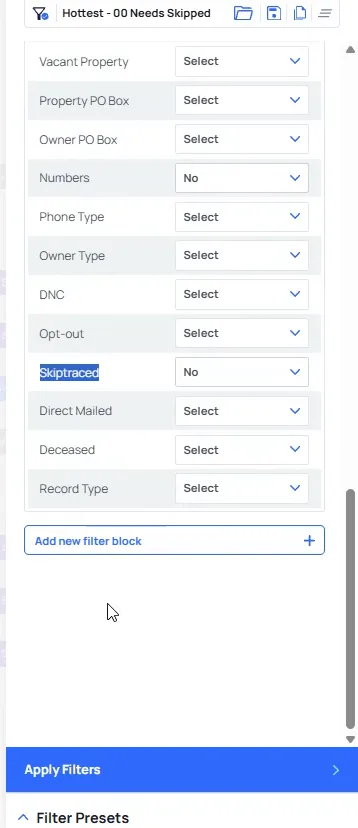
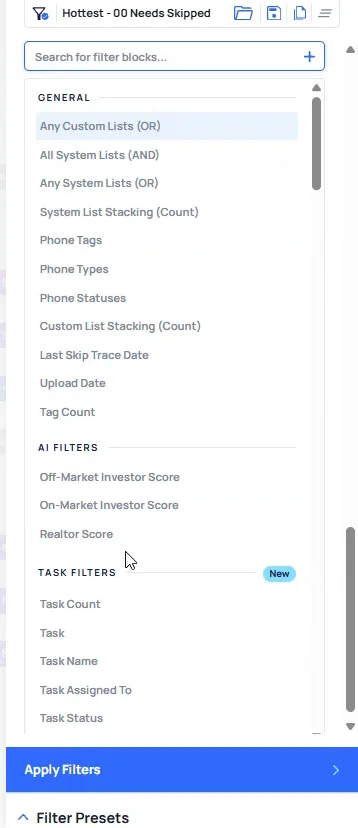
Click the empty search box above General, AI filters and Task filters.
The box opens empty with the filter categories listed under it, general, AI filters and task filters. You can just freely type into that, and property ZIP code comes right up. From there you can do include, or x, or do not include.
And let's say we wanna do you know, I only wanna mark it to 37917 just as an example.
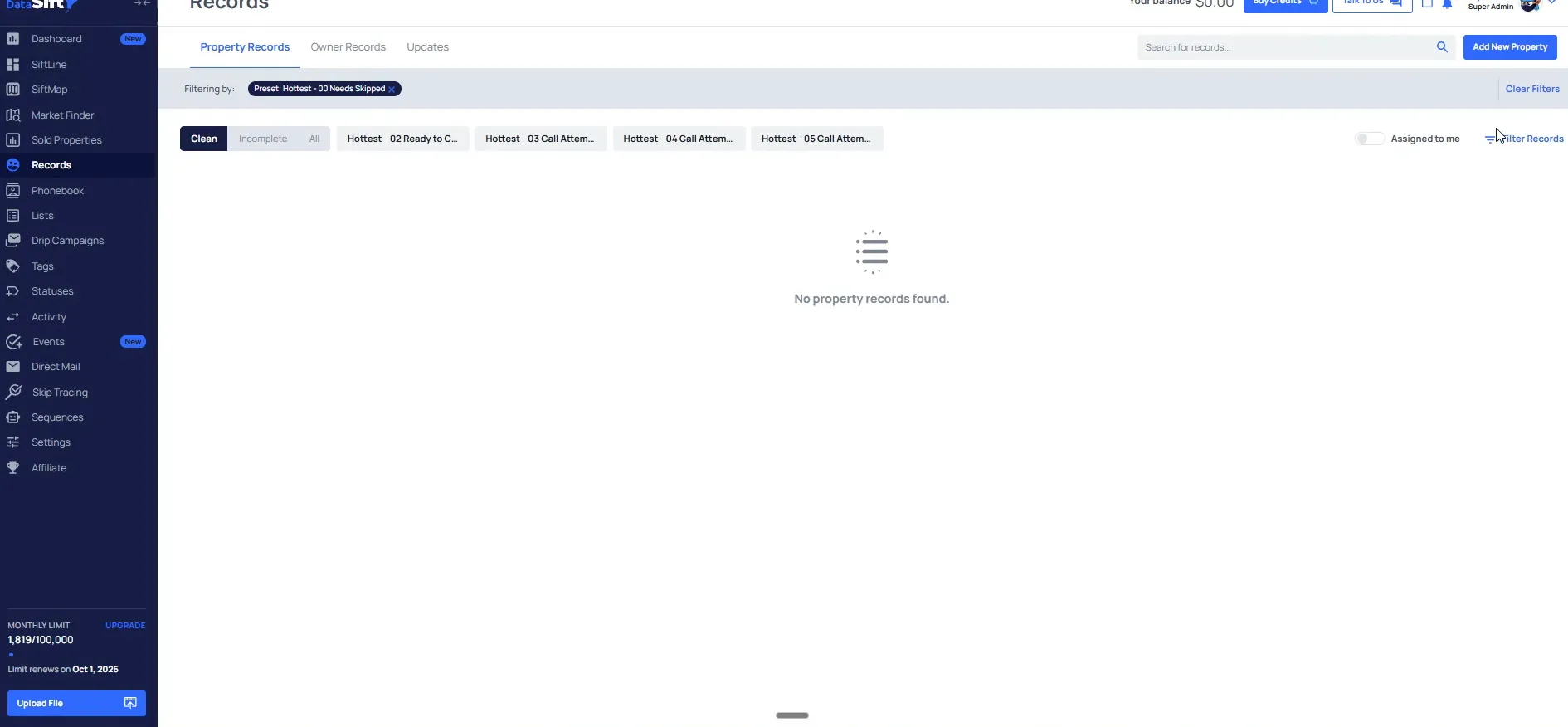
Read the records page, nothing fits this criteria.
The page comes back with no property records found, with the preset still applied at the top. This is not gonna pull up anything because there are no properties that fit this criteria in the account. That just kinda shows you what all is possible from a filtering perspective.
BEFORE YOU MOVE ON