
PART 3
The entire marketing step by step.
This part walks the preset pipeline in the order the records move through it. We start at needs skipped, then skipped with no numbers, then ready to call. Then the call attempts, and we finish at the first mail rung. Every preset is the same filter with one thing changed, and I say what that one thing is.
Mirror each phase in the presets.
Suppress the ZIP code you do not want in the neighborhood filters.
I do not want to do anything that has to do with that ZIP code, so you would just suppress it on out. There are a ton of different filters that you can actually select from.
All of the ones that are in my account right now for this particular setup are sort of mirrored here. So we are always going to have the need skipped. And then in the next phase, they are going to be skipped that have no numbers.
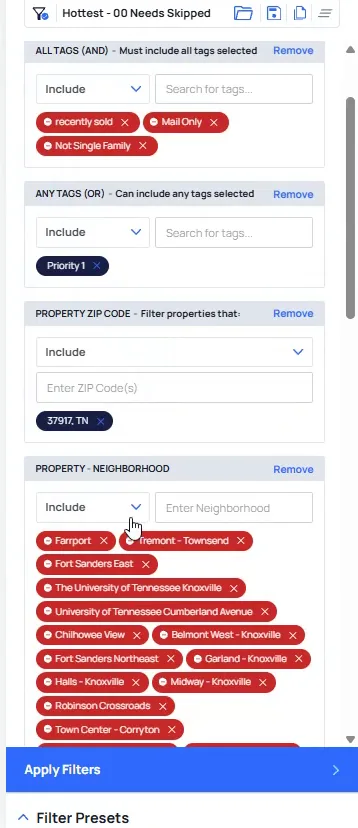
Open Hottest Needs Skipped and check Numbers is set to No.
You will see it is exactly the same thing as the filter we just built. The only change on this rung is that these records have no numbers on them yet.
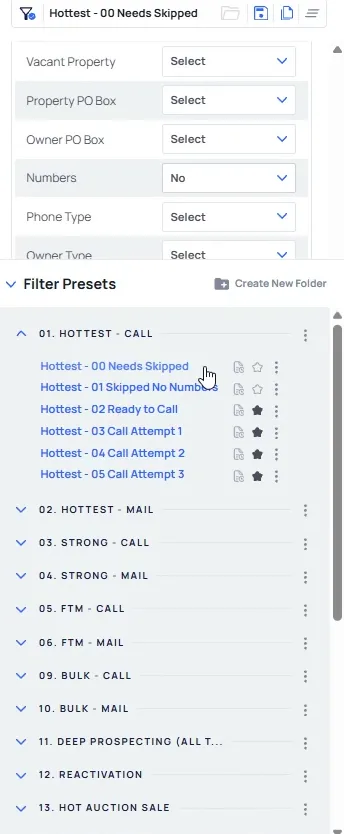
Open Hottest Skipped No Numbers with Skiptraced Yes and Numbers No.
Everything else to that point is the same. This is logically the entire marketing step by step.
So we are going to have properties and we skip trace. Then we are going to have records that we skip trace that do not have any numbers. Then we get into the good stuff where there are actually properties that are ready to call.
But as I scroll on down here, the only thing that's different here is we have skip trace them, and there are still no numbers attached to it.
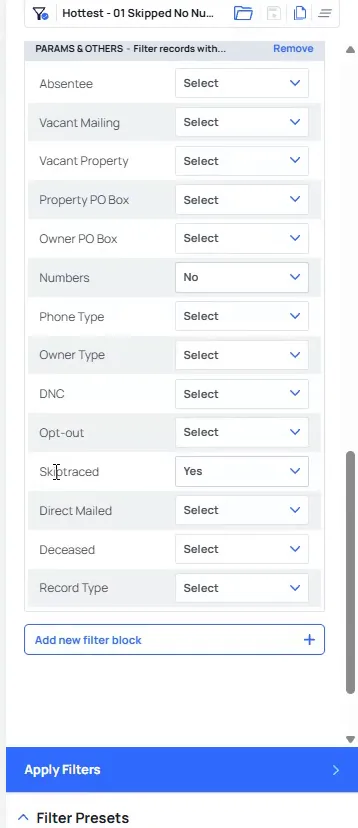
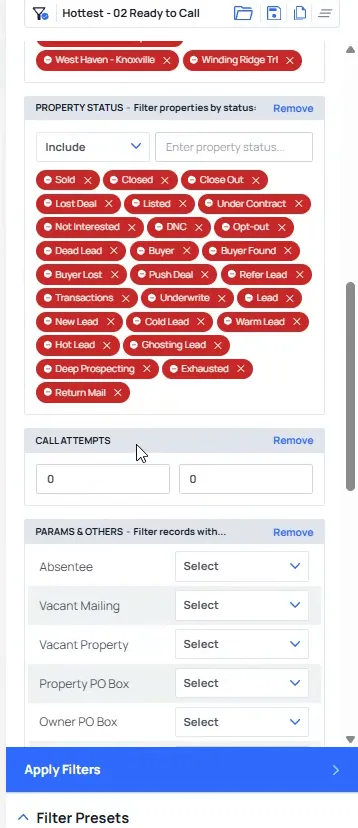
Scroll the ready to call preset to its tags and neighborhood filters.
On screen you have the tag filters and an off market investor score. Below that sit the property neighborhood filters, the same block we set on the earlier rungs. Nothing here changes between the skipped presets and this one.
The change on this preset is the pair above it. Yes, there are numbers this time, and yes, it is skip traced.
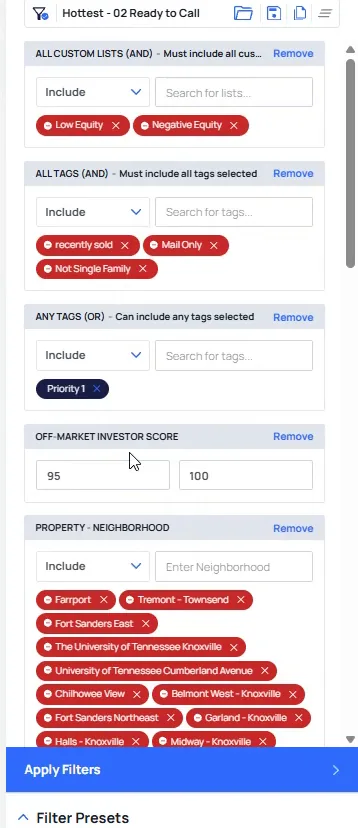
Scroll to Params and others, where Numbers is set to Yes.
The panel now shows the ready to call preset with its call attempts fields and the params block underneath. Numbers is sitting on Yes, which is what makes this rung callable.
There is one other thing that I have added to this preset, and it is owner or properties owned. It is not switched on in this block yet.
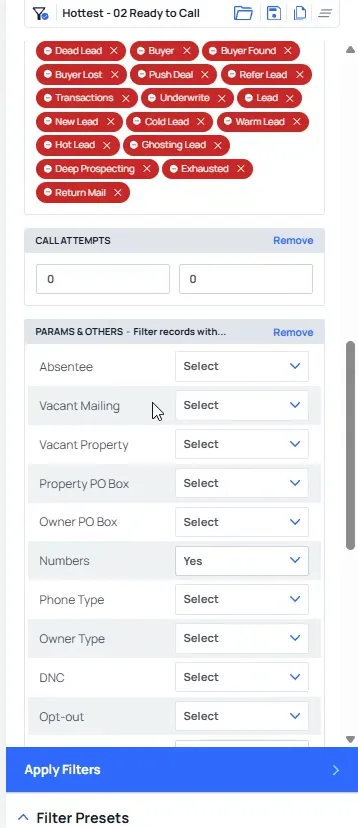
Find one property per owner in that params block.
The call attempts fields sit right above it. The params filters below still show numbers on Yes with no one property per owner set. That is the toggle to go after here.
I only want to show properties here that have one property per owner. If we have multiple in here, you can call the same person over and over. That happens especially if you are doing click to dial, maybe with SmrtPhone or a Kixie.
If you do not have this enabled, you are going to call someone three or four different times in one day. You are going to upset them, they are going to report your numbers as spam, and all those issues come with it. So make sure you have this toggled on.
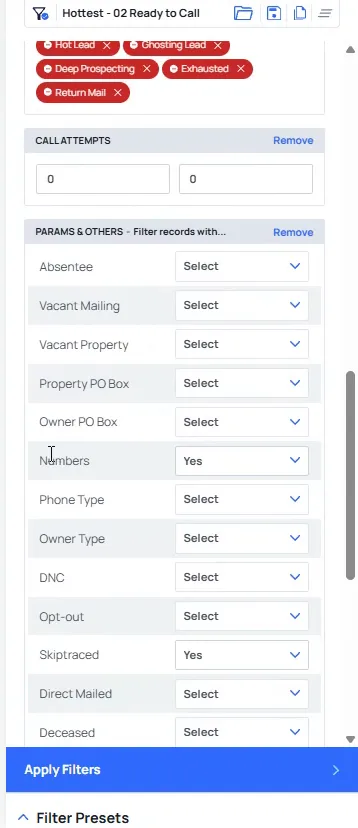
Read Call Attempts sitting at zero and zero above Params and others.
The property status tags are above it and the params block is below. The off market investor score is gone from this view. Do not pay attention to that score anyway. That is just a test that I have, so I will remove it for the sake of it.
Since we are in that ready to call area, this is why one property per owner is applied here. Now we are actually starting to dial people.
It's still showing zero, but when I move to call attempt one, meaning, we're making another call attempt here, Don't pay attention to the off market score.
Move to the call attempt one preset.
You will see the difference now is we have at least one call attempt on this. Everything else on the panel stays where it was, including the neighborhood tags.
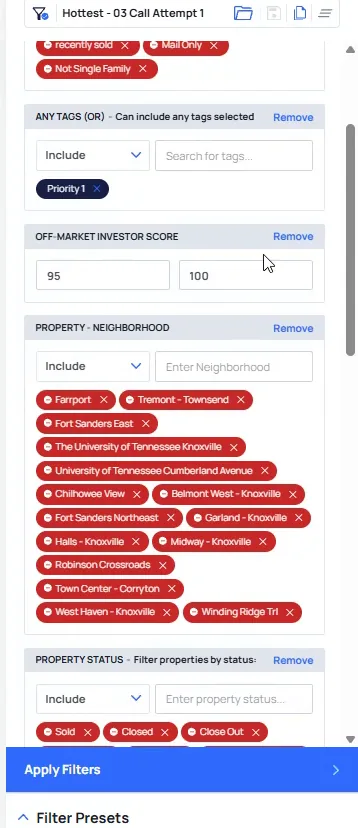
Check the call attempts field set to one.
As we scroll on down to the next page, it is going to be the same thing. There we have call attempt two, and then we have call attempt three. That is the only thing that changed from that point.
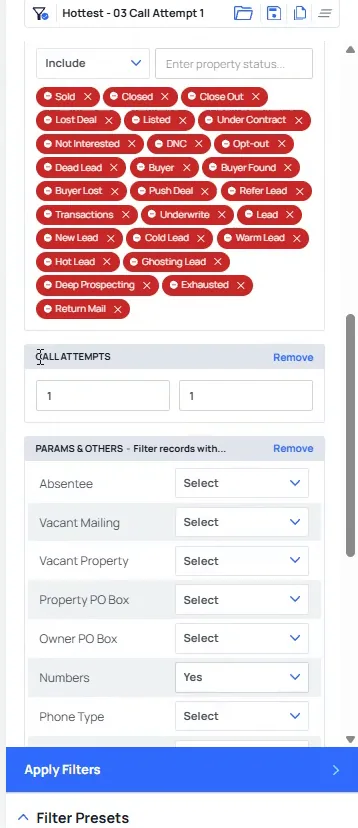
Open the call attempt three preset.
Once we have exhausted all of these and we have moved it to call attempts four, they will never show up again in this flow. The only way back in is a rehash campaign or a not interested campaign, which I will show you in a few minutes.
Now if we come on down to the hottest mail here, the way I like to break this one down is it's all the same thing.
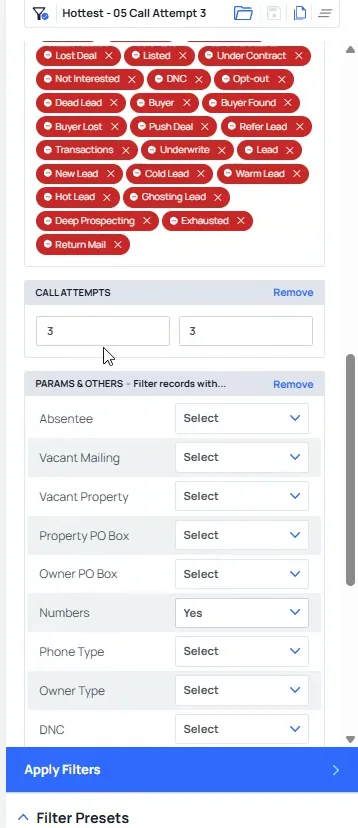
Open the hottest call and mail preset list.
It is all the same thing here. So it is low equity, negative equity, equity.
The only thing that is different is the tag. We do not have a mail only tag here anymore, because we want that to actually be here. We still have that priority one.
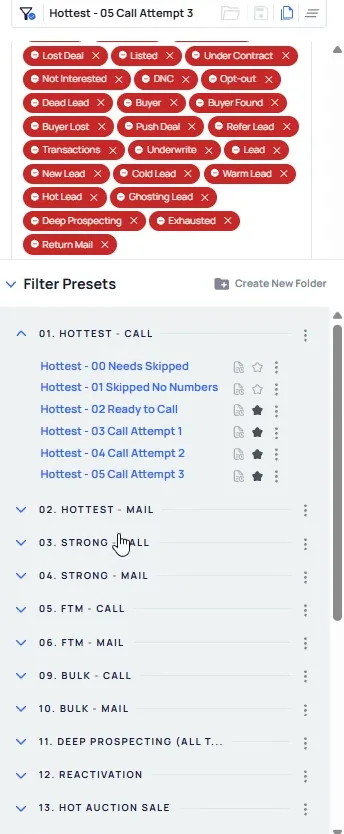
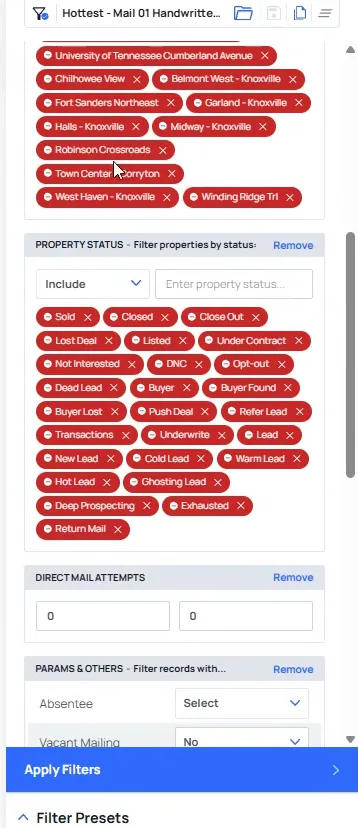
Check the neighborhoods and property statuses on the hottest mail preset.
We still have the neighborhoods that we do not want to be in, and the same property statuses. The tags, lists and neighborhood filters are all set the way the call presets were.
The one new field on this rung is direct mail attempts.
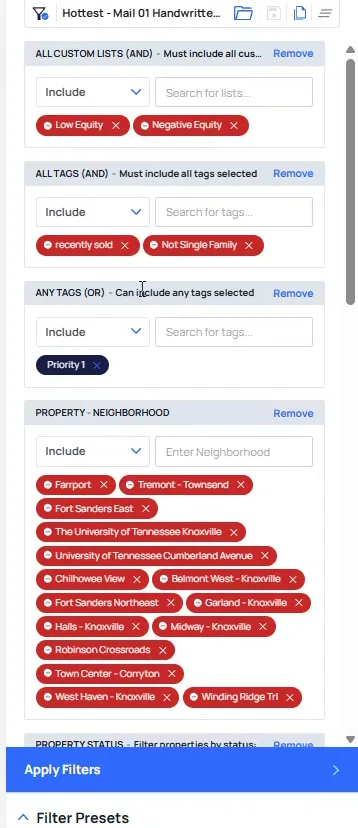
Set direct mail attempts to zero.
Now we have direct mail attempts at zero, with the same property status tags above it. That is the first mail rung, the records nobody has mailed yet.
BEFORE YOU MOVE ON
PART 4
Mail attempts, priority two, and bulk.
Now we take the same attempt flow we built for calling and run it on direct mail. I will show you the vacant mailing filter, the mail attempt presets, the priority two versions, and where the first to market tag comes in. Then we look at the bulk side, which is nearly the same setup with a different ending.
Mail attempts and the vacant mailing filter.
Open the mail preset with Direct Mail Attempts at zero.
This is the mail version of the flow we already walked through on the call side. It goes from call to direct mail, and you can do the same for SMS. We do not have an email one, so bear with me.
The attempts fields start at zero here because nobody in this preset has been mailed yet. That is the first rung of the mail ladder.
And it's the same thing that mirrors that attempt flow that goes from call to direct mail to you can do it for SMS.
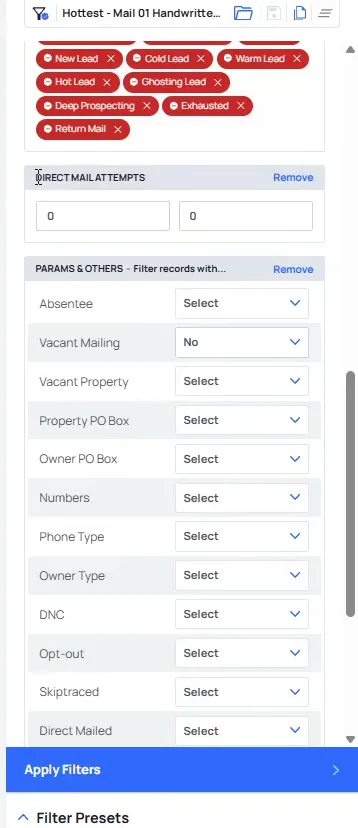
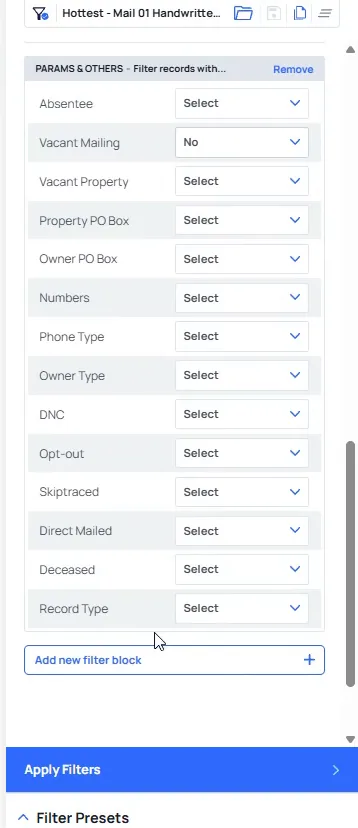
Set Vacant Mailing to No under Params and Others.
If we had a vacant mailing address and that were true, we are sending mail to someone who gets a bounced mail. That wastes money, which is why that filter is there.
On mail I am only doing handwritten, family postcard and soft offer check. Those are the three highest performing templates I have seen from a mail perspective.
Open the third Hottest Mail preset down the list.
I like to put my mail attempts on each of these. We are going to do an entire mail training on this, but I like to throw it in here.
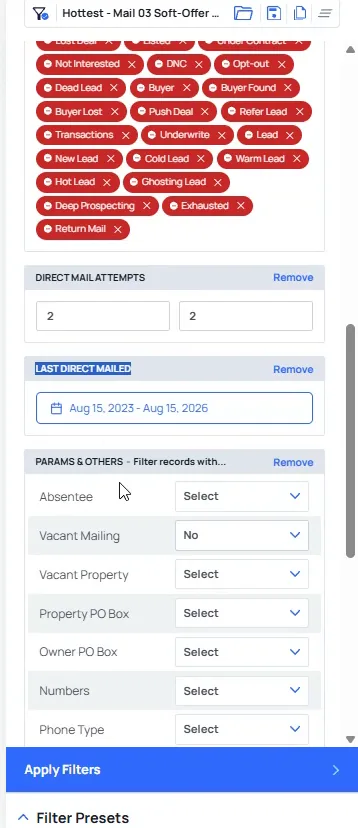
On this one we have mailed it twice already, and the last direct mail attempt had to be in the last three years. That way you can see what mail attempt it is on and know what mailers you have sent to that record.
The reason I have this set up this way is if I come here to my third one down, obviously, we've mailed it twice already.
Set Direct Mail Attempts to two and check Last Direct Mailed.
One of the biggest levers you can pull in all of direct mail is alternating the mailers you send out. Say you send soft offer check five times in a row. If they did not respond to the first two or three, they are probably not responding to that.
These are some of the easiest marketing presets to set up. The only thing we really change on each one is the attempt number and the mailed date range.
Cap the Direct Mail Attempts presets at six.
The majority of the calls you are going to get come in that first six. After that they are either not motivated or something else is going on.
Those are the ones you may have to go in and deep prospect. So I stop building mail rungs past six.
Switch the preset tag to priority two for strong mail.
Strong mail is the same as strong call. Everything stays the same, we are just doing priority two now.
Priority one, all is my hottest, and you can even label it priority one if you want. Anything that would be my strong sits under priority two. You can pull all of those, but you can see it is way less efficient overall.
And just to make sure we're on the same page, I would put my notice default, my probate, my free and clear, my so on and so forth.
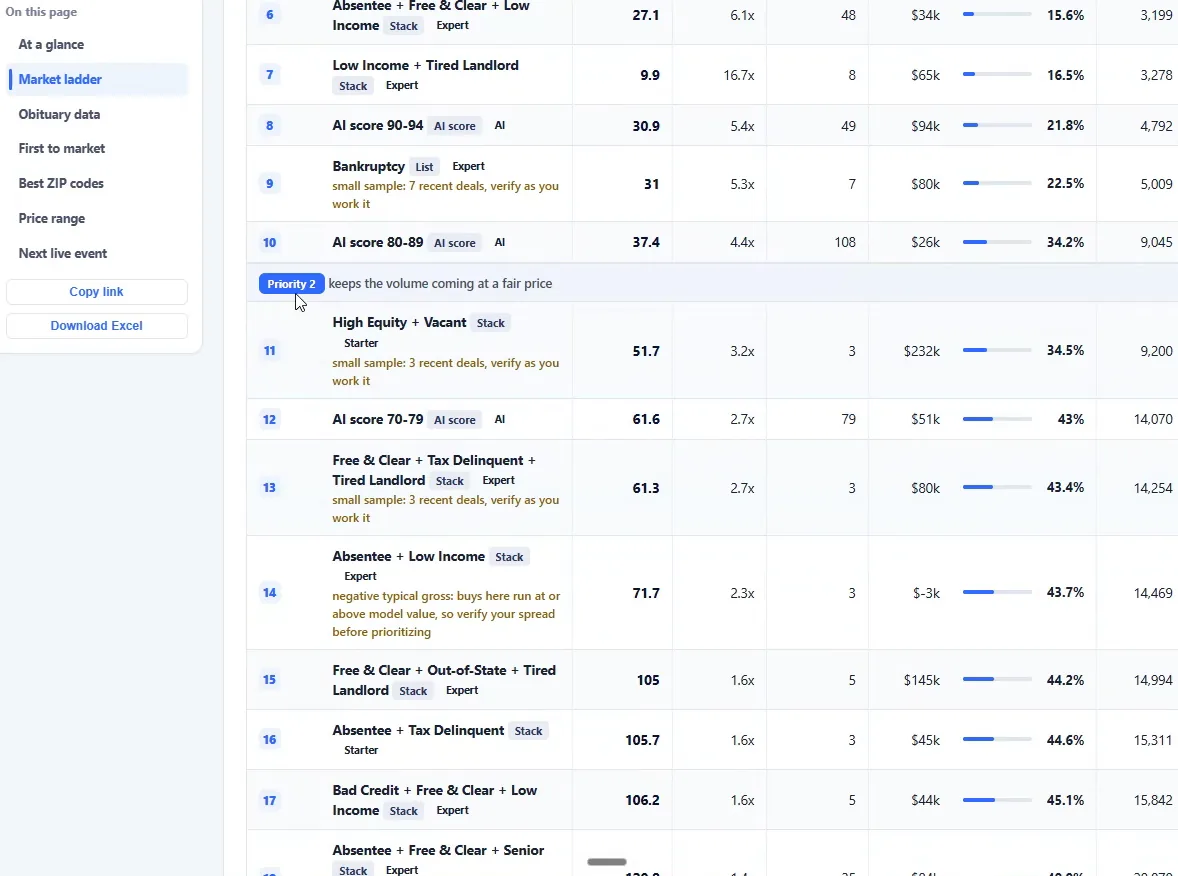
Open the market ladder and read the priority two stacks.
This is where the priority two list stacks live with their equity multiplier and lead counts. It is the same ladder we used for the hottest lists, one step down.
I will show you what my probate and notice of default actually look like, because they show up on the first to market side next.
Open the Strong Call preset on the first to market side.
First to market is slightly different because it has the first to market setup, and it is always the same for call. This one is just for click to dialing, one call at a time.
The presets read the way you would expect down the list. Need skipped, skip no numbers, ready to call, and on from there.
The FTM tag separates county data.
Click ready to call and scroll down to the FTM tag.
Instead of the priority one tag, this one says FTM, which stands for first to market. That is all of our courthouse data. That single tag, added whenever we upload our data, is what separates county data from everything coming straight from SiftMap.
Everything else is literally the same. I suppress recently sold, low equity and negative equity. It is easier to suppress those two than to miss out on unknown equity or the 30 plus percent.
It's just like removing the stuff I don't want while not eliminating things that maybe could be an opportunity, and that's how I like to organize that.
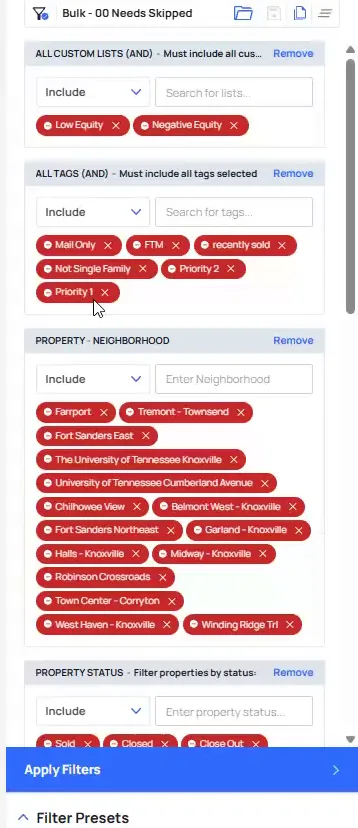
Open the bulk Needs Skipped preset with its tag exclusions.
The bulk side is pretty much the same thing we went all the way through. The difference is the ending. Instead of click to dial we are mass exporting and sending it to SmartDialer or Kixie or Ready Mode or CallTools.
We are still using that call attempt to filter it out. The preset shape does not change.
And I'll show you a full workflow of what it looks like to do the full click to dial process versus the full bulk process as well.
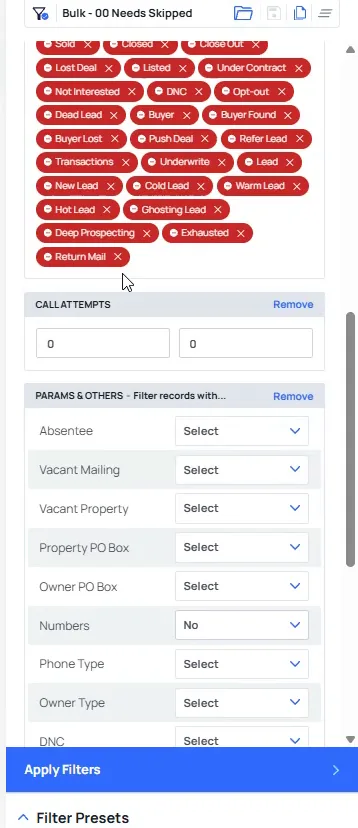
Set call attempts to zero on the bulk preset.
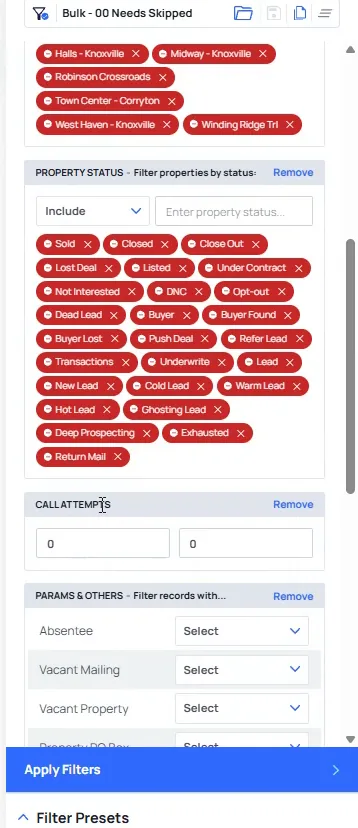
This is how you separate the two flows. Maybe you bulk market everything except priority one and priority two, so you exclude those tags. Or you run the whole bulk process on all your priority one data.
The only reason you want to click to dial is the voice mail. You can leave a personalized one and give it a really nice high quality touch. It is much harder on bulk dialing, especially legally, because carriers do not like voice mail drops.
Just say these are the ones that I only want to do bulk marketing to versus the click to dialing process.
BEFORE YOU MOVE ON