
PART 5
The actual bulk marketing processes.
Everyone without a priority one tag still gets marketed to, just in bulk. Here I open the bulk ready to call preset, read the lists and tags on those records, then switch to the priority one shortlist. Same account, two different ways of working the phone.
Bulk dial, then click to dial.
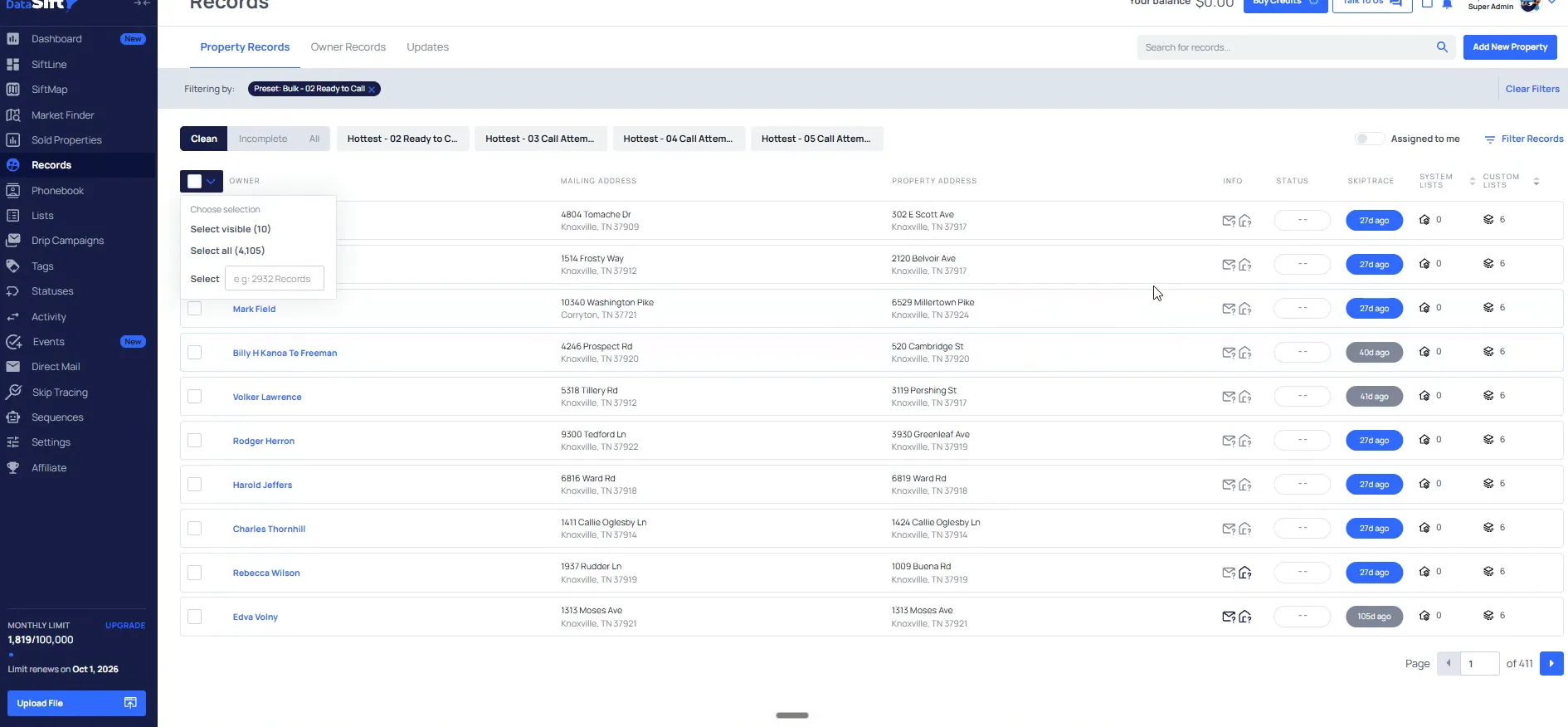
Open the Bulk ready to call preset and the selection dropdown.
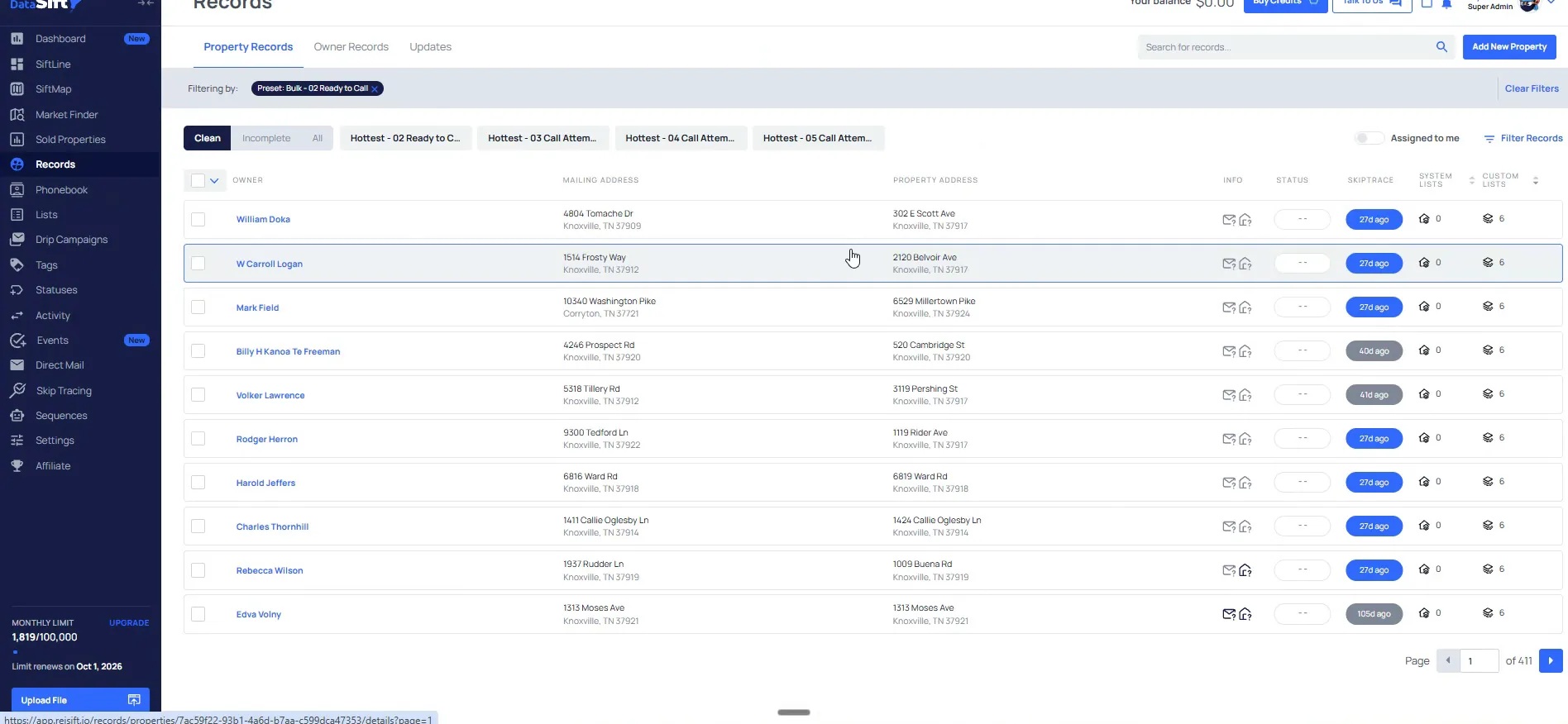
The preset loads and the count comes up in the selection dropdown. These are all people that do not have a priority one tag attached to them, because we suppressed the priority ones already.
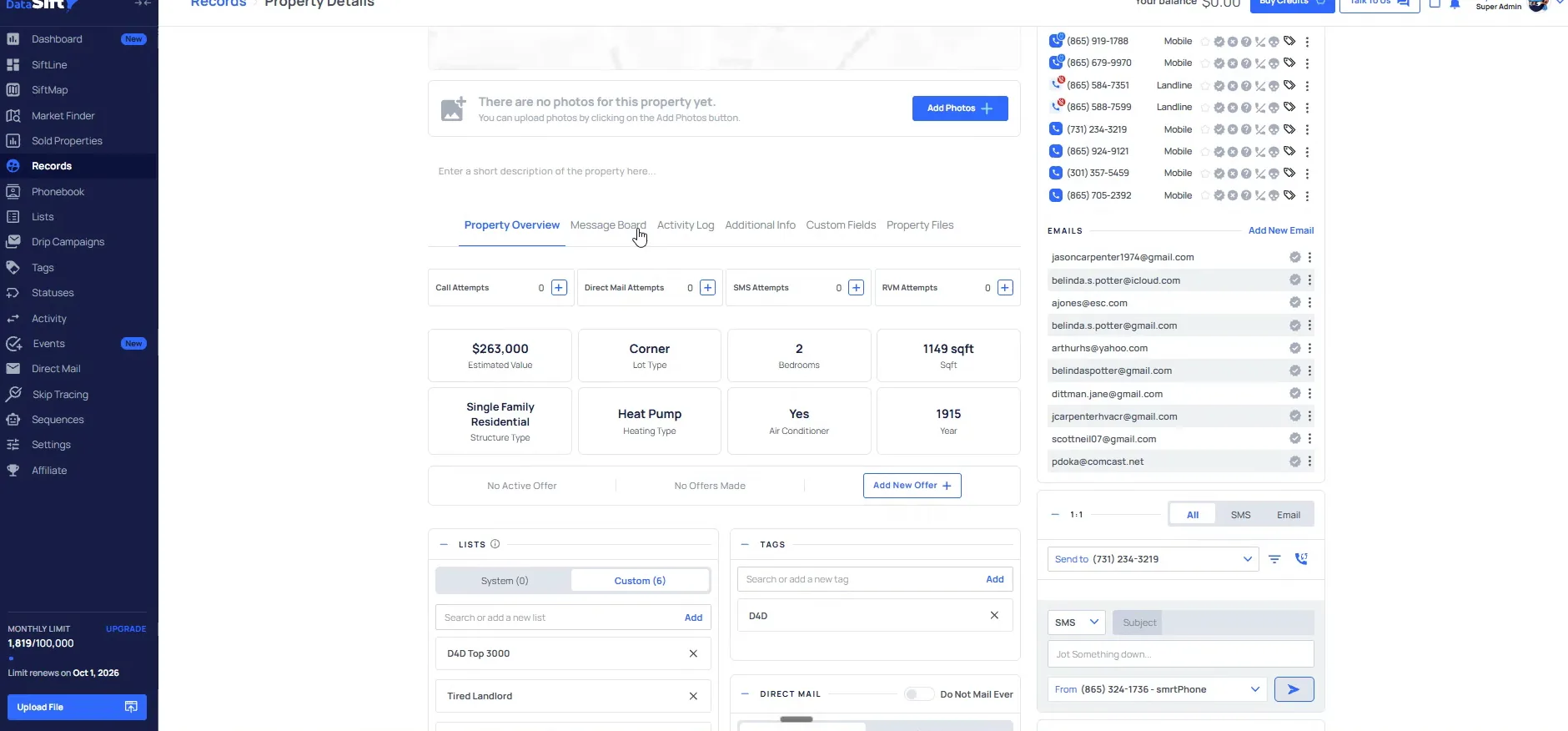
Down at the bottom of the record you can see the custom lists that are actually attached to it. The tags column here just has d four d.
if I come in, there are 4,105, and these are all people that do not have a priority one tag attached to them.
Open a record and read its custom lists and tags.
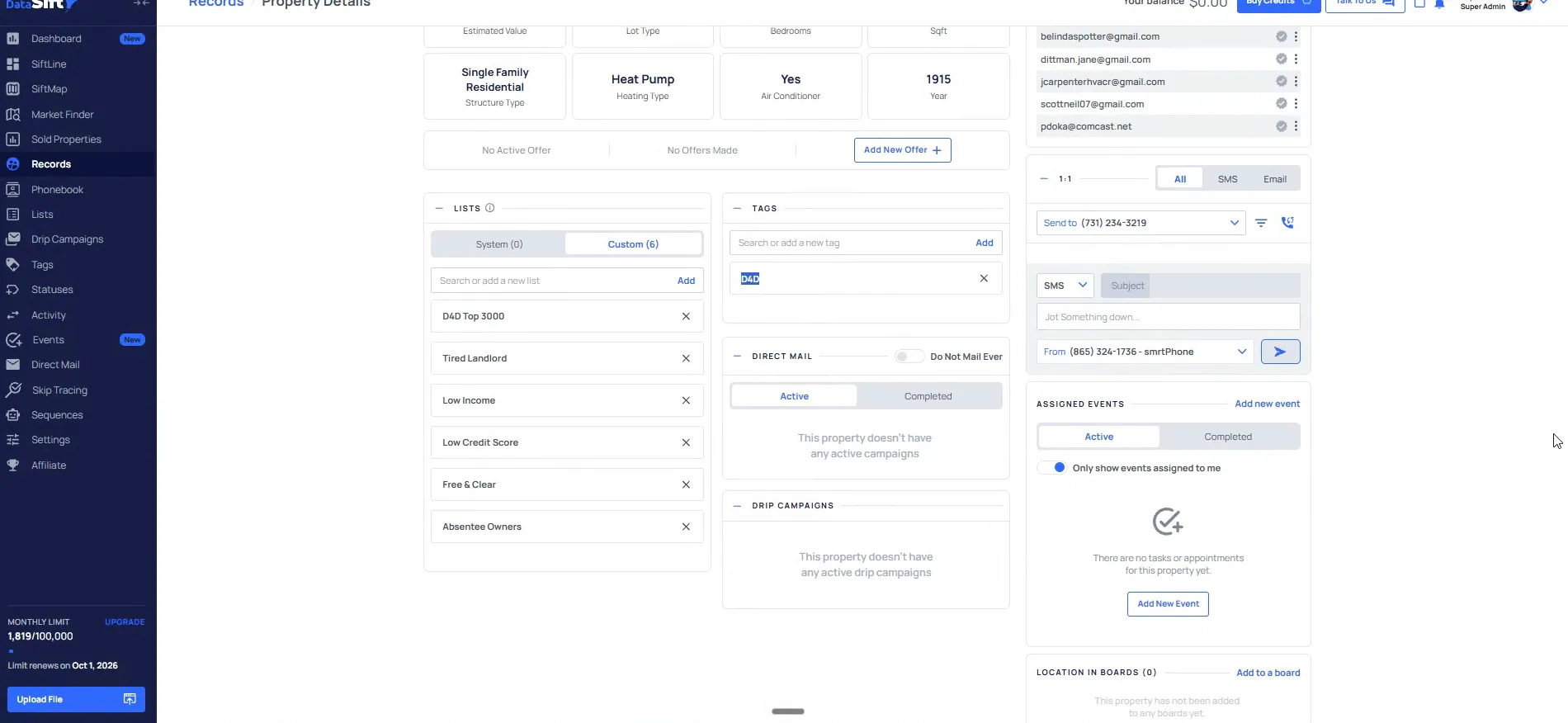
The record shows the driving for dollars custom list and the d four d tag together. Meaning, this was a driving for dollars list that we actually had.
From here I click through to Zillow to see what the house looks like.
Check the d four d tag against the custom list shown.
This is the state you want on the record before you dial it. The tag and the custom list line up, so you know where the name came from.
If those two do not match, the record came in from somewhere else and the bulk process is not the right one for it.
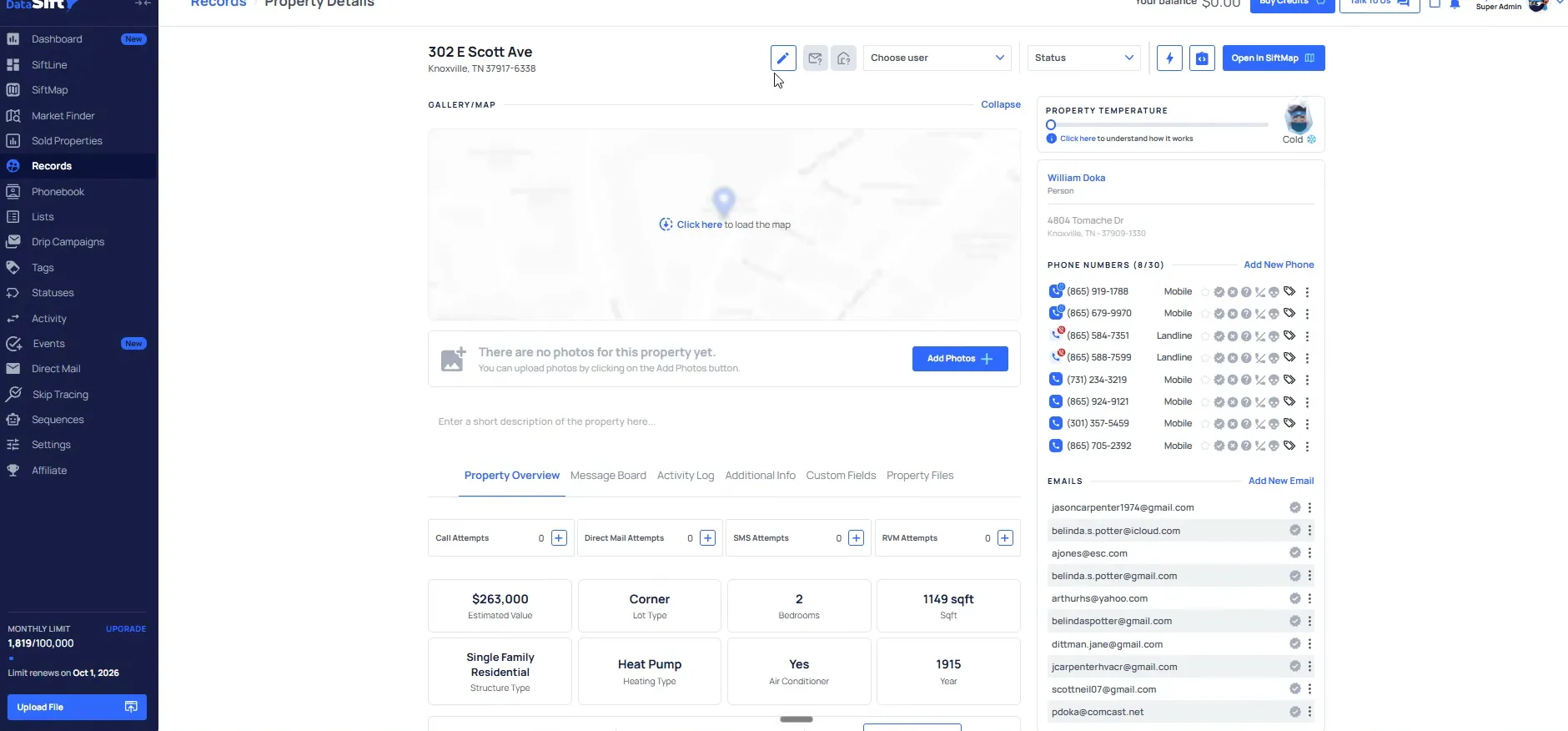
Open the property details page and read the phone numbers.
The house does not look the best, because it is on the d four d list. I always make jokes about this, but this is the investor special, as they say.
As we go through and actually bulk dial these, that would be an example of the bulk marketing side. Depending on how you are doing this, I cannot recommend enough to use the Trello workflow. There is going to be another training specifically on that as well.
Clear the filter and load the priority one ready to call preset.
You see the little stars on these presets. Ready to call versus call attempt one, two and three, these are all the ones that are shortlisted right there.
The list that loads is small and one of them is being actively called. This is the side you work by clicking the dial, not by bulk dialing.
So if I click on ready to dial here, and these would be, let's see, 66 properties that fit my priority one criteria.
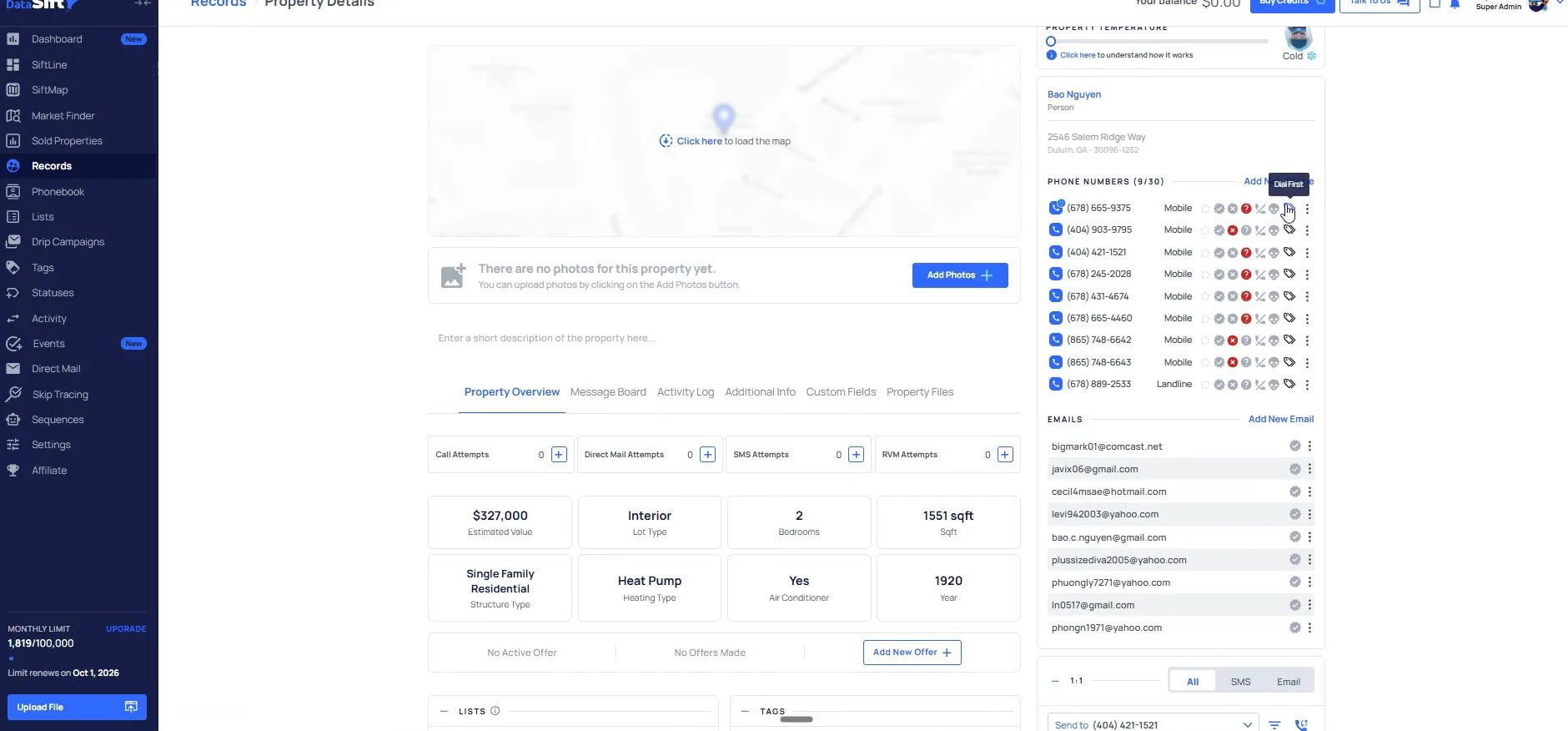
Hover a phone number to read the Dial First label.
This tag is my Trello tag. If you do not know what that is yet, it will be in a later module for you to watch.
It is essentially telling you the order of what you should be calling all of the numbers that are associated with this. A lot of dial firsts are here.
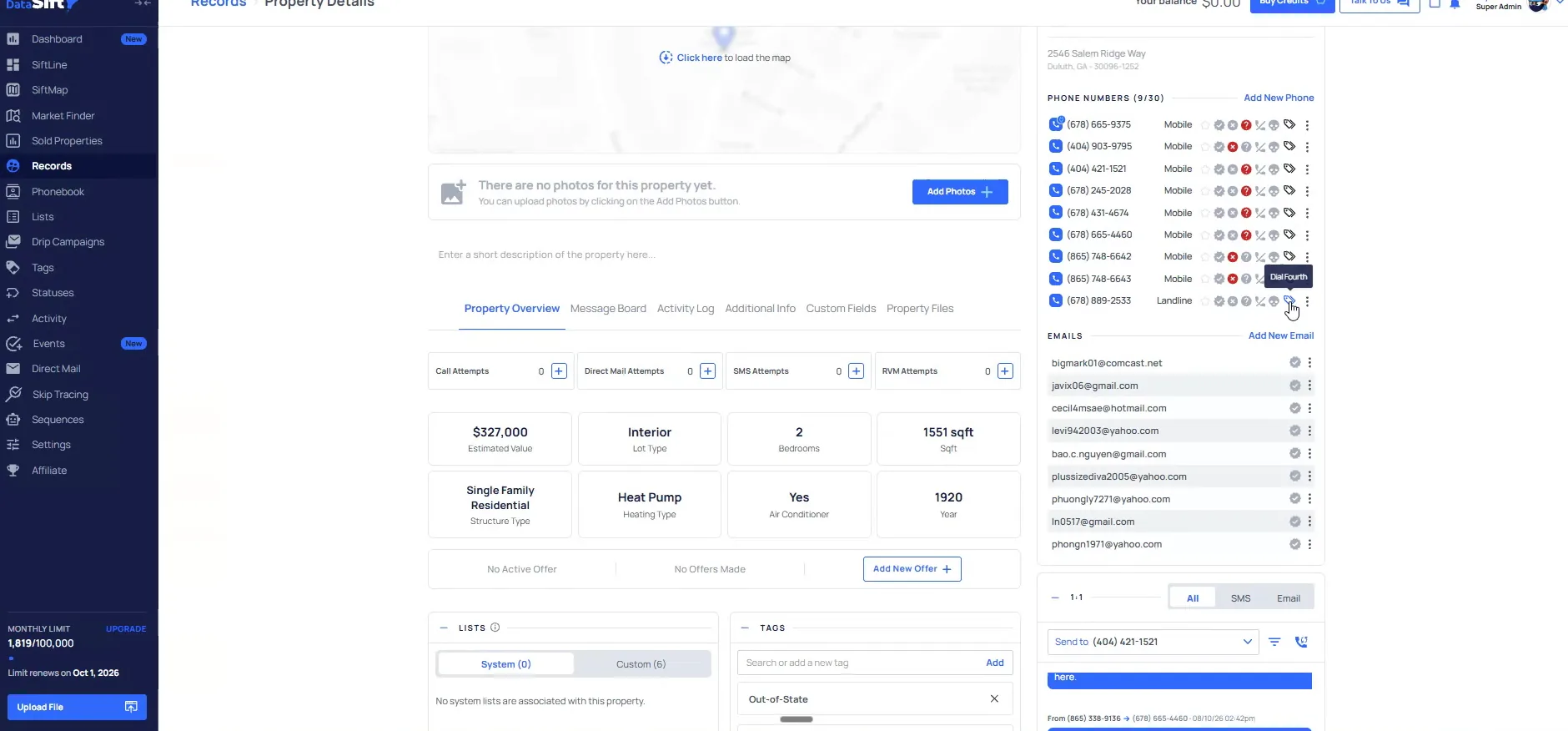
Read the Dial Fourth label on the landline number.
We have not gotten the correct phone number yet, because there is not a clear check mark yet. We have actually called through this person, I believe, one time.
That is the whole click to dial read. You work the numbers in the order the labels give you, and you keep going until a number checks out.
But this one is a dial fourth, which is why we didn't actually call this one, and it's a landline, so it makes total sense.
BEFORE YOU MOVE ON
PART 6
Click to dial and bulk export.
This part is the dialing side, and it depends on the integration you have set up. I walk through Settings so you can see what is installed, then show the one off click to dial and text on a record. After that we pull the bulk cold calling list and send it out for a power dialer.
Dial from the record, or export bulk.
Open Settings from the record page.
What you do here depends on the integration that you have set up, so I touch on it briefly. The record in front of me has the phone numbers, the emails, the tags and the SMS thread all on one page.
Settings is where the installed integrations live, so click settings and crack this open.
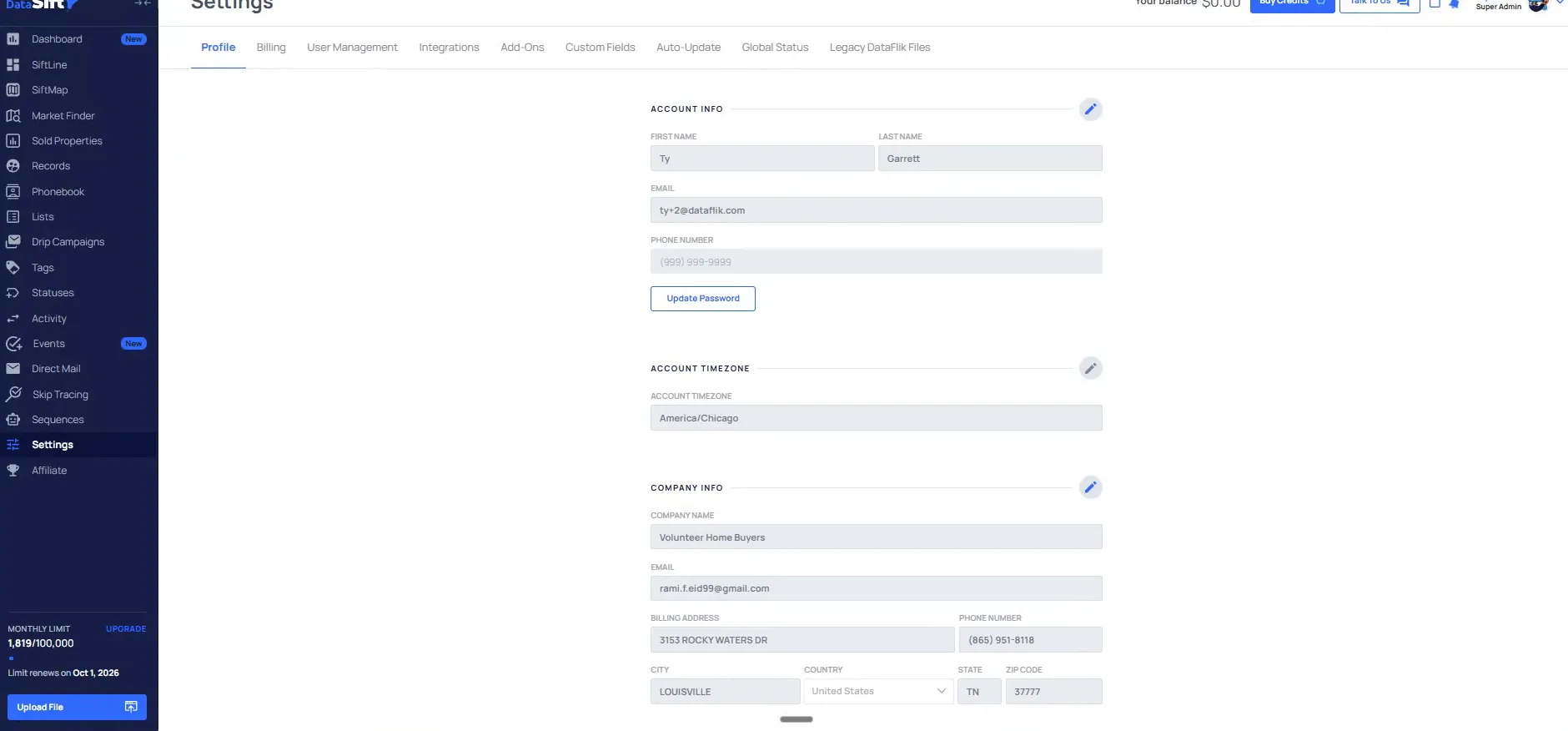
Land on the Profile tab in Settings.
Settings opens on Profile, with the account info, the timezone and the company info fields. Nothing on this tab changes dialing.
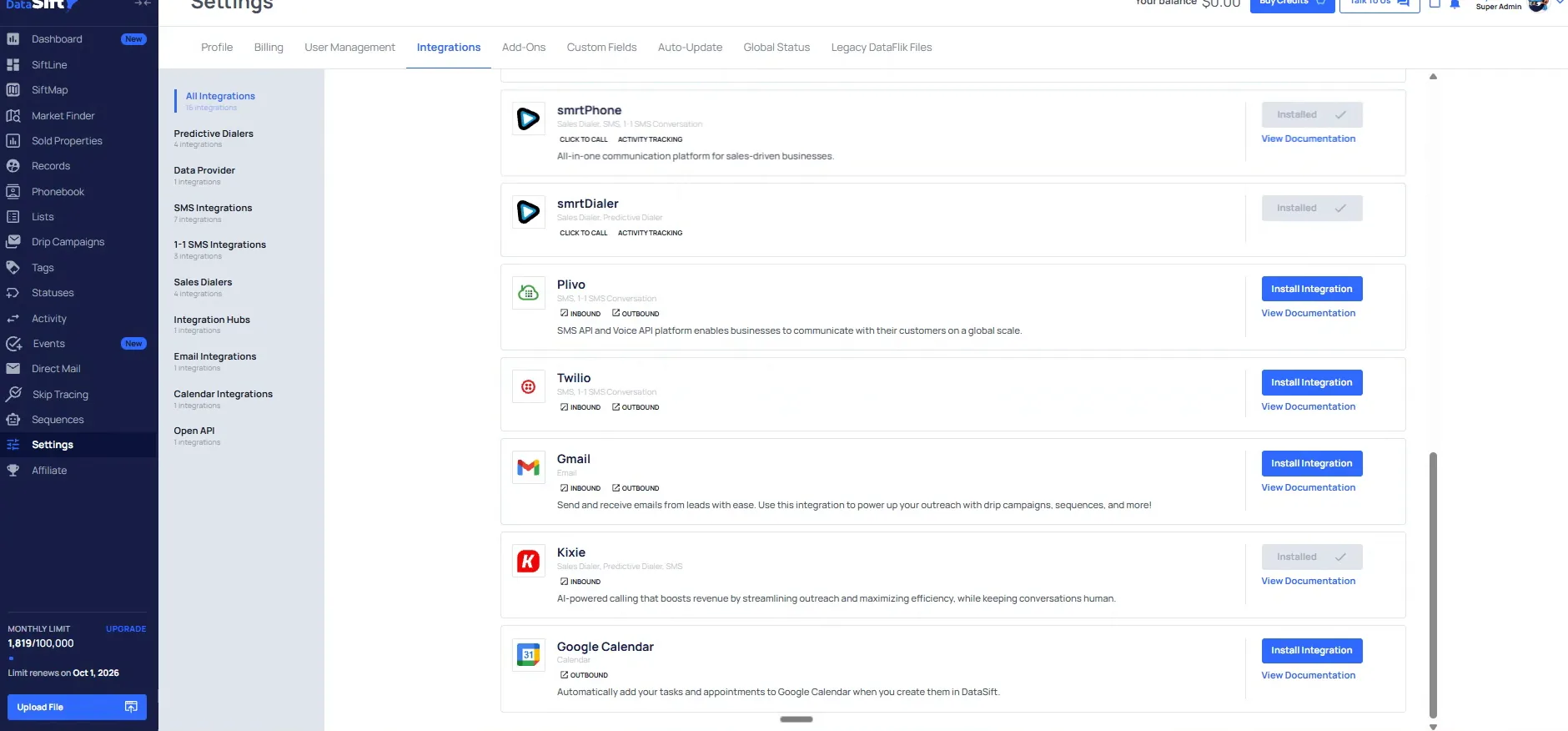
We use Kixie and we simply use SmrtPhone, it just depends. Zapier, Launch Control, SmrtPhone click to dial with the smart dialer portion, and Kixie itself are all on the next tab.
Open the Integrations tab and read the installed list.
You can see all these integrations are installed here, smrtPhone and Kixie among them, with Twilio and Gmail sitting there as available. This is the one place to confirm what your account can actually dial or text through.
I am not going to dial from here, because we will actually call someone live on this call.
Open the Kixie panel from the integrations list.
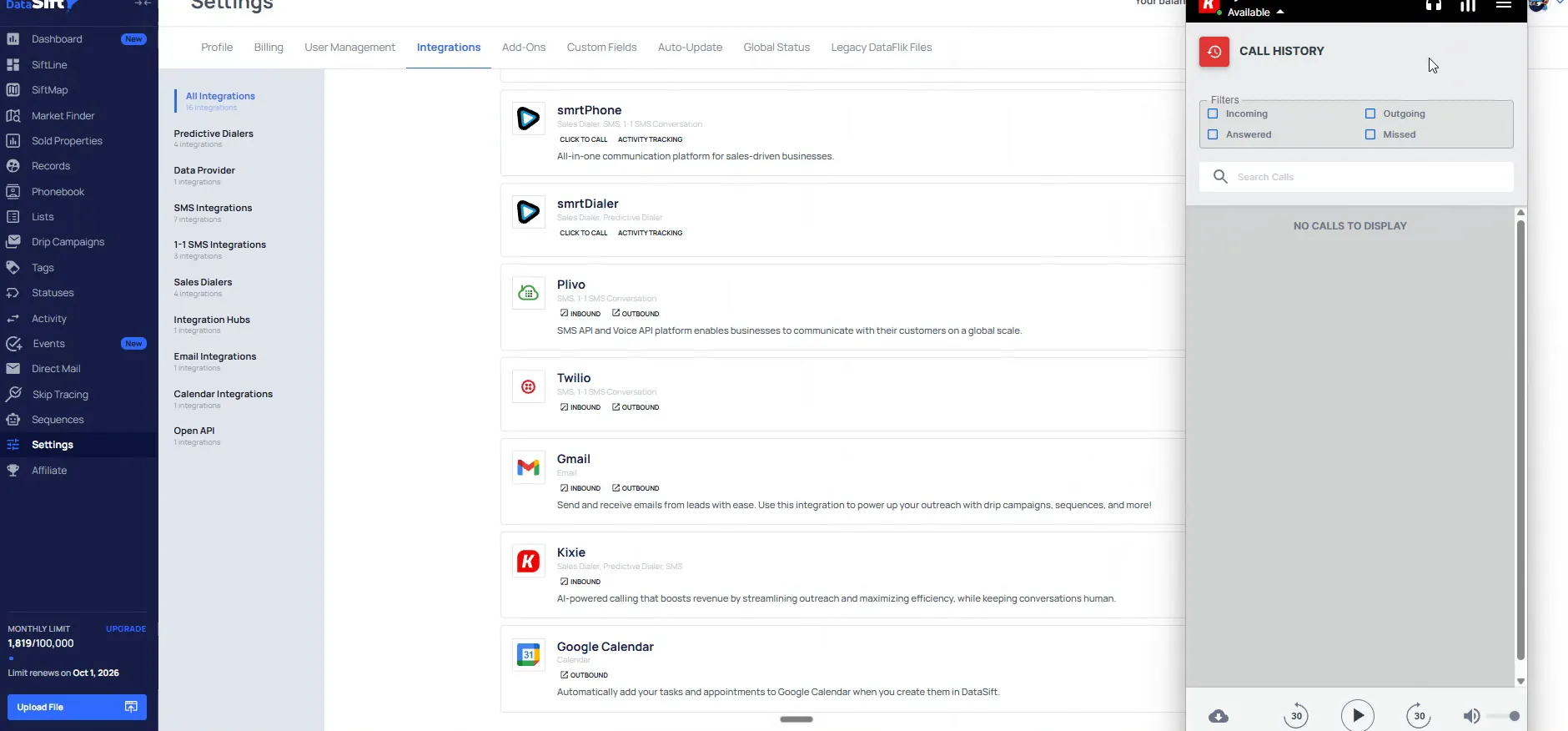
The call history panel opens next to the integrations list. That gives you a look at the dialer itself rather than the DataSift side.
This is what the actual UI of Kixie would look like if you were going to, be doing any dialing yourself.
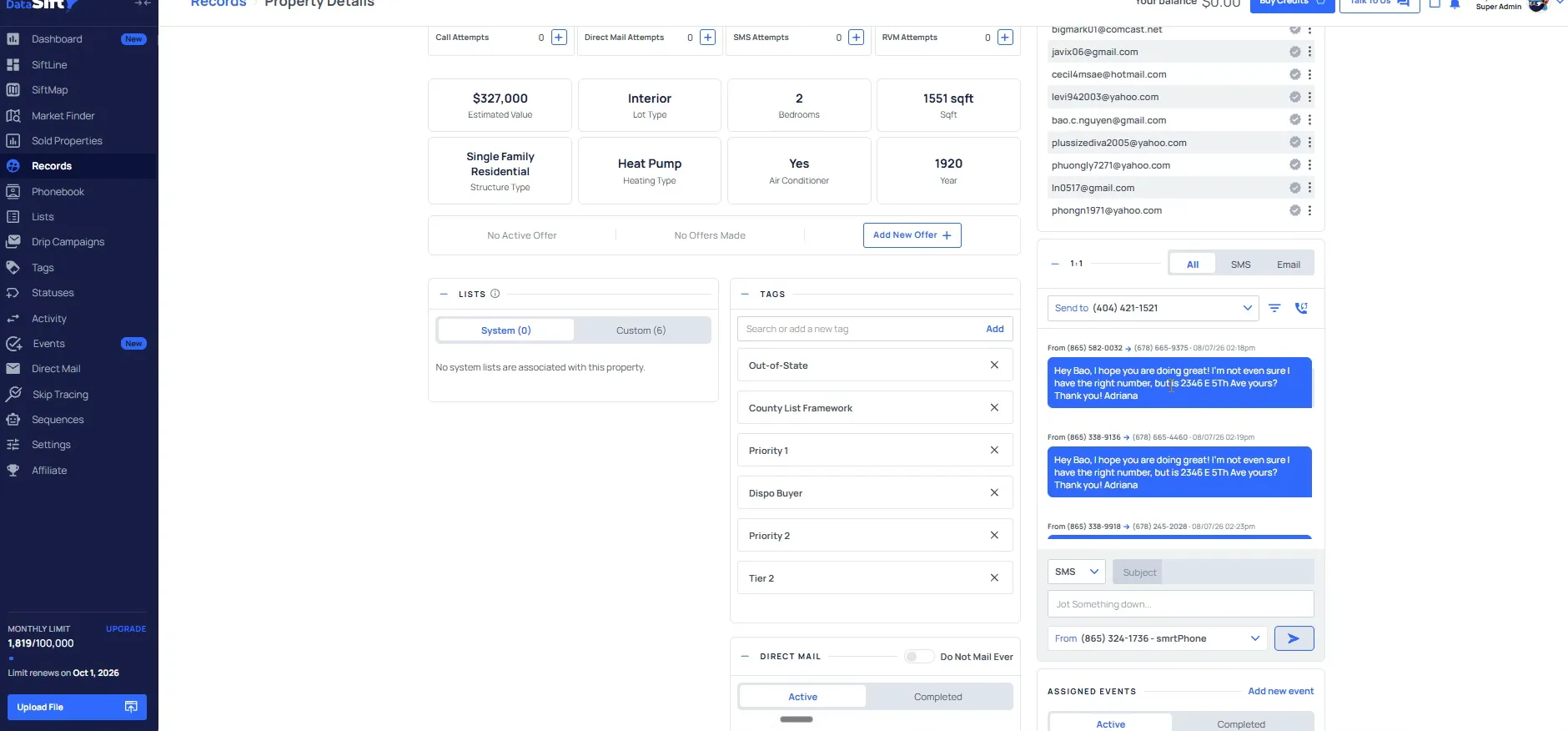
Click the number next to the SMS panel on the record.
Back on the record you have the tags, the direct mail section and the SMS conversation panel with the SmrtPhone number on it. Whenever you are inside of the records, you would just simply click on this number. It would dial outbound if you were doing the click to dial process.
If you are using SmrtPhone, you can send out text through this actual workflow as well, just on a one off basis. Bulk is the other path, and that is next.
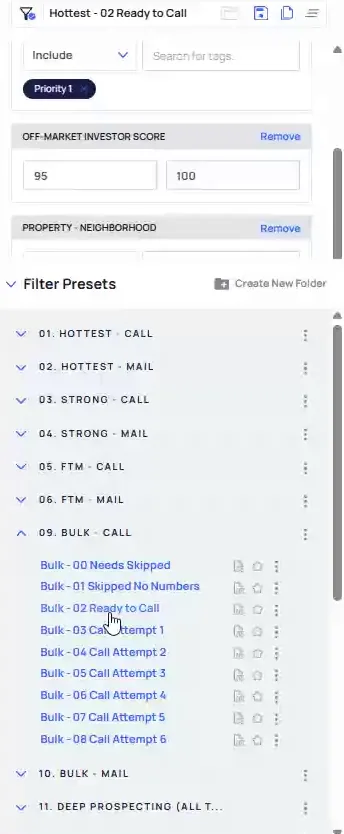
So if I came into records and I wanted to come in and click on filtering records, and we want to go down to bulk in this case.
In Filter Records, click the Bulk Call ready to call preset.
The Filter Records panel lists the Bulk Call presets, with ready to call sitting highlighted under them. So it would be bulk cold calling, and we always want to go to ready to call.
Then you hit apply filters. This is going to be a really big list.
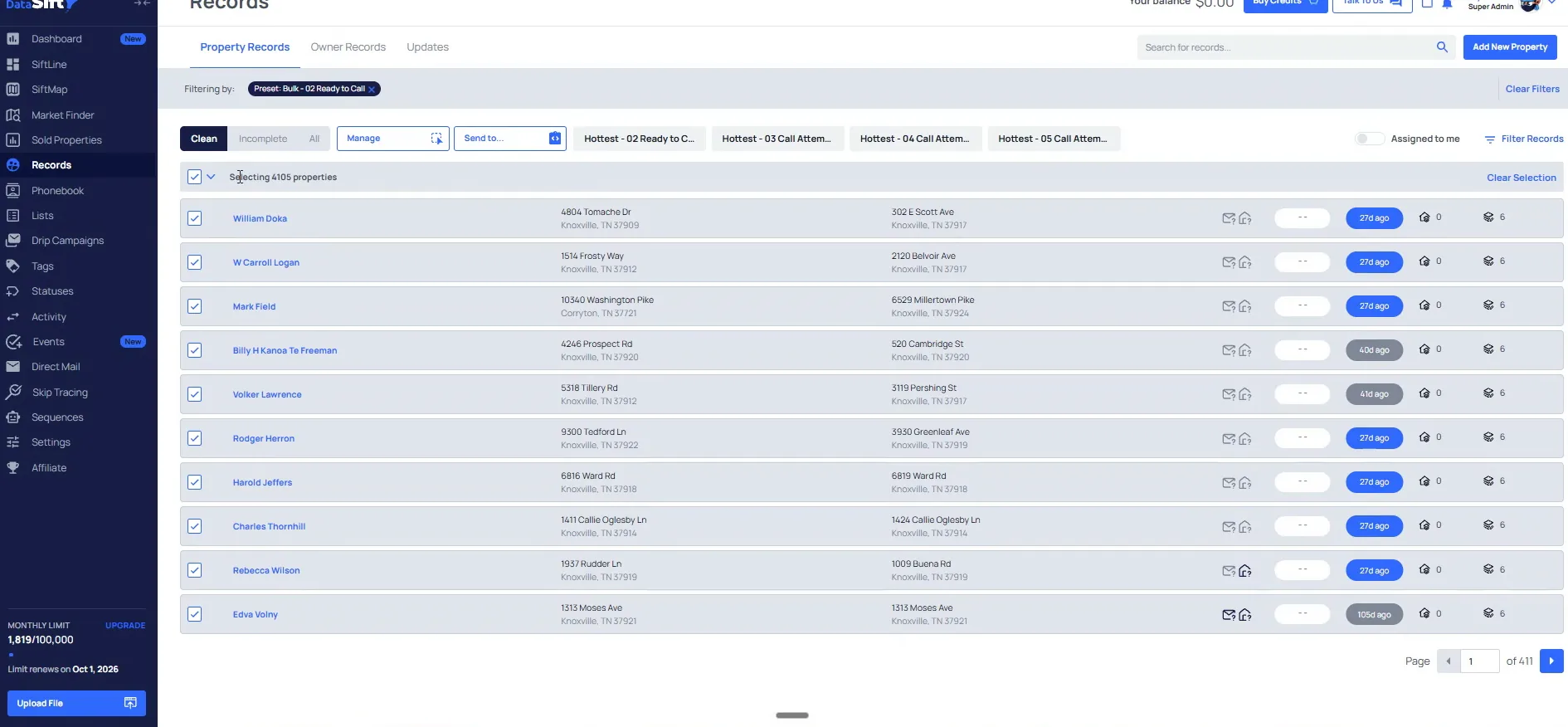
Select the whole list on the Clean tab.
It says we were selecting all 4,105. Make sure that we are on clean here before you do anything with the selection.
Manage and Send to both sit at the top once the list is selected.
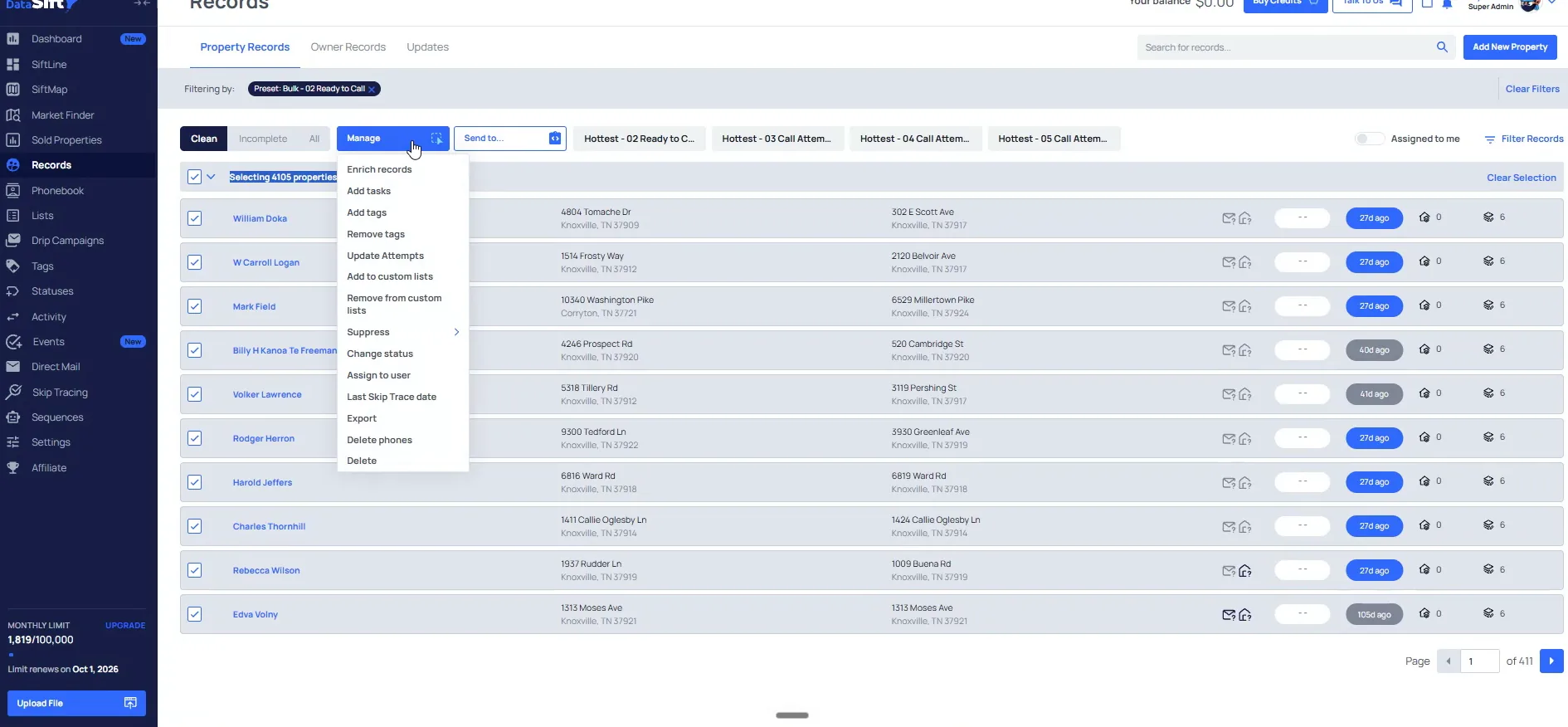
Open Manage on the selected properties.
The dropdown gives you Export, Add tags and Change status on the whole selection. From here you can either choose to export this data or you can choose to send it to an actual integration partner.
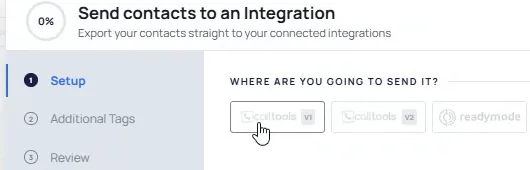
Open the Send contacts to an Integration modal.
The modal lists calltools, readymode and smartDialer. Depending on your setup that is call tools or ready mode for dialing, or SmarterContact for an SMS campaign, or SmartDialer itself.
I will not be doing any of that here. If you wanted to, you could go through and also hit export. That is how you would do it for Kixie on their power dialing list.
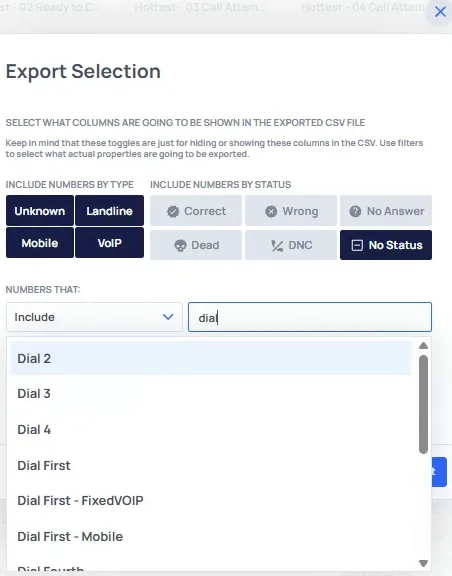
Turn on Unknown, Landline, Mobile and VoIP.
The Export Selection dialog shows the number type toggles. We want to have all the numbers that are included on unknown, landline, mobile or VoIPs.
Leaving one off means the power dialer never sees those numbers.
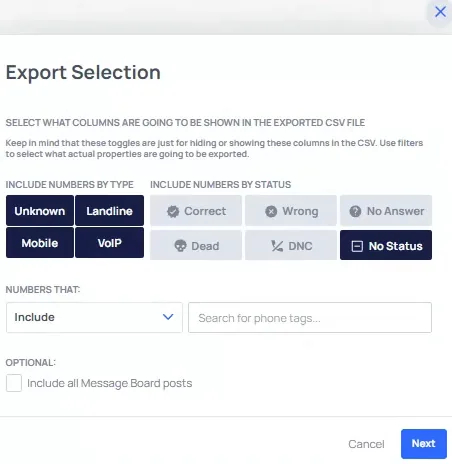
Open the dial tag dropdown, pick the tags, then hit next.
The dial tag dropdown sits under the number type toggles. We also want to include records that have a dial tag with no statuses attached to them.
Once the tags are set, you would hit next.
BEFORE YOU MOVE ON