
PART 1
Uploading new records.
My name is Kylie, and I'm your customer support ninja at REI Sift. In this video, I'll be showing you how to upload new records. Whether this is your first list or you're adding new property addresses to a list you already have, this should get you there.
Set up the upload.
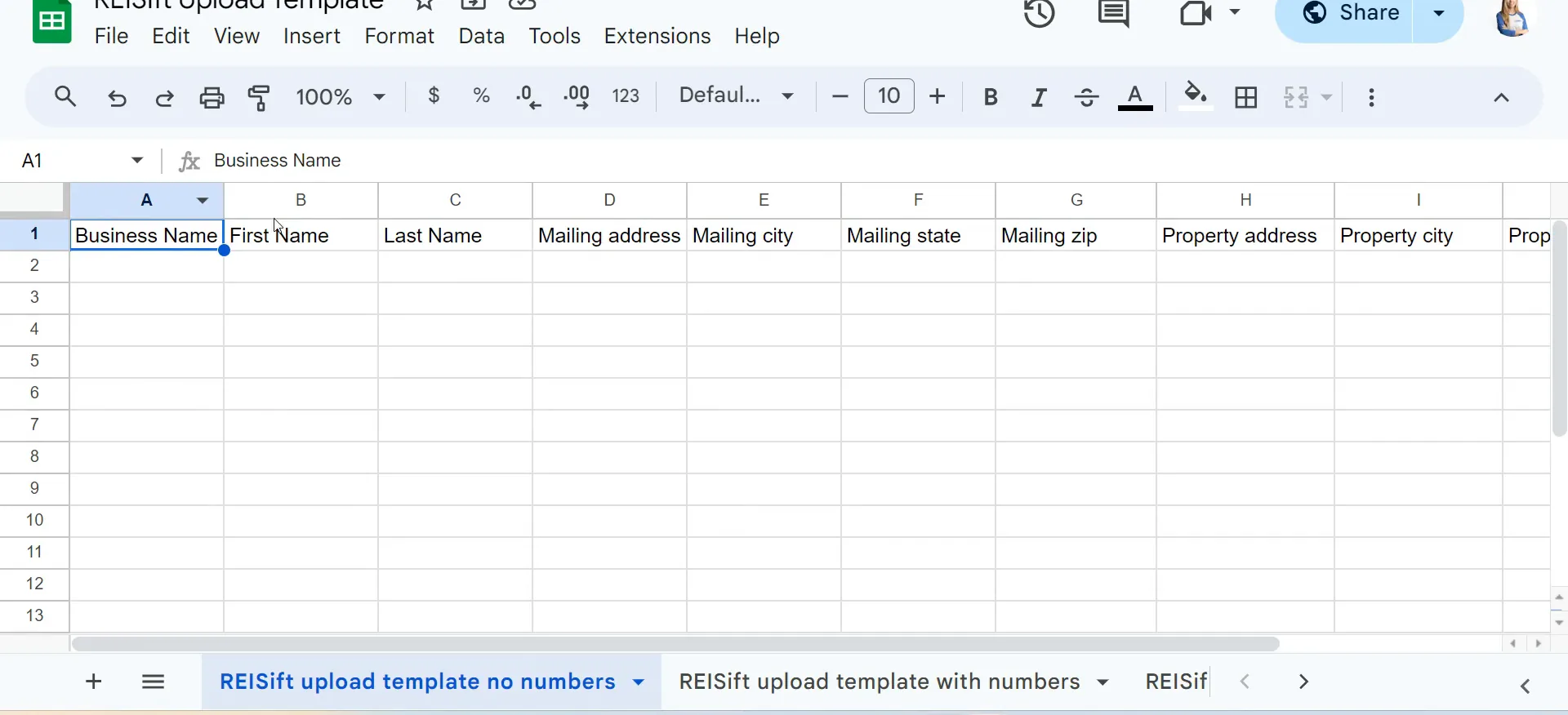
Put column headers in the first line of your CSV.
Before you touch the platform, open your file and check the top row. Your headers should look pretty similar to the template. If your labels are a little bit different, that's okay.
We'll auto map based on these labels, and you can also manually map them on the mapping step.
first, you'll want to make sure that your CSV has column headers in the first line of the CSV, and it should look pretty similar to this.
Select upload file, then choose add data.
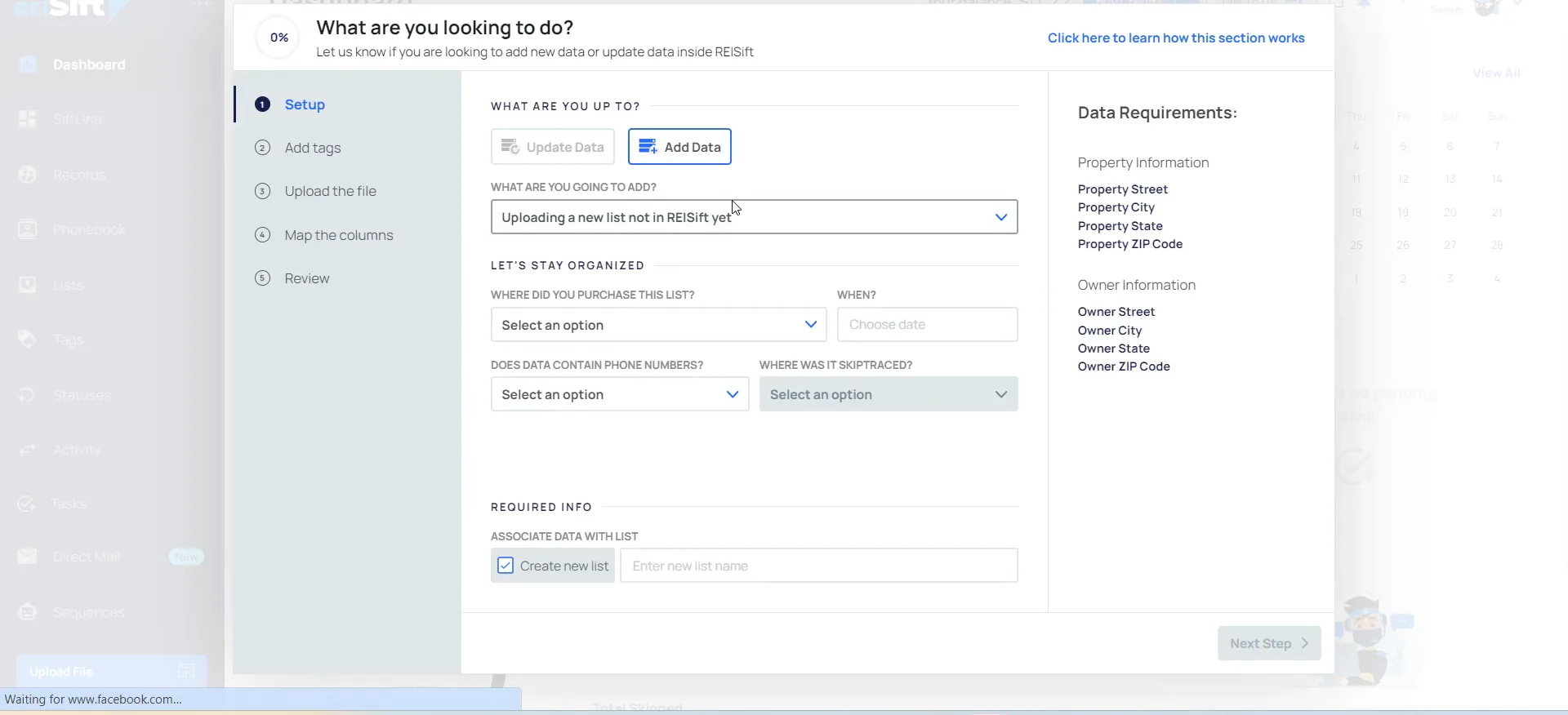
Add data refers to whether the list has already been created in your Sift account. If it has not been created and it's going to be a brand new list, select that option.
If you have a high equity list in your account already and you're adding properties to it, you would select the existing list option instead.
In this case, this is going to be a brand new list, so I'm going to select uploading a new list not in REI Sift yet.
Tell us where you bought the list and name it.
When you select where you purchased the list, we're going to add auto tags for you. This one came directly from REI Sift, and it was purchased today.
My particular list does not have phone numbers. If you're uploading skip trace data, you would select yes here. Then enter or select where it was skip traced, toggle this section and select a date.
This is going to be the name of the list that's created in your RAI Sept account, and these are multifamily properties that I'm uploading.
Upload options
Add data or a brand new list.
Add data
- Is the list already in your accountYes
- What you are doingAdding properties to an existing list
- Example from the videoHigh equity list already there
New list
- Is the list already in your accountNo
- What you are doingUploading a new list not in REI Sift yet
- Example from the videoMultifamily properties I am uploading
Map your columns.
Check the blue fields, then remap anything wrong.
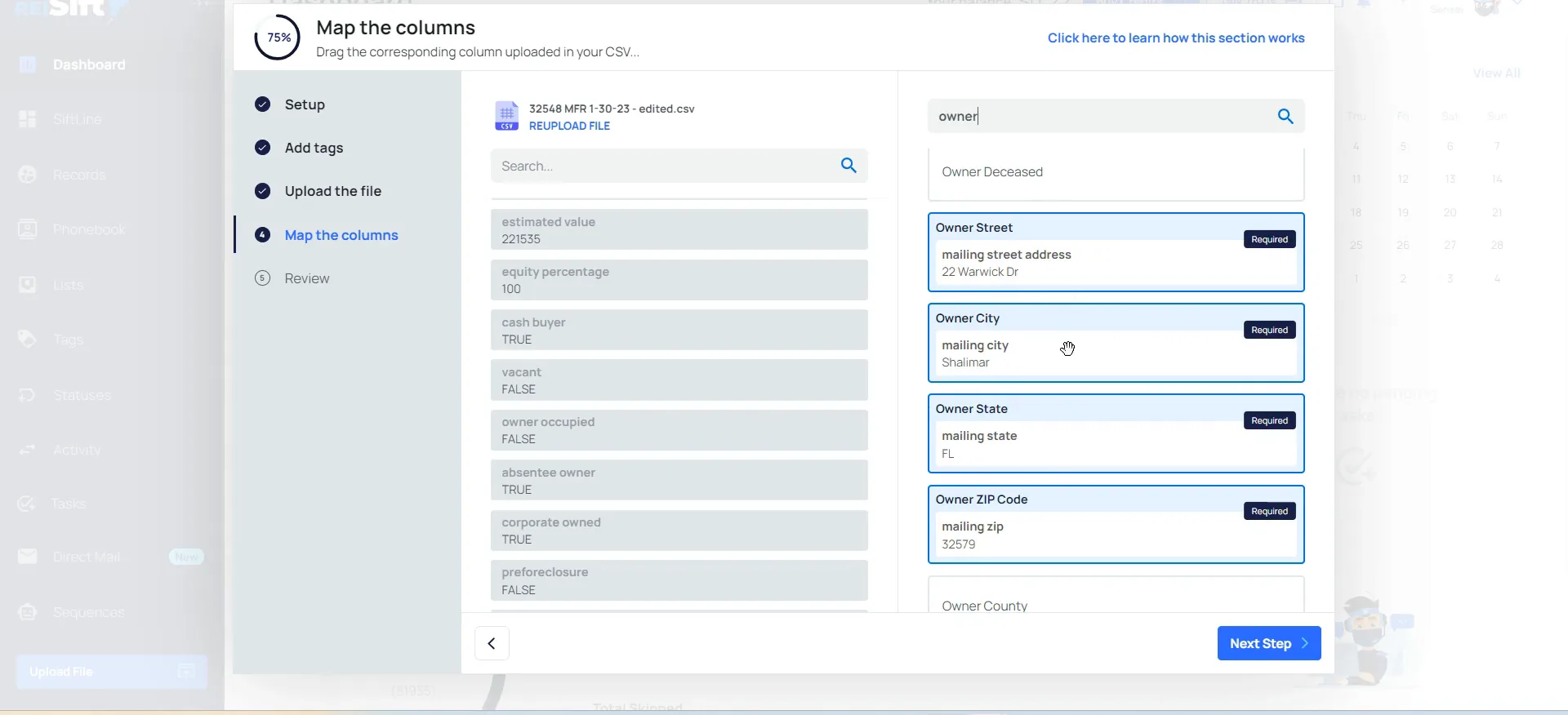
Fields highlighted in blue were auto mapped for me, based on the column headers from that file. You can always manually map instead.
These fields are searchable, which can help you map the additional fields quickly. I don't have square footage in this one, so I skipped to property type. That one is actually going to be structure type that I'm mapping to.
So for example, if a column was not mapped to the correct section, you can unmap it here and drag and drop to remap.
Map every required property and owner field.
When adding new records, we do require the property street, city, state and ZIP, as well as the owner street, city, state and ZIP columns.
Say you're missing the owner ZIP code. Just create a blank column in your CSV labeled owner ZIP code and map that blank column to the field. That way you can progress to the next step.
If you're only missing the ZIP code, we can fill it in. You just need the correct street address, city and state for the property. For records to be considered clean, we'll also need the owner's first and last name.
If the next step button is grayed out, it means that one of the required fields has not been mapped yet.
Required fields
We do require the property street, city, state and ZIP, and the owner street, city, state and ZIP. If you are missing the owner ZIP code, map a blank column to that field.
Review, finish and find your records.
Review your data, then click finish upload.
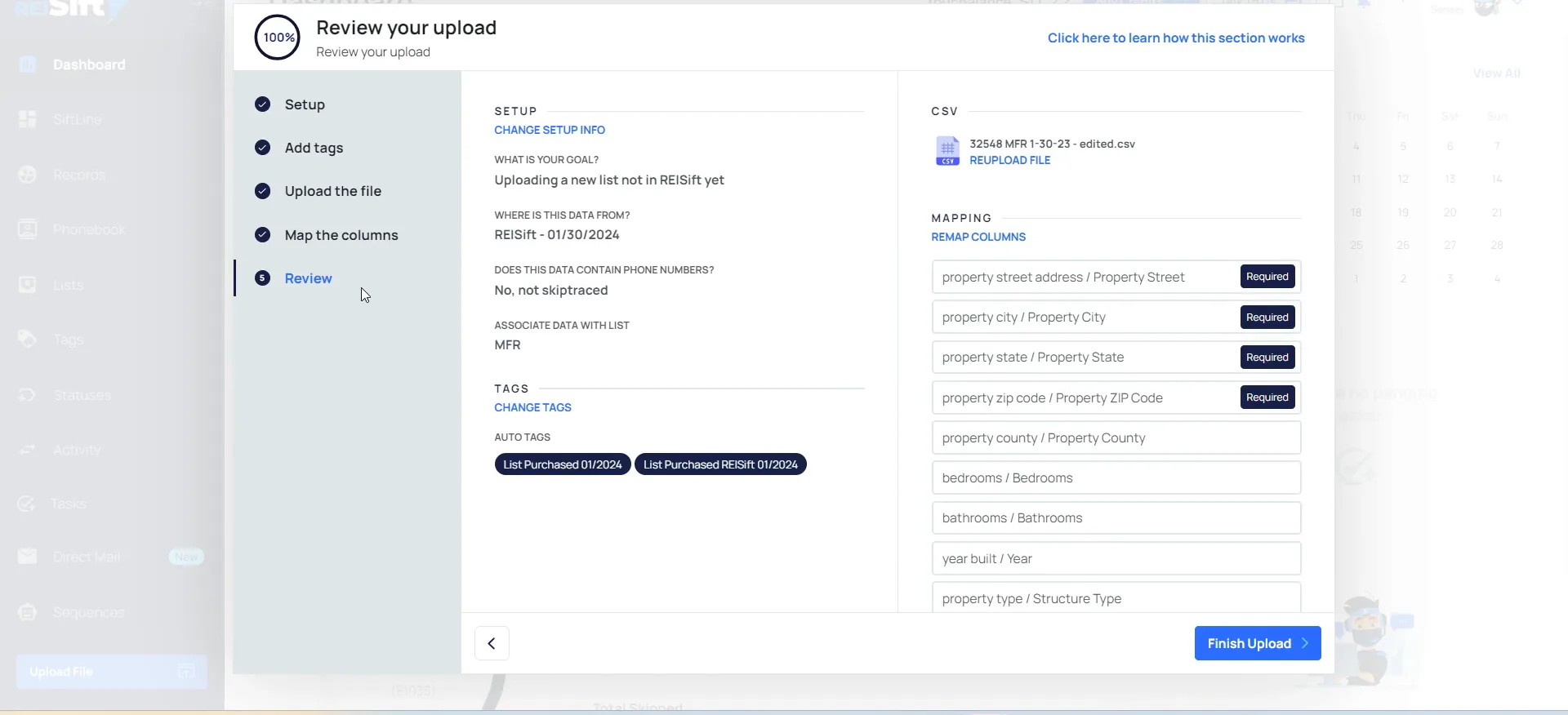
Always review your data. That way you can make sure that you have everything included here and everything is mapped correctly.
The name on the left is the column header in your CSV. The name on the right is the field it's being mapped to in REI Sift. Everything looked good here, so I clicked finish upload.
Track the upload on the activity page.
You can track the progress of your upload from the activity page. Mine was processing, and it takes a couple minutes.
Once it's complete, this section also shows a breakdown. It tells you the total records in your CSV, how many were new, and how many were already in your account. Those existing records get updated with any new list or tags you're adding on this upload.
Upload breakdown
The breakdown shows what the upload did.
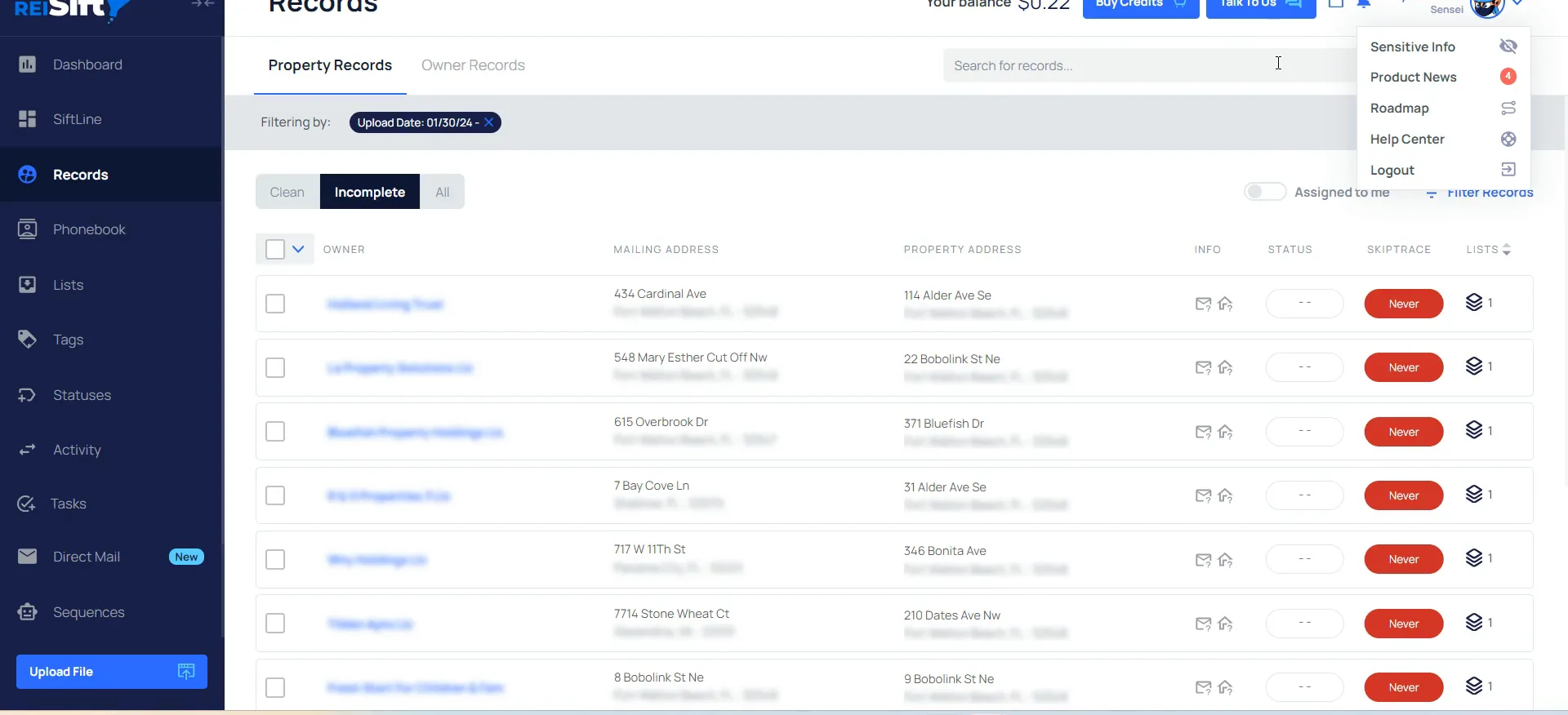
Filter by your tags or upload date to see them.
Here are the records that I just uploaded. If you notice, a lot of these were LLC owned, so they're going to be considered incomplete because it's the LLC name.
So that's how you upload new records to your REI Sift account. Be sure to check out our additional trainings in the help center, which can be accessed here. If you have any questions, feel free to reach out to customer support by clicking talk to us.
So at some point, I can go in or have a VA or data manager come in and add those first and last names for the LLCs.
BEFORE YOU MOVE ON