
PART 1
Uploading dialer dispositions.
I want to show you how to get your call dispositions out of your dialer and into REI Sift. We built a basic template for the main dispositions you will have. Follow it in order and your property status and phone status both land where they should.
Start from the template.
Open the template and find your main dispositions.
We've created a basic template here for you for each of the main dispositions that you'll probably have. These are the ones where you are actually reaching the homeowner. So that's gonna be new lead, not interested, listed, buyer, and sold.
For each of those you are going to have a property status update and a phone status update.
You're going to have a property status update and a phone status update.
Add a phone status column and fill it with correct.
When you export from your dialer, you may just have the disposition listed as new lead or not interested. In those cases you need to make an extra column next to the phone number column. Label it phone status, and then fill it with correct.
With each of these dispositions we are reaching the owner. So we want to update the property status along with that phone status, and mark it as correct.
Wrong number and DNC rows.
Add your dialer notes to the notes column.
These dispositions also include a column for notes if you have any of the notes exported from your dialer. Drop them in there so the record carries what the caller heard.
For wrong number, since we're not reaching the owner, we're only making a phone status update. So you have the property address information, the phone number, and then the phone status of wrong.
Leave property status blank on DNC rows.
Kinda similar to wrong, for DNC we're not making any property status update. It is just going to include the phone status update.
Name isn't necessarily required when you're updating data. So if you don't have this information in your CSV, that's totally fine.
can update based off just the property status and the phone number or the property address of the phone number.
Select upload file once the sheet is ready.
When you're ready to upload these, you're going to select upload file. All of these records should be in your REI Sift account first.
So if they're not in your account yet, you would wanna use the add data option instead.
Select your upload option.
Include the mailing address when you add data.
If your dialer has the mailing address included, I would recommend including that mailing address when you're adding data. That way the record is complete.
If these are already in your account, though, you can select update data.
And if your dialer has the mailing address, included, I would recommend including that mailing address when you're adding data.
Choose updating property status, then map both fields.
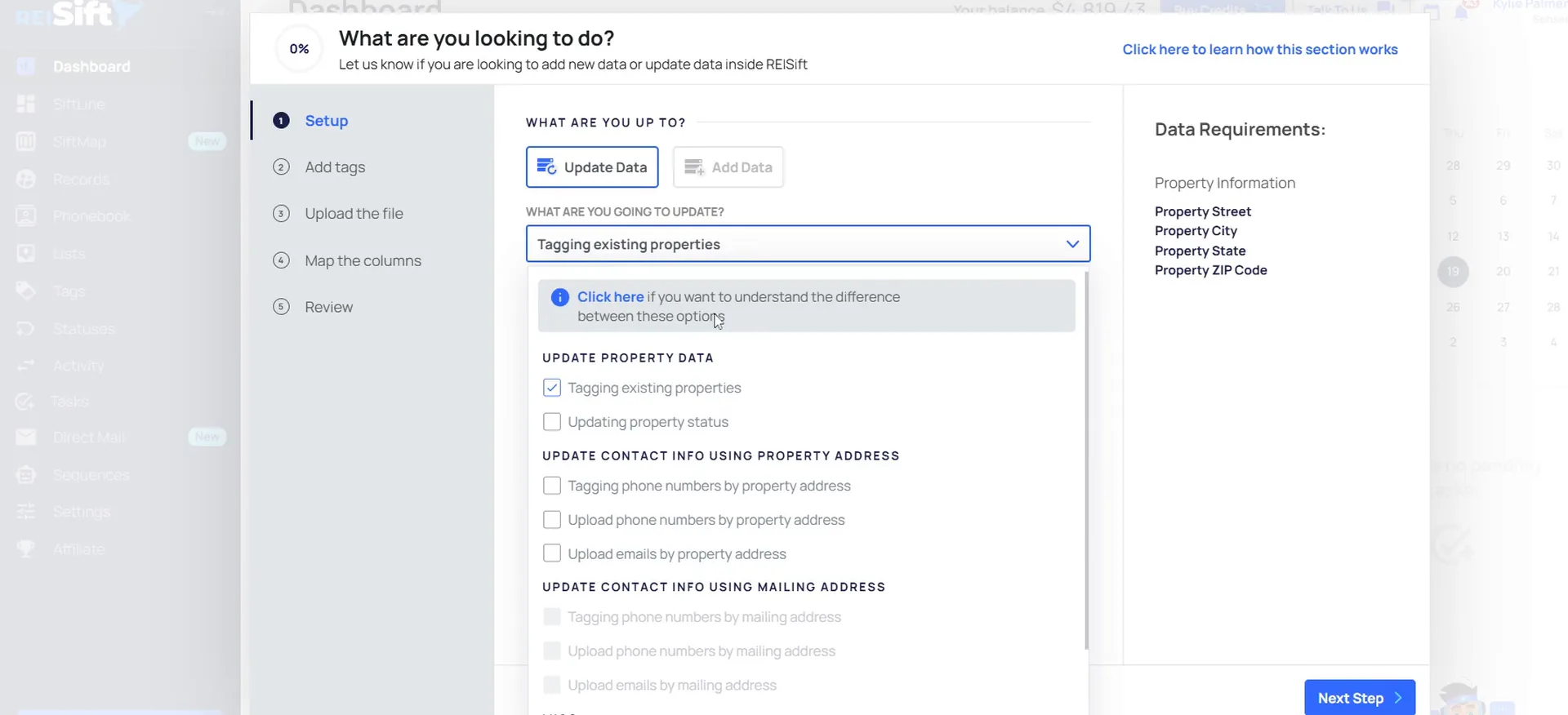
For all of the dispositions where you're updating the property status, you are going to select updating property status as the upload option here. That covers new lead, not interested, listed, buyer, and sold.
When you get to the mapping step, you'll be able to map the property status and the phone status.
Choose tagging existing properties for wrong number and DNC.
For the wrong number and DNC options, you are going to select tagging existing properties instead. This is just a general update by property address option. When you select this option, you'll be able to also map the phone status.
If there's ever anything where you just need to ask a quick question, you can always reach out to us using our support chat.
Upload options
Wrong number and DNC use tagging existing properties.
Reaching the owner
- Property status updateYes
- Phone status mappedYes
- Upload option to selectUpdating property status
Wrong number and DNC
- Property status updateNo
- Phone status mappedYes
- Upload option to selectTagging existing properties
BEFORE YOU MOVE ON