
PART 1
Update your recently sold records.
I'm Kylie, customer support with DataSift. In this video I'll show you how to update your recently sold records so you can keep them out of future marketing campaigns. We'll pull them in SiftMap, tag them, and then exclude that tag on every marketing filter.
Search your market in SiftMap.
Search your market area in SiftMap.
Head over to SiftMap and start searching by your market area. This is where we pull the records that have sold, so we can go update them in your account.
We're only updating existing records here. We are not pulling in newly sold ones that you never marketed to.
Show only records in my account, then set last sold date.
Under more filters, select to show only records in my account. That keeps this to properties you already own in DataSift.
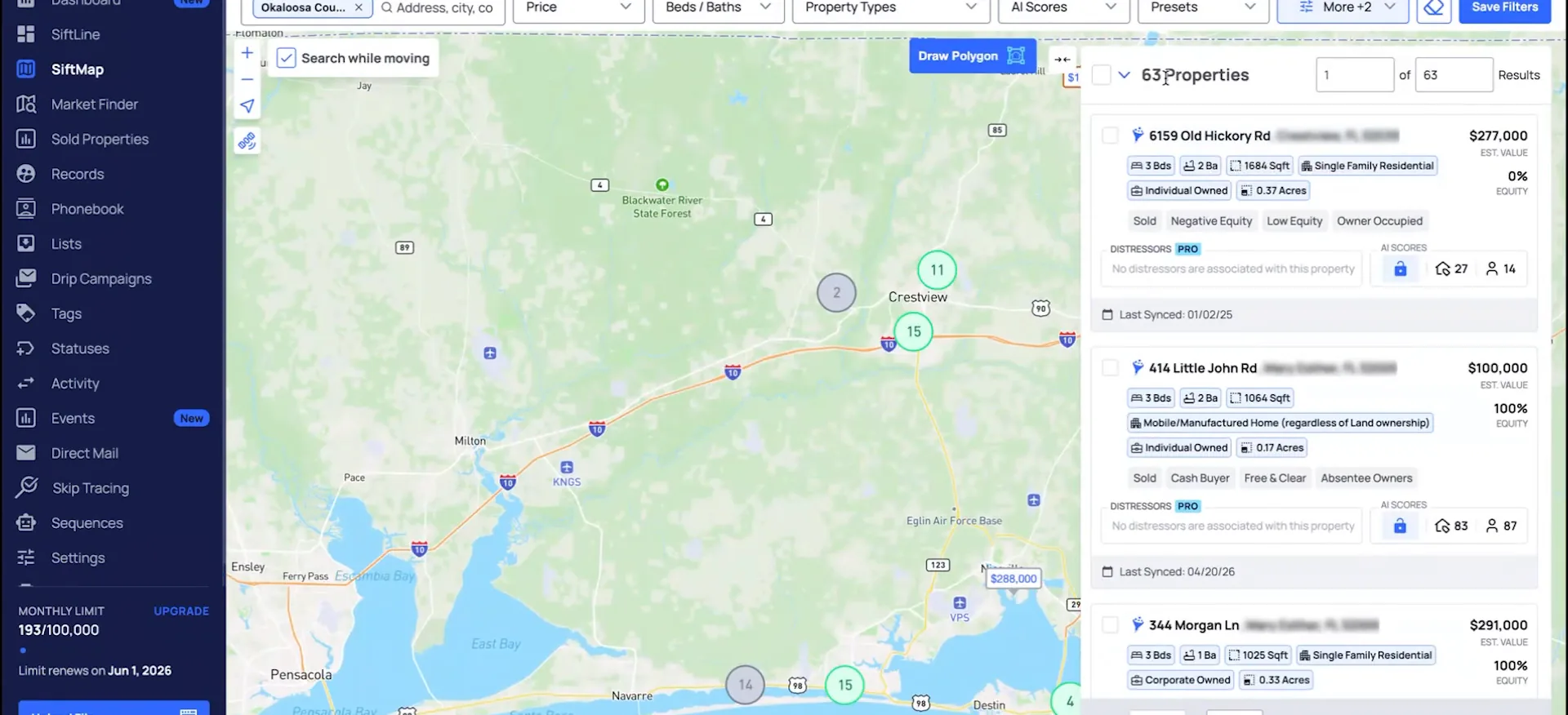
Now set the last sold date. I am going to set this as January 1, using the minimum. Apply filters, and this shows me any records in my account that have sold since the beginning of the year.
Now apply filters, and this will show me any records in my account that have sold since the beginning of the year.
Save the filter as a preset.
Save the filter and name it before you add anything.
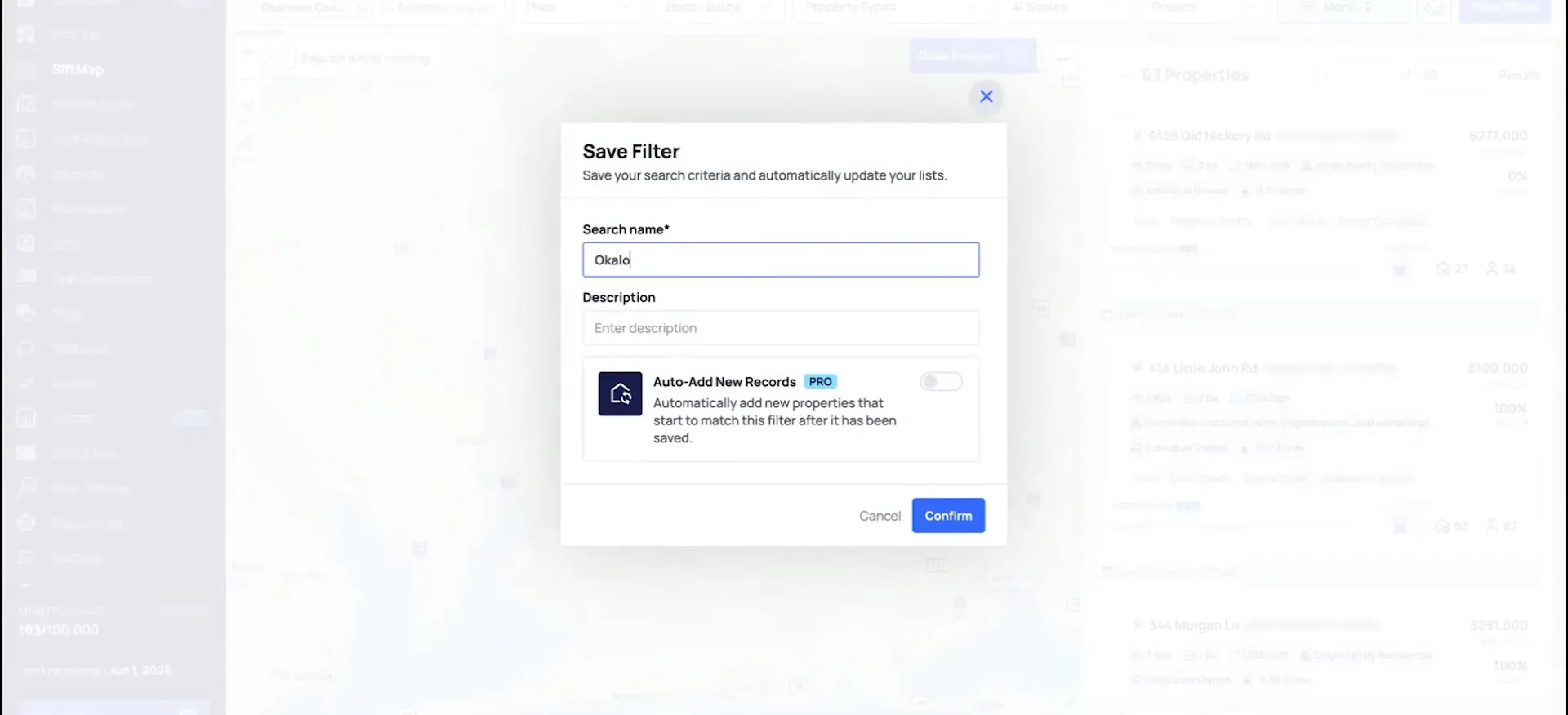
Before adding them, I would recommend saving this as a preset. That way you can pull it up instantly in your account, and you don't have to add these filter blocks each time.
Mine is Okaloosa County recently sold. I'm not going to toggle auto add on just yet, because I want to add the ones already in my account first. Go to the presets and you can see the preset was created there.
Add the properties and tag them recently sold.
Now add these records into your account. I'm not adding into any specific list, but I am going to tag it as recently sold.
That way, I can exclude any records with this tag from any future marketing campaigns when I'm filtering on my records page to create those.
When I'm adding here, I'm not going to add into any specific list, but I am going to tag it as recently sold.
Tag, not list
When I'm adding here, I'm not going to add into any specific list, but I am going to tag it as recently sold. That way I can exclude any records with this tag from any future marketing campaigns.
Toggle auto add on your saved preset.
While the add is processing, set this to auto add. In SiftMap, select configure, and that brings up all of your presets. Then toggle auto add on.
This option is on our Expert AI plan or with the SiftMap Pro add on. With it on, you won't have to go in and pull the records by hand. They update as soon as they have a last sold date in this time frame.
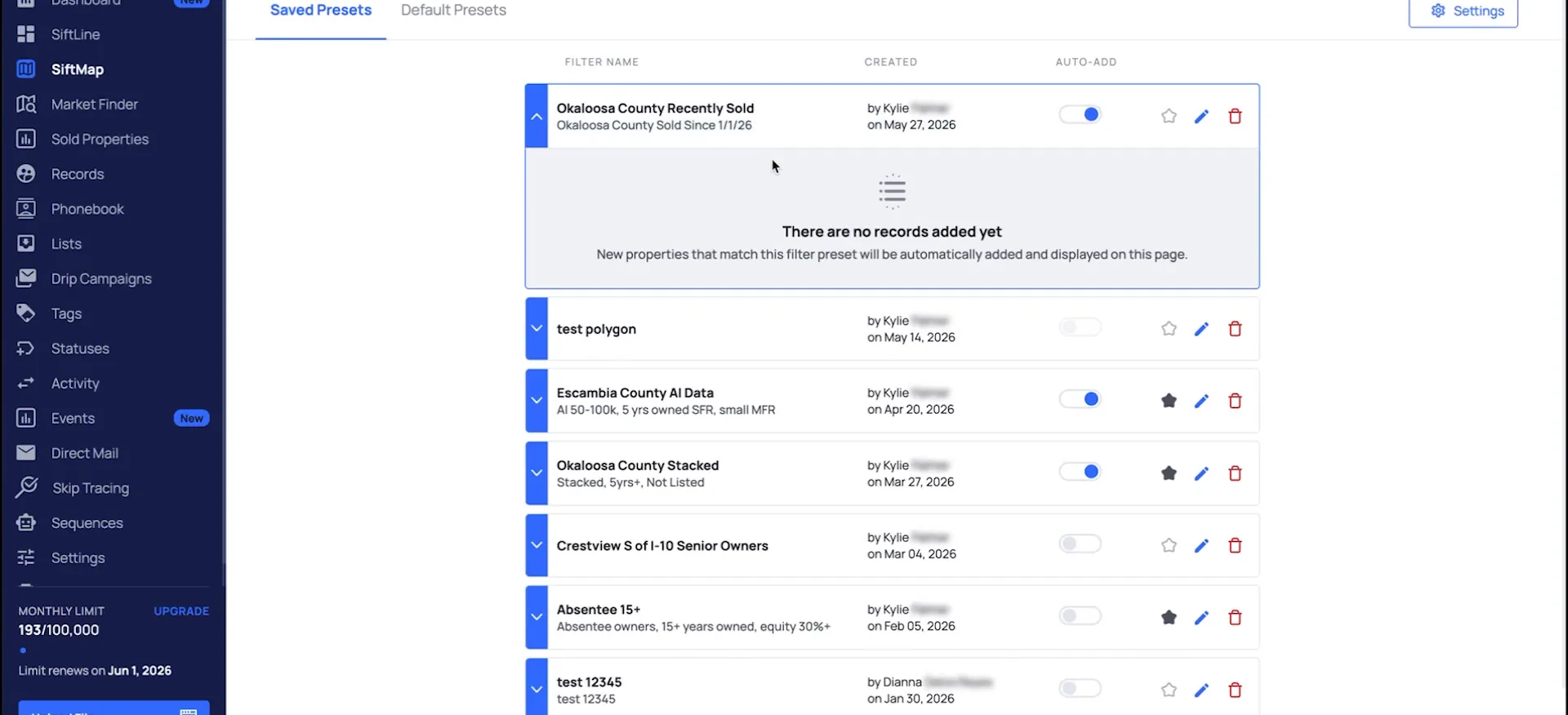
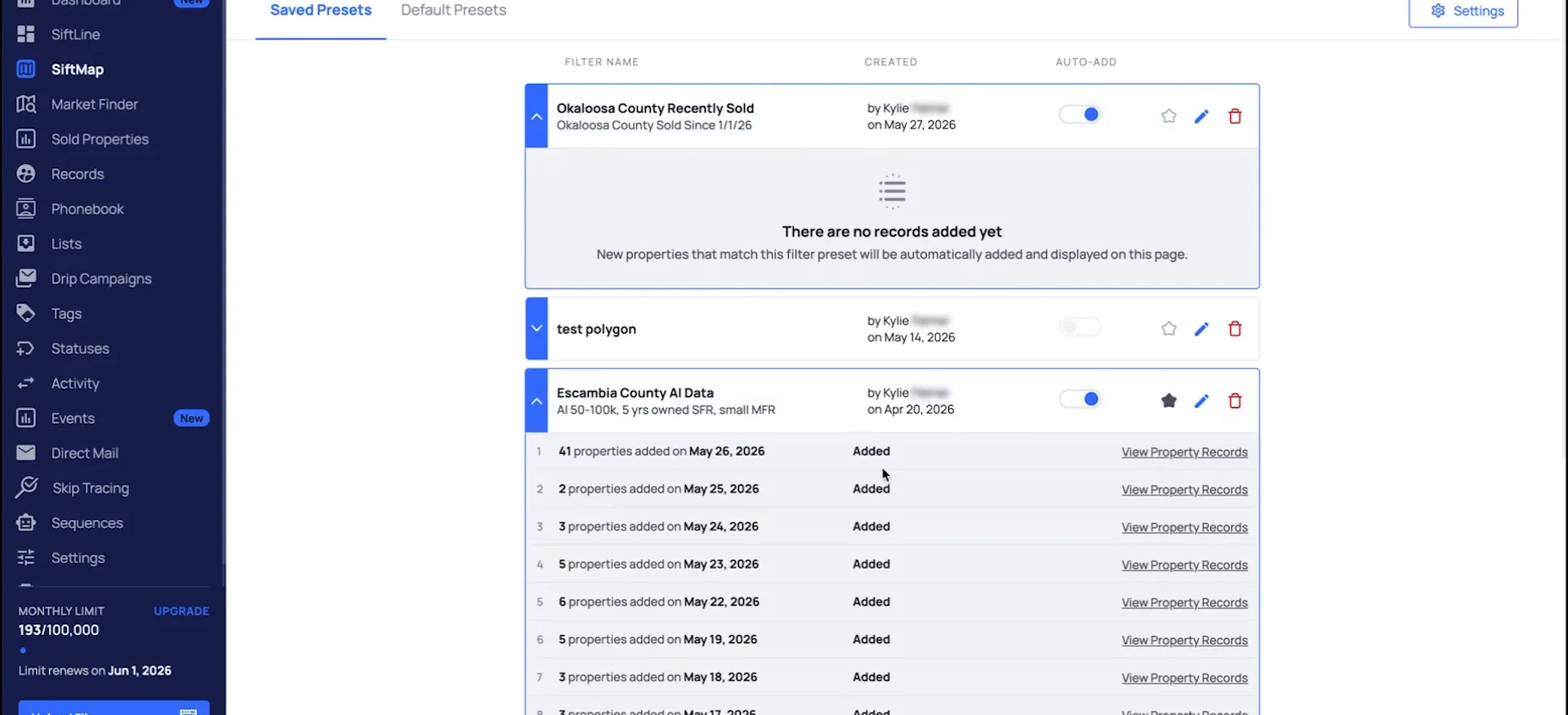
As records are auto added into your account, they will appear in the filter or in this section here.
Audit the records and exclude the tag.
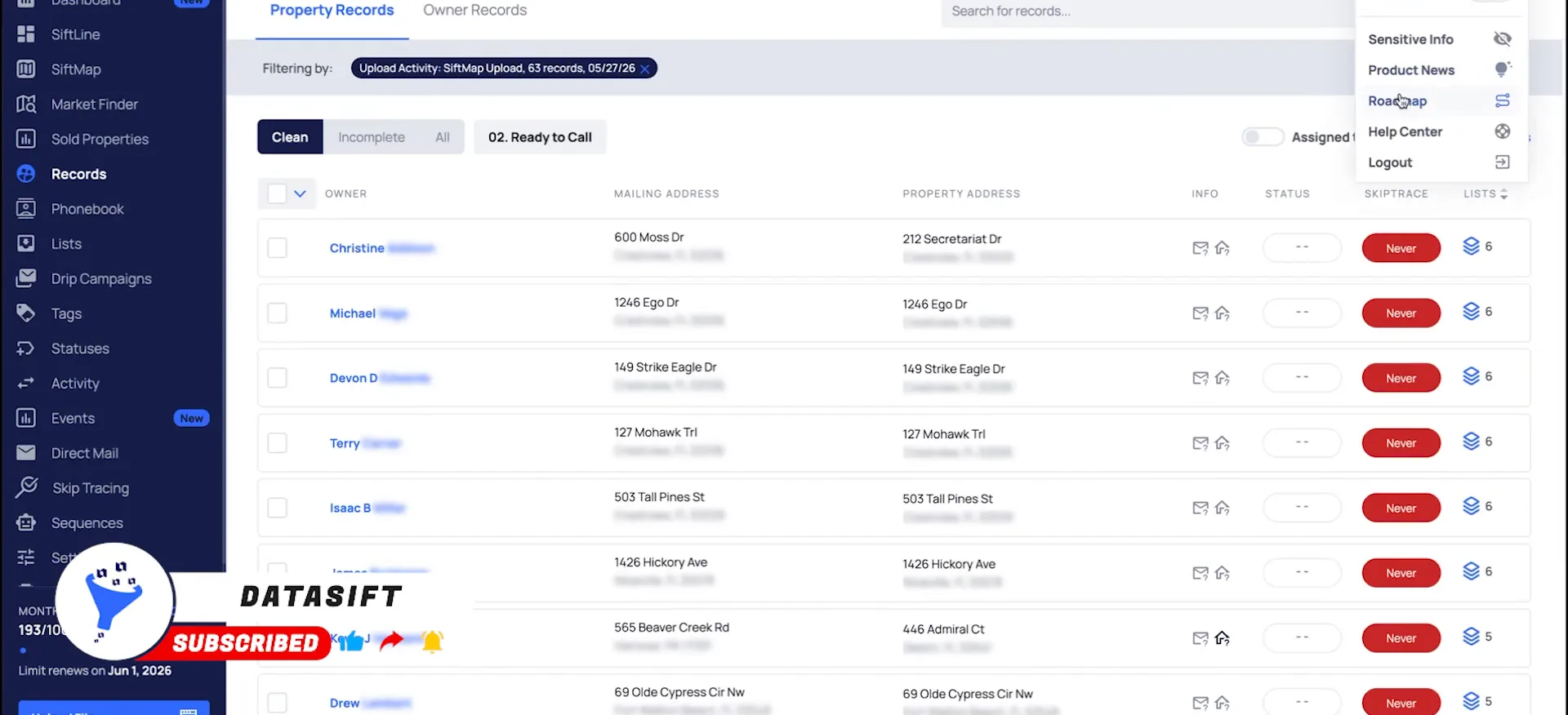
Click to view the properties you just added.
Once you have recently sold properties in your account, you'll be able to click to view the properties. It's going to look similar to this.
So you can audit your records and see who a property sold to. Then you can dig deeper into why a deal may have slipped through on your end.
Check the activity log on the upload page.
The records I added should be complete now, so I'm going to switch over to the activity in the upload page. These are the 63 recently sold properties that I added.
Now I can start going through and checking the activity log. I look for any follow ups that were missed, and see why I missed out on the deal.
The records I added should be complete now, so I'm gonna go ahead and switch over to the activity in the upload page.
Exclude the recently sold tag on every marketing filter.
For your future marketing campaigns, you can exclude that recently sold tag. Using bulk cold calling as an example, I don't want to reach out to anyone that has recently sold.
Add the all tags option here and say do not include recently sold, then save that filter. You would just do this for each of your marketing filters.
If you have any questions, reach out to our support team. You can access our chat by clicking talk to us towards the top right, and our additional trainings are in the help center.
BEFORE YOU MOVE ON