
PART 1
SMS and email events in sequences.
Manual follow ups can be easy to forget. With sequences, our system takes care of that for you automatically. I'm going to show you how to text a new lead right away and notify your lead manager at the same time.
Before you set up these sequences.
Set up actions that send an SMS or email.
You can now set up actions that send an SMS or email whenever a trigger like a new lead occurs. You can even send alerts to yourself or your team so that you're notified instantly.
I'm Kylie, customer support with DataSift. In this video we will add both events to a sequence you already have.
And in this video, I'm going to show you how to instantly follow-up when a new lead comes in and notify your lead manager by email or text.
Before you start
To send emails, you'll need to have the Gmail integration set up within your DataSift account. And for SMS, you'll need to have smartphone, Twilio, or Plivo integrated.
Check your integrations and pick which number receives it.
To send emails, you'll need the Gmail integration set up within your DataSift account. For SMS, you'll need smartphone, Twilio, or Plivo integrated. Both actions are meant for instant follow ups with leads, not prospecting or cold emailing. If you want long term follow ups, use our drip campaigns feature instead.
A2P 10DLC rules still apply. Sending thousands of text at once can affect your connectivity and increase your chances of getting flagged as spam.
Text can go to the primary number, which is a correct number marked by the star, or to a correct number. If you pick correct number and the record has several, each one gets the same message. You can also send to a custom number, which is how you alert your team.
On our side, we do not limit the amount of text that you can send, so please keep that in mind when creating your sequences.
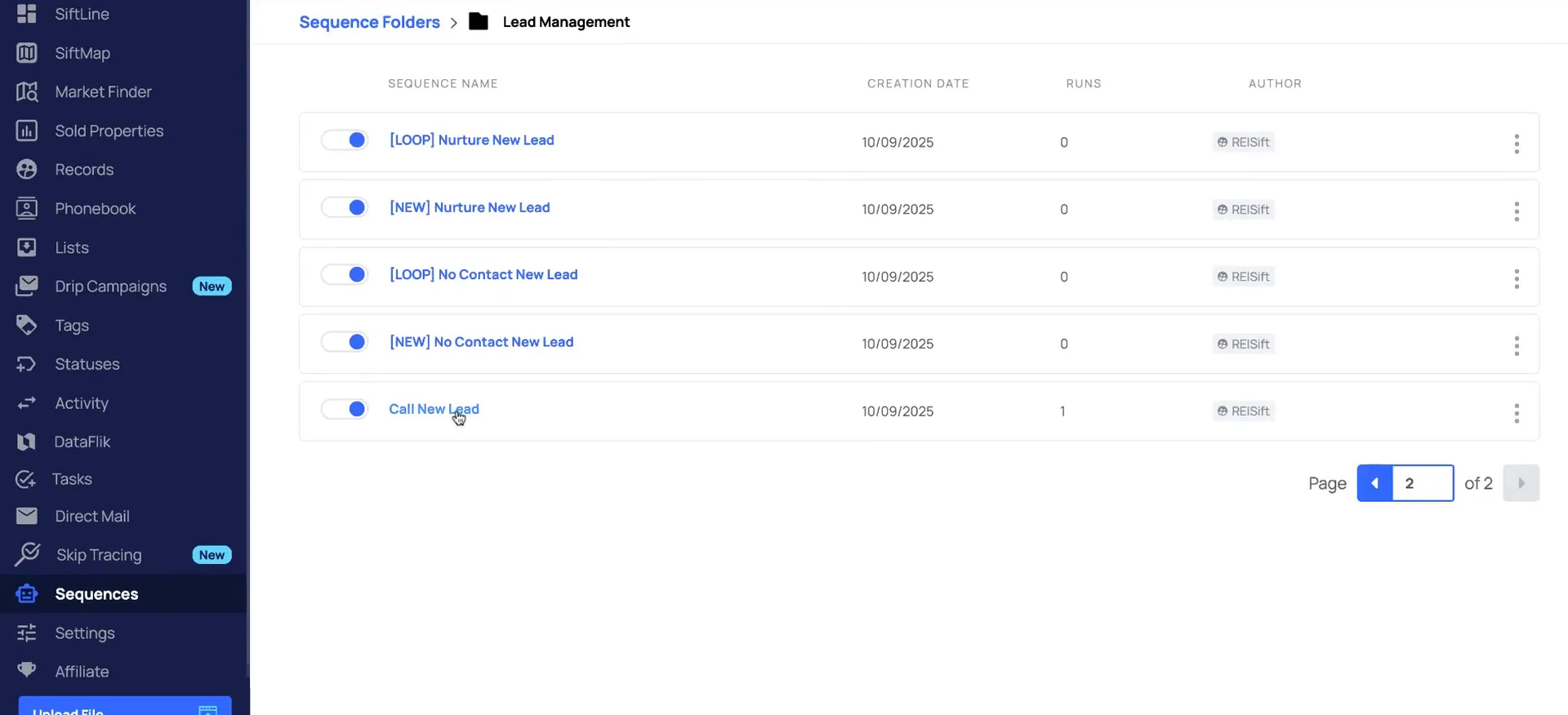
Open lead management, then select the call new lead sequence.
Select the sequences option on the left sidebar of your account. Many of you have our default account set up, so the sequences for lead management are already created.
Open the lead management folder and then select the call new lead sequence. We want to make changes, so we're going to add a new action.
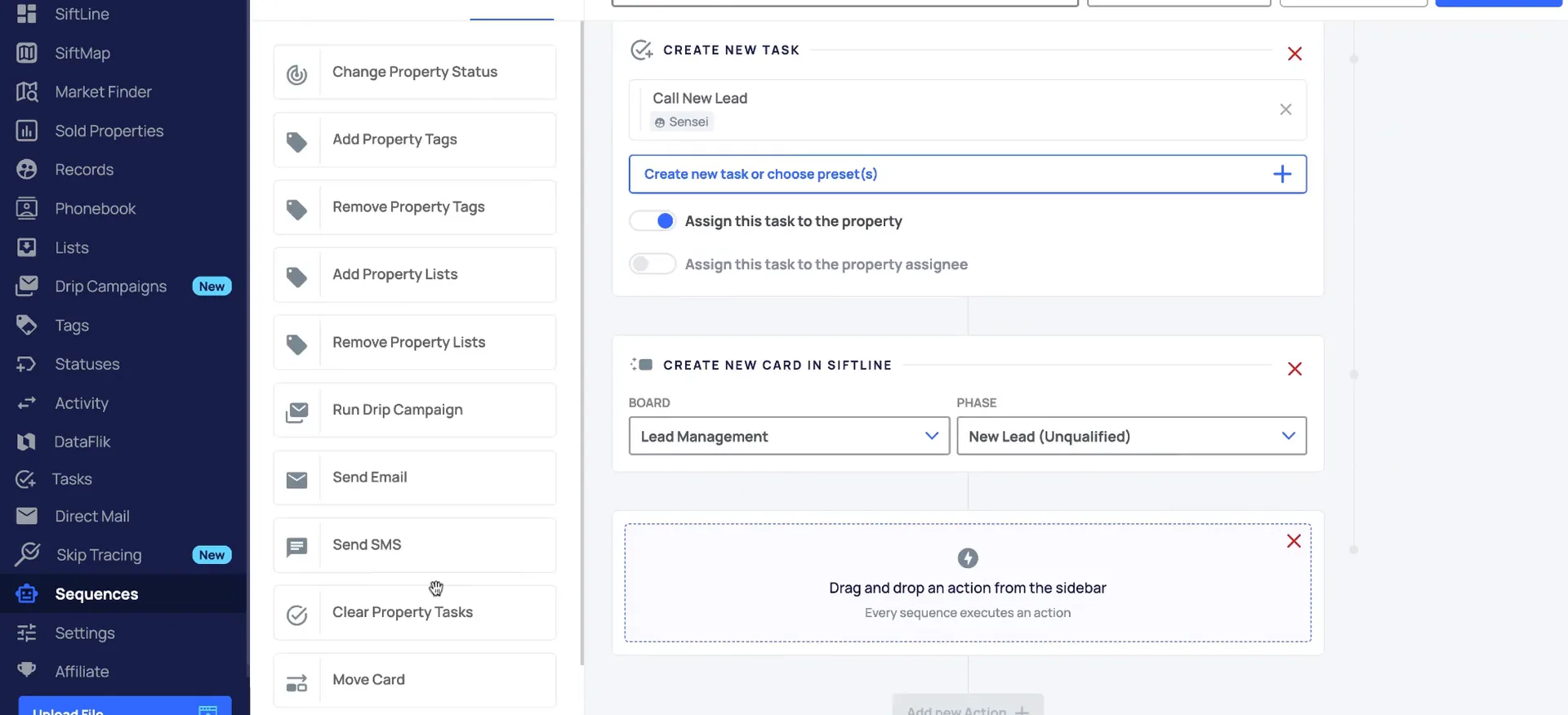
Send an SMS to the owner.
Drag send SMS into the actions section.
The first action we're going to add is to send an SMS to the owner. That way we let them know one of our team members will be calling them shortly with more details.
Then you'll select the phone number that you want to send the SMS from. Here is where you select which phone number you actually send it to. That's going to be either the primary number, all phones marked as correct, or a custom phone number.
Select the send SMS option, drag and drop it to the actions section, and then you'll select the phone number that you want to send the SMS from.
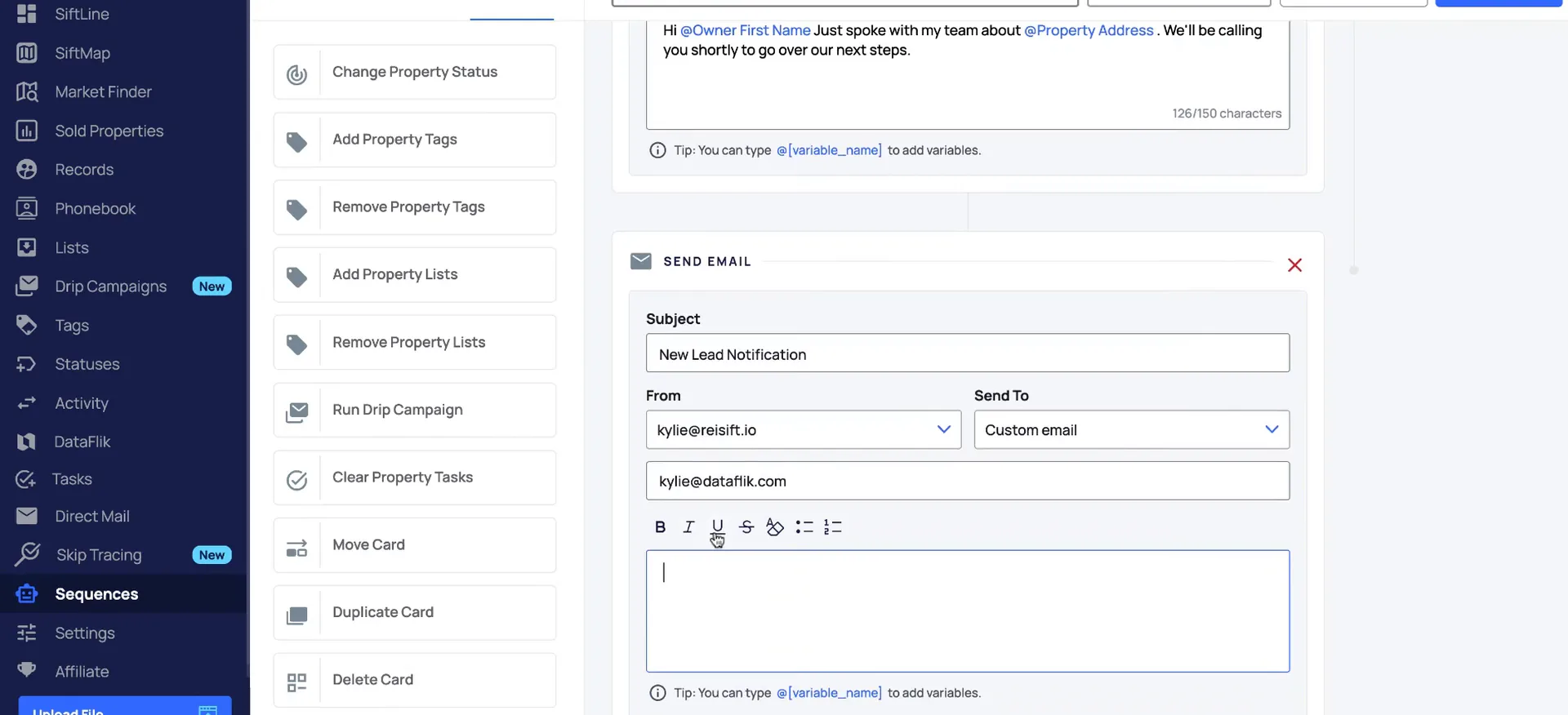
Enter your message and add a name variable.
Now we'll want to enter in the message, and your message does need to be within 150 characters. We do have some variables available.
So if I wanted to prefill the owner's name, I can type the at symbol and select the owner's first name. If you select the user first name, last name, or full name, that is the user who actually created the sequence.
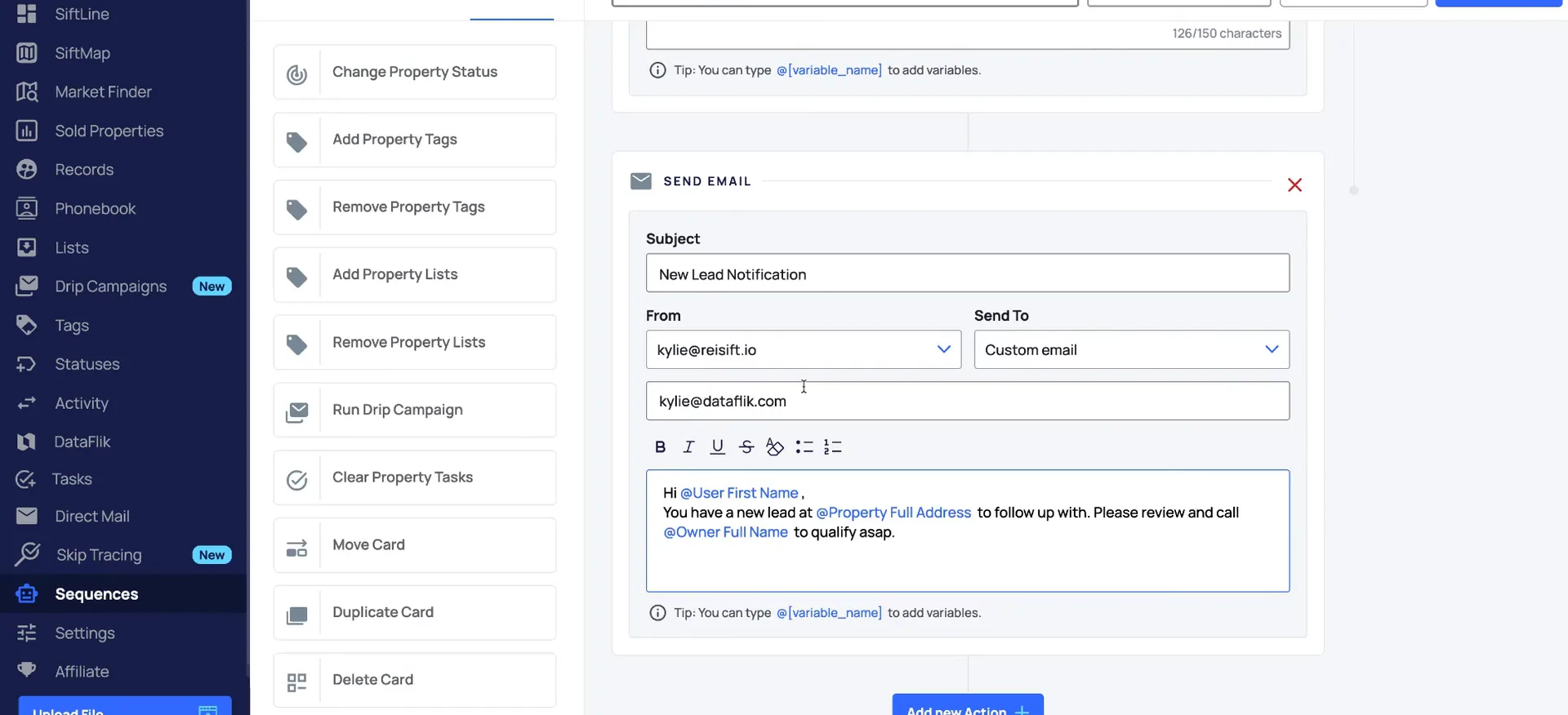
Add a send email action to notify a team member.
I'm also going to add a new action here to send an email to a team member. It lets them know a new lead has come in. This is a great way to send notifications to your lead manager. They know as soon as a new lead is received, and they can call to follow up.
So I'm going to select send email here. Enter in the subject email, then select who you want to send the email to.
We do have some formatting options for emails. You can make text bold, italics, underline, strike through, and you can add bullet points and numbers. Similar with SMS, you also have variables that you can fill in.
If you want to send this email to your team, you would select custom email and then type in the email that you wanna send to.
Save it, then trigger it.
Enter in the property full address variable.
If the user who created the sequence needs to be alerted, you could use the user first name variable. Then enter in the property address.
The property full address is going to be the property street, city, state, and ZIP.
Save changes, then set a record to new lead.
The trigger is the property status changing from any to new lead. The sequence then assigns the property record, creates a task to call the new lead, and adds it to our lead management new lead phase. It sends an SMS to the owner and sends the email notification. In this case it comes to me, but you can set it up to go to your lead manager.
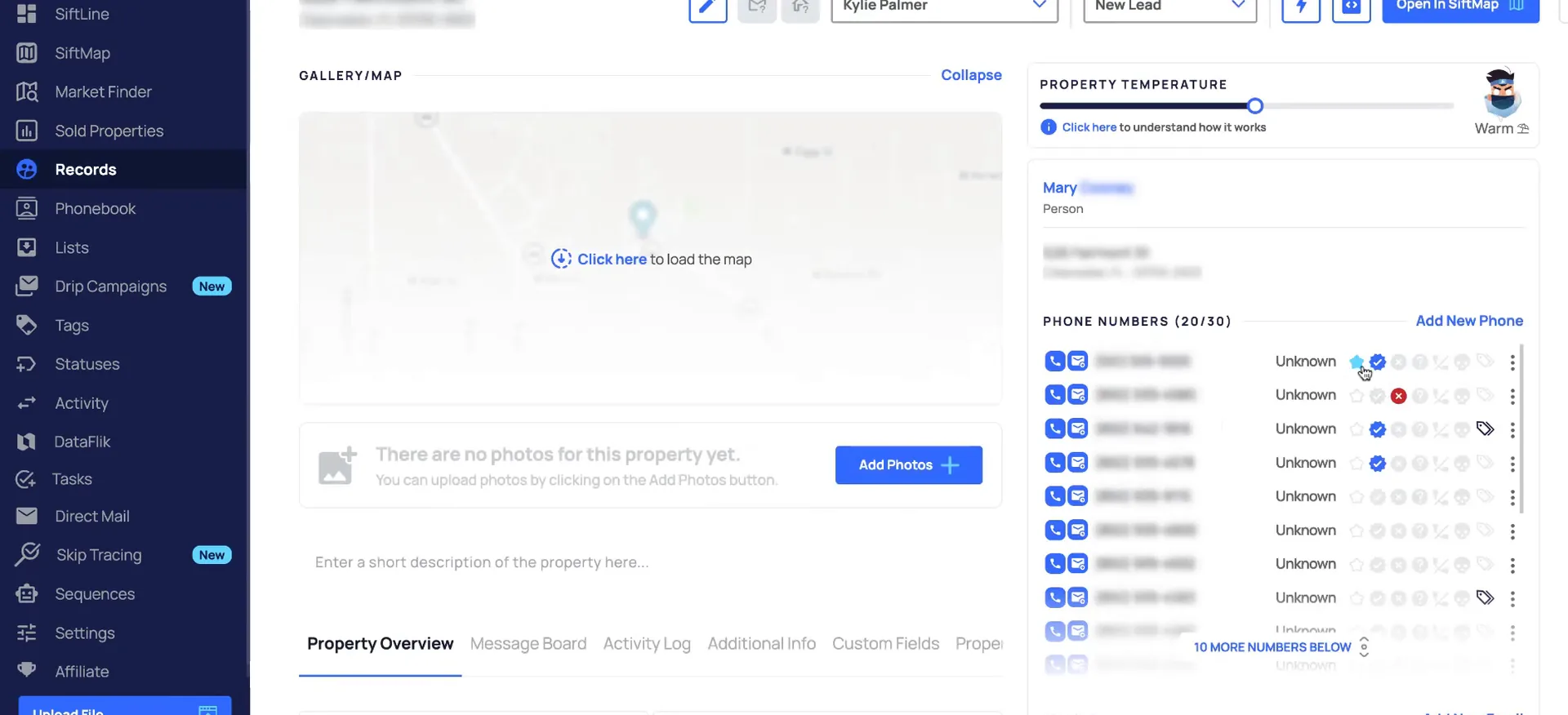
To trigger that sequence from your records, go into the record and select the new lead status. Each action step runs and completes. You can track when the sequence runs from the activity log within the record.
These sequences are also triggered from integrations. If you are integrated with a dialer like call tools, ready mode, or smart dialer and you select new lead, that triggers your sequences too. They can be set up using Zapier as well, so a Carrot website form can come in the same way.
Now you have an automatic follow-up and notifications for your team to help make sure a new lead isn't missed.
What runs
The sequence completes each of the action steps.
- 1Assign the property recordThe record gets assigned as soon as the status changes from any to new lead.
- 2Create a task to callA task to call the new lead is created for you.
- 3Add to new lead phaseThe record is added to the lead management new lead phase automatically.
- 4Send an SMS to the ownerThe owner hears from you right away.
- 5Send an email to notifySet it to send to your lead manager so they know the lead came in.
BEFORE YOU MOVE ON