
PART 1
Build a drip for ghosting leads.
Drip campaigns went live in November, and I am recording this in December 2025. Before we build anything, Kylie and I go through the best practices, because this is a feature you can overdo. Then we open the drip campaign section and walk the parts of it.
Best practices before you build.
Watch how many records you add to a drip.
Kylie's first point is volume. If you are using drips in combination with sequences, be careful how many you trigger at once. You do not want to send a thousand text messages out in a short period of time. That can affect your chances of becoming spam likely.
Compliance is the other half of it. Nobody wants to get dealt with in terms of lawsuits and litigation in real estate. We safeguarded this feature for a while because we did not want people just spamming, so healthy practices are critical.
It's totally possible that investors can overdo it on SMS whether they're sending huge bulk drip campaigns full of SMS to thousands of people.
Before you send
If you have not set your time zone in your account, be sure to do that. That way we can schedule those drips at a good time based on your time zone.
Set your time zone in your account.
We have something in place to help control when the drip goes out. If your time zone is set, we schedule those drips between 8AM and 9PM based on it.
So your intention of what you are sending is actually sent at a good time. That is one of the two big factors Kylie names, along with staying compliant.
Ghosting leads are a good use case.
Keep hot leads personal and manual.
With your hot leads, you are probably going to want a more personal touch, a more manual touch. Kylie's words on where drips fit are conditional. Maybe your cold leads, or maybe ones that become not interested after the lead management process.
Maybe your ghosting leads, where you are just not able to get back in touch to qualify. Those would be a good use case for drip campaigns. The ghosting lead is the campaign we build in this lesson. These campaigns are really intended for long term lead follow-up.
Use case
Hot leads are manual and ghosting leads go on drips.
Hot leads
- How you follow upMore personal, more manual touch
- WhyYou manually dial these people
- Good use case for dripsNo
Ghosting leads
- How you follow upAutomated drip campaign
- WhyYou cannot reach them to qualify
- Good use case for dripsYes
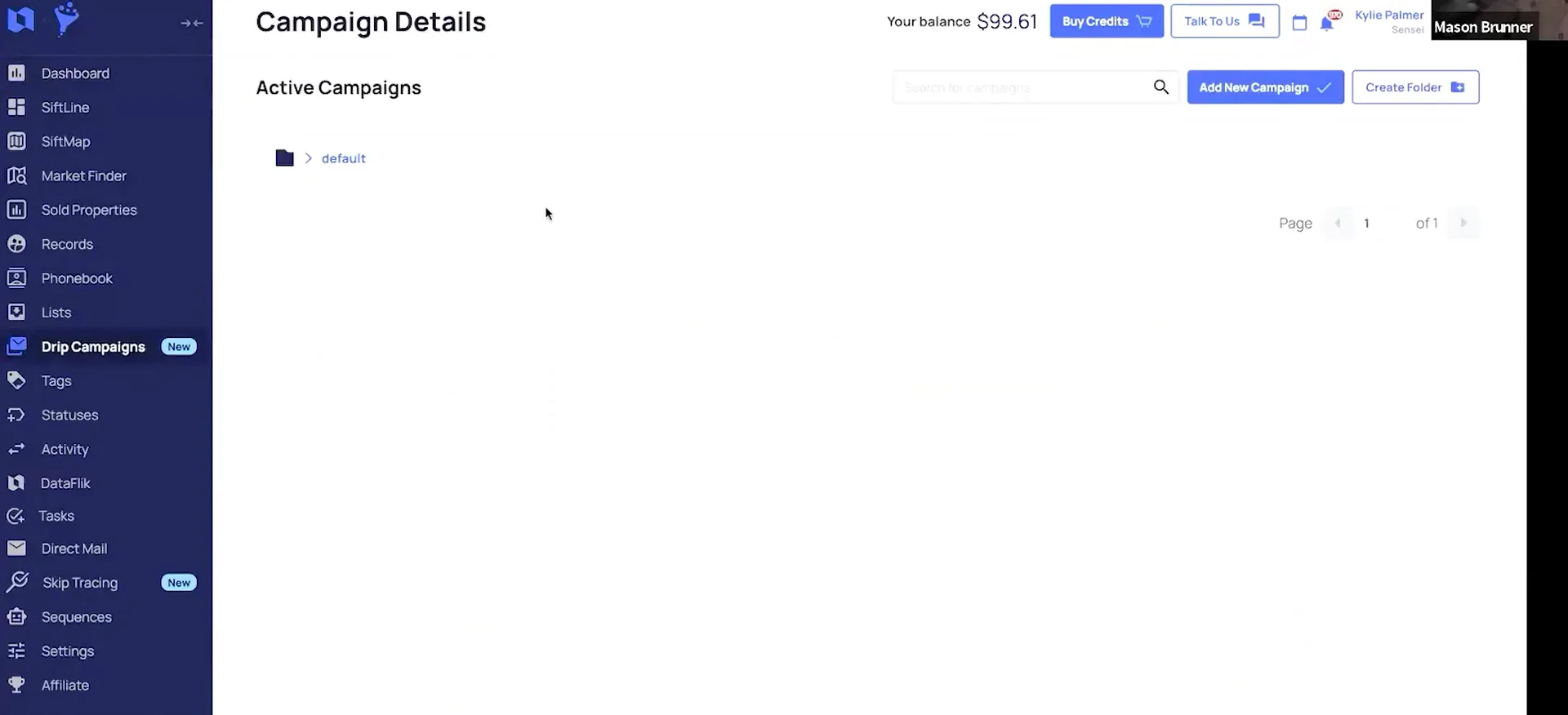
Open drip campaigns and read the details tabs.
The drip campaign section is where you manage all of your drip campaign details. This is where you create folders to organize your different drips, and where you create your new campaigns.
Once a campaign is created, you can view details. You see which records are actively in the drip, which have completed all steps, any failed, and anything removed. You can remove records from here, or go into the individual record and remove them from the drip.
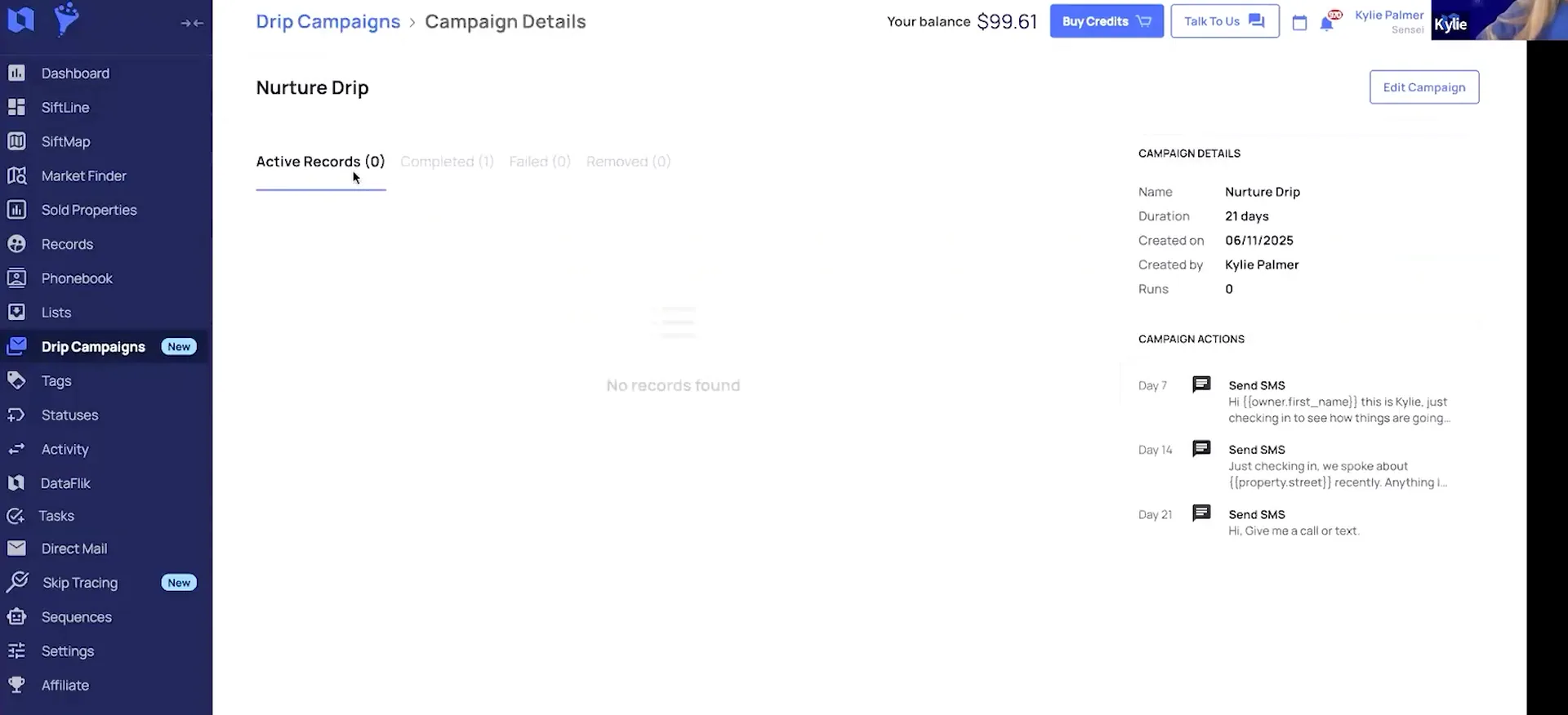
Automate SMS, emails, and tasks inside the drip.
Drips can be fed two ways. You can automatically add records with our sequences feature, or you can manually select records from the record page and add them to the drip.
Inside the campaign you can automate sending SMS, sending emails, and creating tasks. A task can be a reminder to call and reach out, or to review the lead for a longer term follow-up.
Drip campaigns are fully customizable, so you can set them up for however long of a follow-up sequence that you want.
BEFORE YOU MOVE ON
PART 2
Build the ghosting lead follow-up.
This campaign has three steps. A text, then an email, then a task for us to call the owner and review the lead. Because a task is in it, we build the task preset before we build the campaign.
Create the task preset first.
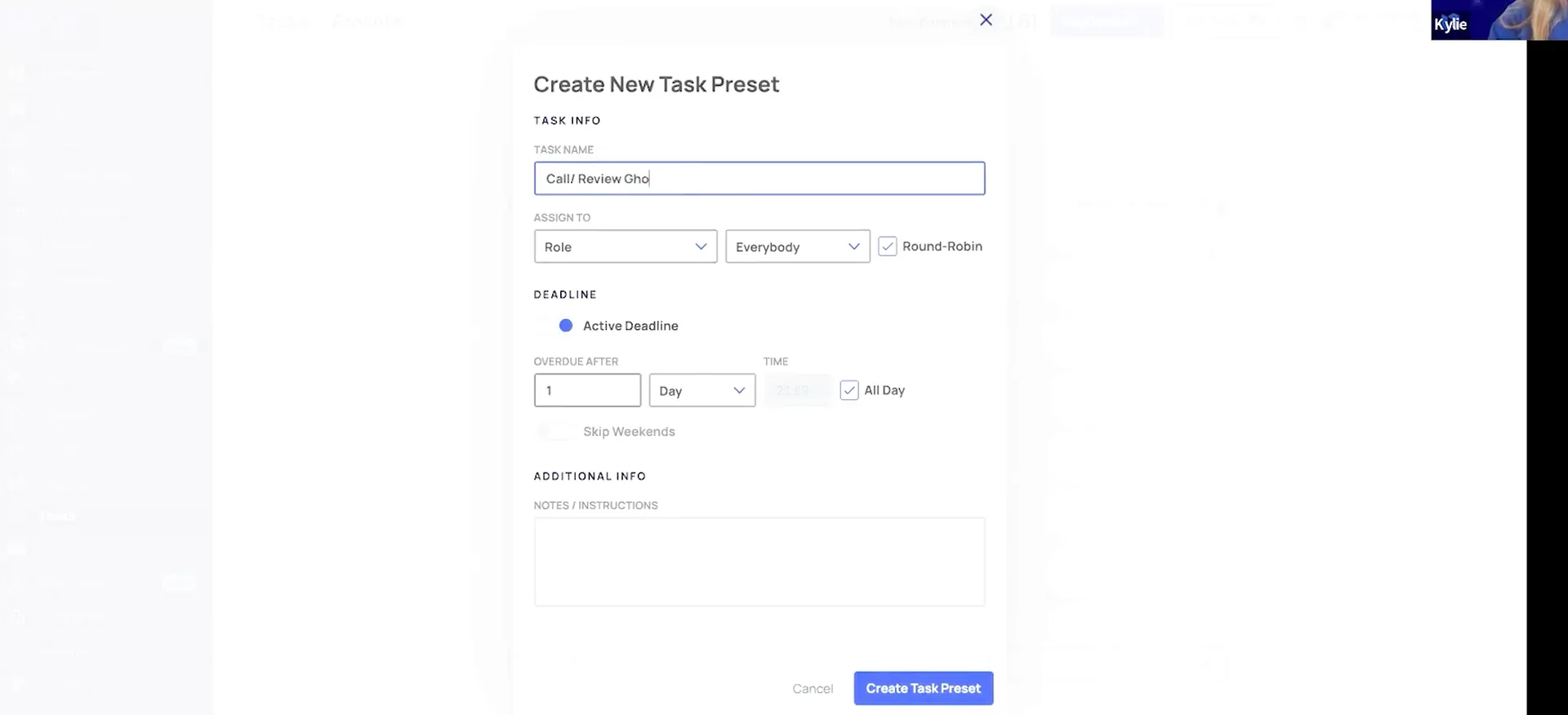
Add a call review ghosting lead task preset.
Go over to the task page and configure presets. Under the lead management section, add a new preset for call review ghosting lead. I am going to assign this to myself, and if you have a dedicated lead manager, you can assign it to your lead manager.
When assigning tasks, you can assign by role or user, or you can create a specific user round robin group to assign to. I am also going to leave this task as overdue after one day. We will use the delays in the drip to schedule the task about a month after we send the email.
And then this third step is going to be a task for us to call the owner and then also review the lead based on that phone call.
Add a new campaign titled ghosting lead follow-up.
Switch back over to drip campaigns and select add new campaign. This one is titled ghosting lead follow-up. We have most likely already contacted this person before it goes into ghosting lead. So I am going to set a thirty day delay as the first action.
Typically a ghosting lead would go from new lead. When you call to follow up and qualify them and they do not answer, it becomes no contact new lead. From there you would move to nurture.
And then after a few attempts from nurturing, if you still are not able to reach them, that's when you would wanna move to ghosting.
Pick the number you want to send the SMS from.
After the thirty day delay, the next action is send an SMS. Sending works with our integrations with smartphone, Twilio, and Plivo. Once you have those integrations set up, you should see your numbers to send from here.
Select which number you want to send from. Then look at the send to options, because there is more than one. In DataSift we have correct phone numbers, and there are times where you may have multiple correct phone numbers.
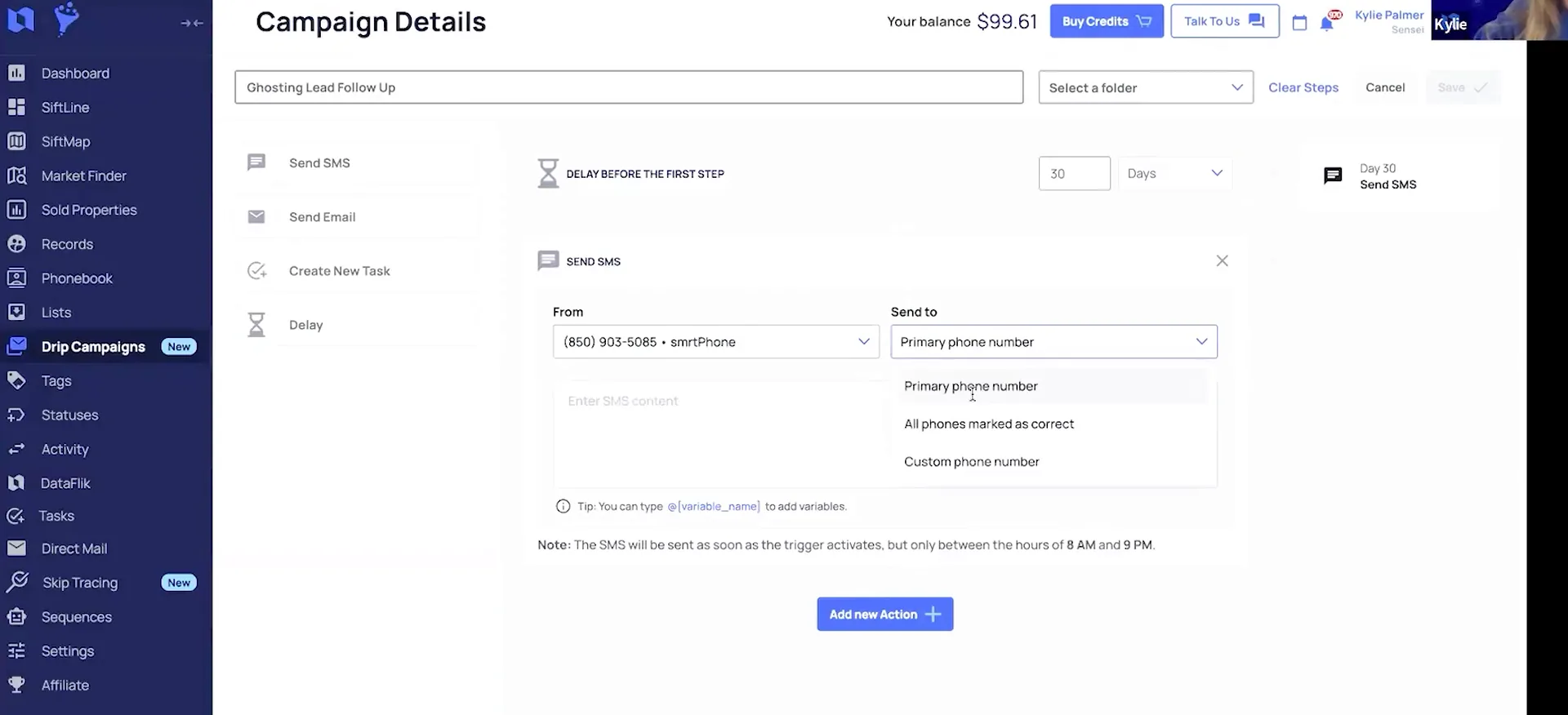
Send to primary or all correct.
Set the SMS to send to the primary phone number.
We also have an option to select a primary phone number, so you can pick the main preferred phone number for that owner. When you are sending, you can send to that primary number or to all phones marked as correct.
I am going to go ahead and set this one up to send to the primary phone number.
If you select all phones marked as correct and you have multiple phone numbers that are correct, it will send to each one of those numbers.
Campaign order
The ghosting lead campaign runs in six actions.
Type the message and pull in variables.
Now type out your message. You can type in the at symbol to pull up our list of variables. That way you can fill in the owner first name, your name, and then the property details.
Add a thirty day delay, then send the email.
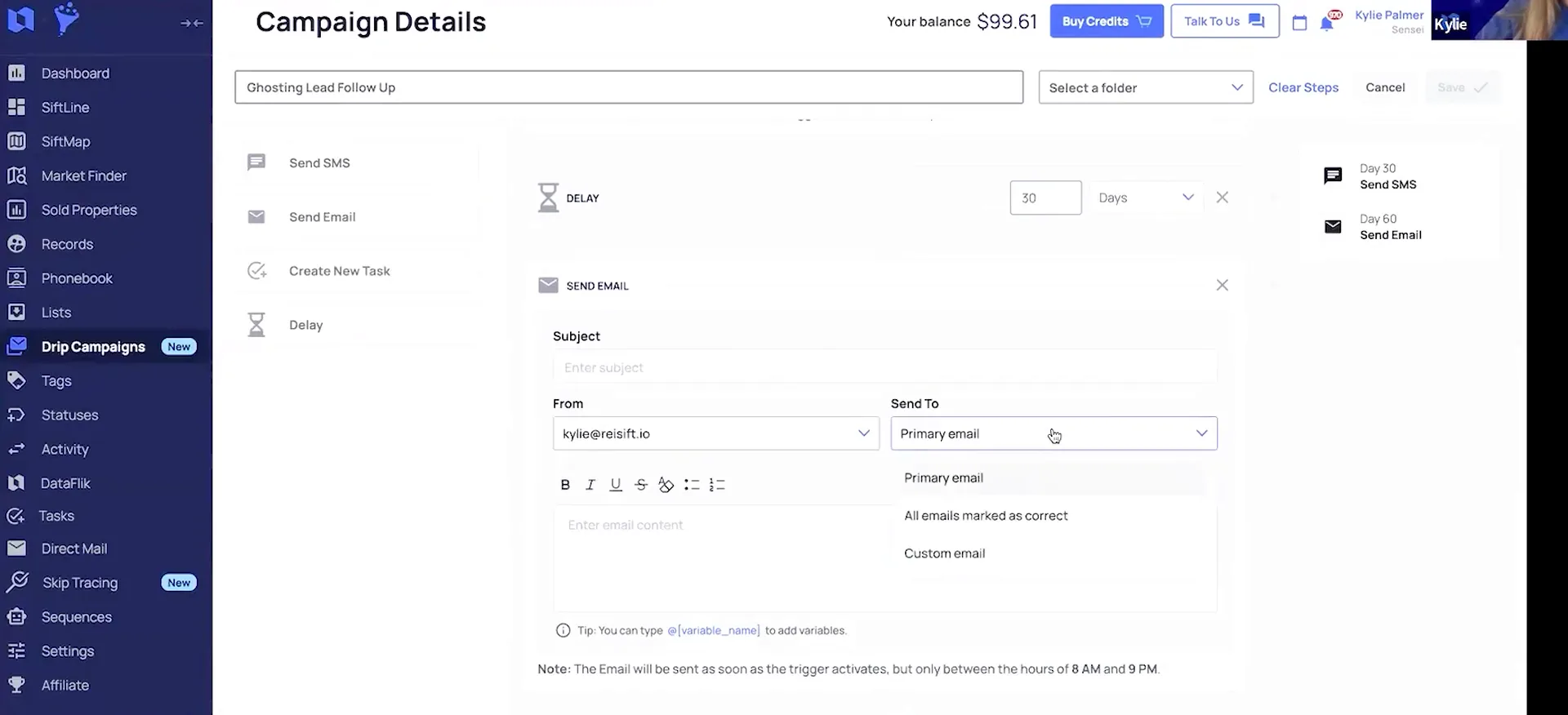
Add another action and set another thirty day delay, then send an email. This works kind of similar to our phone numbers, because we also have a primary email and emails marked as correct.
If you have the one preferred email address, you can send to the primary email and it will only send to that address. If you select all emails marked as correct and that record has multiple emails marked as correct, it will send to all of them. Then type out your subject and the body of the email.
Next, set a new action for another thirty day delay. After those thirty days, create that task to call and follow up. Select the task you made, save the campaign, and that is it.
So if you have the one preferred email address, then you can select to send to the primary email, and it will only send to that address.
Run the campaign when a lead ghosts.
Add a run drip campaign action on ghosting.
Go into sequences and lead management. On the step where the record becomes ghosting, make changes, add a new action, run drip campaign, and select the campaign we just created.
So whenever a record is moved into that ghosting lead phase on your Sifline board, it updates the property status to ghosting lead. Then it automatically runs this campaign. Then you just save changes.
And when the record becomes ghosting, we can make changes, add a new action, run drip campaign, and then select the campaign that we just created.
Add records manually from the records page.
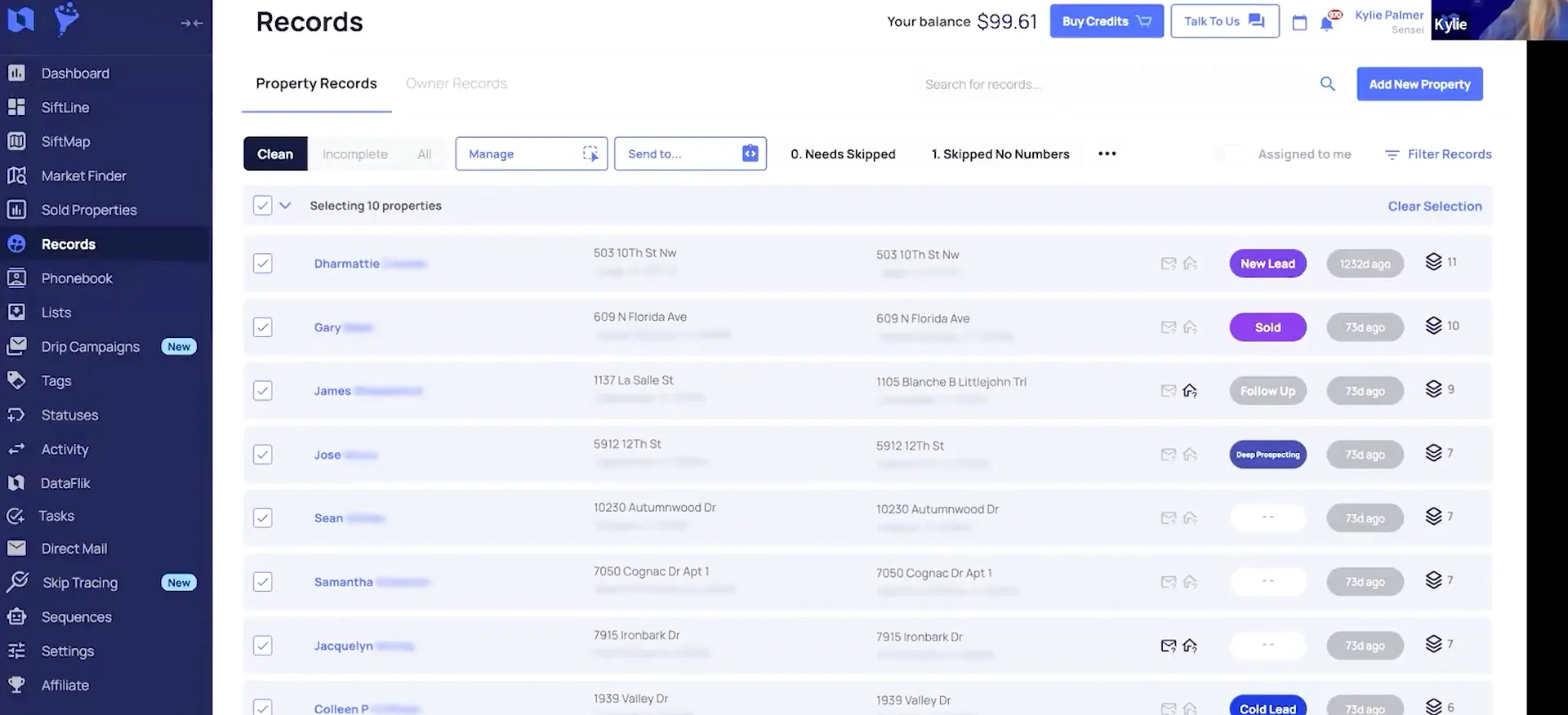
If you want to add records to the drip campaign by hand, you can do that from the records page. Filter and select the records you want to add.
Then go to send to drip campaigns, select the drip campaign you created, and confirm. That is how to create and manage a drip campaign for ghosting leads. It is one of many examples you could run in your business.
Check the boards and sequences your account came with.
All new accounts come with automations for lead management, acquisitions, and transactions. When you create your account, you are going to see those Sifline boards. You will also have sequences that are connected to these boards.
So if I change a property status to new lead, that is what kicks off the start of the automations. That new lead status is added in your account as soon as you create it.
So that drip campaign, in our opinion at SIFF, through numerous years of seeing real estate investors operating in their businesses, we know that that's an essential campaign.
BEFORE YOU MOVE ON
PART 3
Where the drip starts and stops.
The drip does not run on its own. It starts when you move a card into a phase, and it keeps running until you go in and remove the record. This last part covers both ends of that, plus the fast text for a brand new lead.
The lead phases trigger the drip.
Move the card through your follow-up phases.
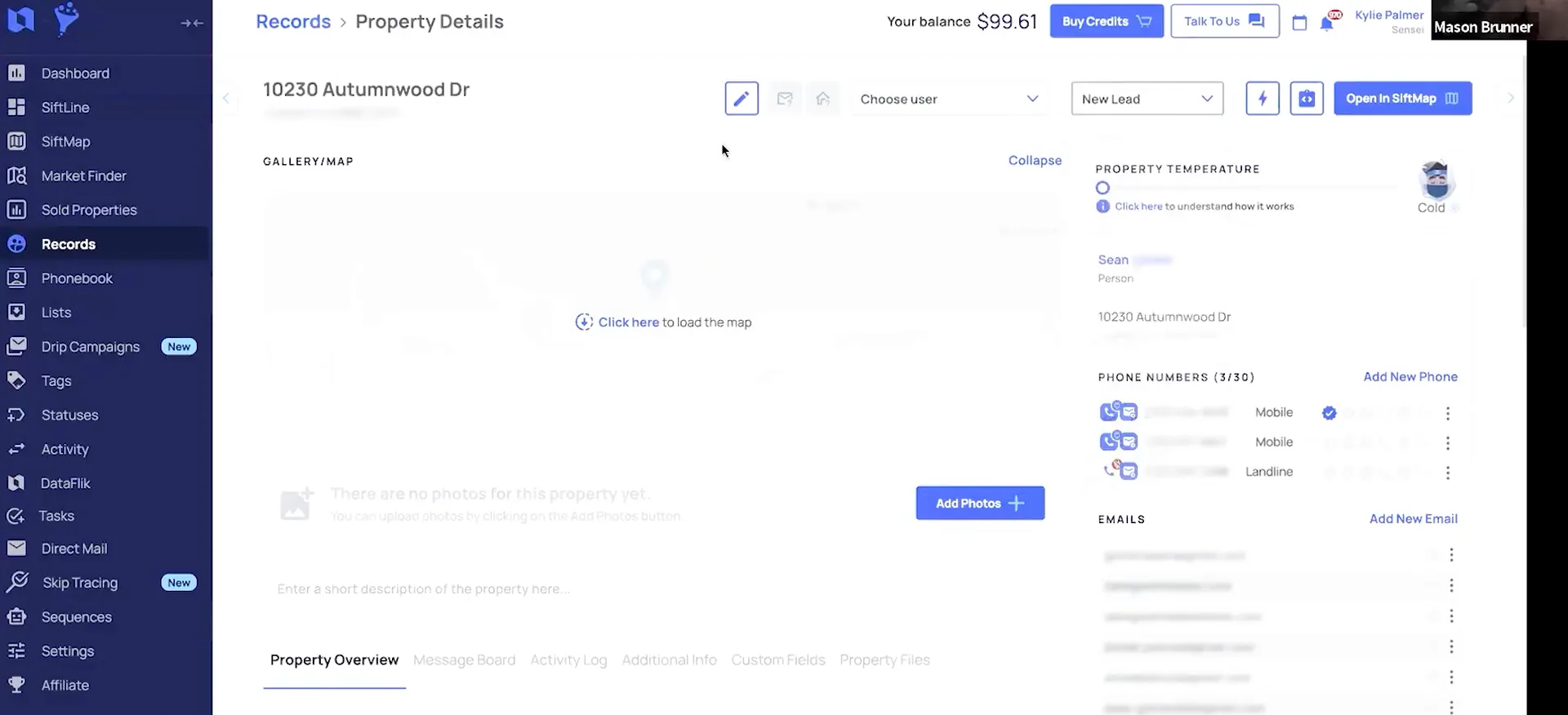
Back on the lead management board, the new lead was added to the new lead unqualified phase on its own. The rest of the automations are based on when you complete a task, or what phase you place the card into.
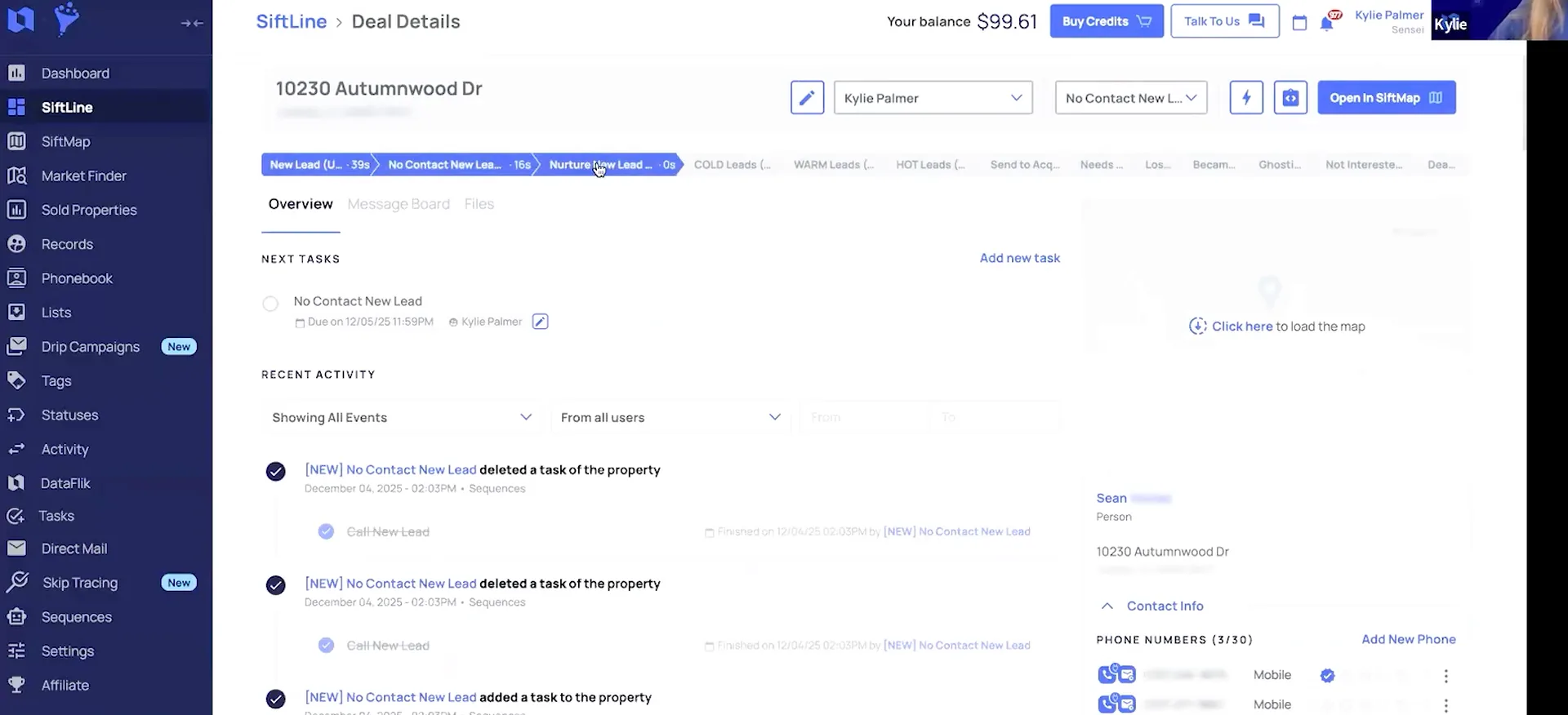
So if I call this new lead and I cannot reach them to qualify them, I move them to no contact new lead. That triggers tasks to follow up again. When I complete that task, it creates another task to follow up.
After a few attempts I can decide I still have not reached them, so I move them to nurture new lead. That creates more tasks to follow up.
And then from there, if you're still unable to reach them after a few attempts, then you can switch them to ghosting.
Attach the drip to the ghosting lead phase.
When you move them to ghosting, the status changes to ghosting on its own. Then you go into the sequences and automations and add your drip campaign, so it starts whenever records move into that ghosting lead phase.
The sequence is just the trigger that creates the drip. With the campaign we built, the record sits on a delay before any of the actions start. Nothing fires the moment you move the card.
After the move to ghosting, the text sends in thirty days. Another thirty days after that, the email sends. Another thirty days later, it sets up the task for you to call and review.
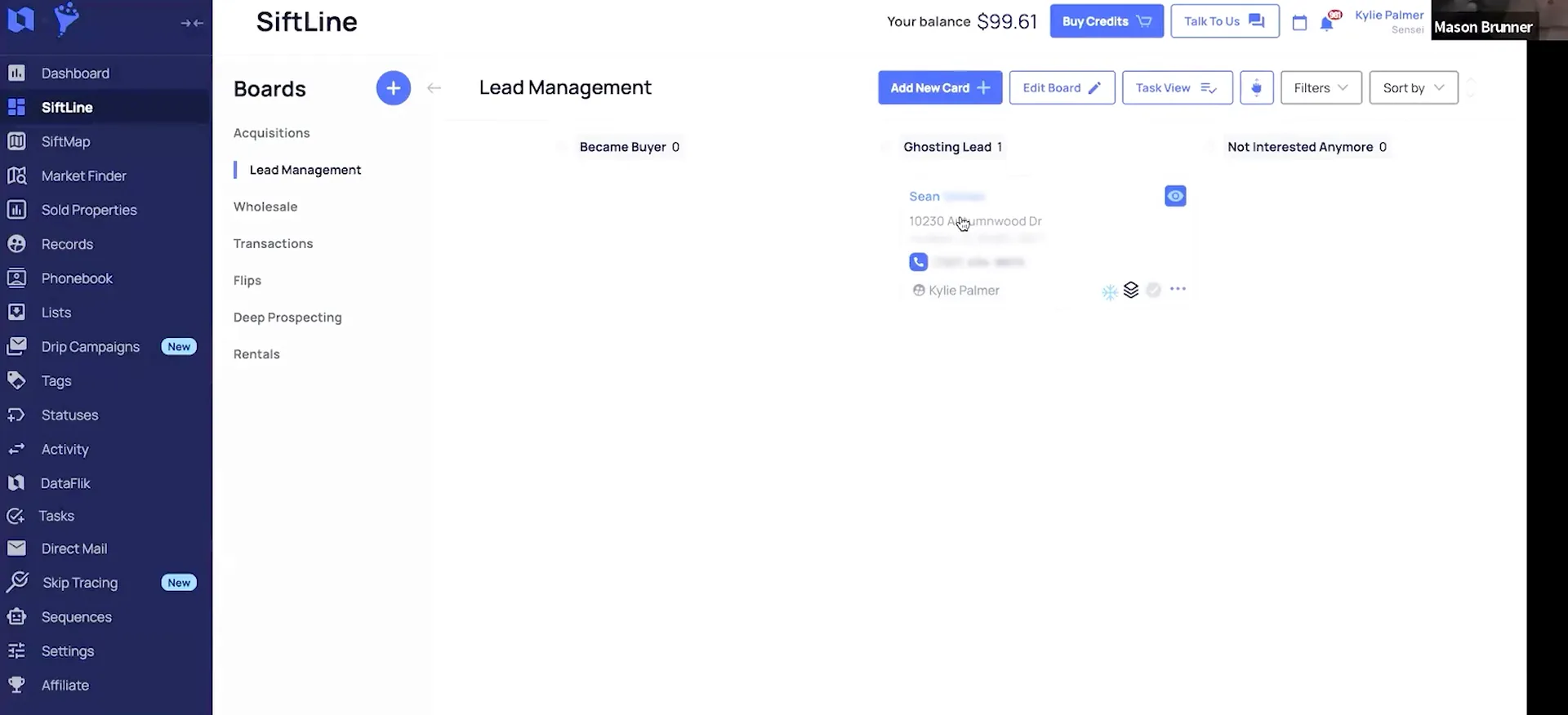
Open view details to see every record inside.
You will not have one ghosting lead in a month. You will have dozens, and the same goes for lost deals. So you need the wide view of who is in a campaign and where they are.
In the drip campaign section you can see the details for each of your campaigns. Go into view details and you get all the records in the campaign and which step they are in. A record that was just added shows up that way.
So if you go into view details, you will be able to see all the records in the campaign and which step they're in.
Remove the record from a campaign.
Remove the record from the drip when they reply.
A record sits under active until it has completed all of the steps. In that same view you can also see any records that have completed, failed, or been removed.
Say a ghosting lead texts you back or calls you back after that first SMS. You can select remove inside the drip campaign, or you can remove it from a campaign from inside the record.
Changing the property status does not swap it out. The way it is set up right now, that is a manual step. If they say they are interested and you qualify them as a hot lead, go ahead and remove them from that drip.
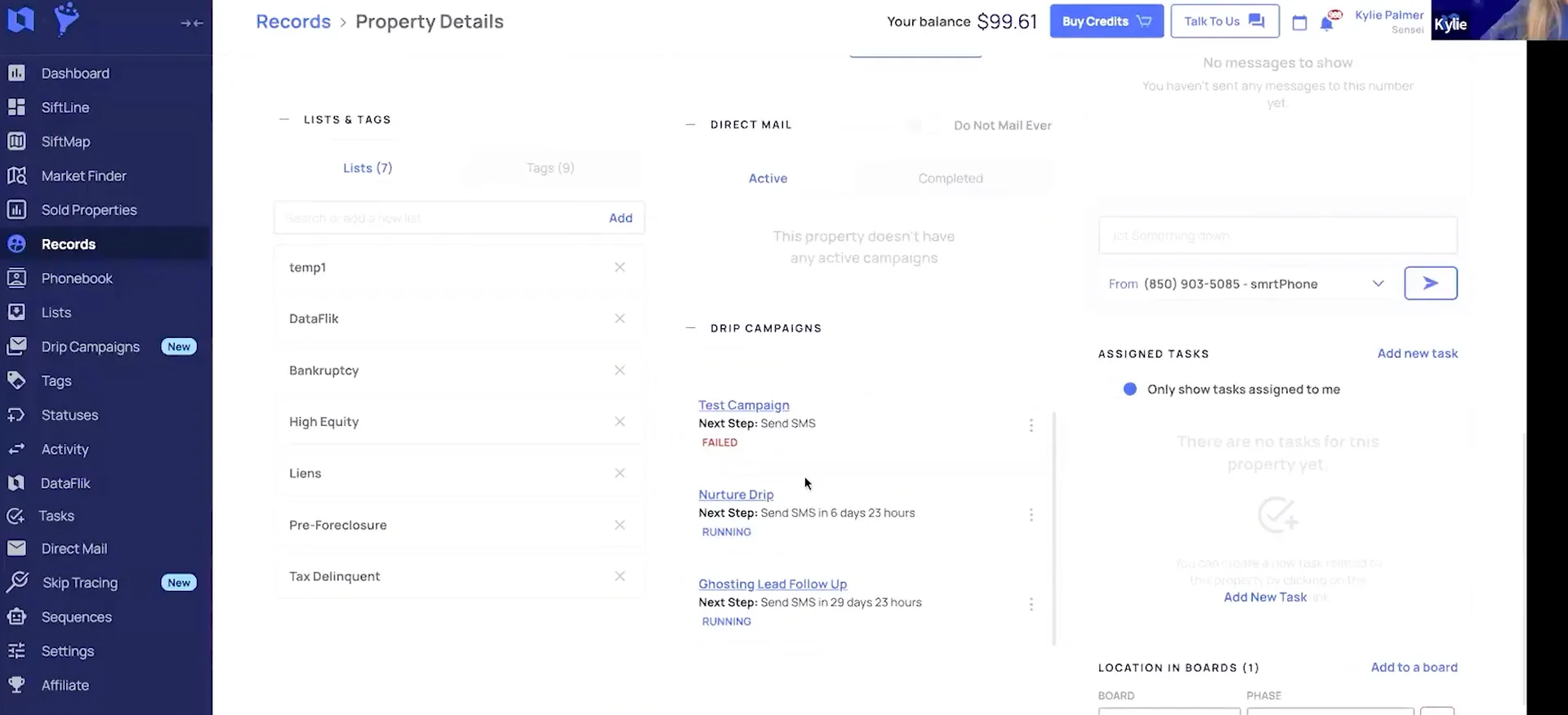
Keep managing the record after they come back.
A hot lead is more of a personal touch. The number of people who complete and need to be moved is not large, and you are dialing and managing these people by hand.
If they call or text back and say they are interested, you are going into the record anyway. You make notes, look at their details, maybe submit an offer. While you are in there, selecting remove is a quick and easy step.
The data management does not stop because they became a lead. Keep it tracked, and do not lean on the drip campaign to do the whole job.
We wanna know what happens from beginning to end, whether that's a closed deal at the end or someone left or they told us they don't wanna sell.
Send a text after three minutes.
Build a few minute delay for new leads.
You do not always get to a new lead right away. So set a text to send three minutes or so after a property becomes a new lead.
Use a drip campaign with a short delay and send that one text. It lets them know your team will be calling to go over more details and walk them through the process.
And then those drip campaigns can also be attached to your new lead sequence that automatically runs when you change that property status to new lead.
Confirm the form and say you will call.
The text can confirm that you got their form submission and tell the owner your team will be reaching out shortly. You can name yourself, say you got the message, and thank them for their interest. Write it however you want it to be.
Investors watching want to know they can get there quick. Some of them are on appointments or talking to sellers right then. This is one of those safeguards, so speed to lead is still covered while your cold callers are working.
Trigger the same drip from your website form.
If you have a Carrot website with a lead intake form, you can set up Zaps to send those leads into REI Sift. These drip campaigns can be triggered from new leads that come in that way.
So your inbound leads through Carrot can start the drip right in Sift. Thanks to Kylie for running us through how to build this one.
we mentioned in the beginning, this feature has been long awaited, highly requested in the community, and we weren't just gonna build it fast and release it.
BEFORE YOU MOVE ON