
PART 1
SiftLine overview.
SiftLine is a kanban style board system that helps you visually manage your deal flows and pipelines. In this Part I set up a board, then work the cards on it. Everything here is click by click in the account.
Open SiftLine and create a board.
Click SiftLine on the left sidebar of your account.
My name is Kylie. I'm your customer support ninja at REI Sift, and in this video we'll be going over our SiftLine feature.
With SiftLine you can create fully customizable boards for lead management, acquisitions, transactions, and your exit strategies. SiftLine events are also included in sequences so you can automate your workflows.
For example, you can create a sequence for when a property status changes to new lead. It adds a record to your lead management board and creates a task to follow up.
Check your plan and set your permission level.
Your plan determines how many boards you can create. Essentials and Professional customers each get a set number, and with our business plan there are no limits.
There are three permission levels within SiftLine. This lets you control access for your team members. Just read gives view only access.
Admin permissions gives full access to view, move, and delete cards as well as editing and deleting boards.
Permission levels
Three permission levels control team access.
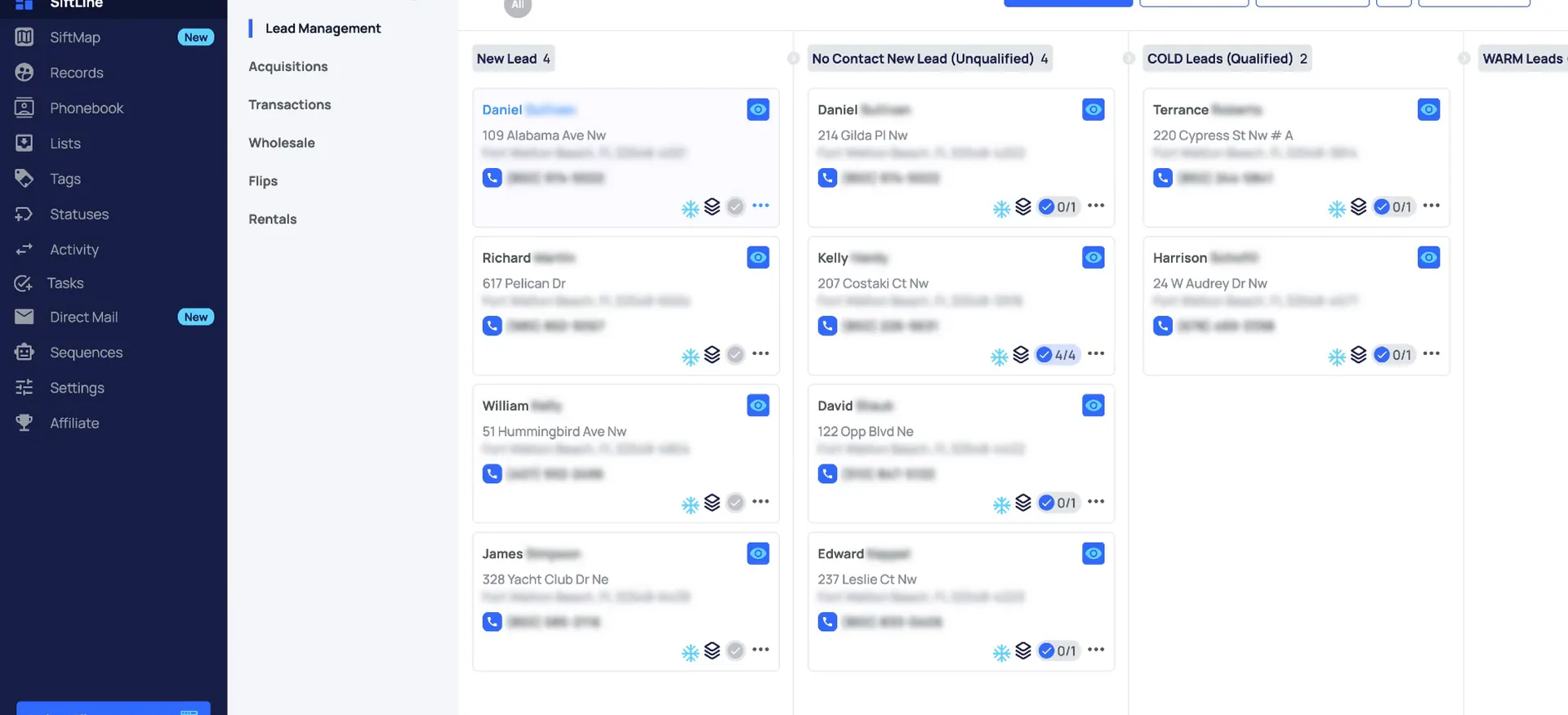
Click the plus sign, name the board, save it.
Creating a board is super easy. Name your board, select your permissions, then name your phases. If you need more phases, click the plus sign to create additional ones.
Once you're done creating, just click save board. After that you can add cards directly from the board by selecting add new card. Search a property address, then pick the board and phase you want it in.
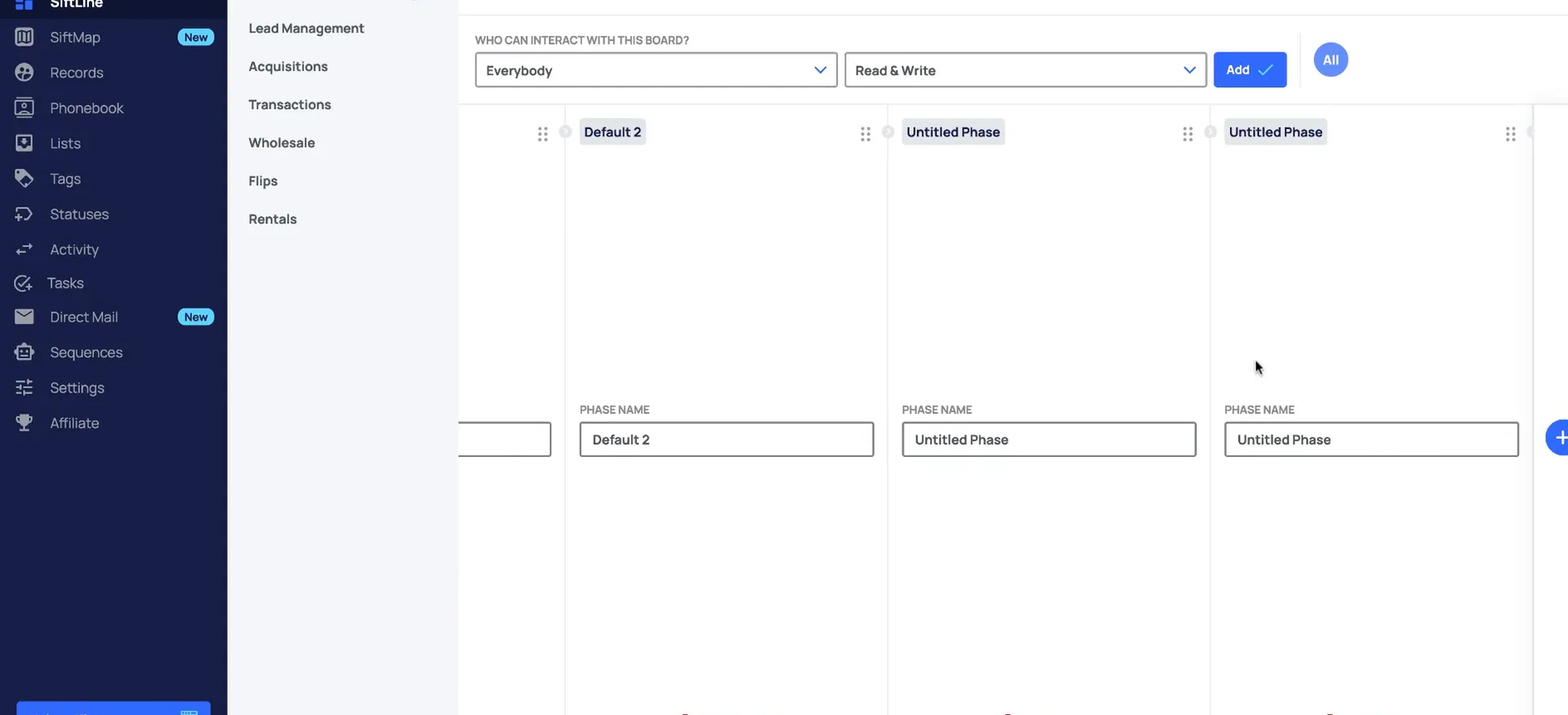
Edit the board.
Open edit board, then set sorting and drag and drop.
If you are the account owner or have admin access, you'll also see the option to edit the board. From there you can edit the board name, update permissions, edit or delete phase names, or delete the board.
Task view lets you see any upcoming tasks related to your cards so nothing slips through the cracks. When full board drag and drop is disabled, you can only move cards to the viewable area. Enable it and you can move cards and scroll through the entire board.
You can resort cards by age or activity here.
And to change it back to manual, you can either select manual here or click the x sign to stop sorting.
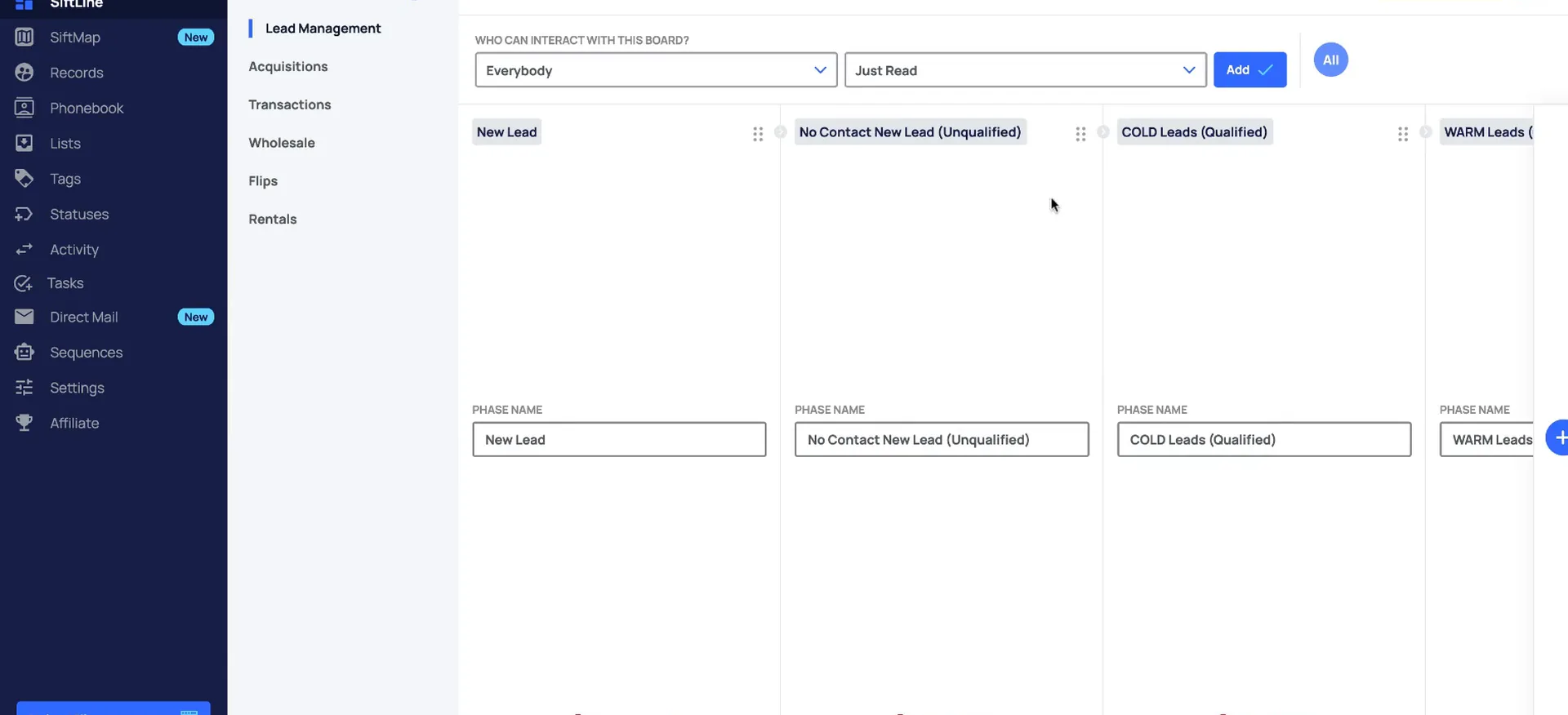
Read each card, then use the dots and eye icon.
Each card gives you a quick snapshot of the deal. From the board view you can see if the card is assigned to someone, with your team member's name there. You'll also see the first phone number on the record.
One record here has no tasks associated with it, and another has all of its tasks completed. Click the three dots and you'll be able to move or delete the card. Clicking the eye icon opens a quick view.
This shows you the property temperature, the amount of lists the records the records are on, and then the check mark here shows the amount of tasks.
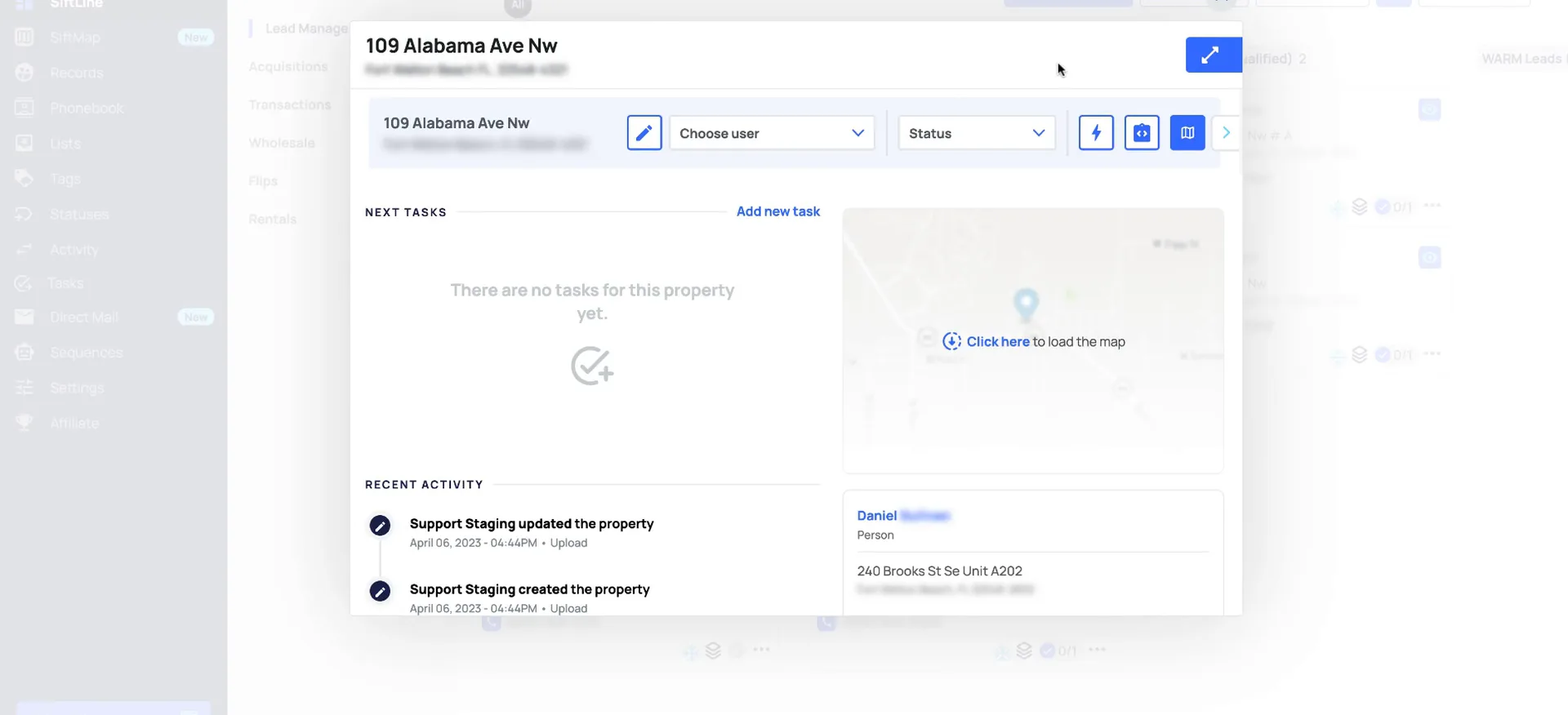
Expand the full view.
Click the card to open the full view.
From the quick view you can click the arrow to expand the full view. If you just click on the card, it will open the full view automatically.
Inside the deal details you can view or assign the users and update the property status. Under the lightning bolt icon there are quick links for Zillow, Google Maps, and realtor.com. You can also skip trace or send records through the integrations to a predictive dialer or our integration partners.
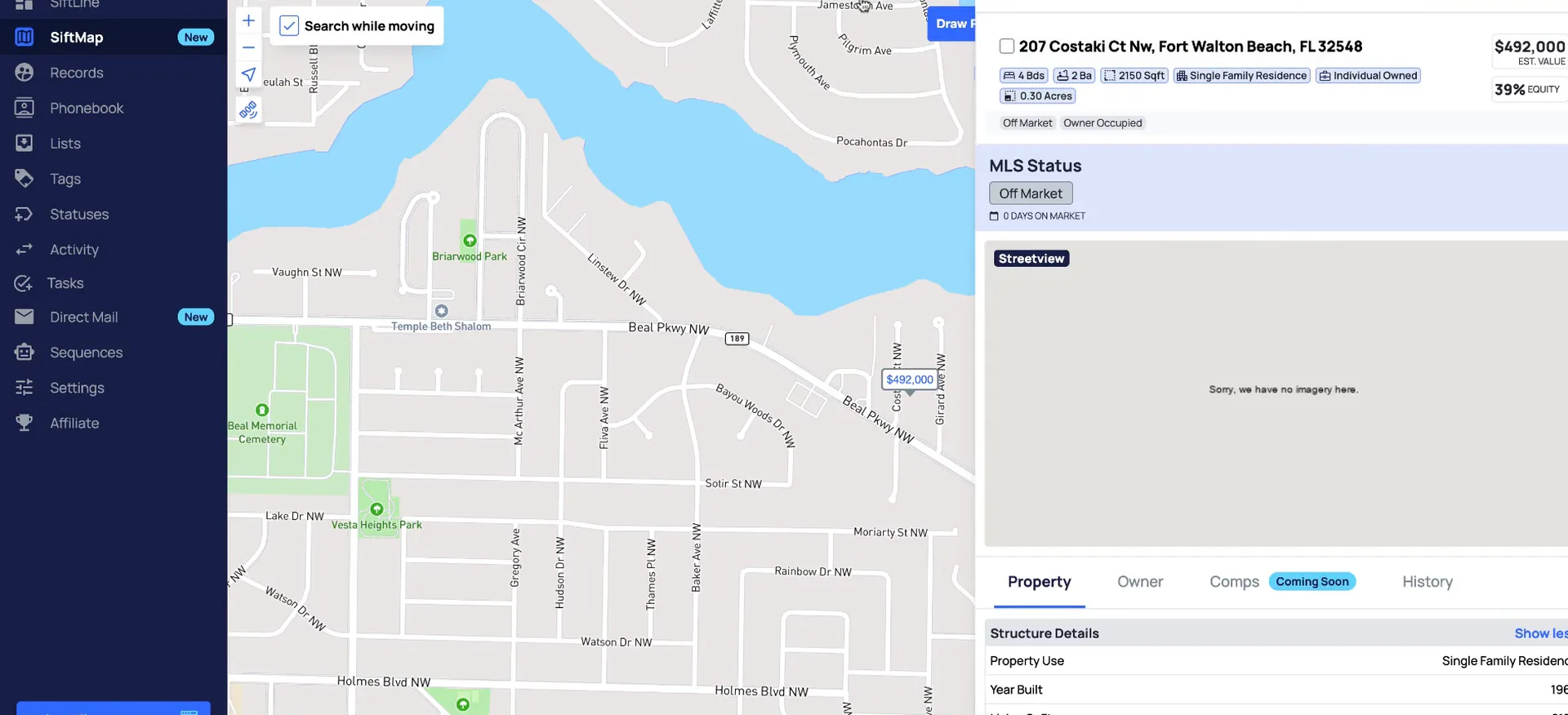
If you open SiftMap, this opens the record in our SiftMap feature, where you'll see property and owner information.
From here, you can click the arrow to expand the full view, if you just click on the card, it will automatically open the full view.
Work the tabs and the right sidebar on the record.
The phases in the board show on the card. Click one of those phases and it moves the card to that phase. Under the overview tab you'll see recent activity for the record.
You can also access the message board to make notes, and upload or open any files for the property. Back towards the top you can navigate to the next and previous records.
That's a quick rundown of SiftLine. Be sure to check out our additional trainings in the help center. We show you exactly how to set up all the boards shown in this section.
Card stats, the location in the boards, you can also move the card to different boards or phases here, and any lists and tags associated with the record.
Full view
Work the full view in this order.
- 1Deal detailsView or assign users and update the property status.
- 2Lightning bolt iconQuick links for Zillow, Google Maps, and realtor.com.
- 3PhasesClick a phase to move the card to that phase.
- 4Overview tabRecent activity, the message board, and files for the property.
- 5Right sidebarOwner information, offers, card stats, lists and tags.
BEFORE YOU MOVE ON