
PART 1
Add, move and delete cards.
My name is Kylie, customer support ninja at REI Sift. In this video, I'll be showing you how to add, move, and delete properties in SiftLine. Properties can be added individually from SiftLine or from the property records page, or in bulk from the records page.
Add a card from SiftLine.
Select SiftLine from the left sidebar of your account.
This is where your boards live. If you're looking for more on how to create these boards, check our additional SiftLine articles in the help center. They'll also be linked to this article.
You'll need read or write or admin permissions for the board before you can add, move, or delete cards. The board permissions are displayed below the board name. Hover over the permission section and you'll see the permission levels.
So you'll need to have read or write or admin permissions for the board in order to add, move, or delete cards.
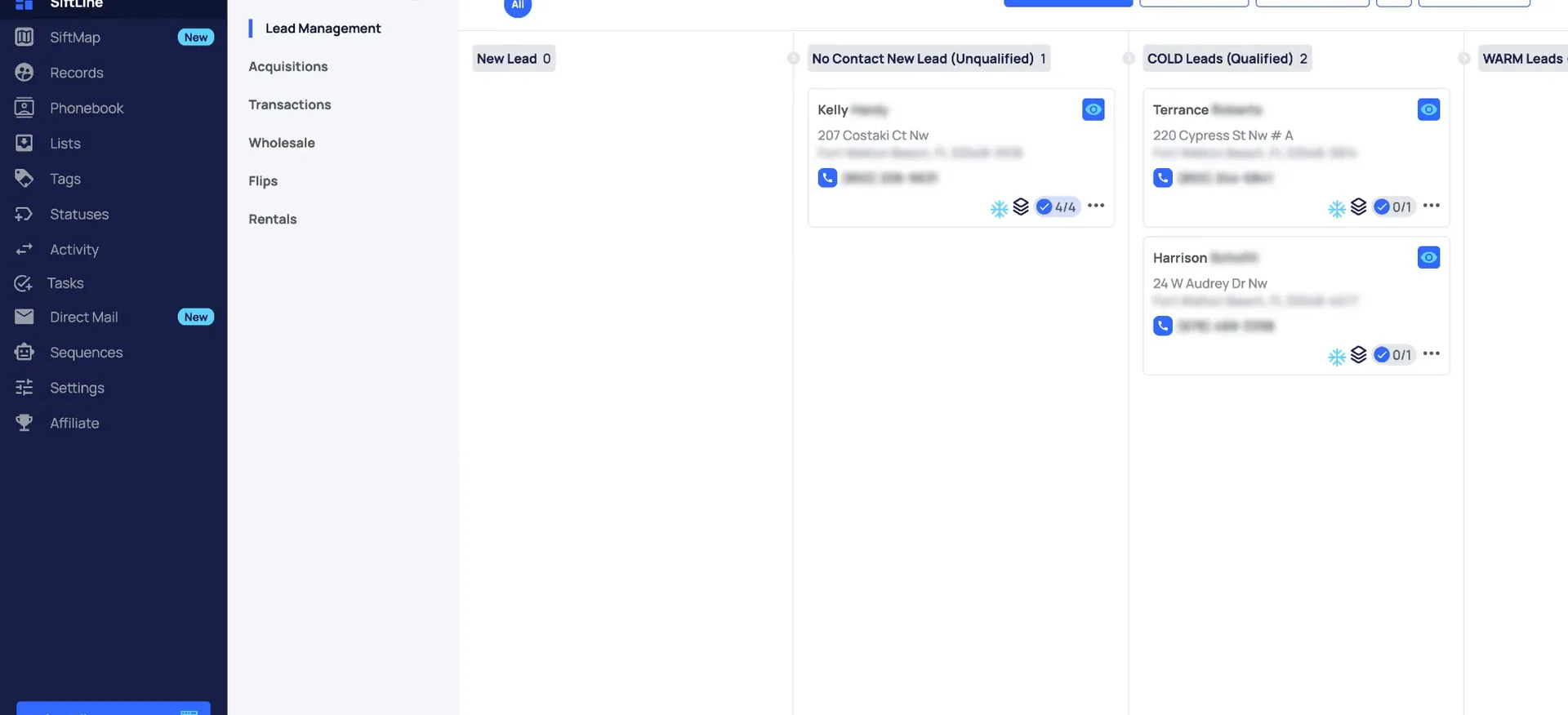
Select add new card, then search the address.
Search by the address you want to add and select it. Then select the board and the phase that you want to add it to and click import property.
And there's the record that I just added. That is the whole flow when you're already sitting inside the board.
Add new card
Adding a card from SiftLine in order.
- 1Select add new cardOn the board, select add new card.
- 2Search the addressSearch by the address you want to add.
- 3Select board and phaseSelect it, then select the board and the phase you want to add it to.
- 4Click import propertyThe record shows up on the board you selected.
Add from a property record.
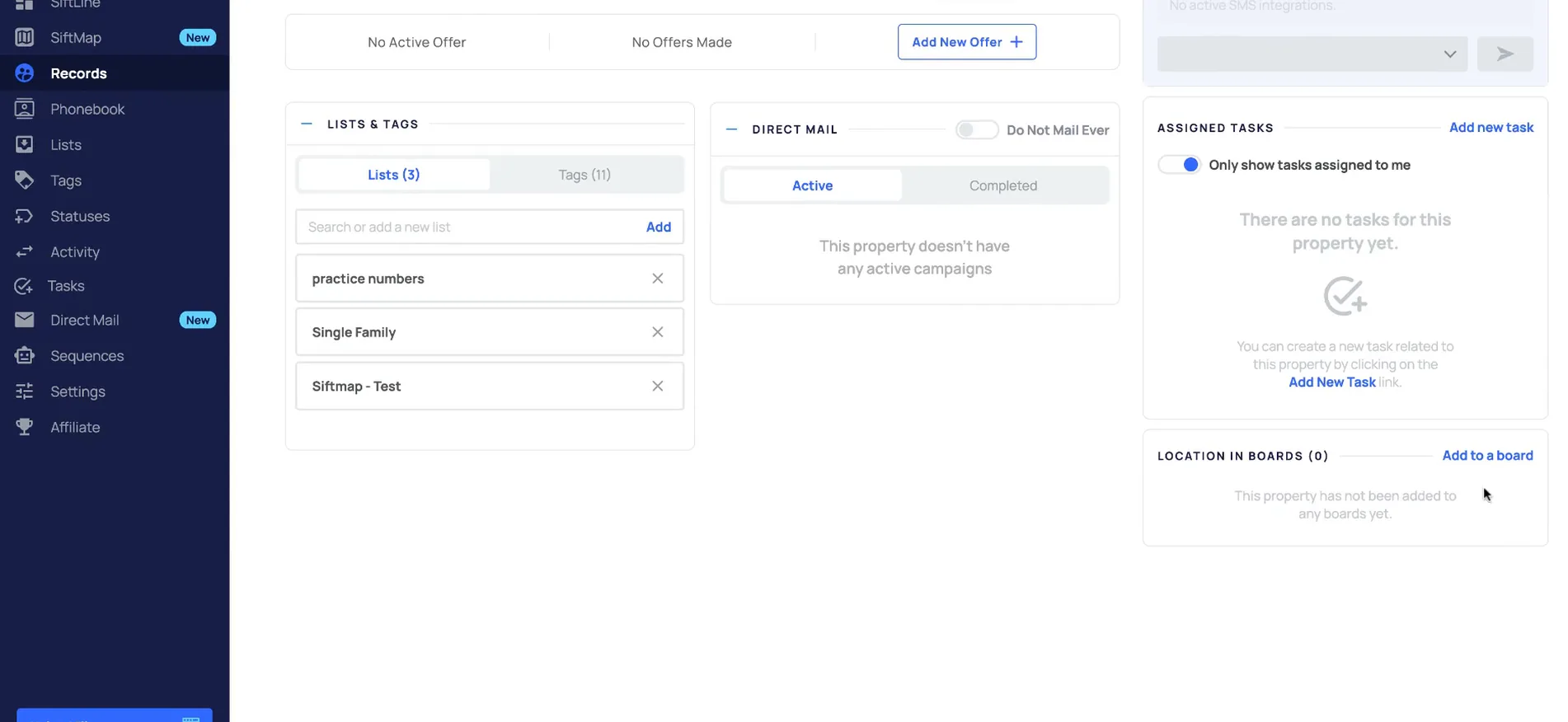
Open the record and select add to a board.
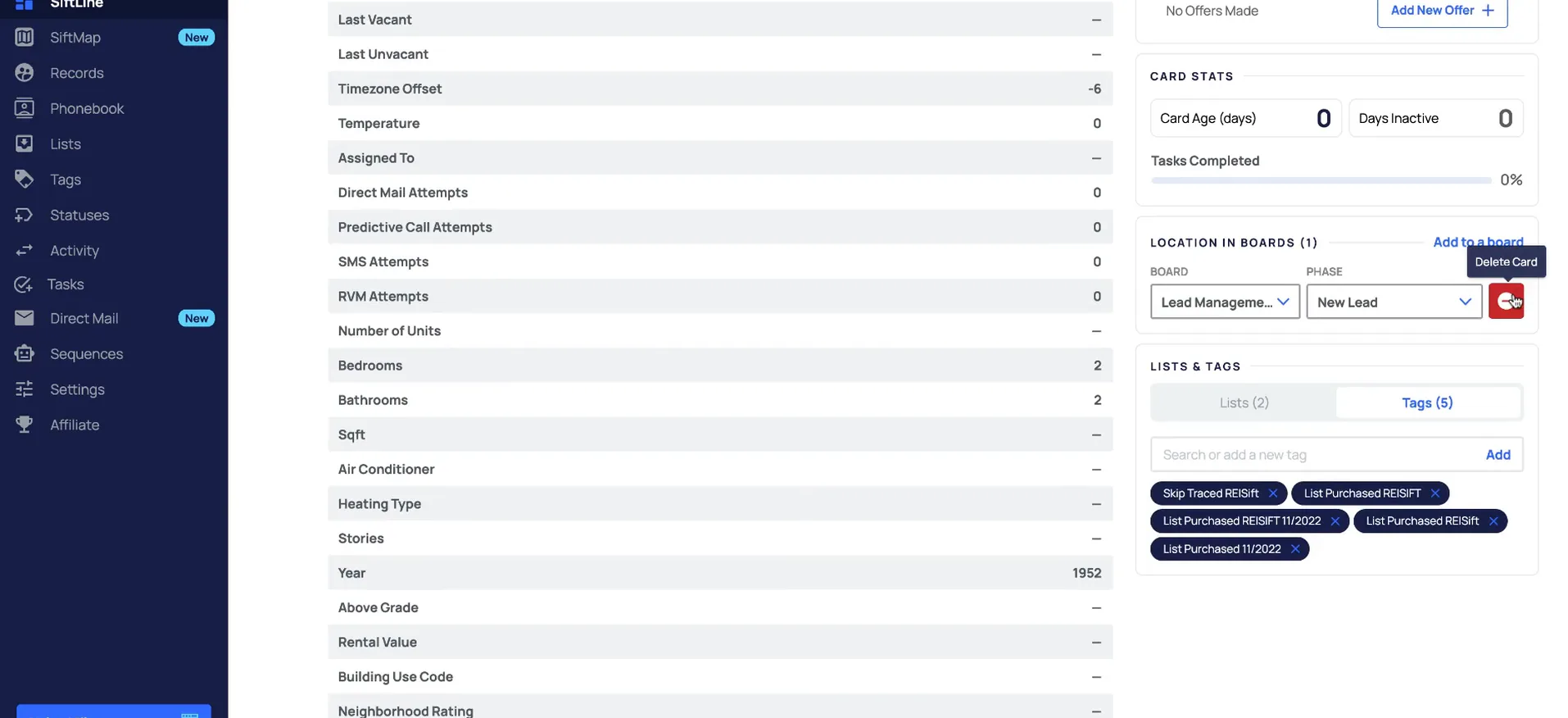
To add from within a property record, you would go to records page. Open up the record that you want to add to the board. Towards the bottom you'll see a section for location and boards.
Choose the board and the phase that you want to add it to and send one property. You can also add it to multiple boards at once. Click the plus sign and you'll be able to add additional boards and phases here.
Now that property has been added in SiftLine. If we go to SiftLine, we can see the record is here.
Choose the board and the phase that you want to add it to and send one property.
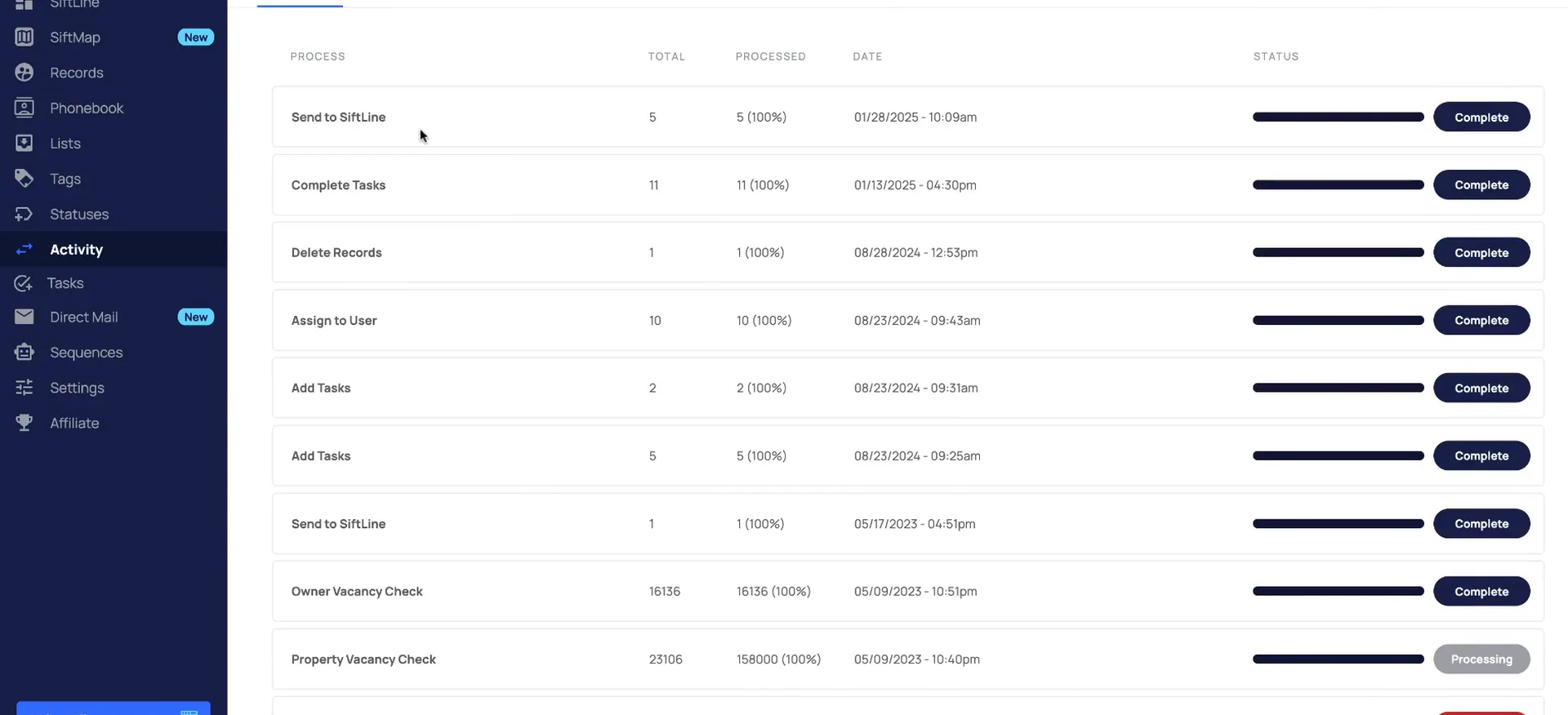
Send several records at once from the records page.
Now if you needed to add multiple records at once, you can do so from the records page. I'm just going to go to the next page here and select a few records.
Then you would go to send to, select SiftLine, the board and phase, and then import properties. These activities can be tracked on the actions page, and we can see that's complete now.
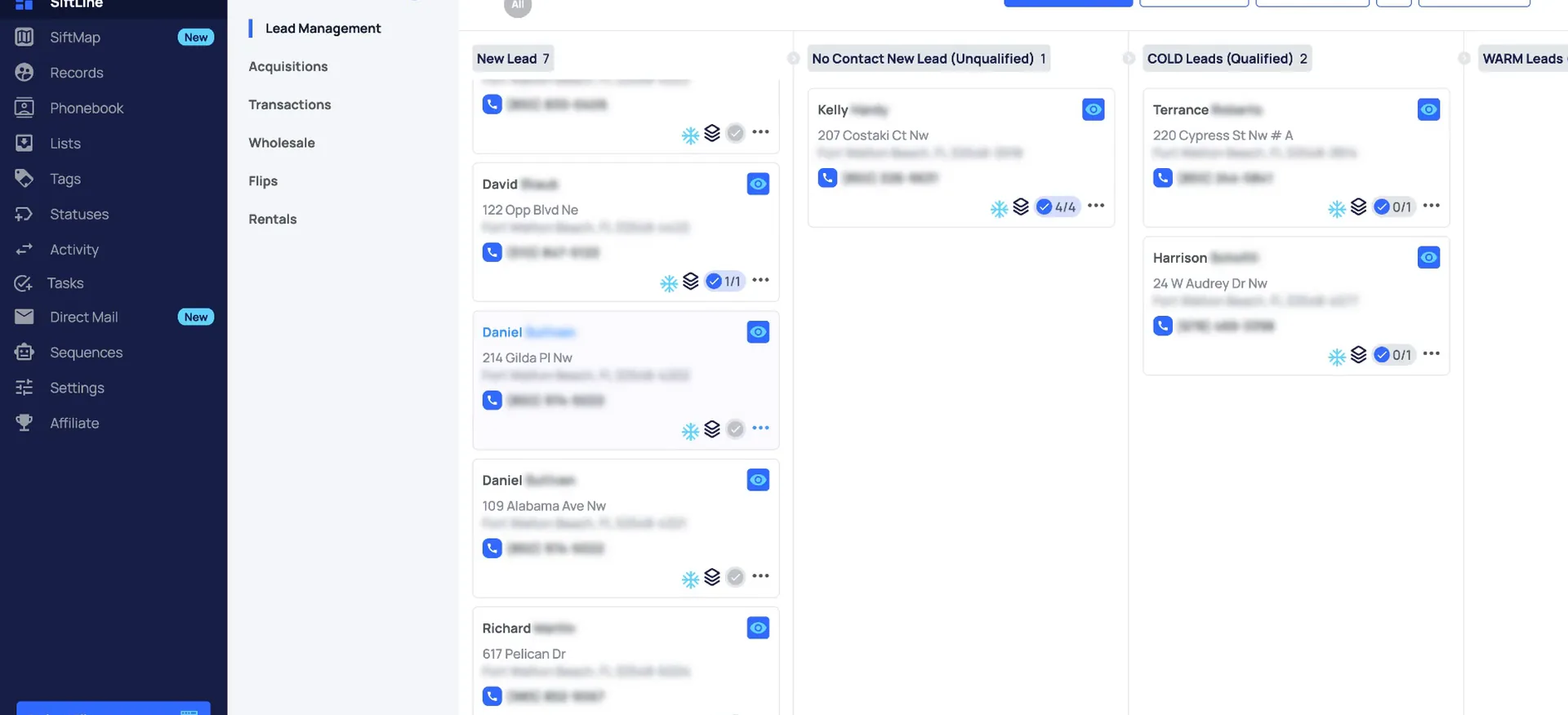
So if we go to SiftLine, those are the properties that I just added.
Move and delete cards.
Drag the card, or select the three dots.
One thing to keep in mind, when you add records to a board, that does not move the records through the different phases. Whenever you're selecting an action to add to the board, that's only adding the new property records to the board.
From the board, you can move properties to different phases by dragging and dropping or by selecting the three dots here, selecting move card. You can also move them from within the card details. If you click this step right here, it's going to move it to that different phase.
One thing to keep in mind, when you add records to a board, that does not move the records through the different phases.
Keep in mind
When you add records to a board, that does not move the records through the different phases. Adding only puts the new property records on the board.
Click the three dots and select delete.
If you need to remove a property from the board, you can do so by clicking the three dots here and selecting delete. Or you can remove them by clicking this section here to delete the card. You can also do this within the records page.
So that's how to add, move, and delete properties from a board in SiftLine. If you have any questions, just reach out to support.
BEFORE YOU MOVE ON