
PART 1
Setting up the Kixie calling integration.
Kixie offers AI powered calling and texting, and with our integration your call and SMS events log right to the activity log. In this Part I set the integration up with your DataSift API key, make a call from the Chrome extension, and send a text. I also show where the notes, the phone status and the text thread land afterwards.
Hand Kixie your DataSift API key.
Look at the activity log to see what Kixie logs.
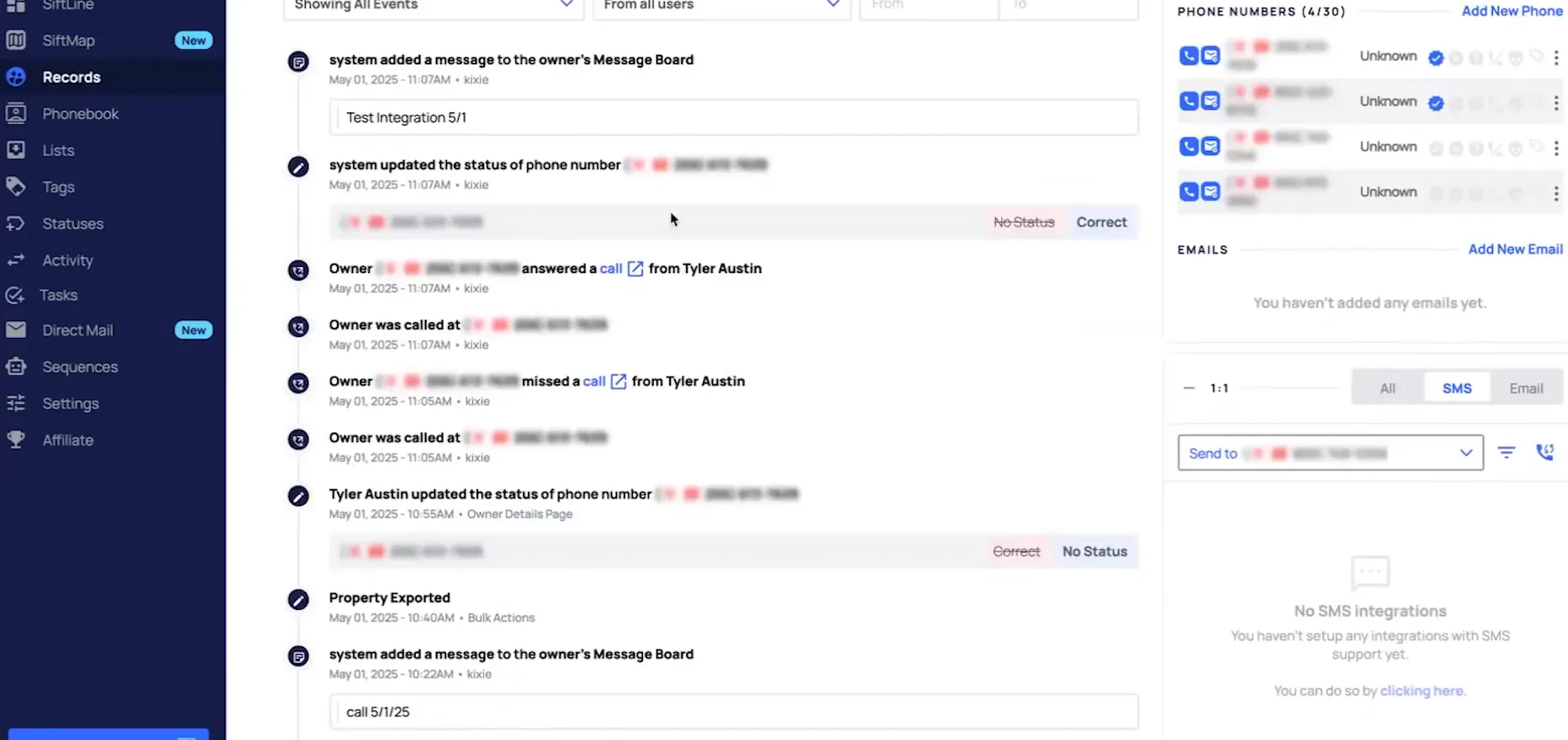
This is the outcome screen, so you know what you are setting up. Every call and SMS event you make through Kixie lands here. If the call was recorded, a link to the recording will also appear.
You will also see the actual SMS you send or receive in the activity log and in the one to one SMS section. On the business plan, your phone statuses update automatically based on the call outcome selected in Kixie's click to call dialer. With their power list, both the property and phone statuses will be updated.
Set up your Kixie account and install the Chrome extension.
Before we start, both of those have to be in place. Check out Kixie's getting started guide if you need help with that. Nothing in the rest of this lesson works without the extension.
If you are new to Kixie and in trial, their sales engineer can help you get it set up. Just let them know that you are a DataSift customer and would like to set up the integration.
So before we start, make sure that you have your Kixie account set up and the Chrome extension installed.
In your DataSift account, go to settings, then integrations.
To set up the integration, you will need to provide Kixie with your DataSift API key. The key lives in the integrations area of your own account. Nobody at Kixie can pull it for you.
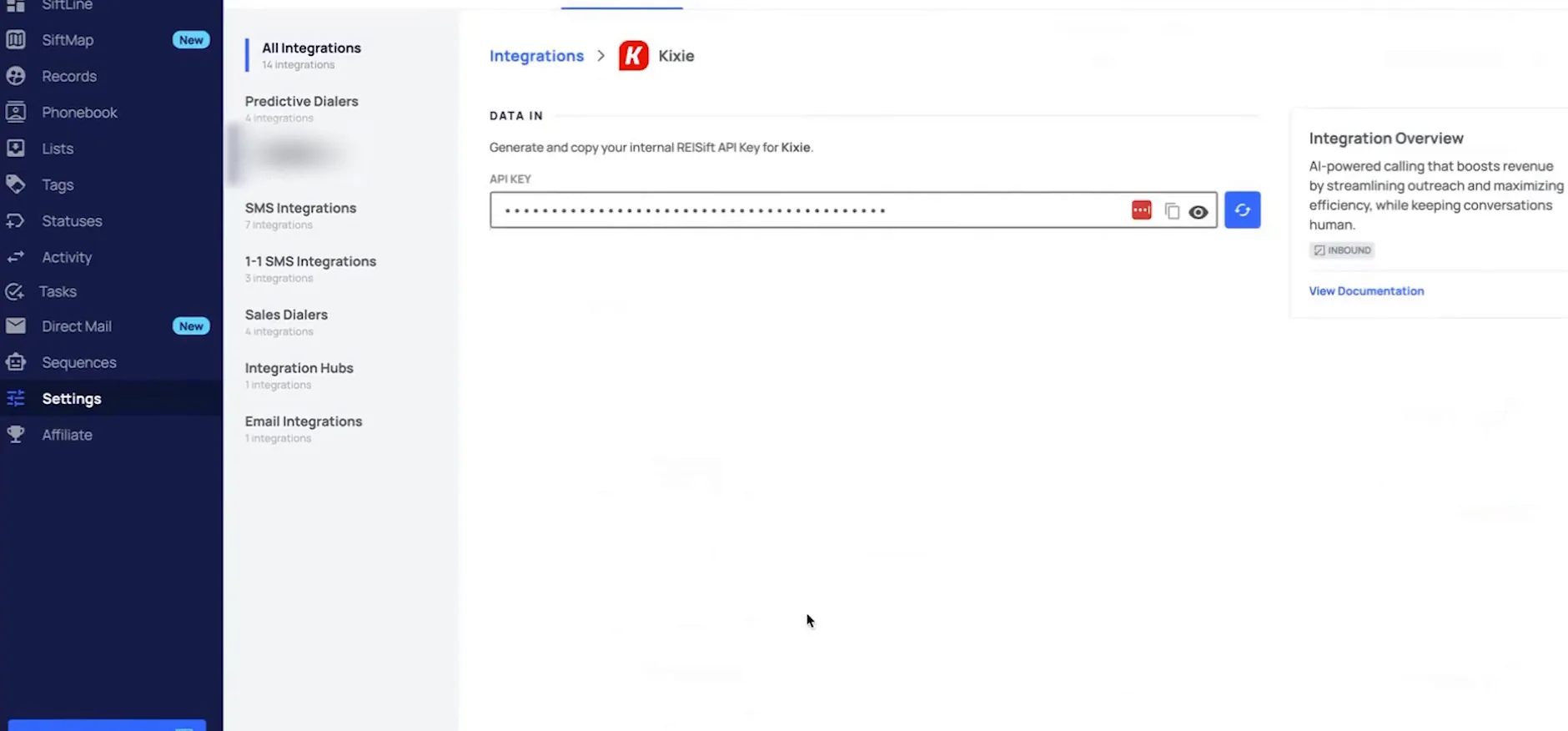
Select Kixie, then click copy beside the masked API key.
The Kixie page opens with your API key hidden behind dots and two small controls next to it. Copy puts the key on your clipboard so you can send it on. If you want to read it first, click the eye icon to make it visible.
Click here to copy the API key, or if you want to view it, click the eye icon to make it visible.
Call from Kixie and log the outcome.
Send your API key to your CSM at Kixie and wait.
For existing Kixie users, reach out to your CSM at Kixie and send them your API key. They will help you get it set up and let you know once it is complete. So wait for that confirmation before you try to call.
Something to keep in mind, Kixie can integrate with one CRM at a time. If Kixie is already wired to another CRM, this one will not be the one logging your calls.
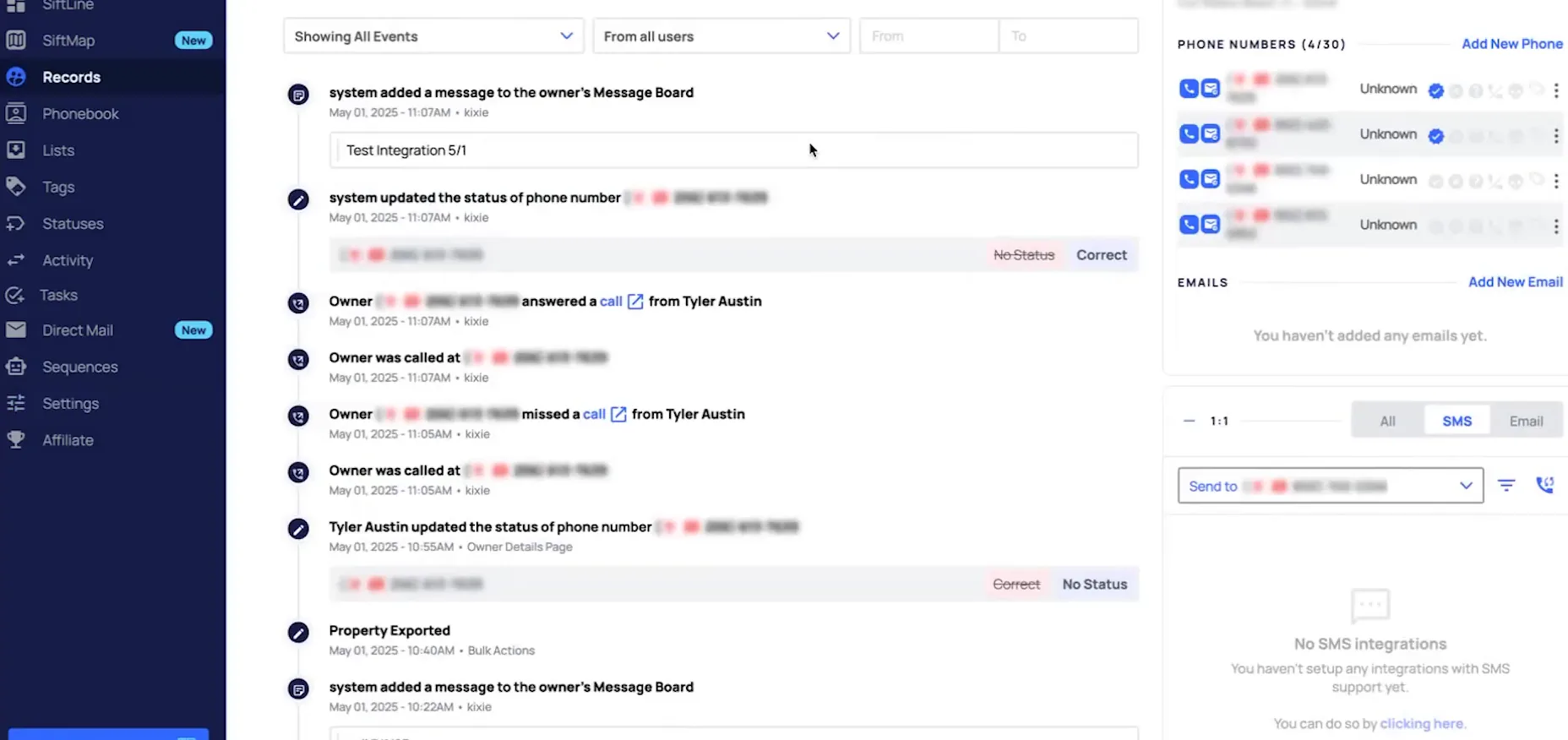
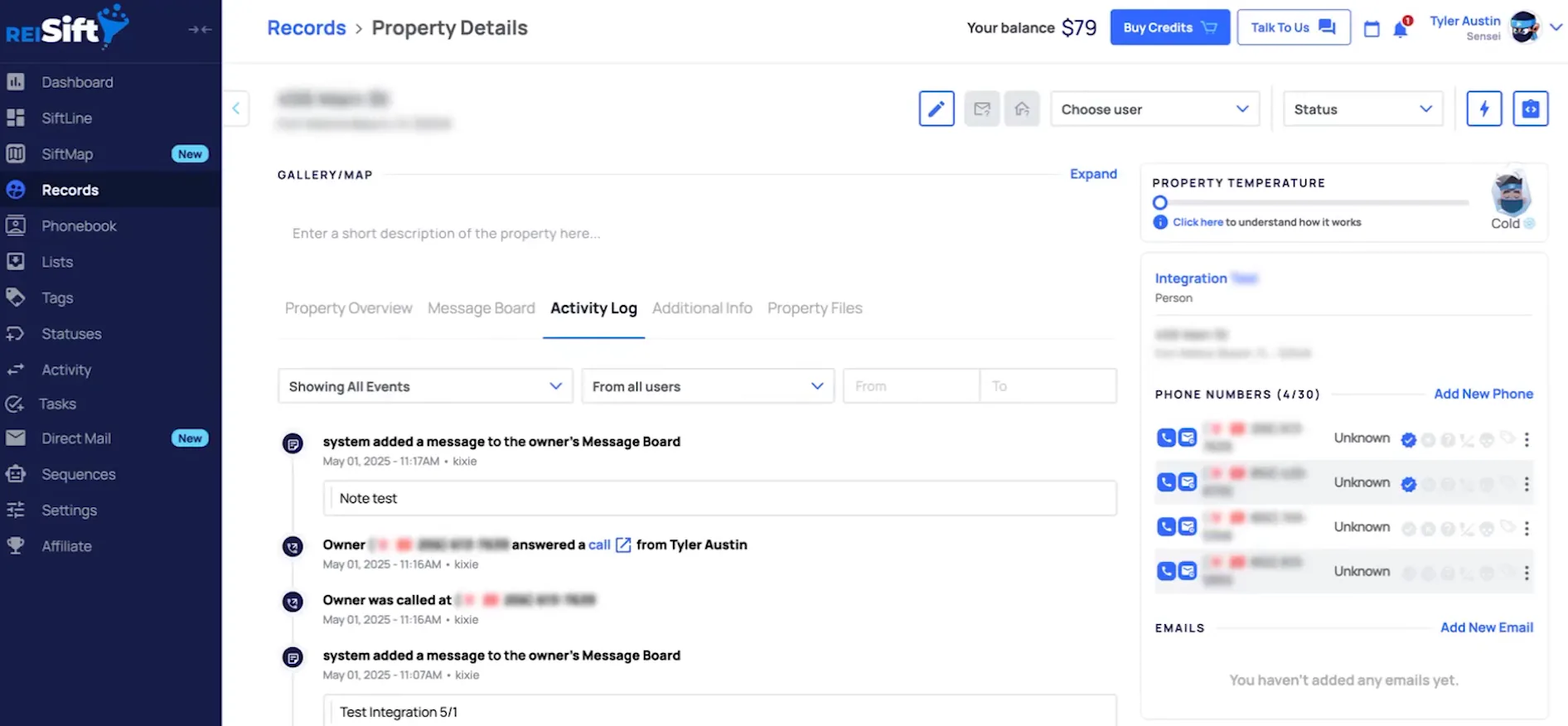
Click the dial icon beside the number to dial it.
First make sure the Kixie Chrome extension is installed and that you are logged in to the extension. If you are not logged in, the icons beside the phone numbers will not be there to click. The dial icon sits right next to the number on the record.
Once you are connected, every call and text you make through Kixie logs to this activity log. That is why the panel of phone numbers and the log sit side by side here.
To make a call, make sure you're logged in to Kixie's Chrome extension, and then you'll click the dial icon to dial the number.
Select a call outcome and make any notes you want.
It will dial the number in Kixie, and after the call ends this panel is where you finish up. You get Call Info, Send SMS and VM Drop along with the power list details. Pick the outcome that matches what happened on the call and type your notes.
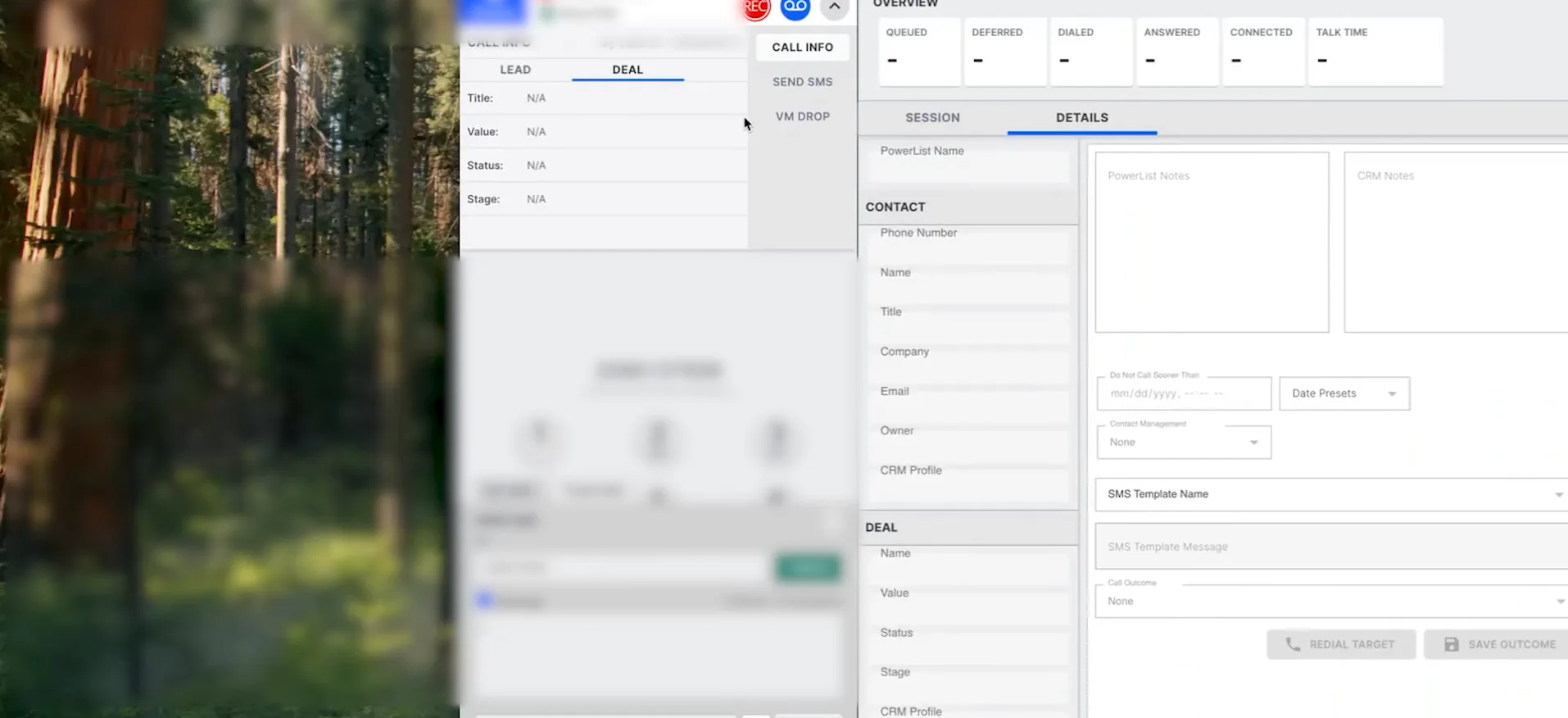
Click submit to save that call outcome.
Nothing moves until you submit. The outcome you submitted is what drives the status update on the DataSift side. Your notes ride along with it.
Refresh the record and open the Activity Log tab.
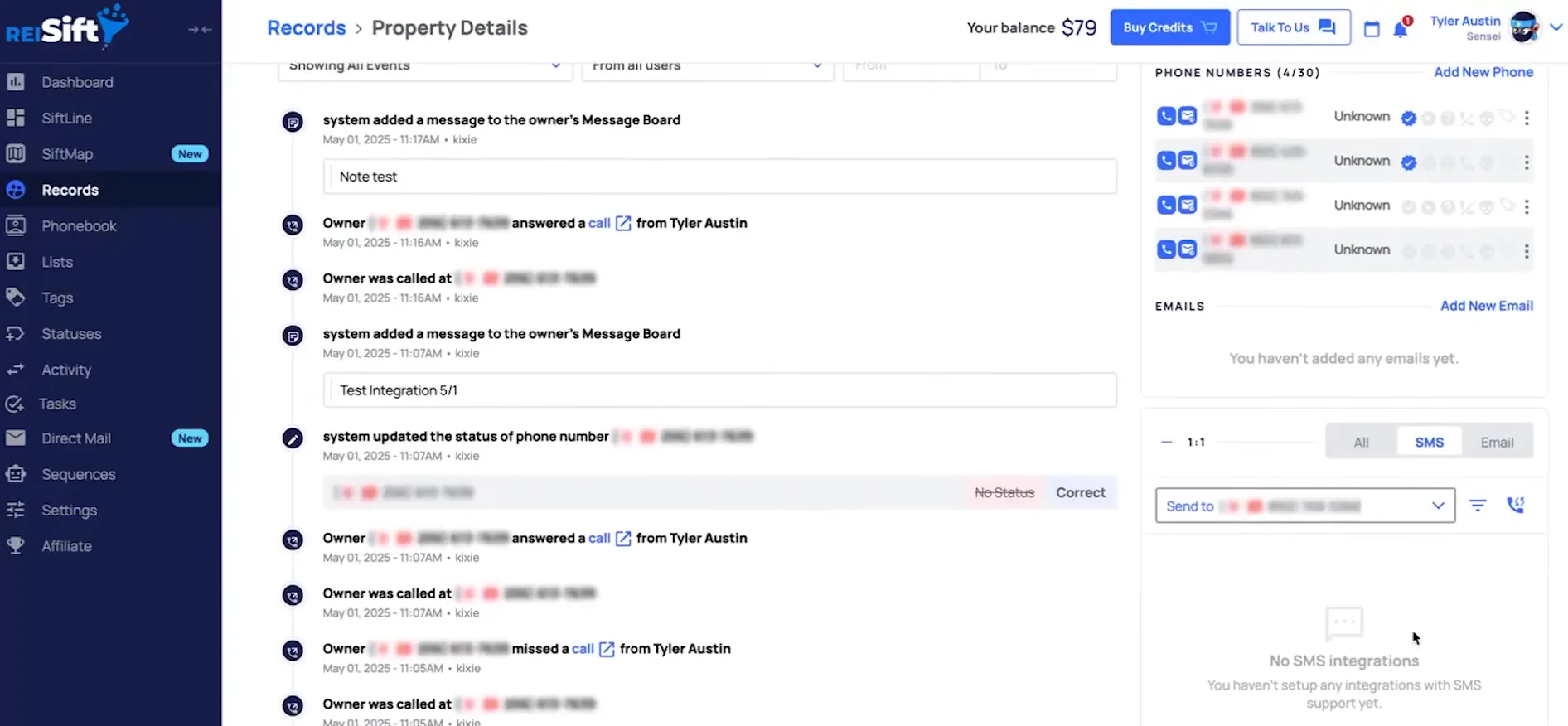
Check that the note you entered with the call outcome is sitting there. Then check the phone status. Mine went from a previous call to correct, which matches the outcome I picked in Kixie.
Export the records you want to call, then upload to Kixie.
This is the power list route, and it starts in DataSift. Pull out the records you plan to work, then hand that file to Kixie.
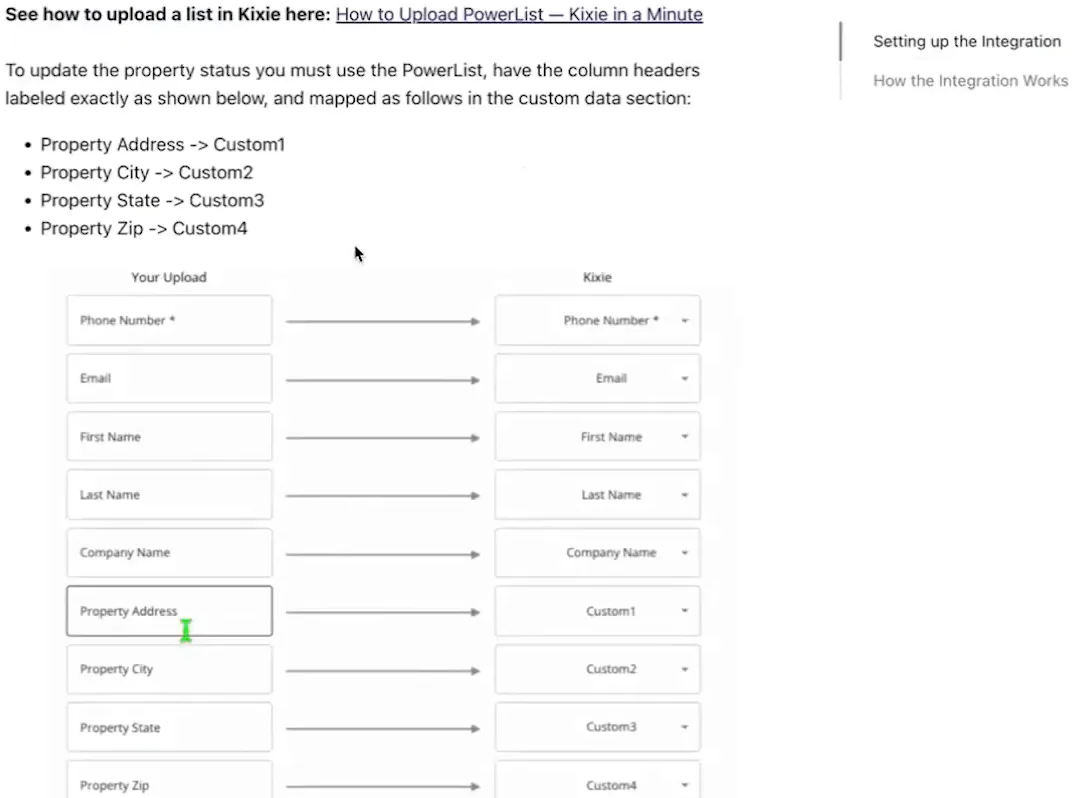
Label the columns property address, property city, property state, property ZIP.
Before uploading, make sure your columns are labeled exactly like that. Exactly is the word. If the labels are off, the mapping step will not line up.
Map those four columns to Kixie's custom one through four fields.
Our help center page lays the mapping out with a diagram of the custom fields. Each labeled column goes to one custom field, in that order.
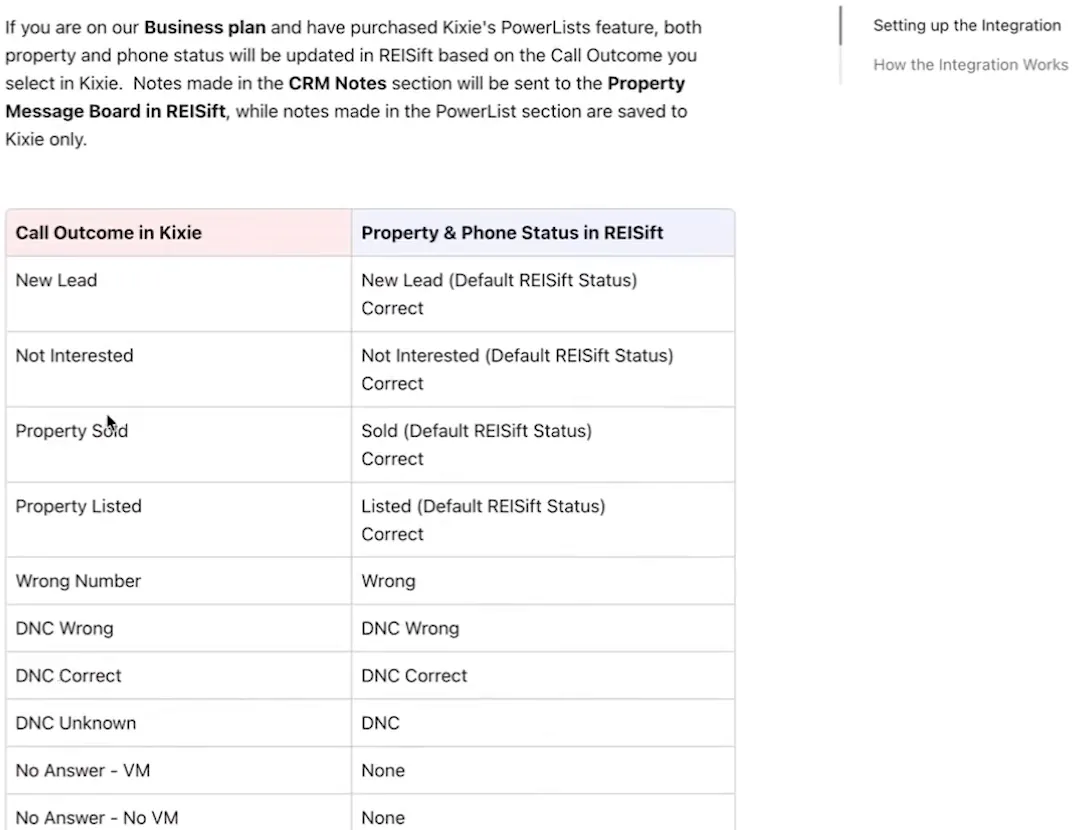
Select a call outcome with the power list while you are on our business plan. You will see both property and phone status updates automatically. That is the reason the mapping matters.
Send a text and check the chart.
Open our chart in the help center article.
The chart lists each call outcome next to the property and phone statuses it sets. So before you start picking outcomes, read down it once. It saves you guessing why a status moved.
Be sure to check out our chart in the help center article where it shows what will be updated based on the call outcome that you select.
Click the message icon beside the phone number.
It will open up in Kixie, and you send the text message from their extension. The message that you send will appear on the activity log and in the one to one SMS section.
To send a text, you'll just click the message icon, and it will open up in Kixie where you can send a text message from their extension.
Open the one to one SMS section to view the thread.
Right now you cannot send a text directly from this section, but you can read the thread here. On this record it still says no SMS integrations set up, which is what you see before texts start flowing.
A few quick tips if things are not working. If you do not see the Kixie icons, make sure the Kixie Chrome extension is installed and you are logged in to the extension. If phone or property statuses are not updating, check that you are on the DataSift business plan.
To be able to send SMS, you must be 10DLC approved through Kixie. Send a text before you are approved and you are probably going to see an error. If you need more help, just click talk to us within your account to open up our support chat.
BEFORE YOU MOVE ON