
PART 1
Set up your default mail information.
Your return address is where mail comes back to if it does not reach the person. Your contact info fills the sender fields in your templates. Set both once and every new campaign picks them up.
Start in direct mail settings.
Open the direct mail option on the left sidebar.
My name is Kylie. I am your customer support ninja at REI Sift. In this video I will show you how to set up your default return and contact information for direct mail.
First you start by going to the direct mail option on the left sidebar of your account.
And in this video, I will be showing you how to set up your default return and contact information for direct mail.
Click the setting icon and enter your return address.
To set your return information, click the setting icon. The return address is where you want the mail to come back to if it is returned to you. Enter that address in first.
Then fill in the contact info. This information is what populates the sender fields in the template editor when you are building your templates.
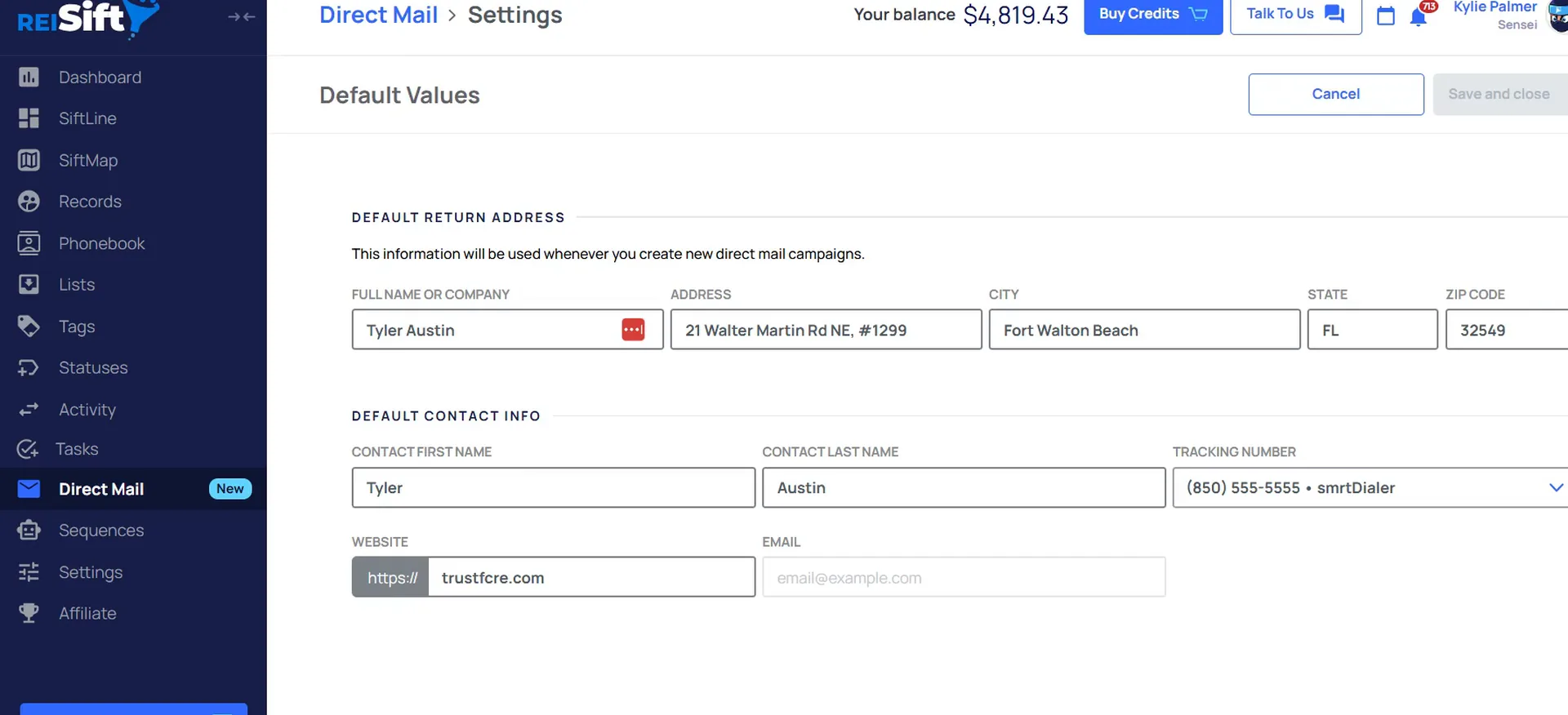
Contact info fills the sender fields.
Fill in the contact fields, then select save and close.
The contact first name, last name, tracking number, website and email all get used here. They fill in these fields when you use them inside your mailer templates.
Once your information is filled in here, go ahead and select save and close.
Once your information is filled in here, go ahead and select save and close.
Check the prefilled fields on the mailer setup step.
After your default return and contact information is saved, go create a new campaign. Under the mailer setup step, the information will automatically be populated for you.
If you need to make changes, you can always make changes here. To switch out your tracking number, if you have multiple tracking phone numbers, select the drop down menu and switch those out.
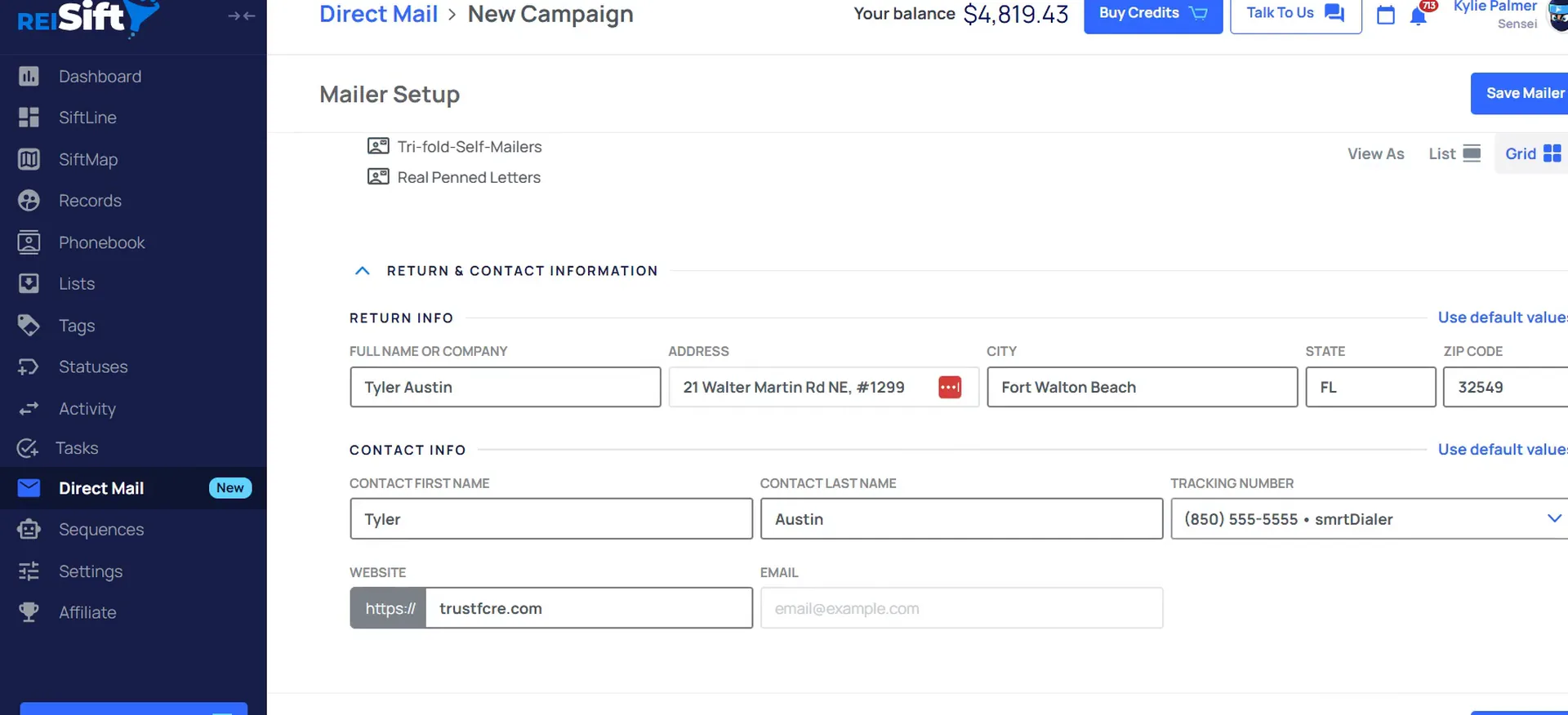
Use default values to prefill again.
Click use default values to prefill cleared fields.
If you make a mistake, say you clear out some fields but decide you want to use them again, click use default values. We will prefill the information for you again.
That is how to set up your default return and contact information to use in future campaigns.
So that's how to set up your default return and contact information to use in future campaigns.
Use default values
If you clear out some fields but decide that you want to use them again, you can click use default values.
Check the other direct mail trainings in the help center.
Be sure to check out our additional direct mail trainings in the help center. We show you how to create and build your own templates and set up your campaigns.
If you have any questions, just select talk to us within your account to open up our support chat. Thanks, guys. I hope you have a great rest of your day.
BEFORE YOU MOVE ON