
PART 1
Round robin assigning records in sequences.
This is one of our newer releases, and it splits property records between your team members automatically. It helps most if you have more than one person handling lead management or acquisitions. I'll update a new lead sequence, then the sequence that moves records over to acquisitions.
Open the sequence and make changes.
Open your new lead sequence and select make changes.
Whenever you need to update sequences, just go ahead and open up the sequence and then select make changes. For this example I'm using the new lead sequence first.
After that I'll do the sequence that moves properties from lead management to acquisitions when they transition there.
Whenever you need to update sequences, just go ahead and open up the sequence and then select make changes.
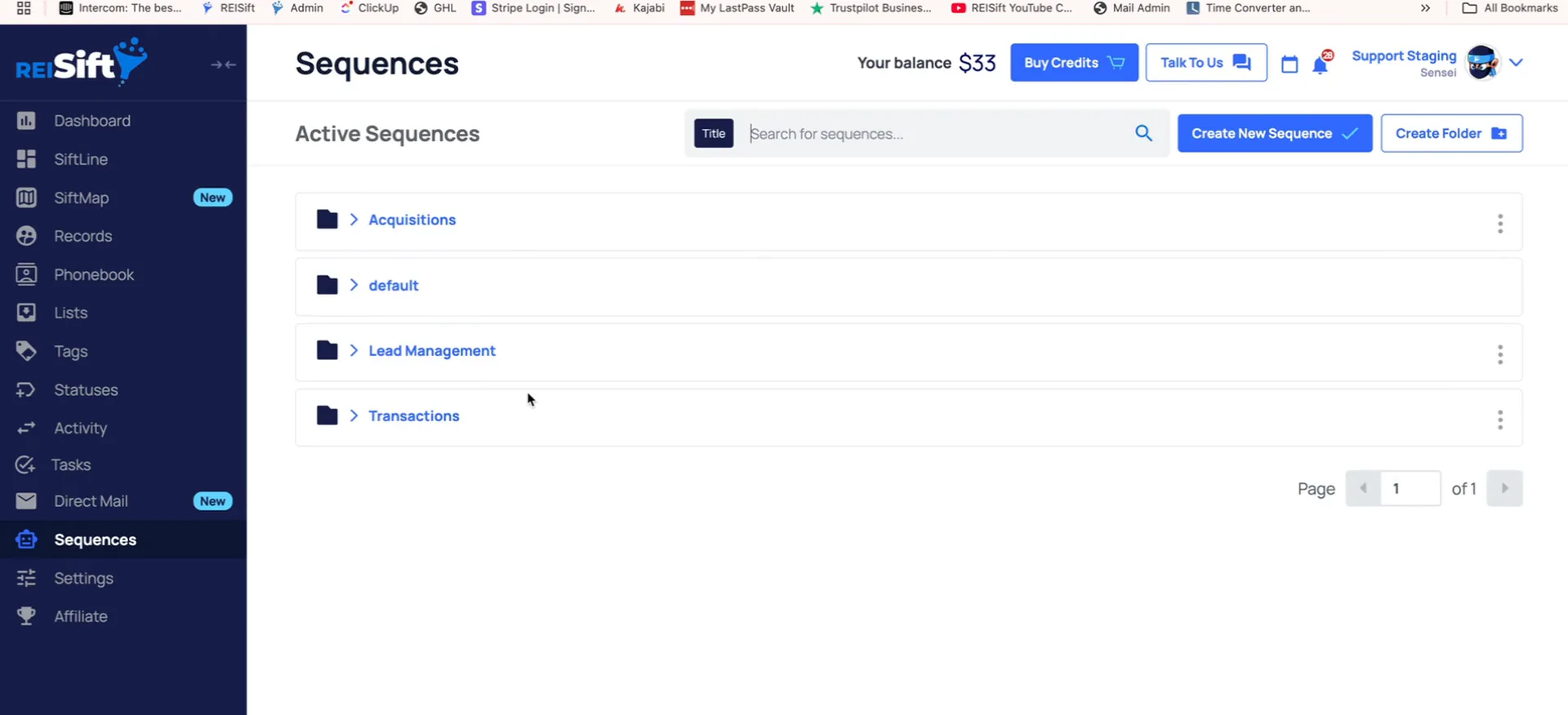
Look at the section to assign the property to.
And here, we have the section to assign the property to, and right now, it's set to assign to the sensei. That is the setting we are changing.
We have two new options here. You can round robin for specific users and pick which users get the property records, or you can round robin assign to a certain role.
So for example, say you had multiple team members with the lead management role. You could select lead management, and it would round robin assign between that role.
Two new options
You can round robin by user or by role.
Round robin by user
- Who the records go toSpecific users you select
- When to pick itYou want named team members
Round robin by role
- Who the records go toEveryone with that role
- When to pick itMultiple team members share a role
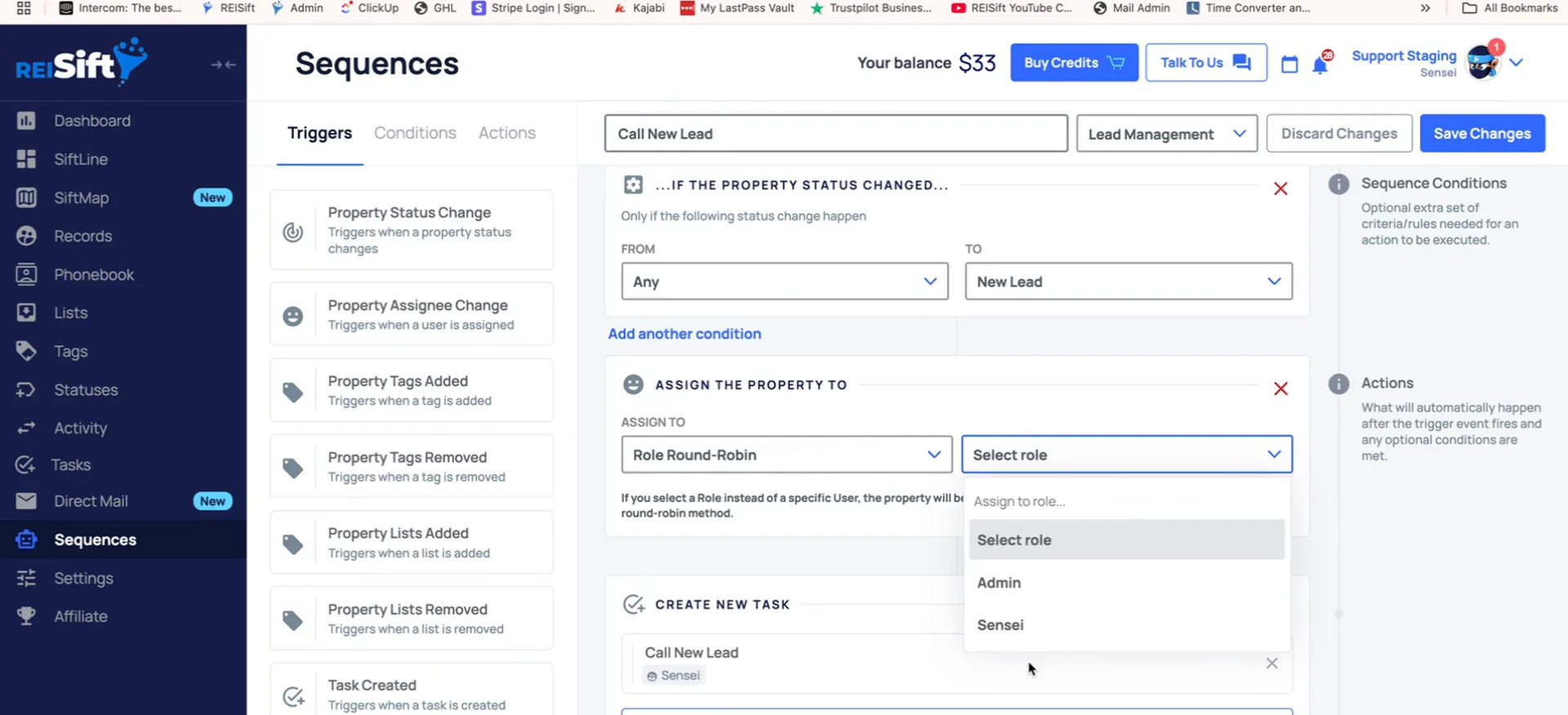
The user round robin option.
Choose user round robin, then save changes.
But for this example, I am gonna go ahead and use this user round robin option. Then I also select to assign this task to the property assignee.
And what this means is the sequence looks at which person the property record is assigned to. Then it assigns the task to the correct person. Then save changes.
But for this example, I am gonna go ahead and use this user round robin option.
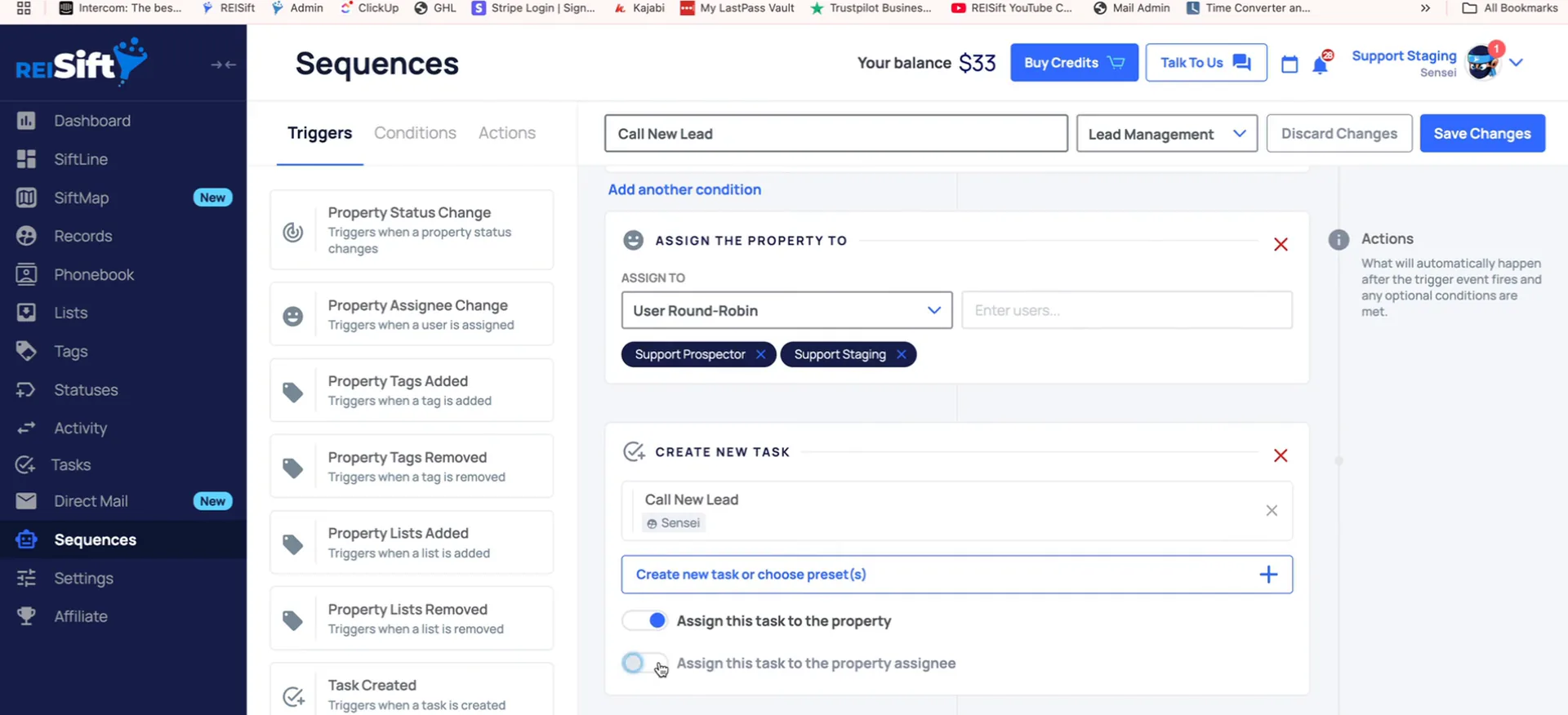
Assign a few properties as new lead and refresh.
And now if I go to the records page here, assign a few properties as new lead. Go ahead and refresh here.
We can see this one was assigned to the prospector. This one was also assigned to prospector, and then sensei.
The record assignment split evenly.
Check the record and task assignment on those records.
So it split the record assignment evenly. And then if we look at the task assignment, the task is also assigned to the correct person.
That is both halves working together. The record goes to the next person in line, and the task follows the record.
Update the move make offer sequence the same way.
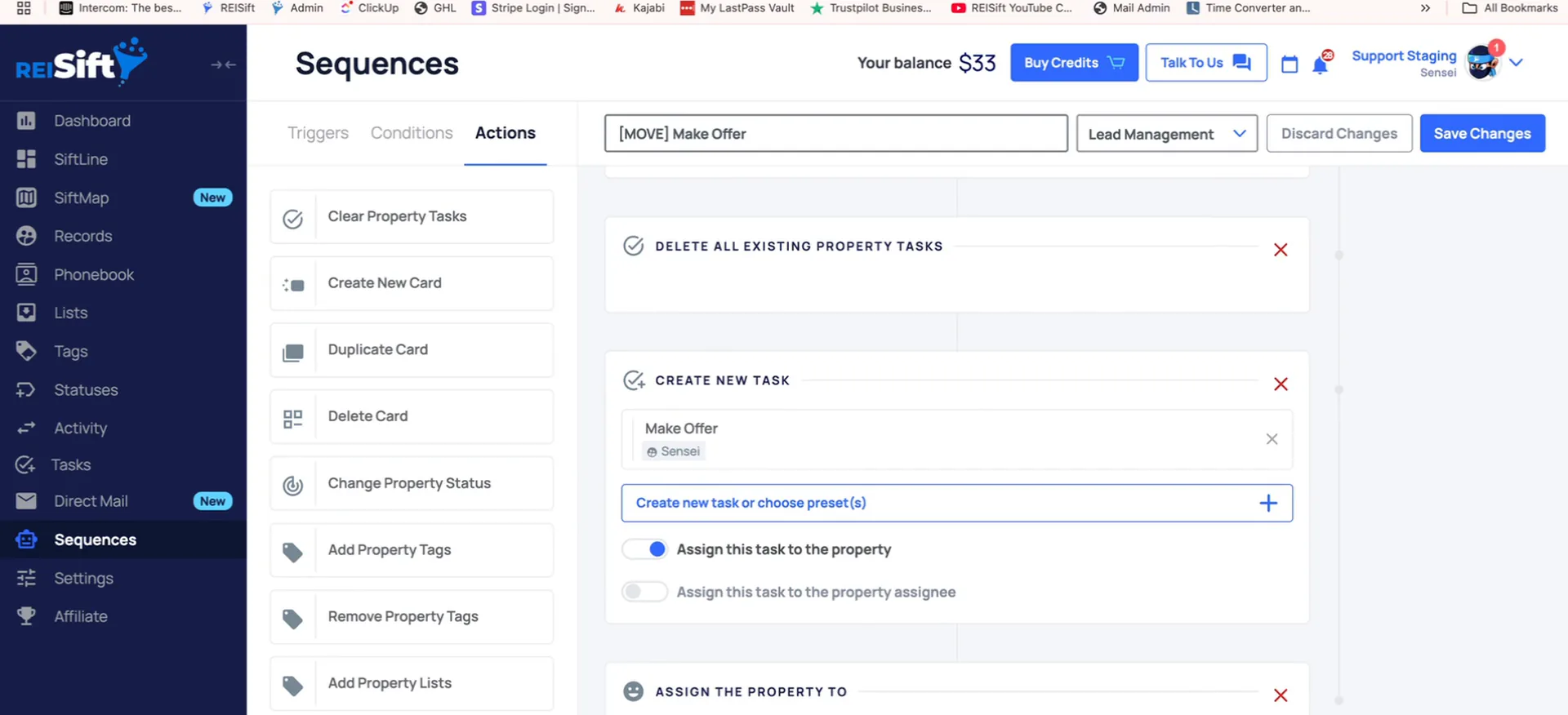
The next sequence that you may wanna update is your sequence to move the records from lead management to acquisitions. So that's going to be this move make offer sequence in this case.
This one isn't currently assigning the property to anyone. So if you have someone else as an acquisitions team member, you would select to add a new action, and then assign property.
In here, you can do the same thing, assign by user or user round robin. And when doing this, I would just recommend if you are also assigning tasks within that sequence, go ahead and toggle this option on.
And when doing this, I would just recommend if you are also assigning tasks within that sequence, go ahead and toggle this option on.
My recommendation
If you are also assigning tasks within that sequence, go ahead and toggle this option on. That way the task goes to the person the property record is assigned to.
Click talk to us if you have any questions.
That's some examples on how you can use our new feature to round robin assign property records in sequences.
If you have any questions, just click talk to us within your account to open up our support chat. Thanks, guys. I hope you have a great rest of your day.
BEFORE YOU MOVE ON