
PART 1
Skip trace records from your account.
My name is Kylie, customer support with DataSift. In this video I show how to skip trace records from within your account. We now have an unlimited skip tracing plan, and I walk through that add on too.
Buy the plan, then filter.
Purchase the unlimited add on from the skip tracing tab.
The unlimited plan is an optional add on to your existing subscription. For just $97 per month you can skip trace any number of records in your account. You can also set up some automatic skip tracing, so every ninety days if you want that.
You buy it two ways. Select a record you want to skip trace, go to send to and skip trace, and click get add on. Or go to the skip tracing tab and select get unlimited skip tracing.
When you purchase, it will charge to the default card on file for your subscription.
If you want to update that card or add a new payment method, you can do so under the settings and billing tab before selecting to purchase here.
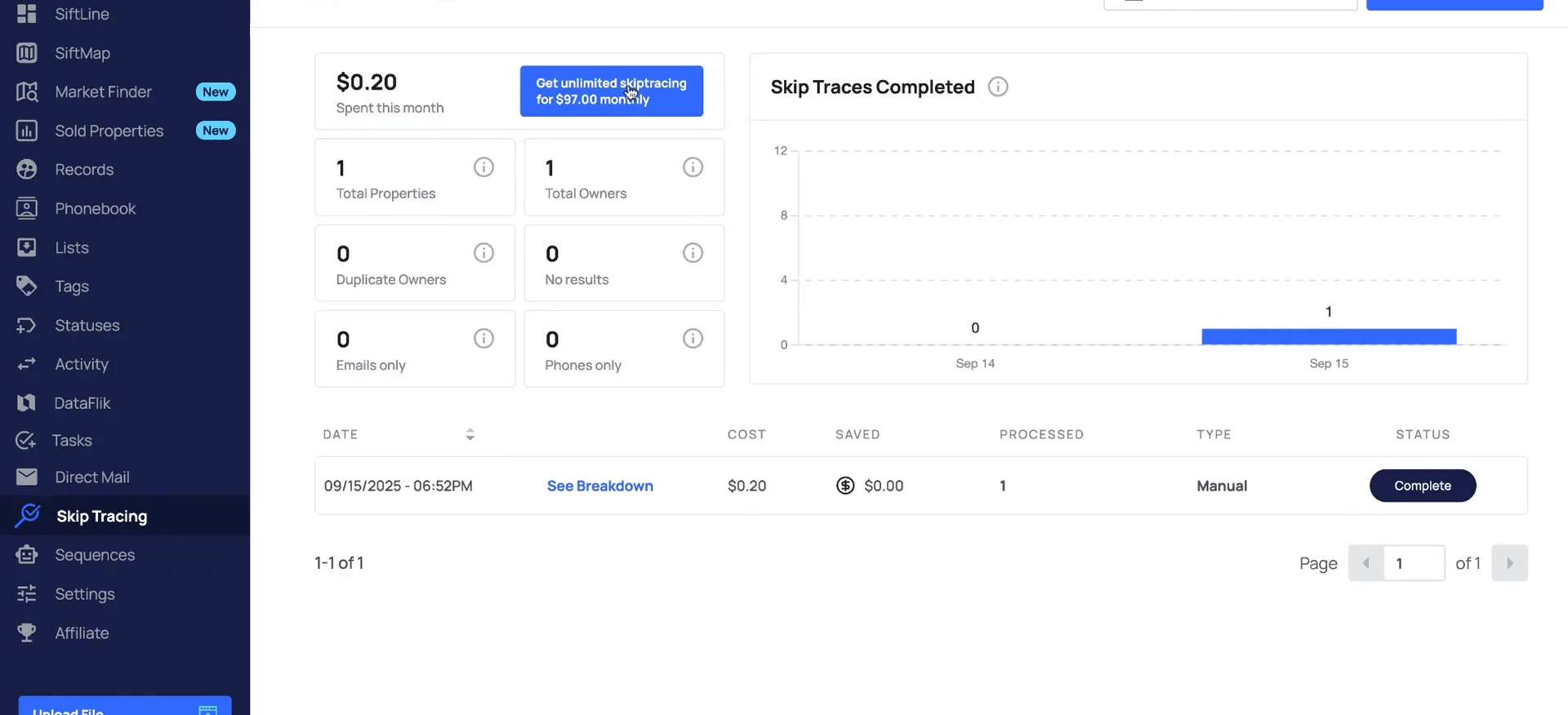
Buy credits first if you pay as you go.
If you want to pay as you go instead, you still have that option. The prices vary per plan. You can find the pricing in our help center. It is also displayed when you select a record from the records page to be skip traced.
Those activities get charged to your credits. Select buy credits, enter your payment info, select the amount you want to purchase, then click buy credits.
So as soon as you select buy credits, it's going to charge that card that you've entered in there, and the credits are nonrefundable.
Filter for the records you want to skip trace.
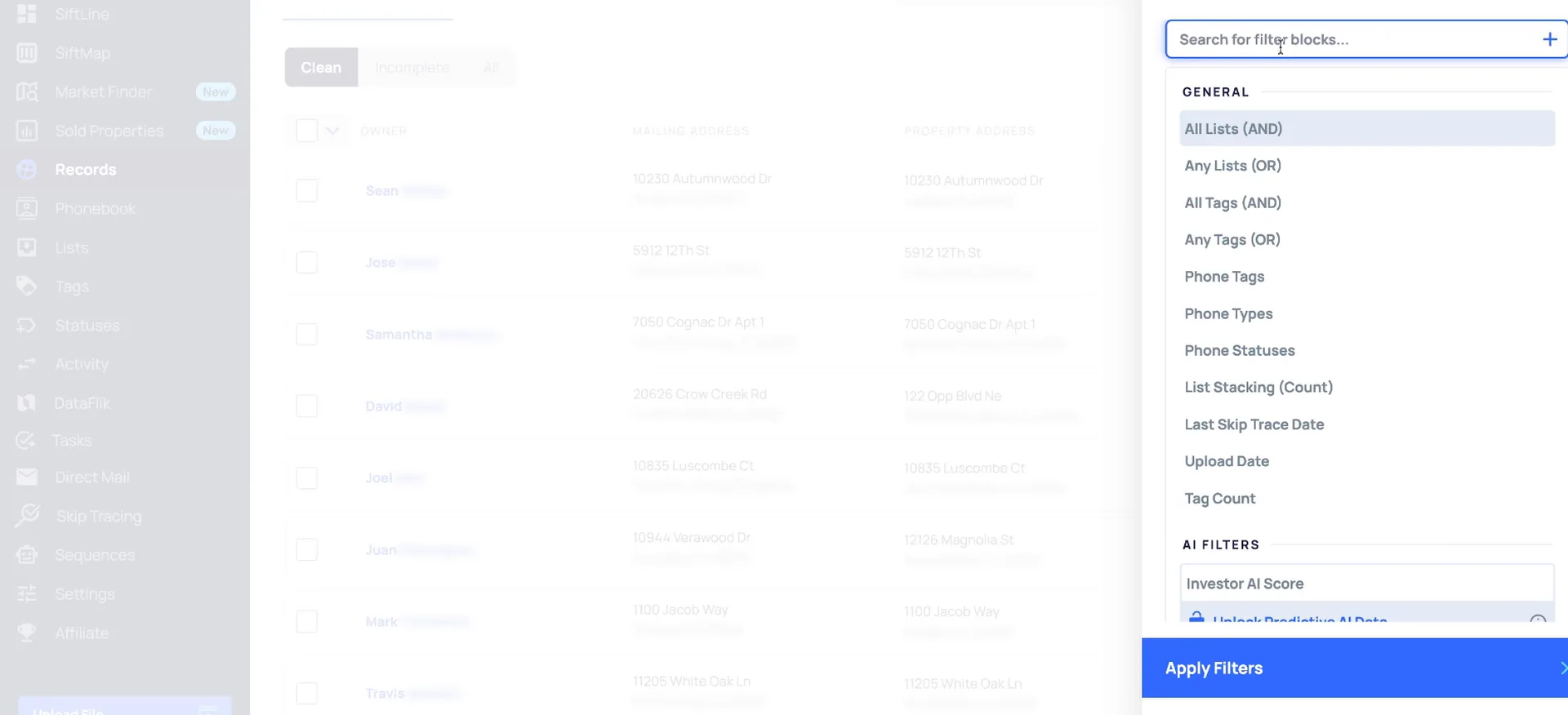
To skip trace records that have never been skip traced and have no phone numbers, add the params and others filter block. Select skip trace no and numbers no. Then narrow it down to the records you actually want to market to.
So maybe you want a specific list or a campaign. Add those additional filter blocks in there, then click apply filters.
Now select the records. You can select all here or a specific amount. For this example I just select the first three, then go to send to and skip trace.
Records need to be clean.
Clean the name and both addresses before you trace.
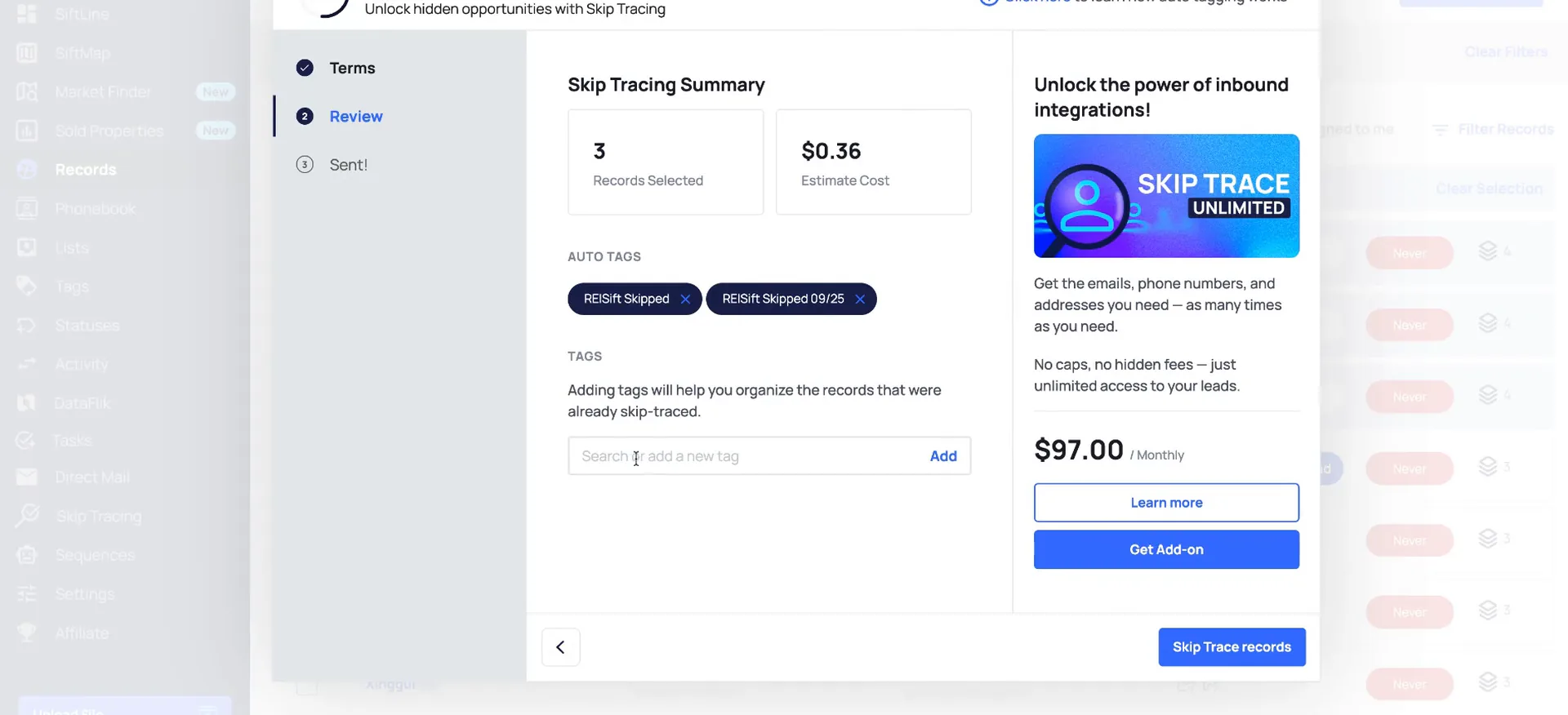
The records will need to be clean before skip tracing. That means the owner's first and last name, the full mailing address, and the full property address.
We will provide up to five phone numbers per match, and emails if available. If we do not find any phone numbers or emails, we refund that amount back to your credits for future skip tracing or direct mail.
If the same owner owns multiple properties, we only charge once in that same activity. Duplicate owners get refunded back to your credits. If you already have numbers and we find the same ones, that is still a match and you are charged.
For LLCs, it's best to find the LLC owner's first and last name, which can be located in the secretary of state website, opencorporates.com, or corporation Wiki.
Agree to the terms, keep the auto tags, then submit.
Once you select I agree with the terms, it estimates your cost here. We add some auto tags for when and where the records were skip traced.
I do recommend leaving these auto tags on so you can easily filter for the records afterward. It also helps you track the results. If you want custom tags, type in the name and then select add.
Once you've reviewed, just click skip trace records, and then you will be able to track the progress on the activities and skip tracing page.
Filter the skip tracing tab by time frame.
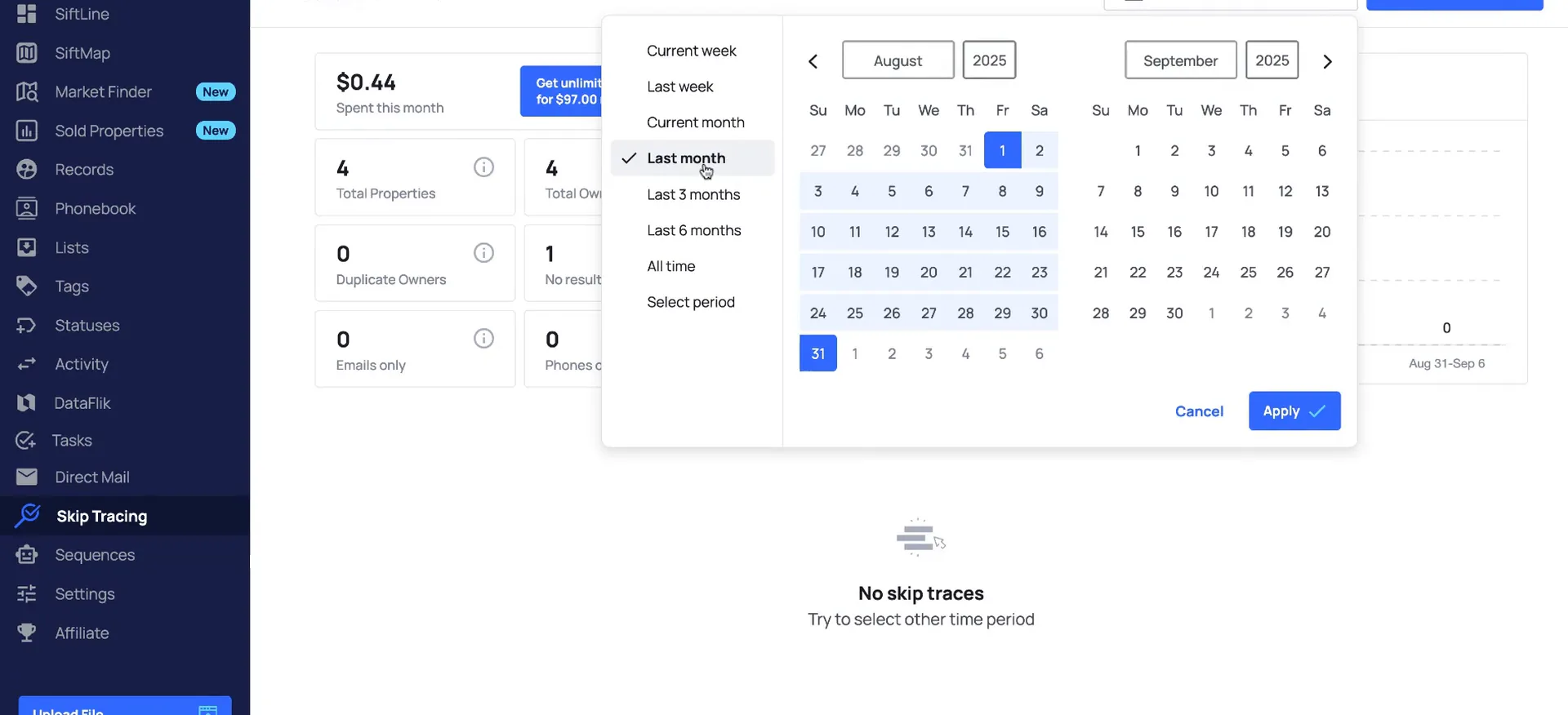
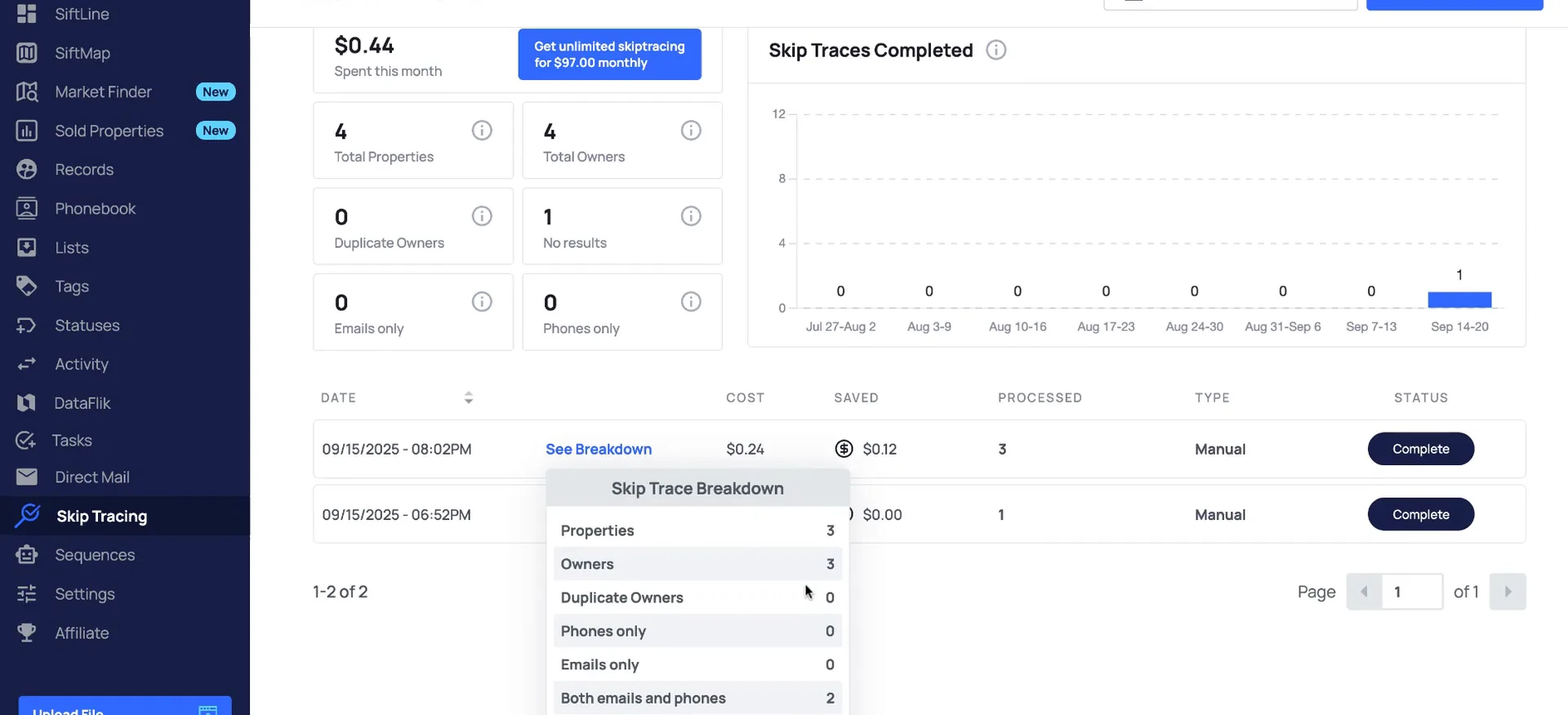
Go to activity and skip trace to see the results there. You can also see this information on the skip tracing tab, with a breakdown of total skip tracing activities per week.
You can filter that. Look at the last month, the previous month, or the last three months. We have a few time frames to select from, and there is a custom option too.
The breakdown shows the results.
Click see breakdown to read the match results.
You can see the amount of records we were able to find results for. With this particular activity, we found results for two of the records.
The cost saved section is the amount refunded back to your credits when we did not find a match. If you have unlimited skip tracing, that always shows as zero. You are paying a flat $97 subscription to skip trace any number of records.
So the saved section stays at zero, but you still see the results. A full breakdown of the results is still there if you want it.
If you click see breakdown here, you can see the amount of records that we were able to find results for.
Filter by the tag and read the status colors.
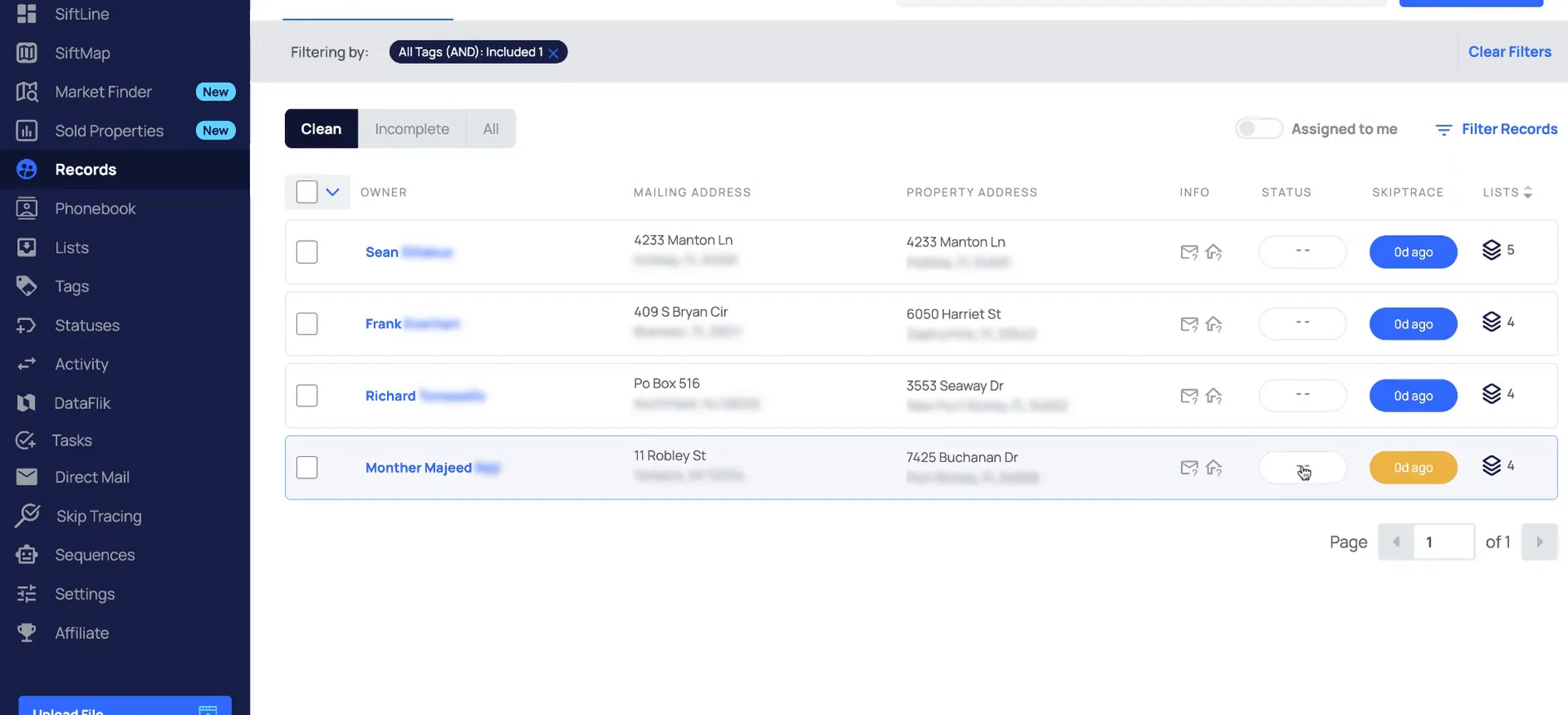
Now that it is complete, filter for the records you just skip traced by applying that tag. Blue means they were skip traced less than thirty days ago and they have phone numbers. Yellow means it was skip traced but no phone numbers were found.
You can also filter by the last skip trace date. So if you forgot to tag, or you moved the auto tag, you can still filter by a specific date.
Orange means the record has numbers but we were not told the date they were traced, which happens on upload. Red means no numbers and never skip traced. Gray means skip traced over thirty days ago with phone numbers.
Status colors
Each color means something different.
BEFORE YOU MOVE ON