
PART 1
Connect Google Calendar to your account.
I'm Kylie, customer support with DataSift. This walks you through installing, managing, and disconnecting the Google Calendar integration. Once it is on, your tasks and appointments show up in Google Calendar.
Install the Google Calendar integration.
Open settings and integrations, then select Google Calendar.
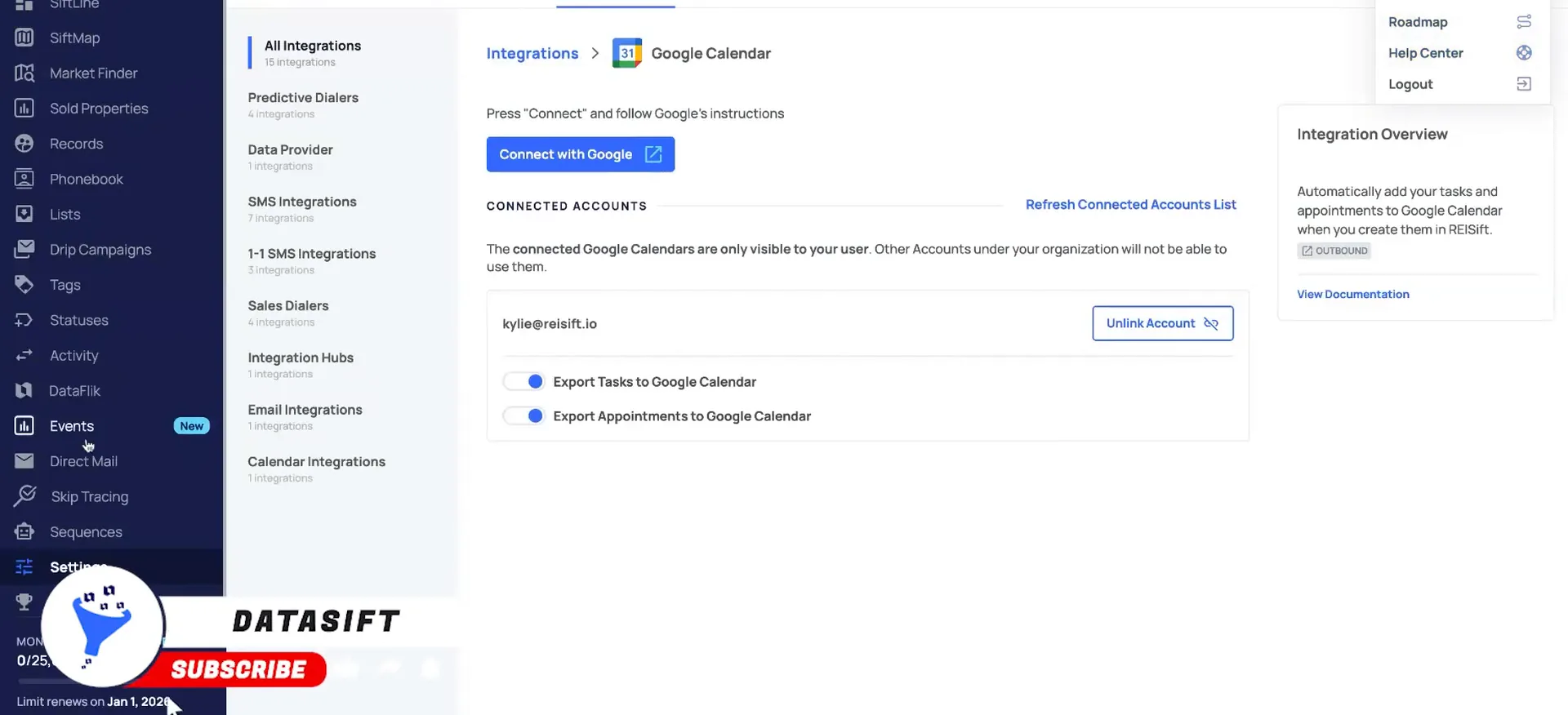
First, we're going to navigate to the settings and integration section in your account, then select the Google Calendar option here. Next, you'll select connect with Google.
First, we're going to navigate to the settings and integration section in your account, then select the Google Calendar option here.
Pick your Google account and click continue.
Select which Gmail or Google account that you wanna connect with, and then you will need to click continue to confirm here. Then select allow to allow all permissions.
After you select allow, it will automatically connect your Google Calendar account with your DataSift account. The integrations page will show the connected calendars.
Install steps
Install the integration in a few steps.
- 1Settings and integrationsNavigate to the settings and integration section in your account.
- 2Select Google CalendarPick the Google Calendar option on that page.
- 3Connect with GoogleSelect connect with Google and choose the Gmail or Google account you want to connect with.
- 4Allow all permissionsSelect allow, and it connects your Google Calendar account with your DataSift account.
Manage or disconnect your calendars.
Select connect again to add another calendar.
You can connect more than one Google Calendar if needed. Just select connect again to add another calendar.
Keep in mind that any calendar you connect is visible only to you. Other team members won't have access to your calendar.
Keep in mind
Any calendar you connect is visible only to you. Other team members won't have access to your calendar.
Toggle off tasks or appointments if you want.
Once connected, tasks and appointments are automatically exported to your calendar by default. If you'd like to turn off either the tasks or the appointments option, you can do so by toggling off here.
If you ever need to disconnect your calendar, just select unlink account, and it will remove the integration from your account.
If you ever need to disconnect your calendar, just select unlink account, and it will remove the integration from your account.
Check the help center or click talk to us.
And that's it. You're all set. Your DataSift tasks and appointments can now stay perfectly in sync with Google Calendar.
Be sure to check out our help center where you can find additional articles on how to manage your task and appointments. And if you have any questions, you can reach out to our team by clicking talk to us.
BEFORE YOU MOVE ON