
PART 1
How to create sequences.
Sequences allow you to set up automations in your business. Here I build one from the trigger, then test it. Then I manage the folders.
Set the trigger and the condition.
Go to the sequences page in your REI Sift account.
My name is Kylie. I'm your customer support manager at REI Sift, and I'm going to show you how to create sequences.
For example, you can create a sequence so that when a property status changes to new lead, the sequence automatically sets tasks to follow up. When you first visit this page, you'll see a folder, the default folder. Additional folders can be created to help organize and group your sequences.
Sequence steps
Every sequence runs trigger, condition, then action.
- 1Set the triggerThe trigger is the initial event that starts the automation, and here I use property status change.
- 2Add a conditionConditions are optional, and they are extra criteria that has to be met for the sequence to run.
- 3Set the actionsThe actions are what happens after the sequence runs, like creating a task from a preset.
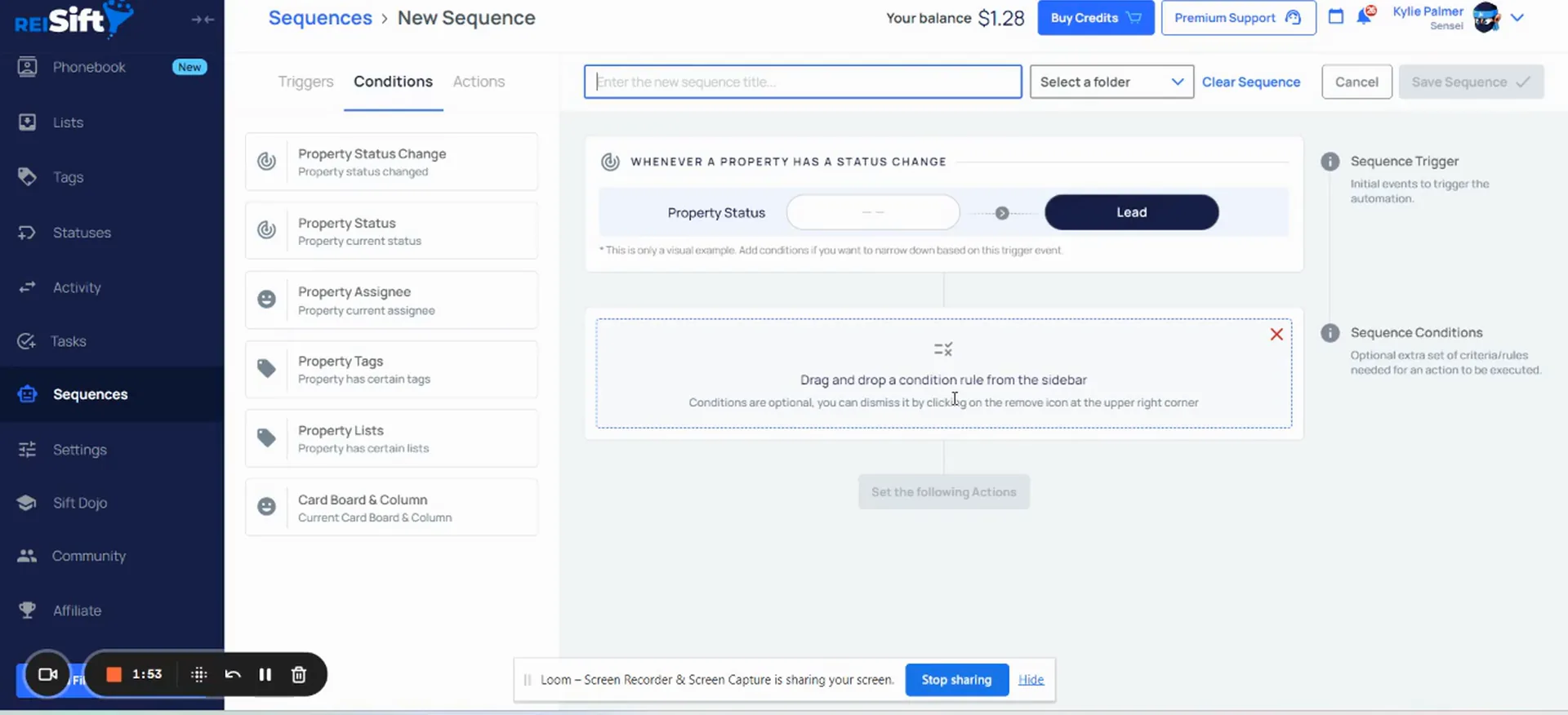
Select create new sequence, then pick your trigger.
The first step of the sequence is setting the trigger. The trigger is the initial event that triggers or starts the automation. For this example, I'm going to use property status change.
Next is the condition. For this sequence that I'm creating, I want to add a condition for property status change as well. That way, I can select when the property changes from any to new lead.
Conditions are optional, and they are extra or additional criteria that needs to be met in order for the sequence to run.
Assign the task from a preset you already created.
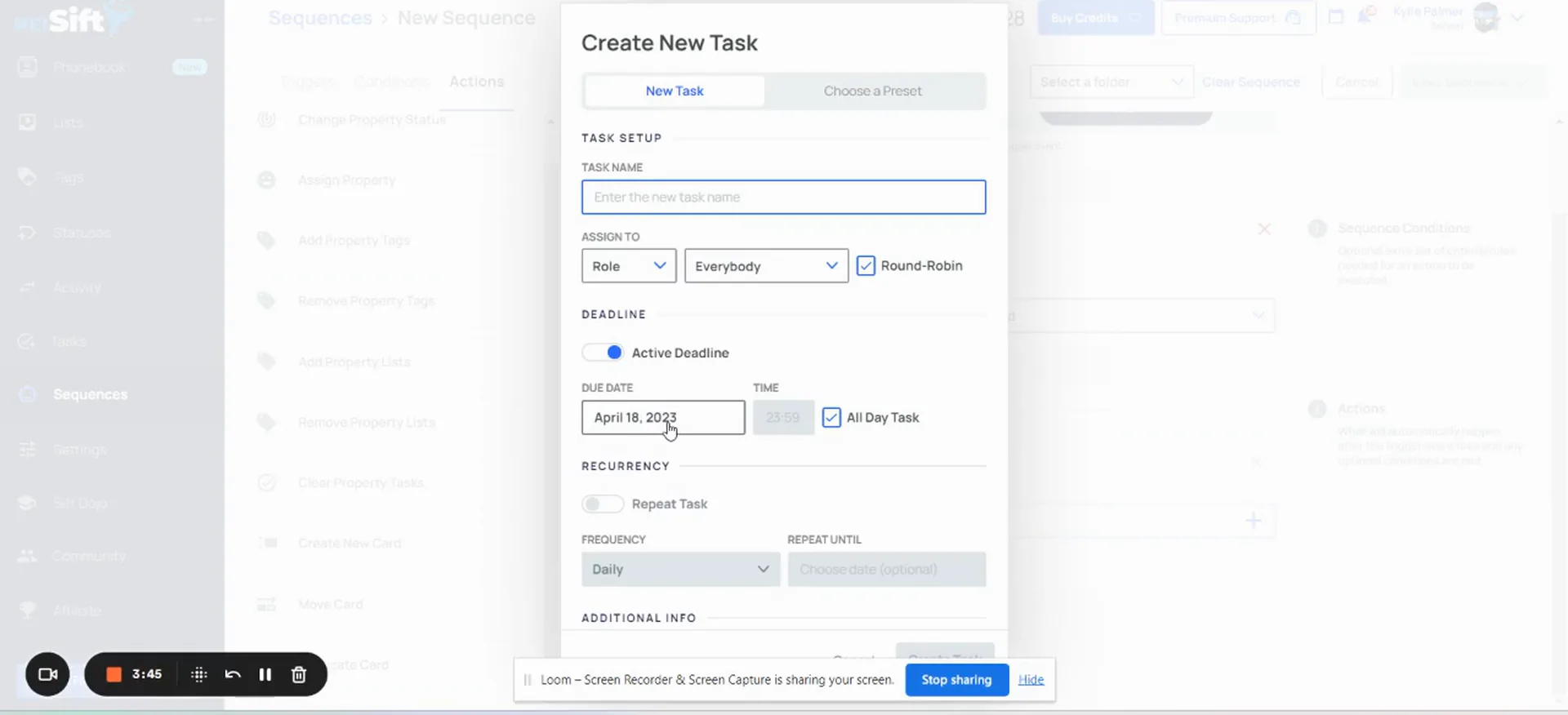
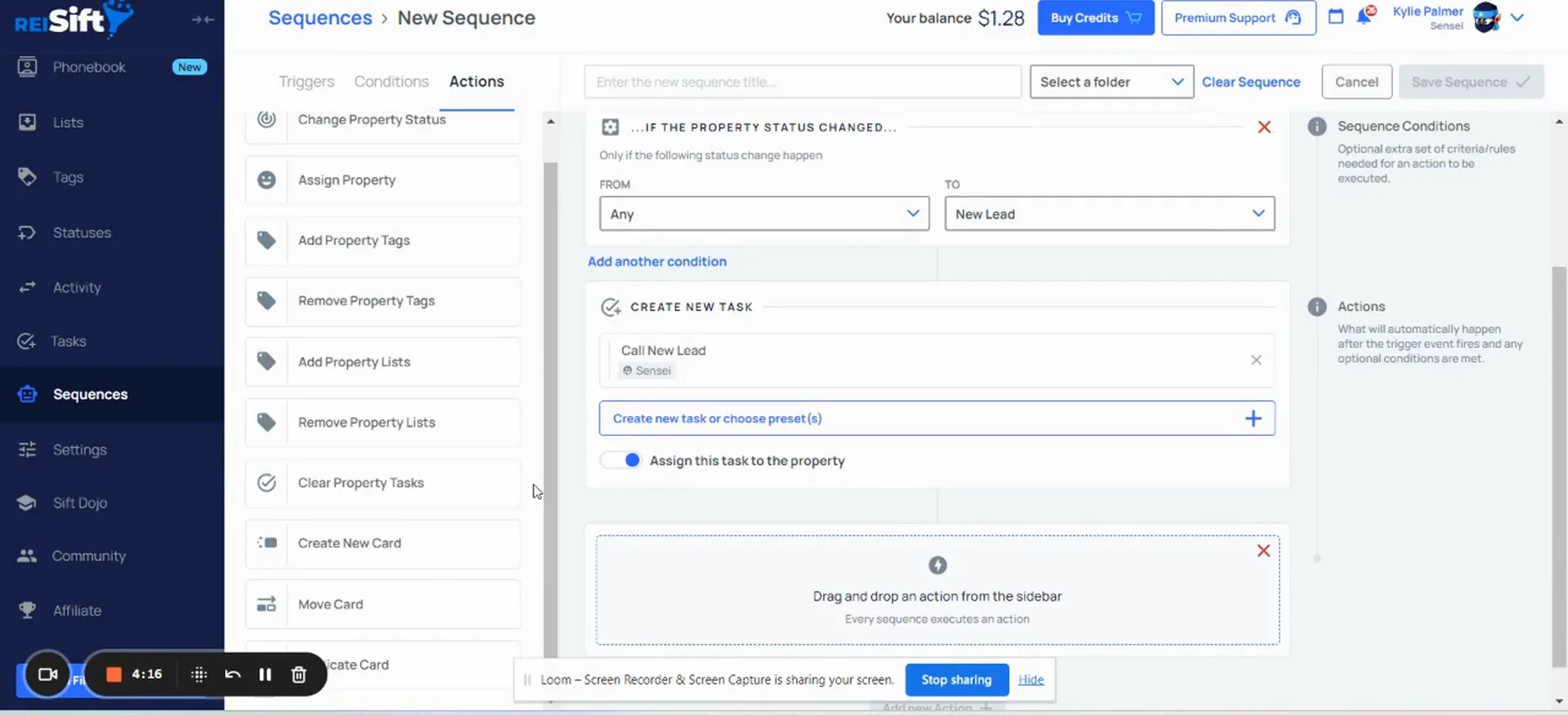
Set the following actions. The actions are going to be what happens after the sequence runs. For this one I select create new task and assign from a preset I made for new lead.
When assigning tasks through sequences, most often you're going to want to use a task preset. That way you can say the task is due one day from now, or two days from now, or whichever frequency you created.
If you create a new task, the due date is going to be set to a specific date. So you probably don't want to use that option for any kind of follow ups. Create the task preset first, then select the preset from within the task.
So for this sequence, I'm going to select create new task, and I'm going to assign from a preset that I already created for new lead.
Add the other actions.
Add actions to create a card and assign the property.
Next I'm also going to add an action to create a new card on my lead management board. I add it to the new lead phase.
If you have a specific team member you want working these records, you can also set an action to assign the property. Then select the user that you would like to assign it to.
Name the sequence, choose a folder, and save sequence.
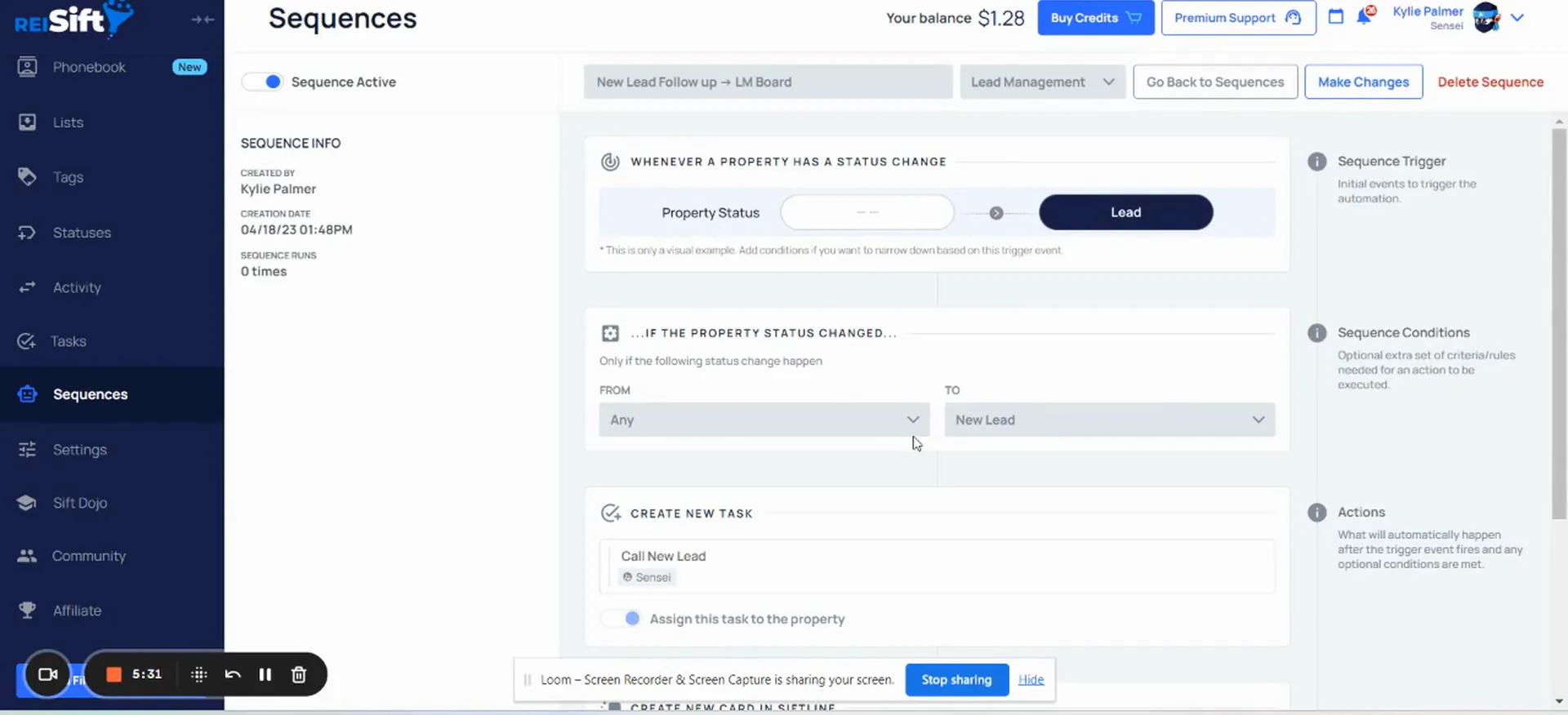
Here you can select a folder. If you have not created any folders yet, select the default folder. You can always create a new folder later and then move the sequence to that folder.
Now if I go to my folder, we can see the sequence that I just created here.
But for this example, I already have a lead management folder, so I'm going to select the lead management folder here and save sequence.
Set a property status to new lead and test.
I'm setting the property status to new lead. From the activity log, we can see that the sequence assigned the record to myself. The task to call new lead was assigned as well, and the card was created in the lead management board in the new lead phase.
For sequences that involve creating or moving cards in Siftline, you will see the name of the sequence and a link to it. Pretty soon, these events will also be added for all sequences. And if we go to Siftline, we can see the card was added here.
In case you need to make any changes, you can navigate directly to the sequence from the activity log within the record.
Activity log
The activity log shows every action the sequence took.
- 1Record assignedFrom the activity log, we can see that the sequence assigned the record to myself.
- 2Task assignedThe task to call new lead was assigned as well.
- 3Card createdCard was created in the lead management board in the new lead phase.
- 4Link to the sequenceFor cards in SiftLine you see the sequence name and a link, so you can go straight to it.
Manage your sequences and folders.
Search, toggle, edit, or delete an existing sequence.
You can search for sequences from the main sequences page, and it will show the sequences located in any folder. You can also search within a particular folder by opening it and typing what the sequence name starts with.
Sequences can be toggled on and off here. When a sequence is toggled off, it will not run. Sequences can also be deleted by opening the sequence and selecting delete sequence.
If you need to edit a sequence, open the sequence, select make changes, and here you can edit any of the sequence steps and save.
Create, rename, or delete a sequence folder carefully.
Select create folder, enter the folder name, and create folder. The folders that you create will be in alphabetical order. You can rename a folder by hovering over the dots here and selecting rename, then click edit folder to save the changes.
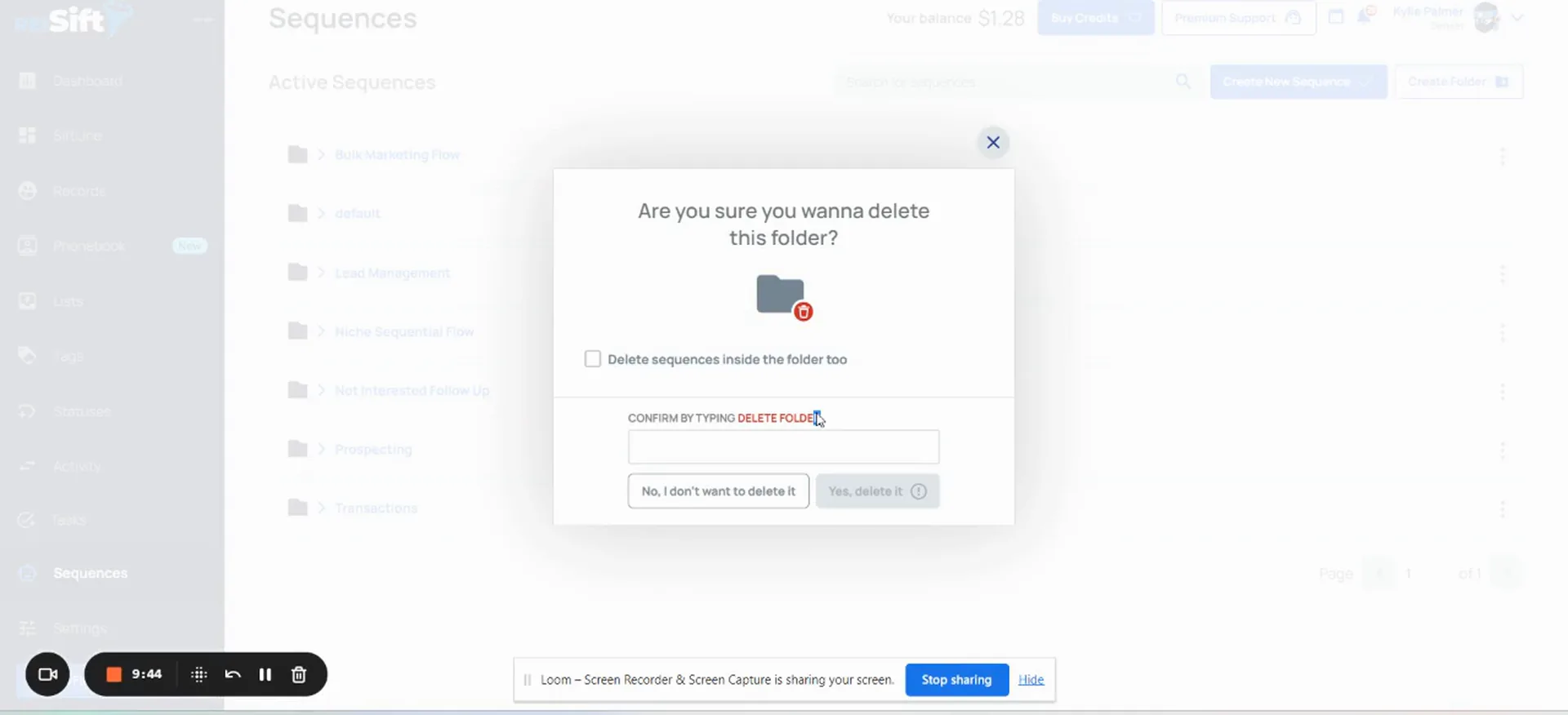
When deleting folders, you have the option to delete all sequences inside the folder. You will need to confirm by typing or pasting delete folder, then selecting yes, delete it.
If a sequence does not run, or there is an error when it tries to run, you will get a notification here. There will be some information regarding the error. Be sure to check out our additional trainings in the help center. If you have questions, click the arrow next to your name and talk to us.
Once sequences and sequence folders are deleted, they cannot be recovered, so be sure that you want to delete before confirming and actually deleting the folder.
Deleting a folder
When deleting folders, you have the option to delete all sequences inside the folder. If this is not checked, any sequences located in the folder will be moved to the default folder.
BEFORE YOU MOVE ON