
PART 1
Enrich records.
I'll show you how to add property and owner details to your records with just a few clicks. You filter for the records you want, run the enrich action, then check the results on the records page. Here is every click, in order.
Filter, then run enrich.
Go to your records page and filter for the records you want.
Our enrich feature pulls in extra information like beds, baths, square footage, estimated value, owner names, and mailing addresses, and more. You do not have to add any of it by hand.
Before I run the enrich action, I like to look at one record first. The one I opened is an incomplete record. We are missing the mailing address, and when I open it up, some additional details are missing too.
To get started, just go to your records page, and then you'll filter for the records that you want to enrich.
Select the records, then go to manage, enrich.
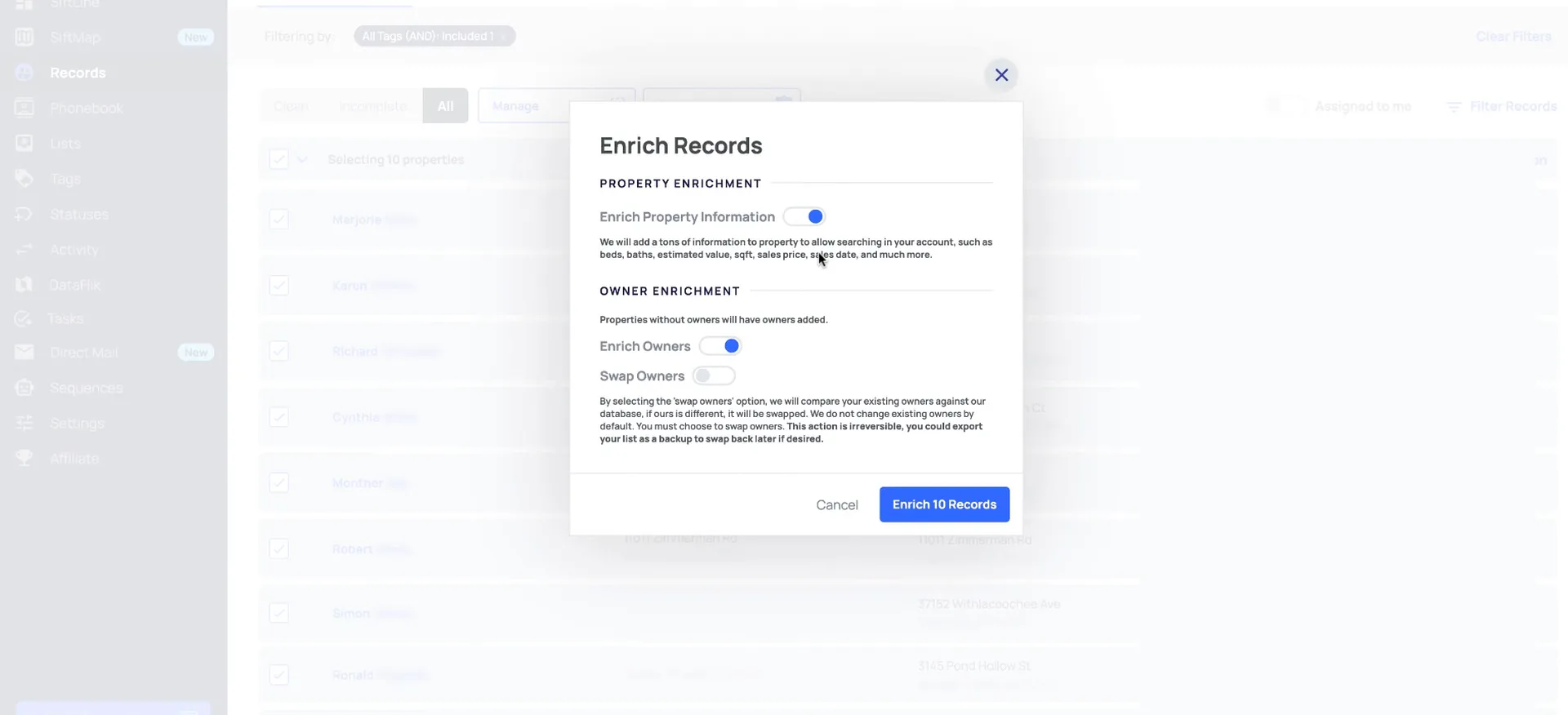
You are going to see three different options here. Say you only want to enrich the property information, which adds those additional details for the property. Toggle that option on and turn the owner enrichment off.
If you want to enrich property information and also fill in missing owner info, toggle both of those options on.
Swap owners, then track the run.
Turn on swap owners only when you want the newest owner.
The swap owners option is going to replace existing owner info. So if a property has sold since you uploaded it, we will replace it with the most updated owner we have in SiftMap.
Something to keep in mind with owner enrichment. Say we have a different mailing address for the owner than what is in your account. Phone numbers may be removed from that property record. That happens because we are creating a new owner profile and associating that new owner with the property.
And then the swap owners option is going to replace existing owner info.
Three options
Each toggle changes the owner differently.
Property info
- What it doesAdds property details
- When to use itProperty details only
- What to keep in mindOwner enrichment off
Owner info
- What it doesFills in missing owner info
- When to use itProperty plus missing owner
- What to keep in mindPhone numbers may be removed
Swap owners
- What it doesReplaces existing owner info
- When to use itProperty sold since you uploaded it
- What to keep in mindA new owner profile is created
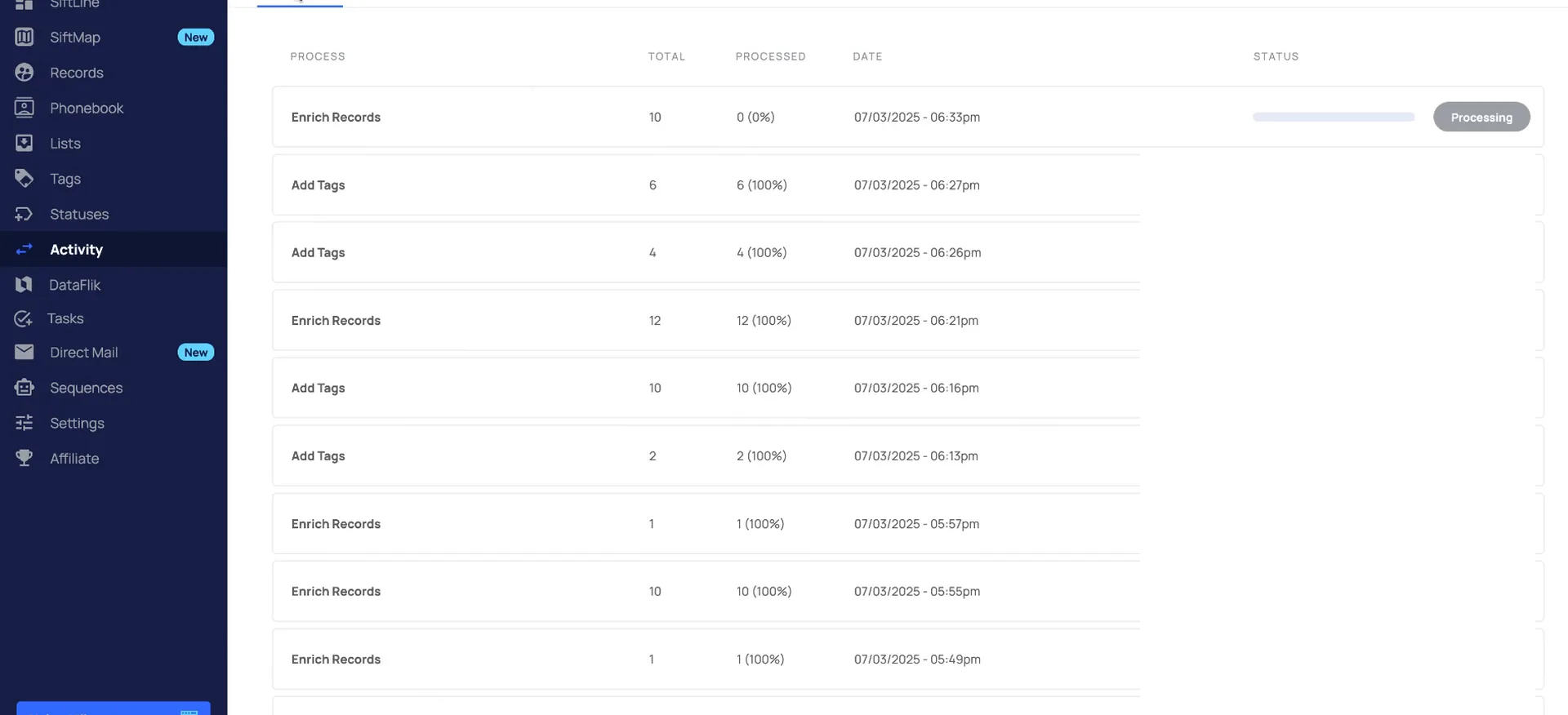
Track the run on the activity actions page.
You can track your activities from this activity actions page, and we can see that is now processing. Give it a moment and it shows complete.
Once it is complete, I go over to the records page and filter by that tag.
Records are under the clean tab.
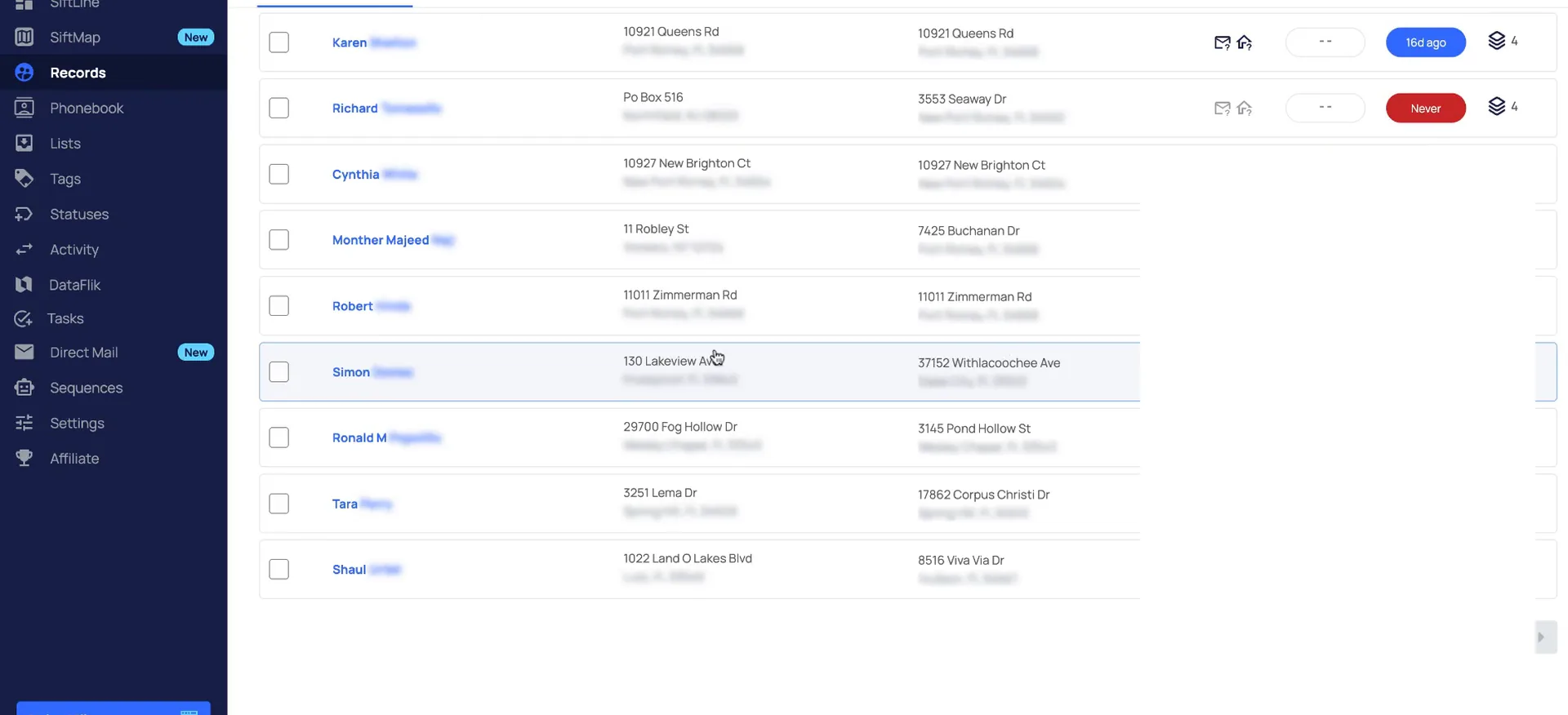
Filter by your tag and check the clean tab.
All of these records are now under the clean tab. So we have added all of that additional owner information.
This is the record that was incomplete before we enriched, and we now have an owner mailing address and the additional information here.
Open the activity log on the record to see the swap.
The activity log is also going to show any additional information that was added when you enrich. Here is where we can see that it swapped the owner.
If we wanted to see the previous owner, we could open up that tab. The new owner is linked here too, and you can click their name to see their owner profile.
When enrich fails
If an enrich action ever fails, it is usually because we do not have a match for that address in the SiftMap data. If a record does not have the open in SiftMap option within it, it is not available for enrichment at this time.
Check for open in SiftMap when an enrich fails.
If an enrich action ever fails, it is usually because we do not have a match for that particular address in the SiftMap data. If a record does not have the open in SiftMap option within it, then it would not be available for enrichment at this time.
That is how to get started with enriching your data. Be sure to check out our additional trainings in the help center. If you have any questions, just click talk to us to open up our support chat.
If an enriched action ever fails, it is usually because we do not have a match for that particular address in the SIFMAP data.
BEFORE YOU MOVE ON