
PART 1
Direct mail filters for outside providers.
I'm Kylie, customer support with DataFlake REI Sift. In this one I'll show you how to create saved filter presets for direct mail campaigns. This is for sending through a provider other than REI Sift. There's a separate video for mailing through REI Sift, because that setup is a little bit different.
Create a folder for direct mail.
Create a new folder to save your presets to.
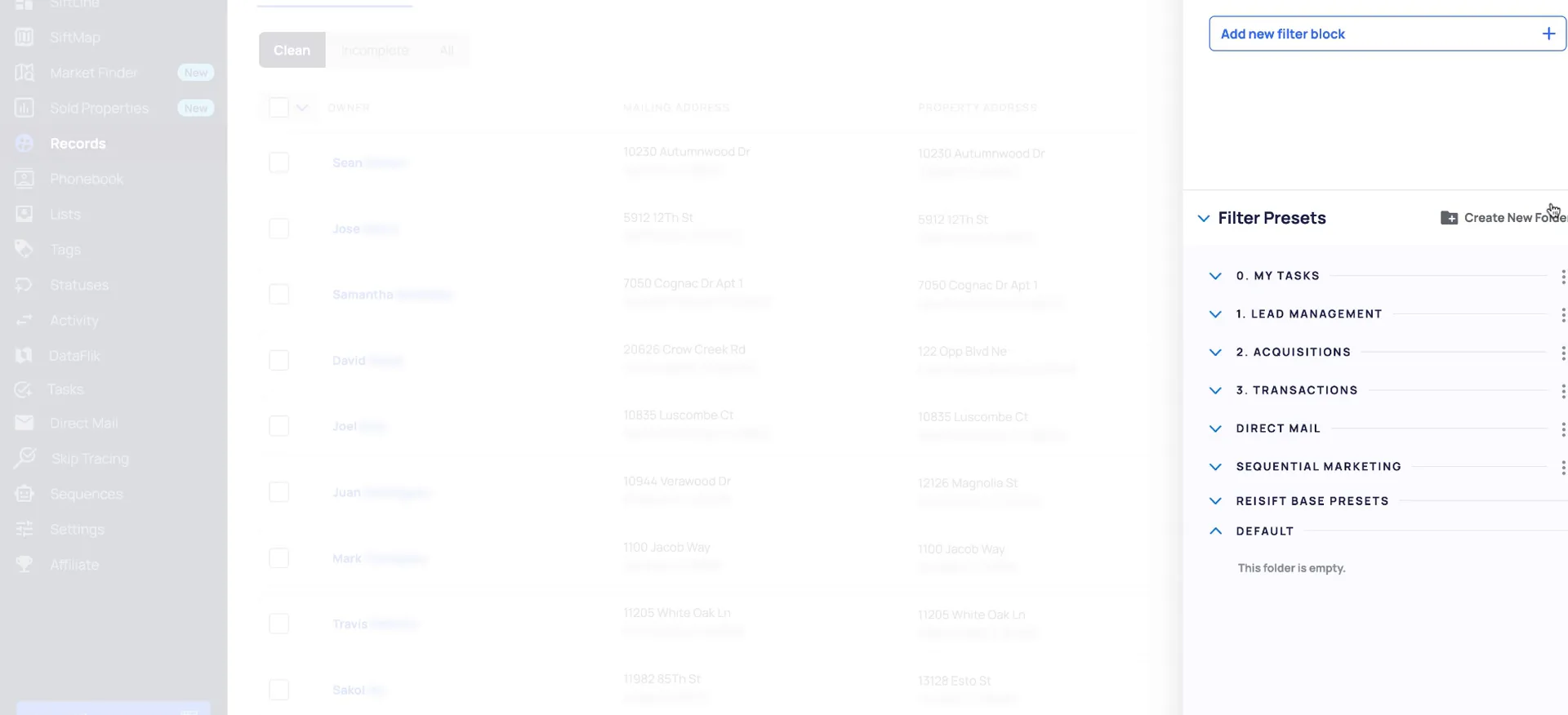
Start on the records page and click filter presets. You'll be able to create a new folder there.
If you are doing first to market, niche sequential, or bulk sequential marketing, one folder can hold both. That means your cold calling and your direct mail filters together. For this example I'm making a new folder just for direct mail.
So first, we're going to start by going to the records page, and we're going to create a new folder to save the presets to.
Add your marketing criteria, then exclude all property statuses.
The first preset shows you records that have never been mailed before. Add filters for whatever marketing criteria you want to include. If you want to target a specific list, add that with the list filter, and list stacking is there if you want a stacked campaign.
Then add the property status filter block and exclude all property statuses. That way you are excluding any records you may have already reached in a previous marketing campaign.
Set direct mail attempts to zero and save new.
Include the direct mail attempts filter and select a minimum and a maximum of zero. Then exclude any records with a vacant mailing address. Add the params and others filter and select vacant mailing no.
This is your initial mail attempt, so save new and name it initial mail. I'm saving mine in my direct mail folder.
Set up the mail follow up preset.
Update the attempts minimum, then set your maximum.
Next up we need another preset so we can see which records need to be mailed for another follow-up attempt. Update the direct mail attempts to a minimum of one. Then set the maximum to the max amount of times you want to try to mail the owners.
When you send mail through REI Sift, we add the direct mail attempts for you and track the last direct mail date. Since you're using another provider, you'll want to increment the mail attempts yourself. You also add tags for when you send, something like DM month 08/2025.
I'm going to set this at twelve because I'm gonna be billing monthly, In that way, they receive one mail per month for a year.
Include last month's tag and exclude the current month.
Add the tags filter and use the all tags and option. Include the previous month's mail tag, and exclude the current month.
Some records may have been mailed for that initial attempt already this month, and it's not time for them to be followed up with yet.
And we want to include the previous month's mail, so that would be, right now, it's month nine, so we would wanna include month eight.
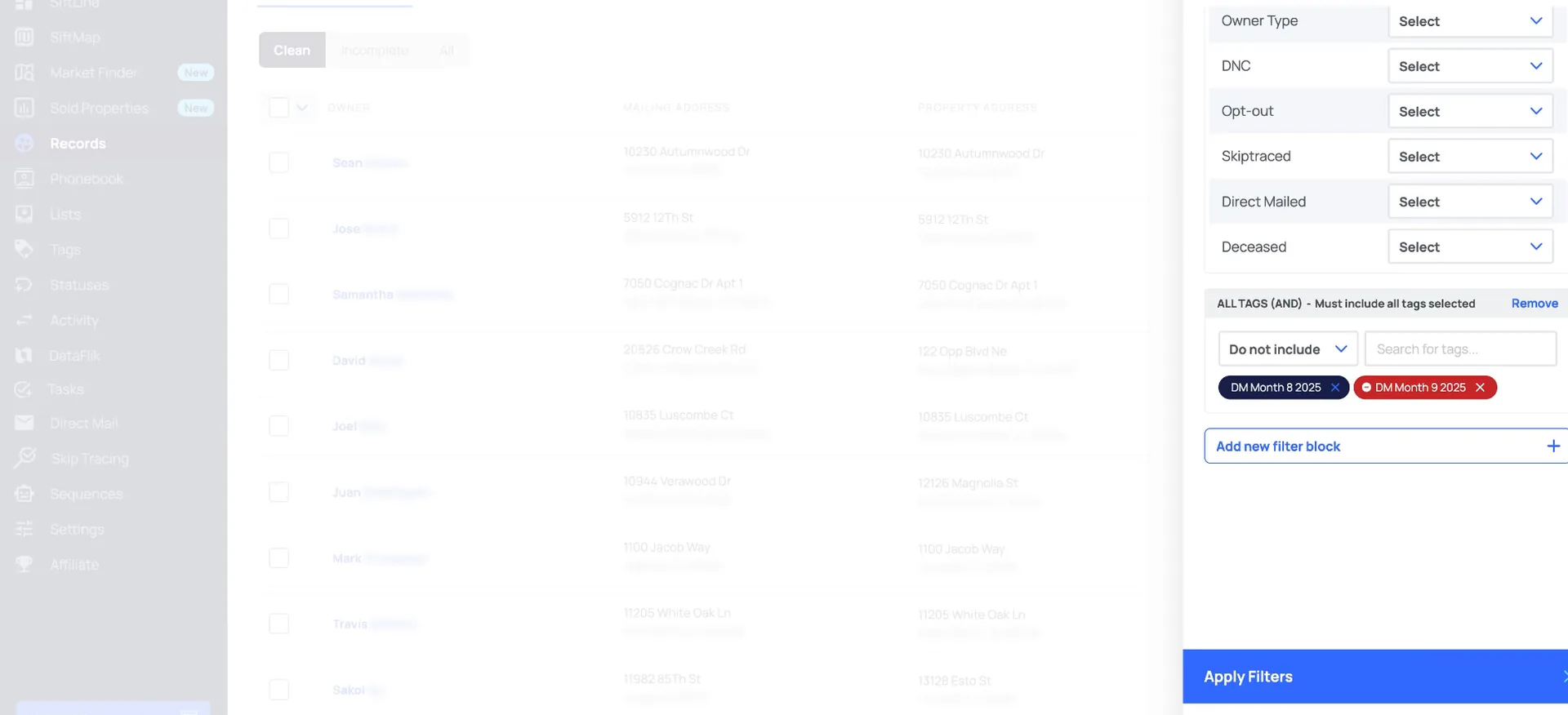
Exclude do not mail and return mail tags.
If anyone opts out of mail, tag them something like do not mail. As you start receiving your returned mail, process those by searching for the records and tagging as return mail.
It's also a good idea to deep prospect those records, so you can find a better mailing address or another way to contact the owner. Exclude both tags here, then save this one as mail follow-up in your direct mail folder.
Send, then update attempts and tags.
Apply the initial mail filter, then manage and export.
Those are your two basic filter setups. If you want to mail not interested records quarterly, set up a separate preset. Include the not interested property status, then update the tags for that quarterly mailing. You might also want to mail your cold and ghosting leads.
When you're ready to send, go to the initial mail filter, apply it, select those records, then go to manage and export. The exported records are available to download under the activity section in your account.
So if you wanted to mail them monthly or mail quarterly, you could also create a separate filter preset for that.
Increment the direct mail attempts, then add your tag.
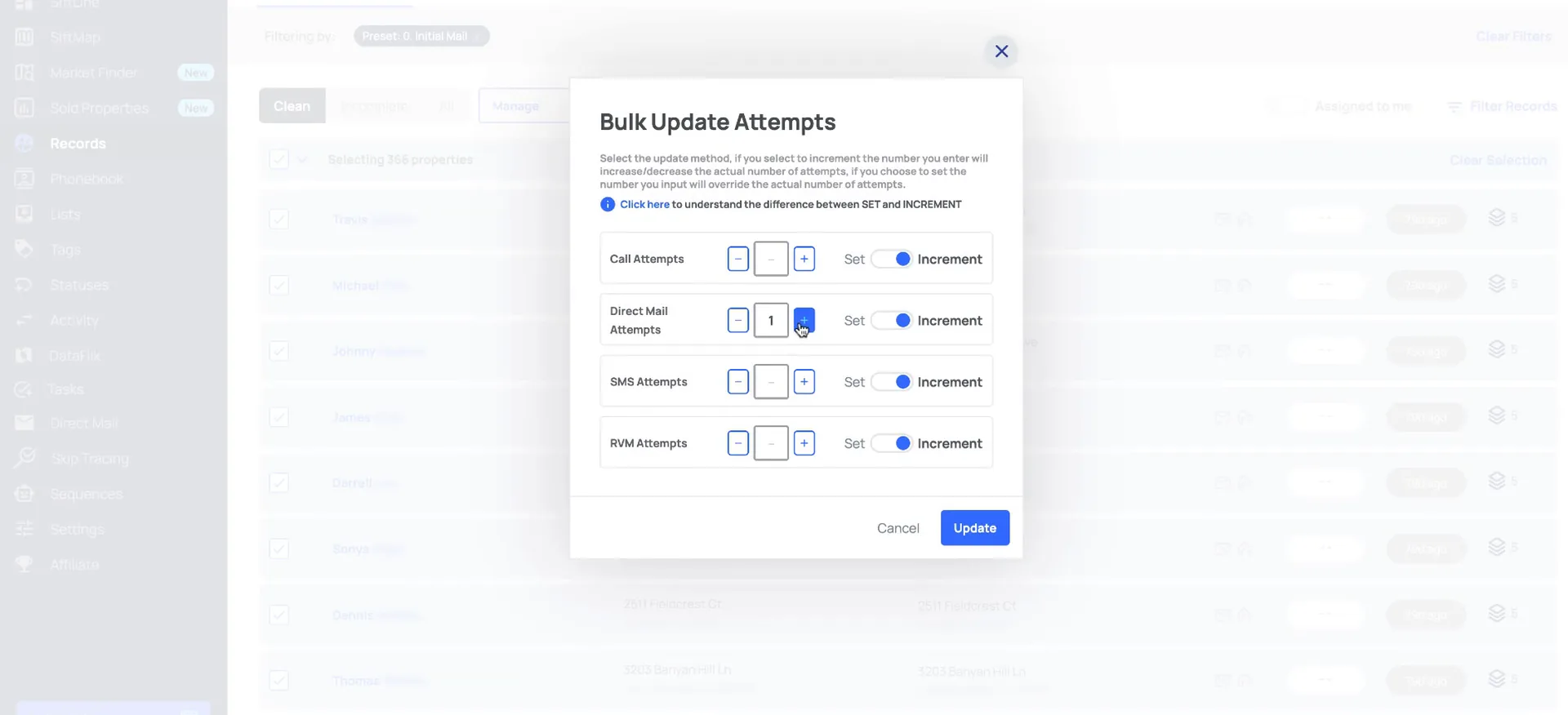
After you export them, update the direct mail attempts. Increment the attempts here and click update.
Then add tags and apply the tag for the month you just mailed. That is what keeps the follow-up preset accurate, since your provider is not writing any of this back for you.
Reuse the follow up preset and shift the tags.
When it's time to send mail for the monthly follow-up, go back into filter records and open the mail follow-up preset. Each time, you just update the tags. Include the month you mailed, and exclude the current month tag.
I hope that helps get you started with your direct mail marketing filters. Check out our additional trainings at the help center, which can be accessed here. Thanks, guys.
And then if you have any questions, you can reach out to our support team by clicking talk to us.
BEFORE YOU MOVE ON