
PART 1
Save a direct mail campaign template.
My name is Kylie, and I'm your customer support ninja at RAI Sift. In this one I'll show you how to create campaign templates so you can load them for future campaigns. We start in the direct mail tab and work through the campaign steps in order.
Start the campaign as you normally would.
Save your postcard, campaign type and touches as a template.
Campaign templates hold the postcard selection, the campaign type, and the number of touches or batches. You set it up once and load it the next time.
So let's get started. Go over to the direct mail tab and start your campaign the way you always do.
Campaign templates allow you to save the postcard selection, campaign type, and number of touches or batches so you can load them for future campaigns.
Check that you have mail designs before you begin.
You can start from create new campaign on the direct mail section, or go to the records page and select the records. Either way works.
But before you create a campaign, first you'll need to make sure that you have mail designs. If you're not sure how to set these up, check our additional articles in the help center where we walk you through creating a template.
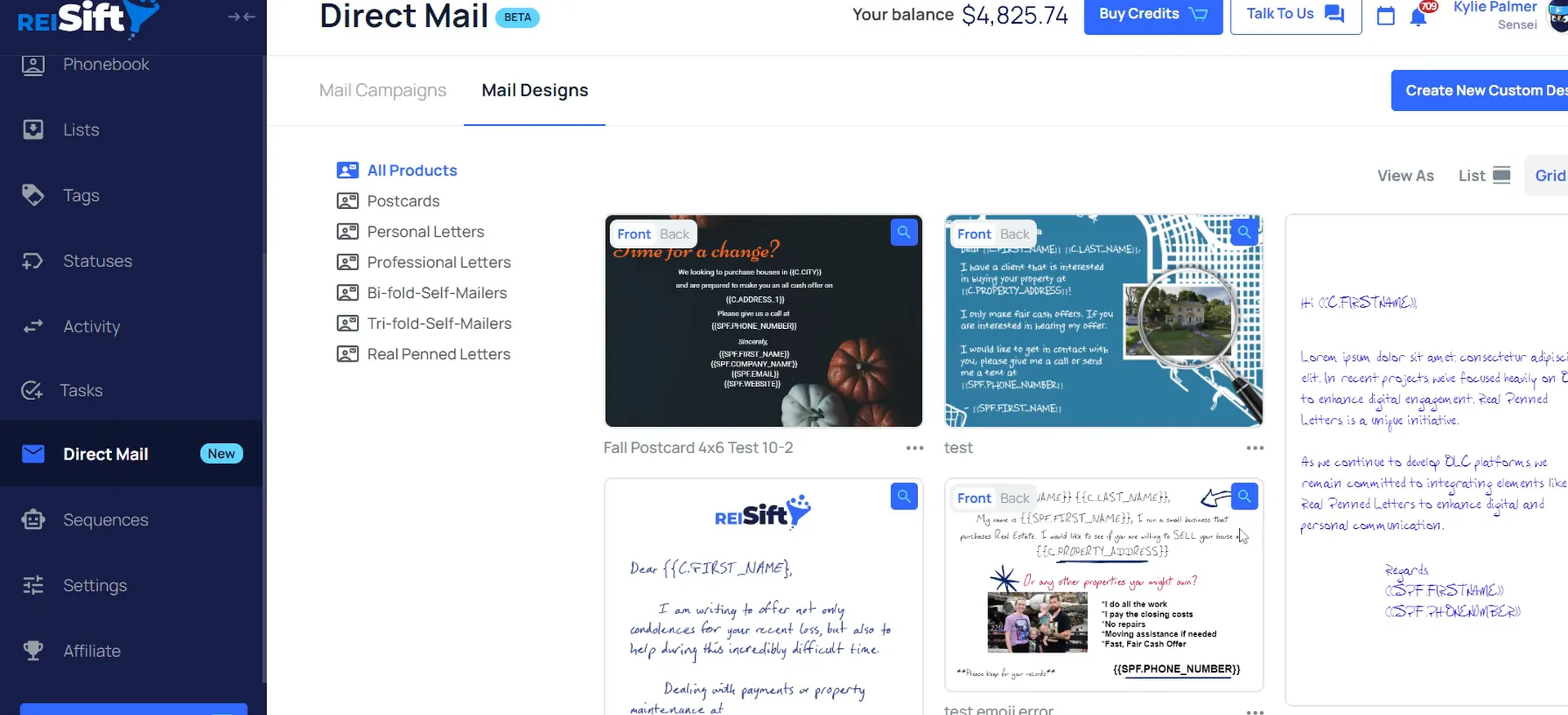
Name the campaign, click configure, pick your mail design.
Once you've created the design template, set up your campaigns as you normally would. Select create campaign, then select the records you want to include.
Now name your campaign. Click to configure, then select the mail design that you want to use.
Campaign start
Start the campaign the way you normally would.
- 1Open the direct mail tabGo over to your direct mail tab and start as you normally would.
- 2Check your mail designsBefore you start a direct mail campaign, make sure you have mail designs.
- 3Select create campaignSelect create campaign, then select the records you want to include.
- 4Name the campaignName your campaign, then click to configure.
- 5Pick the mail designSelect the mail design that you want to use.
Confirm your return and contact information.
Confirm or enter your return and contact information.
From this step here, select whether you want to send all at once or in batches. You can select multi touch or single touch in the first part of the campaign step.
If you need to change it, you can do so here, and set up your send date.
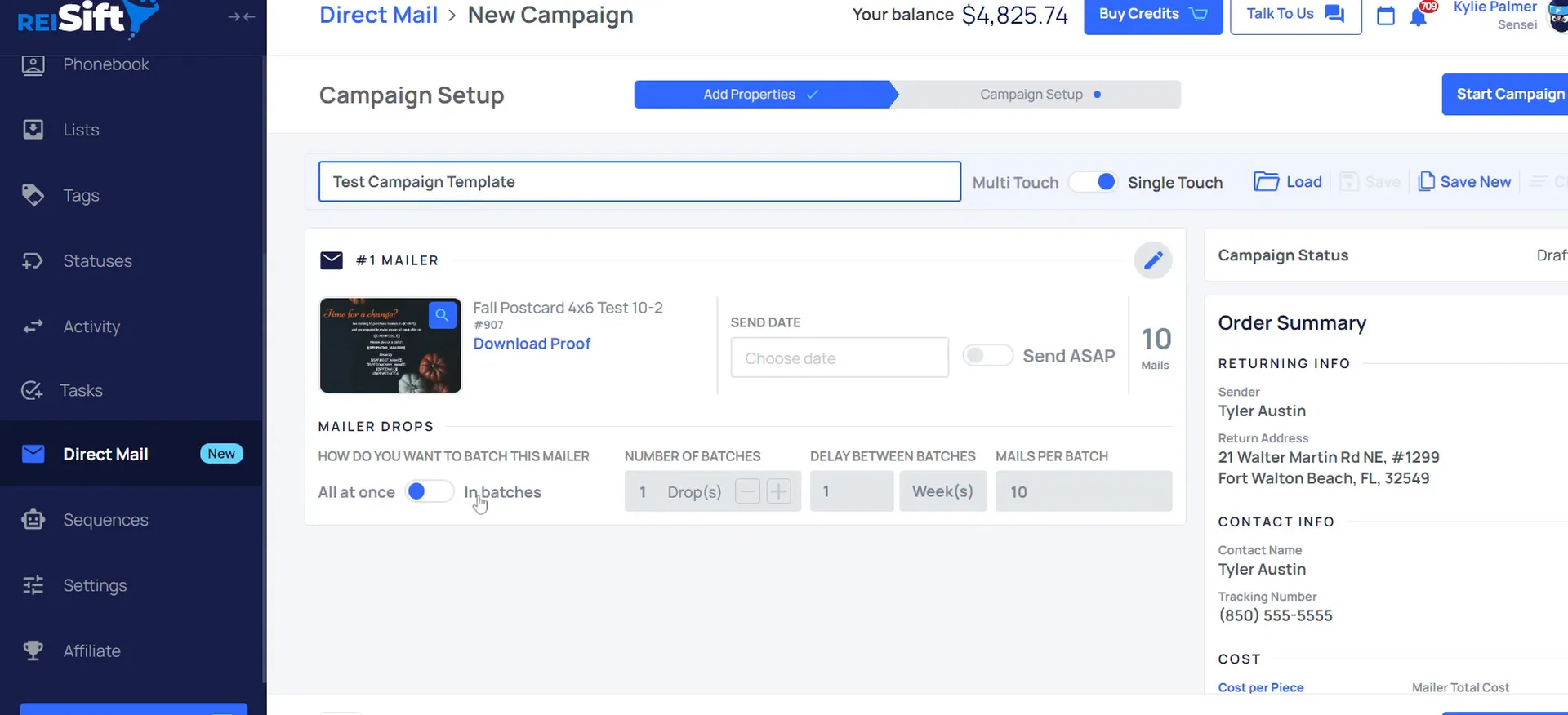
Select save new and enter the template name.
Once you have selected all the options here, you get the chance to save your selections as a campaign template. Select save new, then enter the campaign name or the name of the template.
If you haven't created another folder yet, you'll only have the default folder as an option. Select create template and it saves to the default folder. If you need a new folder, you can make one here and save it to that new folder.
Once you selected all the options here, you will have the opportunity to save your selections as a campaign template.
Click load to reuse a saved template.
Now that I have a campaign template saved, I can reuse it whenever I start a new direct mail campaign. I go select my records, then select load.
From there I pick one of the campaign templates I've already saved.
Manage your templates and folders.
Add a name once the template fills the campaign in.
Here you can see all of the information has been populated in. All I need to do is add a name for the campaign setup.
That is the whole point of saving it. The postcard, the campaign type and the touches come back in without you setting them again.
And here you can see all of the information has been populated in, and all I need to do is add a name for the campaign setup.
Edit a template, then select the icon to save.
If you need to make any changes to a campaign template, open up the template, make your changes here, then select this icon to save.
If you wanted to save it as a new template instead, click this icon here and save it as a new template.
Use the three dots to move or delete.
To move a template to another folder, click the three dots here. This also allows you to delete. Folders work the same way. Click the three dots to edit the name of the folder or delete it.
Please keep in mind that once a campaign template or a folder is deleted, it cannot be recovered.
So that's how to create and manage campaign templates. For more on sending direct mail, check our direct mail help center section. If you have any questions at all, reach out to our team by selecting talk to us within your account.
Please keep in mind
Once a campaign template or a campaign template folder is deleted, it cannot be recovered.
BEFORE YOU MOVE ON