
PART 1
Task groups and task presets.
Task presets are templates. You apply them to records without needing to recreate the same task every time. This walks through creating a group, adding a task to it, and then using it on a record.
Head to the presets page.
Click task on the left sidebar, then select configure presets.
My name is Kylie, customer support ninja here at REI Shift. In this video I want to show you how to create and manage task groups and task presets.
If you're new to REI Sift, your account already comes with default task groups and presets for your lead management, acquisitions, and transaction workflows. From this page you can edit, delete, or create new presets and groups.
To manage your task presets, head to the task section by clicking task on the left sidebar of your account, and then select configure presets.
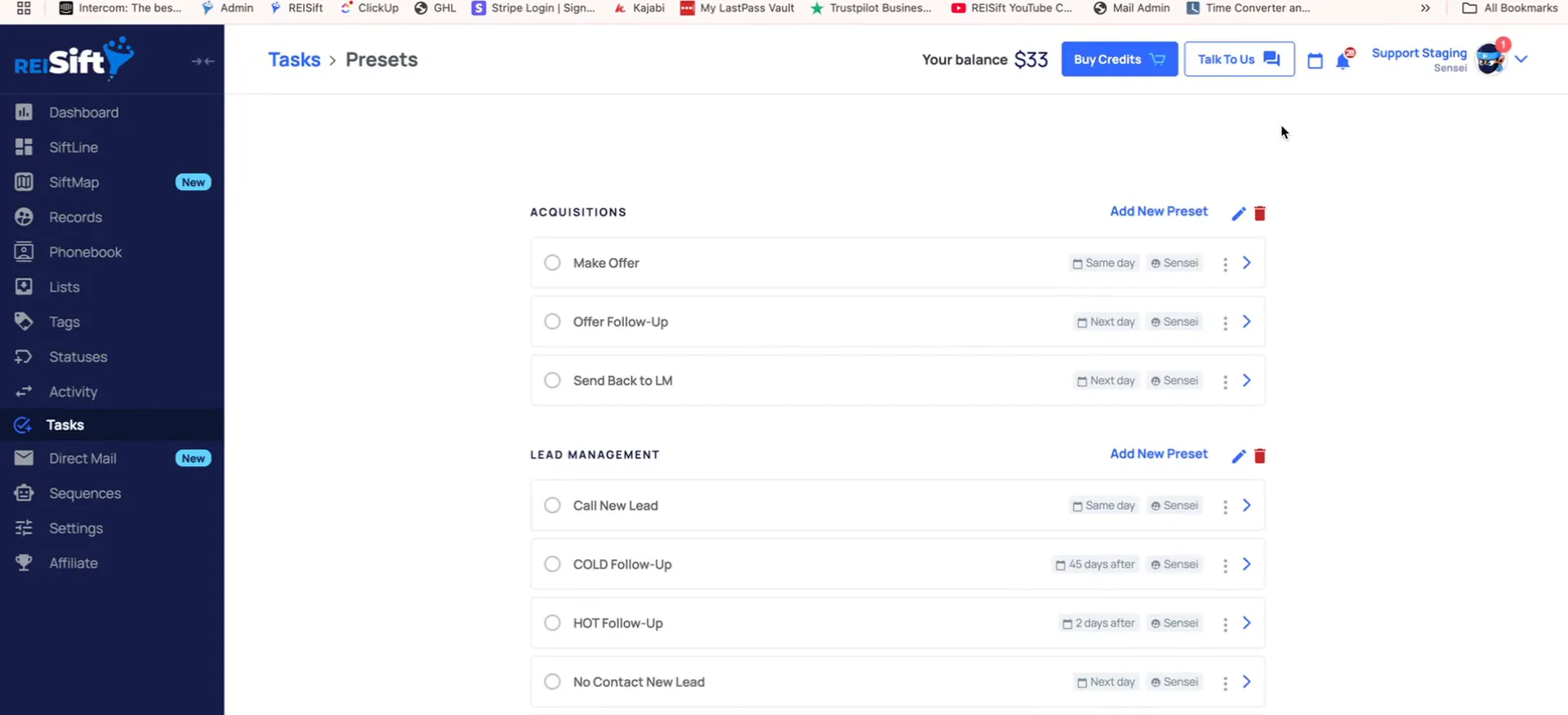
Click create group, name it, and hit save.
Create group sits down towards the bottom of the page. Give it a name and save it. That is the whole step.
For this example I'm going to create some tasks to deep prospect records. So the group gets named for the work it holds.
Add the task to the group.
Select add new preset to add the task to the group.
This opens the same kind of form you already know from tasks. You give the task a name and pick who it goes to.
For these examples I am just going to assign it to the sensei, which is the account owner.
And just like with task, you can assign by role, by a specific user, or a certain round robin group.
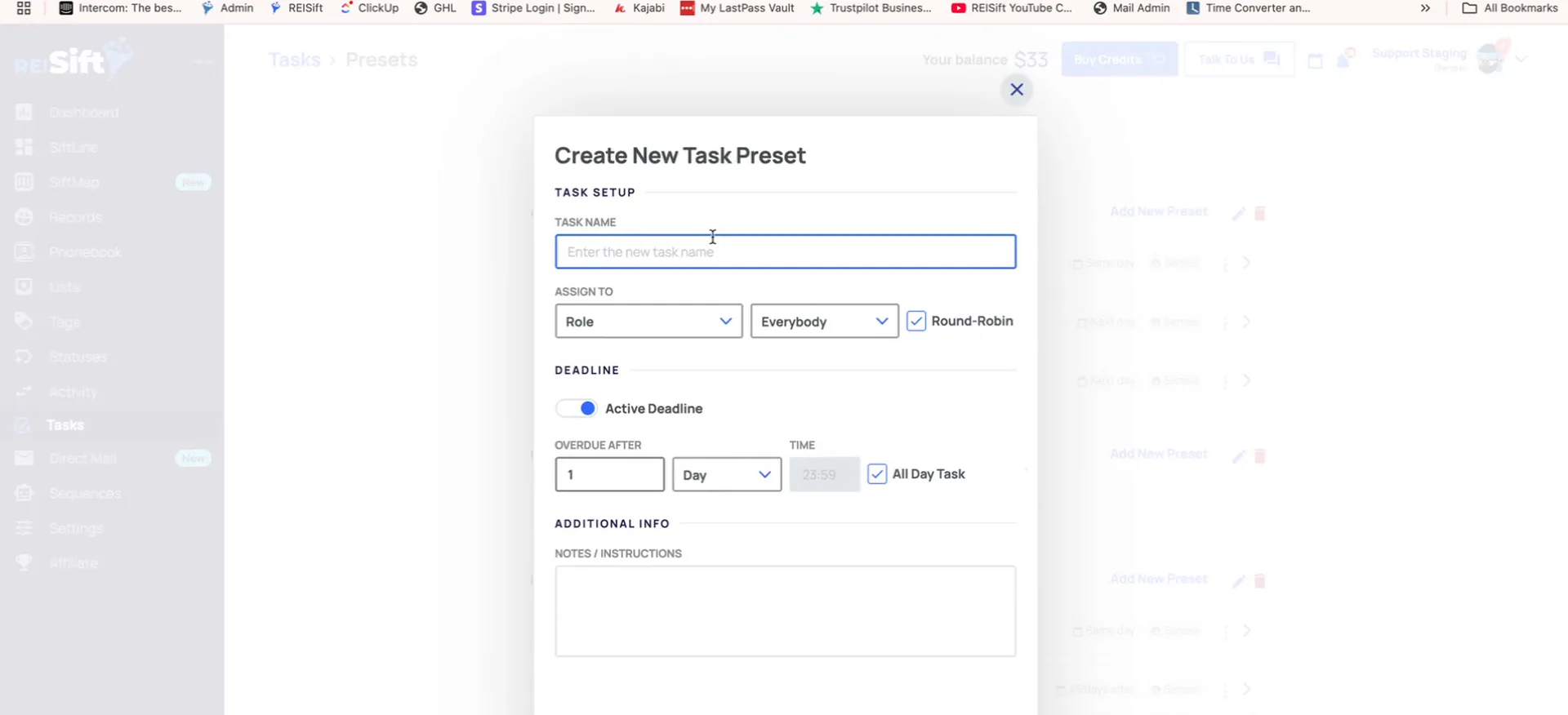
Set the deadline, add notes, then click create preset.
If you don't want your task to have an active deadline, you can toggle this section off. When it's toggled on, you'll set a specific day that the task is due.
There is also an option that makes the task due at the very end of the day. If you want to set a specific time due, you can deselect that option and enter in a time.
Add any notes you want, then click create preset. And we can see the task is saved to the group.
Deadline toggle
You can toggle the deadline off or on.
Apply the presets to a record.
Create the rest of your tasks, including one for door knocking.
I'm gonna create a couple more here. The last task that I'm gonna create is for door knocking.
Build out the group the same way each time. Once the group holds every task you repeat, you stop writing them one by one.
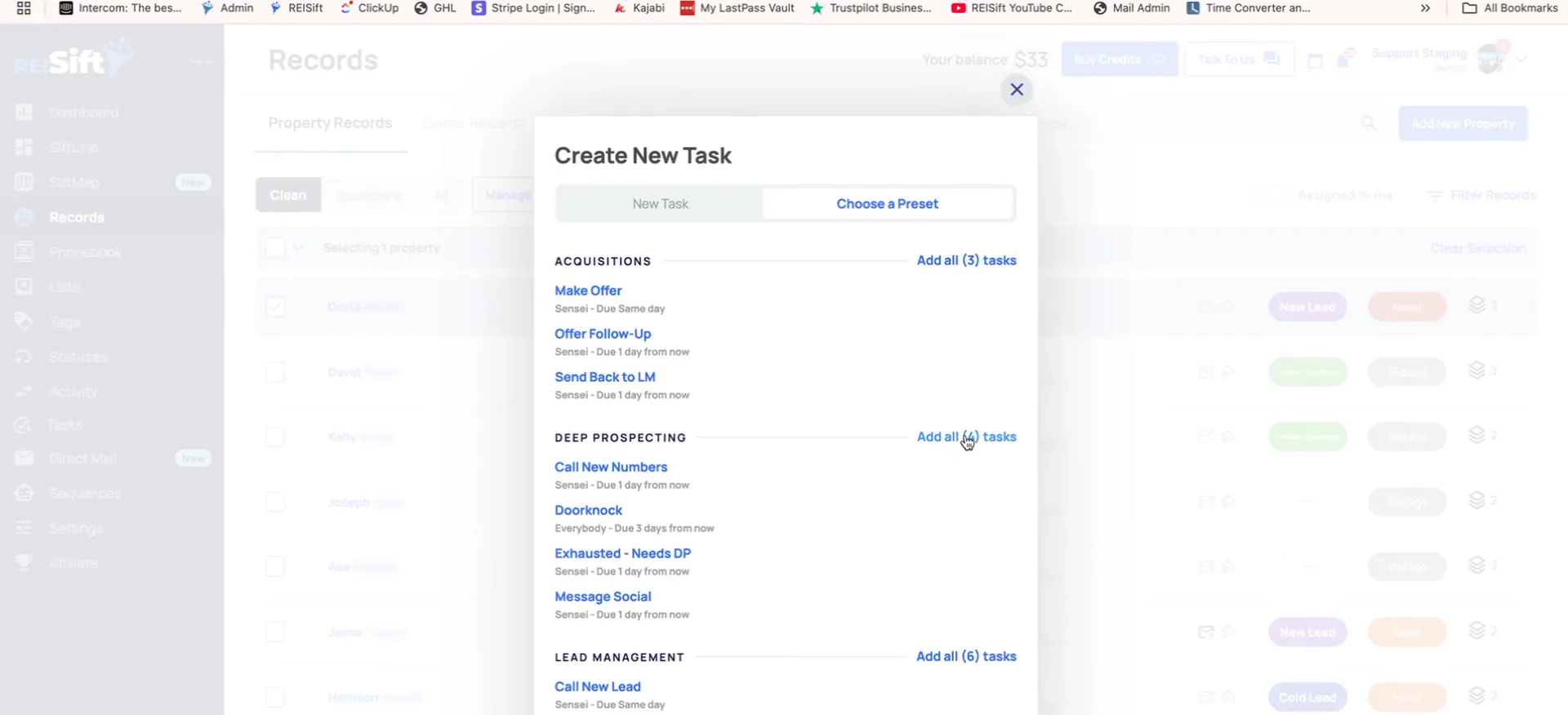
Add one task or add all in the group.
Once you've got your presets ready, you can apply them to records from the main records page inside a record, or within a Zipline board.
When you're adding the task, you can select to add just one of the tasks or add all in the group by clicking here. These tasks can also be used with sequences, so you can auto assign tasks based on specific triggers.
And that's it. That's how you manage your task presets. Be sure to check out our additional trainings in the help center. If you have any questions, just click talk to us inside your account.
And when you're adding the task, you can select to add just one of the tasks or add all in the group by clicking here.
One or all
When you are adding the task, you can select to add just one of the tasks or add all in the group by clicking here.
BEFORE YOU MOVE ON