
PART 1
Creating SiftLine boards.
SiftLine is our Kanban style board system for managing your workflows and pipelines. In this Part I create a board from scratch, name the phases, set permissions, and then add cards to it. Follow along in your own account and you will end up with a lead management board.
Create a new board.
Create boards for lead management, acquisitions, transactions and exit strategies.
My name is Kylie, customer support ninja at REI Sift. We suggest creating boards for lead management, acquisitions, transactions, and your exit strategies like wholesale flips or rentals.
For a step by step guide on setting up each of these boards, check out our CRM setup guide. It sits in the quick start section of our help center. It is also linked in the help center article for this video.
In this video, I'll show you how to create and manage boards in Sifline, our Kanban style board system for managing your workflows and pipelines.
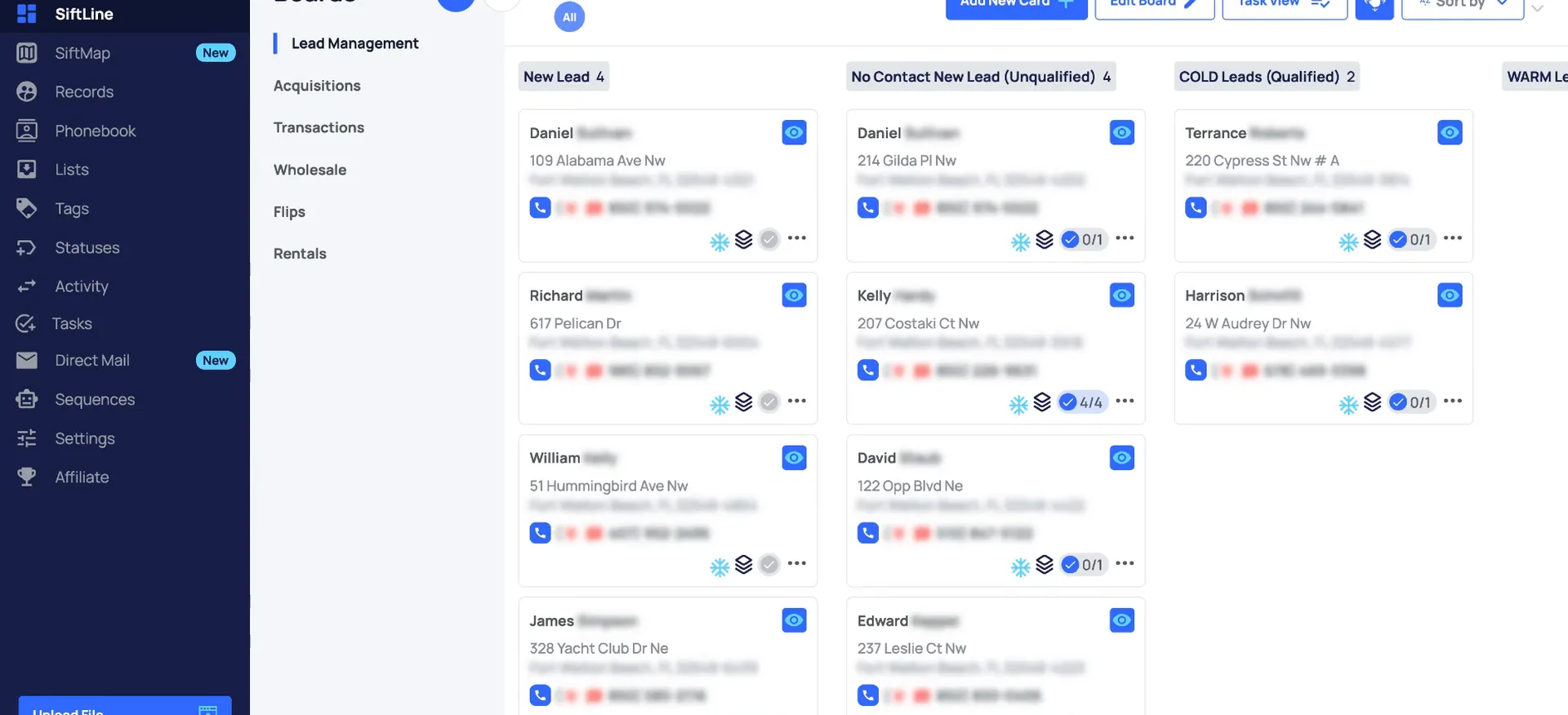
Click the plus sign and name your board.
Inside, click the plus sign to create a board, then name it. I am going to recreate the lead management board, so this one is lead management example.
Board permissions
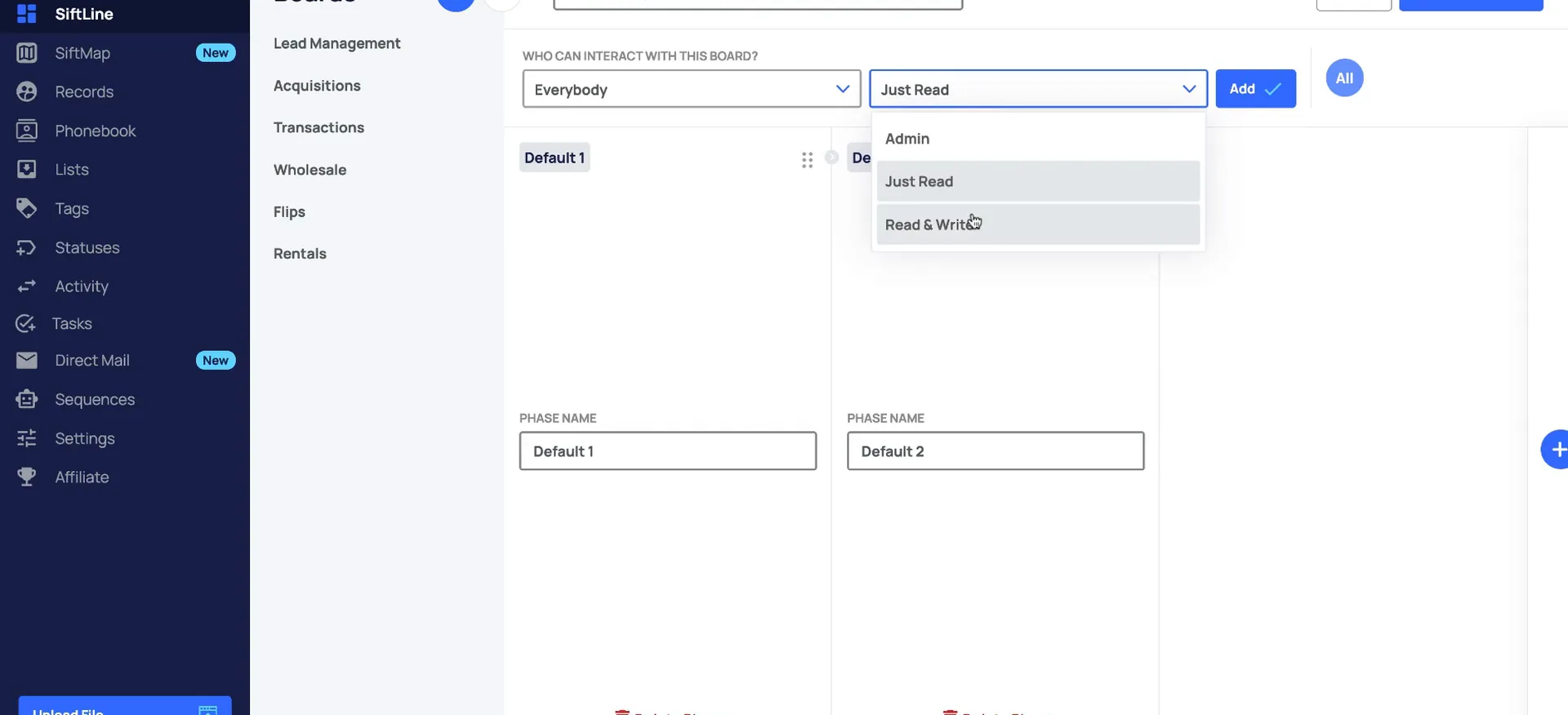
Three permissions, from view only to admin.
You can assign everyone the same permissions, or customize per role by user.
Select the user permissions for the board.
Just Read provides view only access for the cards and board. Read and write allows for viewing, adding, moving, and deleting cards in the board. Admin permissions allow you to view, add, move, and delete cards along with editing and deleting the board.
You can assign everyone the same permissions, or you can customize per role by user.
If you need to remove a permission, just click the x sign next to the user enroll, and that will remove the permission from the board.
Add another phase.
Name your phases, then click the plus sign for more.
My first phase is new lead, and this one is no contact, new lead, unqualified. Then I add a few more. The third phase is cold leads qualified, then hot leads qualified, and the last phase is not interested anymore.
And to add another phase, you would just create or click the plus sign, and that's going to add some additional phases here.
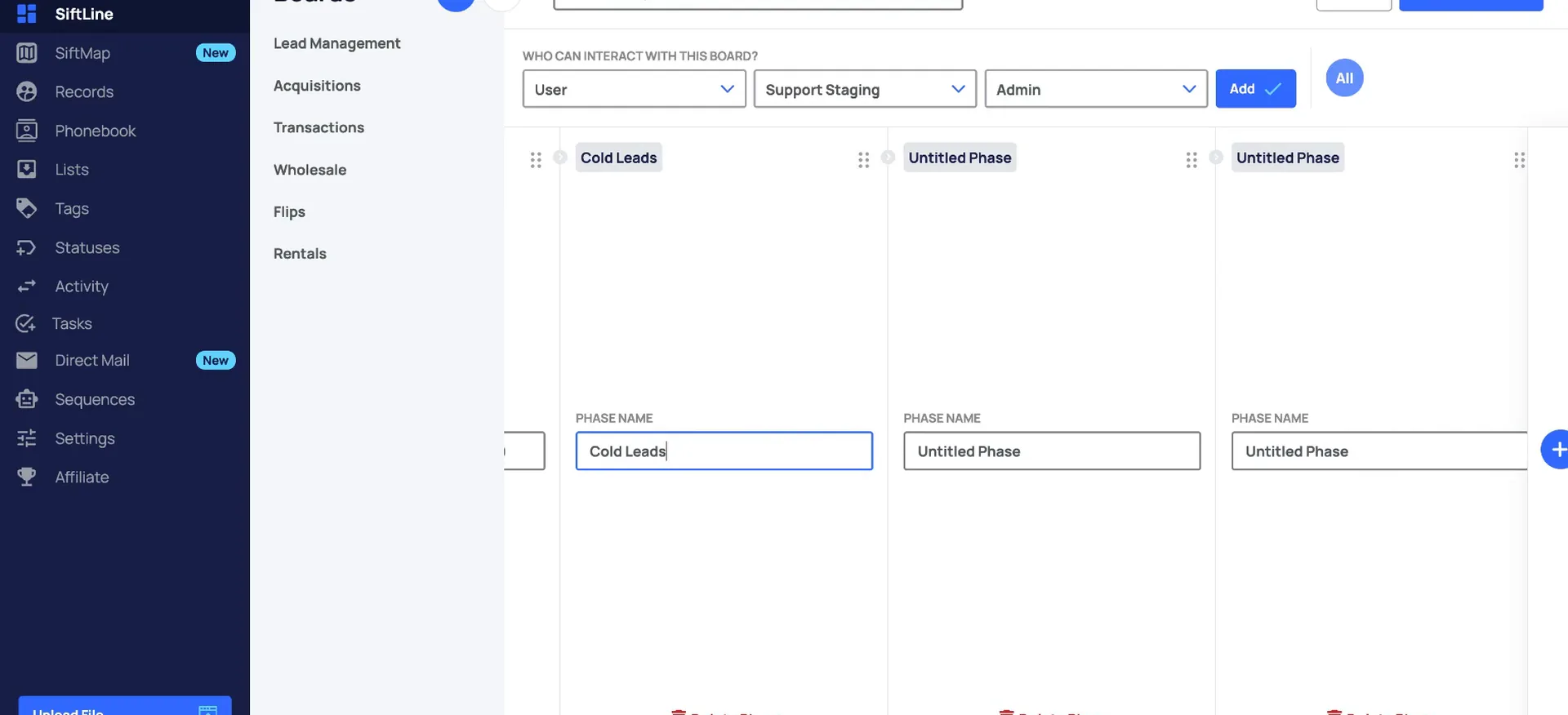
Reorder or delete phases, then save the board.
If you need to reorder your phases, click and hold the dots towards the top right of the card. Then drag and drop the cards where you want them to be. If you ever need to delete a phase, you can do so towards the bottom of the phase.
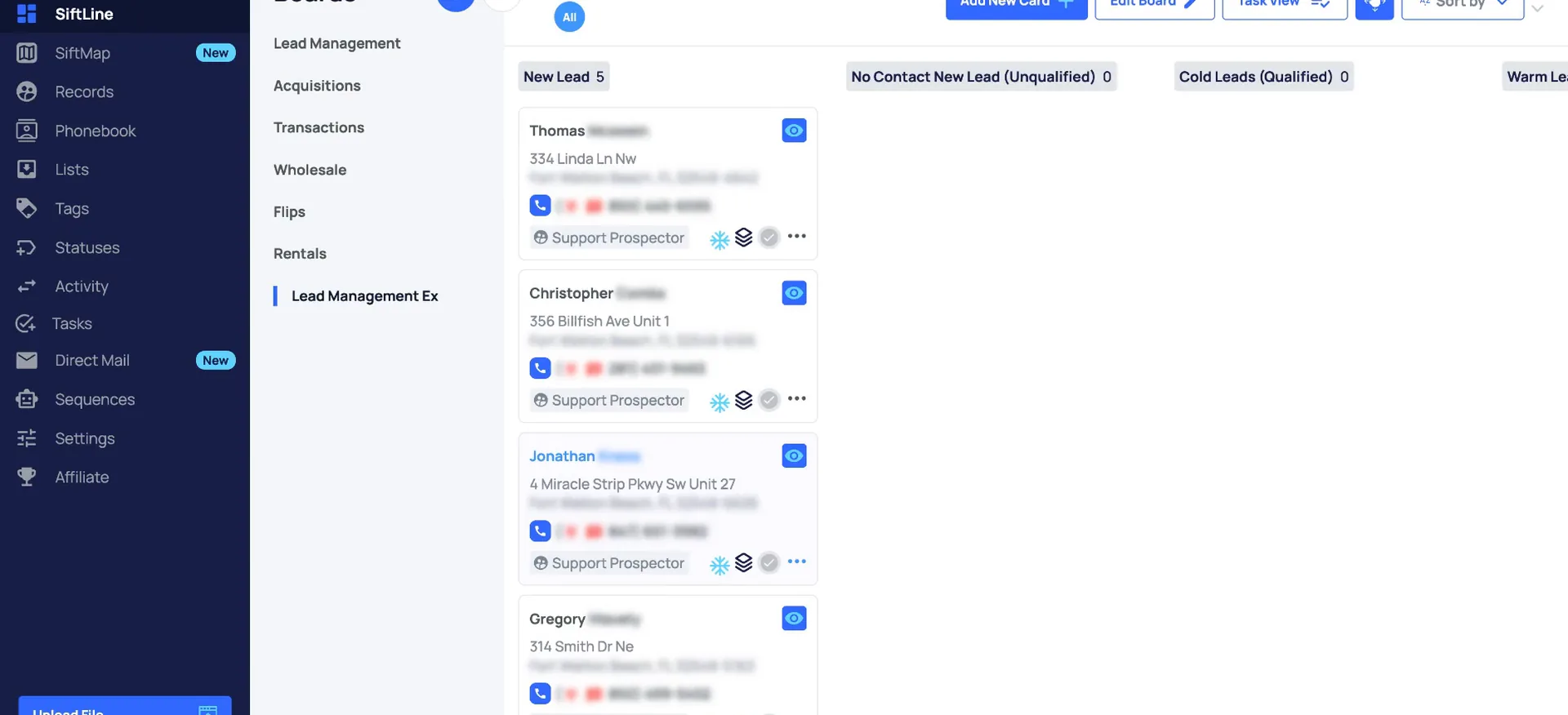
Now that all my phases are added, I save the board. Here is the new board that I just created.
Lead management phases
The phases I named on this board.
Click and hold the dots at the top right of the card to drag phases into the order you want.
Click add new card and search by address.
There are a few ways to add cards. Clicking add new card allows you to search by address. Select the address here that you want to add.
Add records to your board.
Choose your board and phase, then select import property.
Choose your board and the phase that you want to add it to, and then select import property to add it to the board.
From the records page, you can open up a record and add it to a board there. Select add to board, then choose your board and phase.
Send multiple records to SiftLine from the records page.
If you need to add multiple records at a time, you can select multiple records from the records page. Go to send to, select SiftLine, choose your board and phase, and then import properties.
These actions are going to be on the activity log.
So here you can see where I sent those three cards to my Siflime board, and here are the cards that I've added so far.
Ways to add cards
Three ways to get records onto a board.
- 1Add new cardClicking add new card allows you to search by address.
- 2Open up a recordFrom the records page, open a record and select add to board.
- 3Select multiple recordsGo to send to, select SiftLine, choose your board and phase, then import properties.
Create sequences to add records to a board automatically.
You can also create sequences to automatically add records to a board based on certain triggers or conditions. For example, here is a new lead sequence. Whenever a property status changes from any to new lead, it deletes all previous property tasks. Then it creates a new task to follow up and adds to the lead management board.
Be sure to check out our additional SiftLine articles in the help center. There we give you a tour of the features and show how to manage cards and edit boards. Thanks, guys.
BEFORE YOU MOVE ON